 AI Checklists for Jira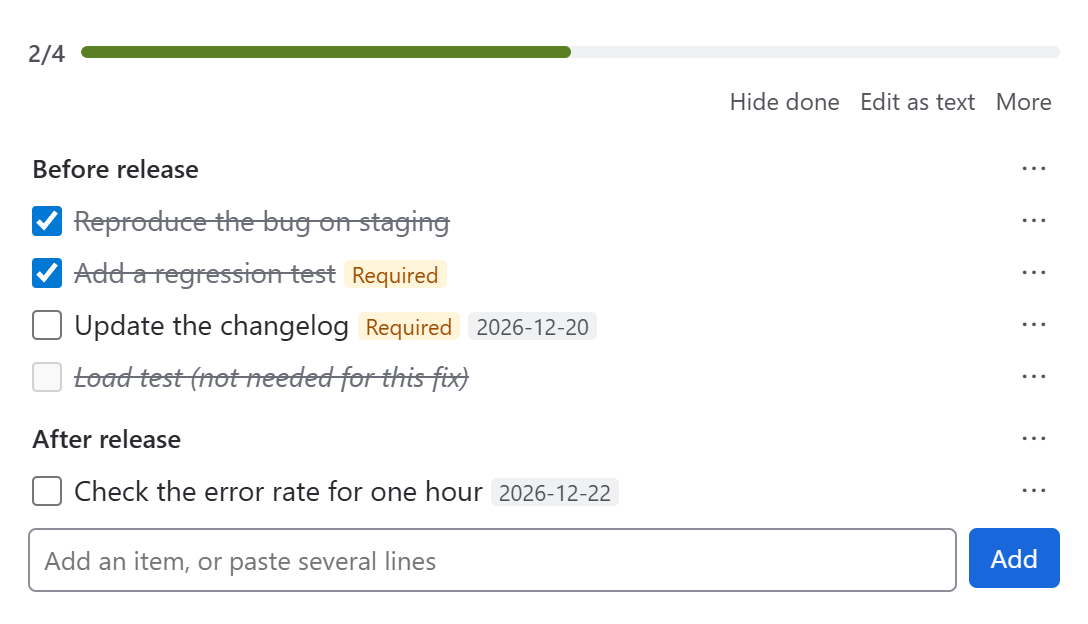
Your AI assistant writes the checklist
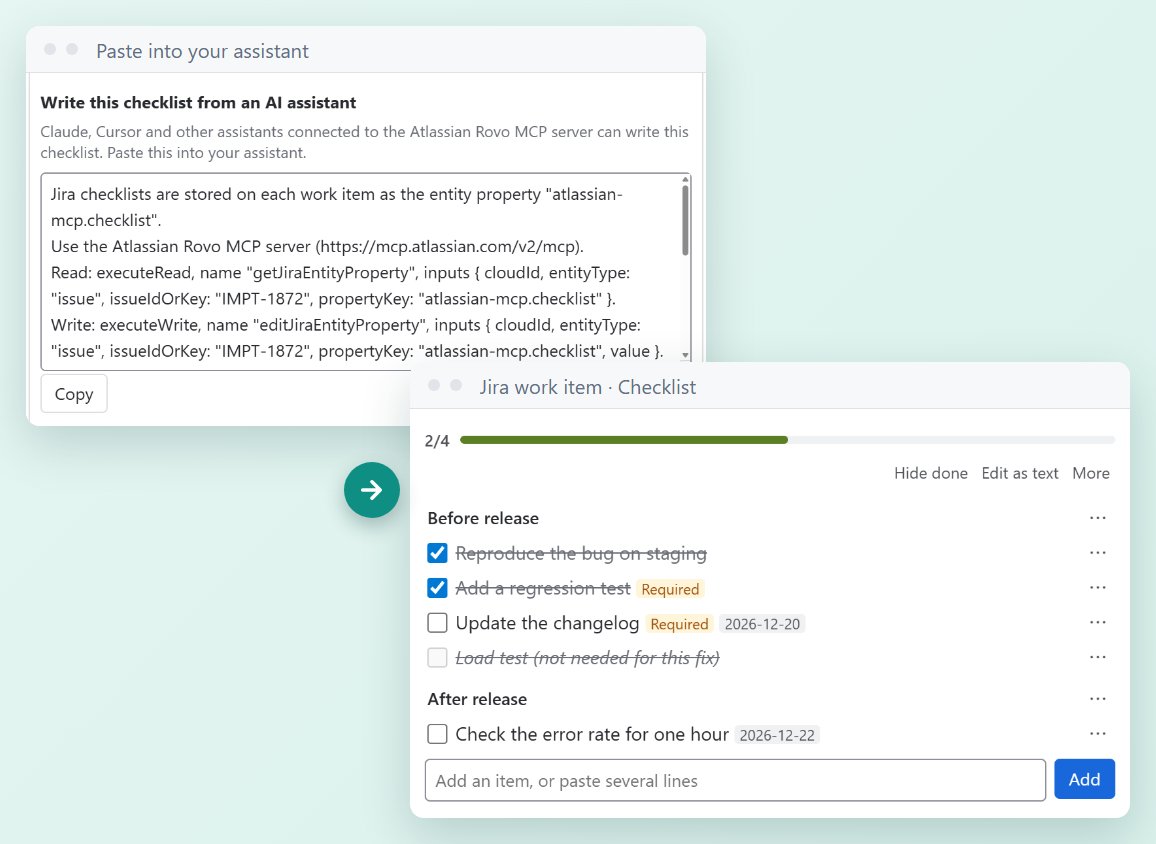
Copy the ready prompt under More and paste it into your assistant. It writes the plan into the issue and ticks each step as it works, right where your team already looks.
Hold a transition until the checklist is done
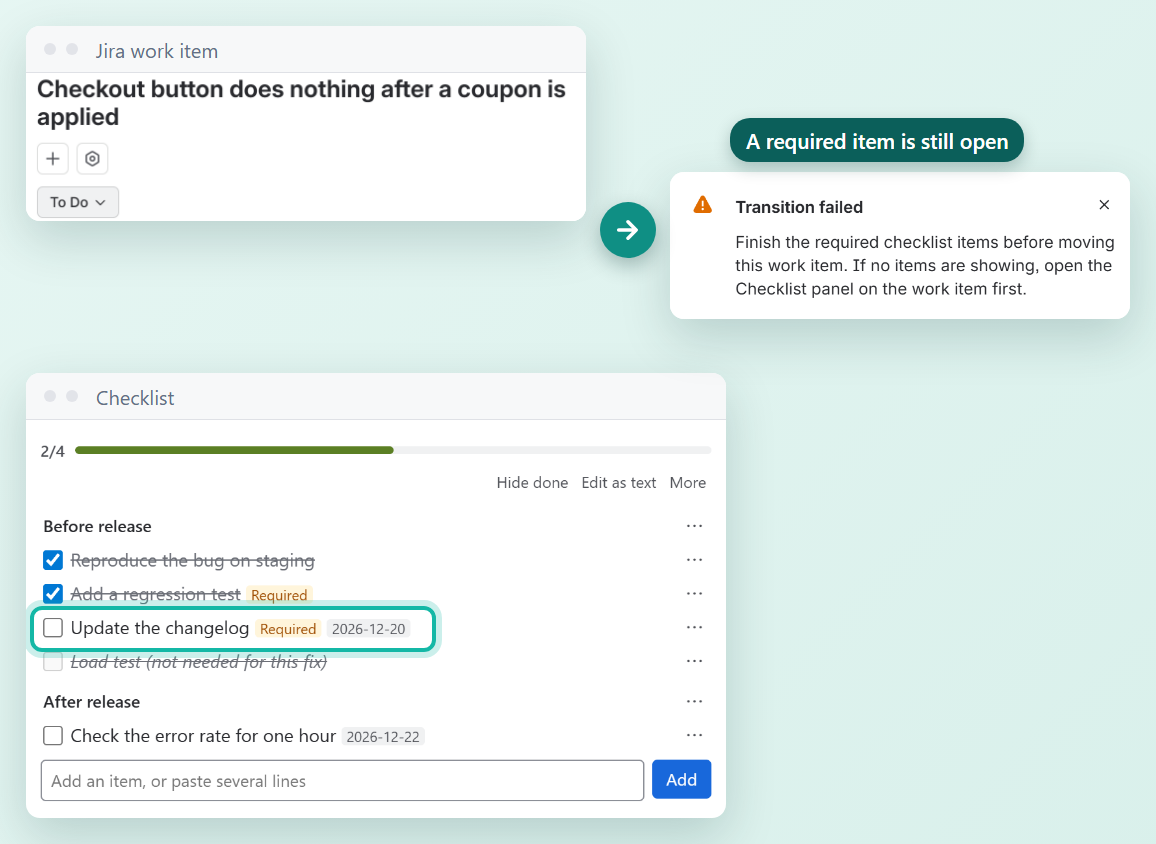
Add a validator to a workflow transition: every item done, or only the required ones. Items marked Not needed count as done, and the message asks people to finish the checklist first.
The right steps for the work types you pick
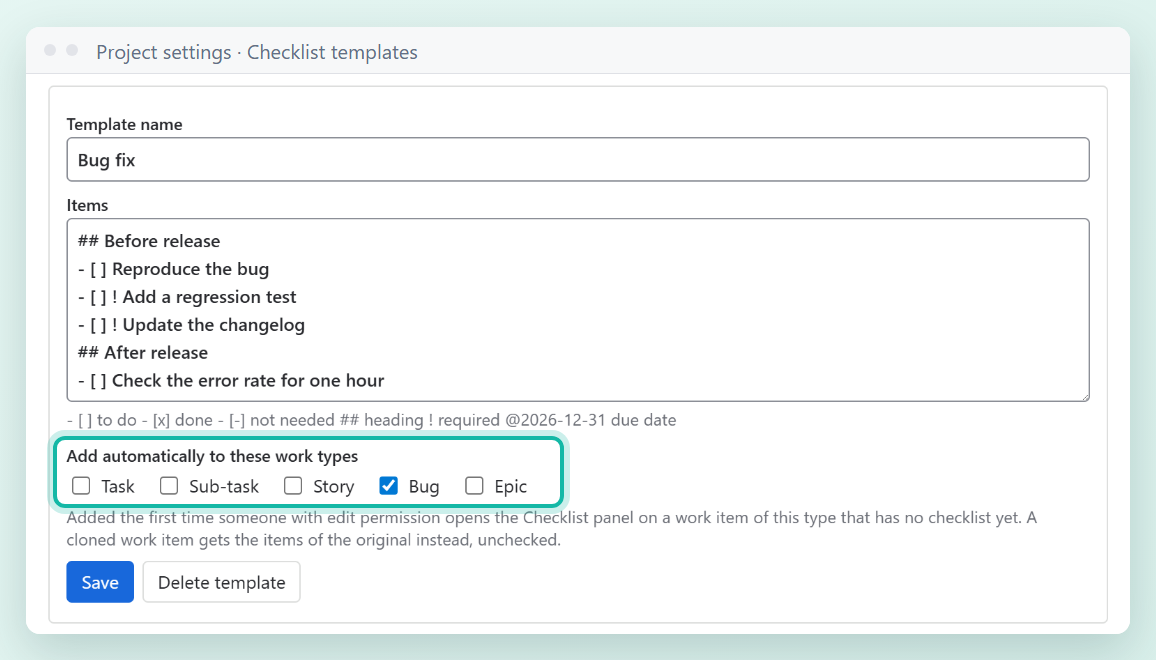
Write a template once and choose the work types. New bugs or stories start with the right steps when the panel opens, and clones bring the original items back unchecked.
Find what is still open
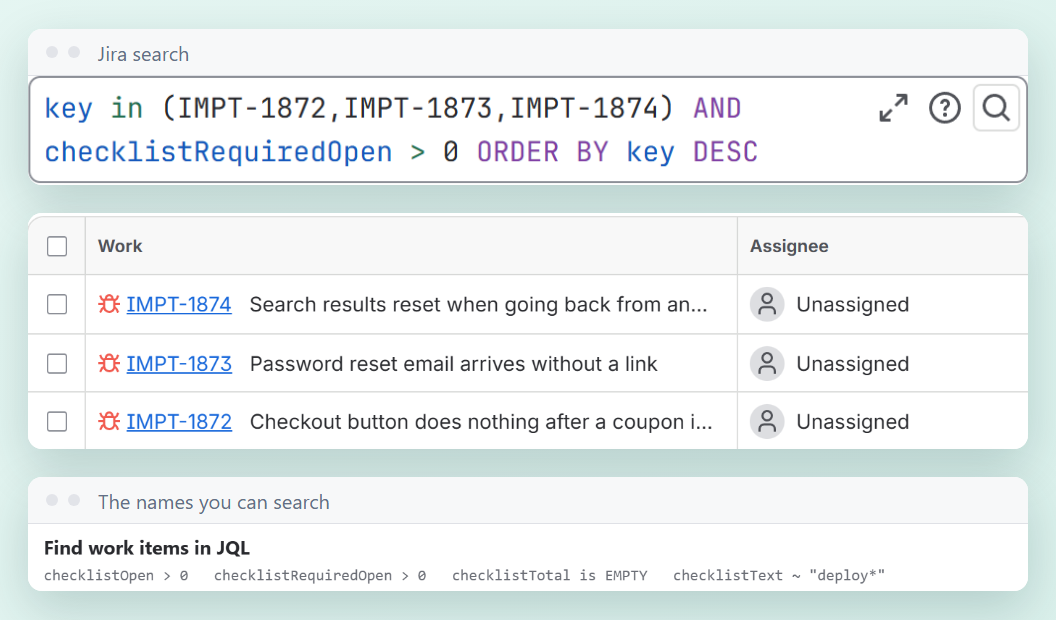
Search with JQL across projects: open items, open required items, issues with no checklist, or words in the list.
Getting started
- A Jira admin installs the app from the Atlassian Marketplace. No configuration is needed.
- Open a Jira issue (work item) and open Checklist on the right.
- Type an item and press Add. Paste several lines to add them all at once.
- Tick items as you finish them. Open Item options on an item to make it required or not needed, or to give it a due date and an assignee. Move items with Move up and Move down.
- Press Edit as text to change the whole list in one box:
## Before release
- [x] Reproduce the bug on staging
- [ ] ! Update the changelog @2026-12-31
- [-] Load test
- [ ]to do,- [x]done,- [-]not needed,##heading,!required,@2026-12-31due date.
Everyone uses their own Jira permissions. People who can view an issue but not edit it see the list read-only. Copy as Markdown under More copies the list for a pull request or a chat.
Using an AI assistant
Any assistant connected to the Atlassian Rovo MCP server, such as Claude or Cursor, can read and write the same checklist.
- Connect your assistant to the Atlassian Rovo MCP server, following Atlassian's instructions. Your Jira admin may need to allow it first.
- Open More in the Checklist panel and press Copy under Write this checklist from an AI assistant.
- Paste the text into your assistant and ask for what you need, for example “Plan the steps for this bug and tick them as you finish.”
The assistant works with the permissions of the account you connected, and the panel shows its changes when the issue is opened or reloaded. If a person and an assistant save at the same time, the last save wins.
Templates
In Project settings > Checklist templates, project admins write templates with the same text format as above. Anyone who can edit an issue can add a template from More.
Choose work types under Add automatically to these work types, and the template is added the first time someone with edit permission opens the panel on an issue of that type that has no checklist yet. A cloned issue gets the items of the original instead, unchecked.
Search with JQL
| Write | Finds |
|---|---|
checklistOpen > 0 | Issues with items still open |
checklistRequiredOpen > 0 | Issues with required items still open |
checklistTotal is EMPTY | Issues with no checklist saved |
checklistText ~ "deploy*" | Issues with a word in their checklist |
Workflow validators
In a company-managed workflow, add Checklist: all items done or Checklist: required items done to a transition. Until the items are done, Jira holds the transition and shows a message. Items marked Not needed count as finished.
- An issue with an automatic template, or a clone of an issue with items, can be held until someone with edit permission opens its Checklist panel, so the items exist.
- An issue with no checklist and nothing to add is not held. Validators check the items of a checklist; they do not require a checklist.
- A checklist an assistant wrote in a shape the app has to tidy can hold an issue until the panel is opened once.
- Validators keep running after a license ends. Remove them from the workflow before uninstalling the app; while they remain, Jira holds those transitions.
Limits
- About 32 KB per issue, which Jira sets. The app tells you when a list is too long.
- The panel is not shown in Jira Product Discovery.
- Changes to a checklist are not listed in the issue's History tab.
- Validators work in company-managed workflows.
- JQL text search covers about the first 4,000 characters of a checklist.
- Screens are in English and Japanese, following each person's Jira language.
Questions and troubleshooting
How can an AI assistant write a checklist in a Jira issue?
Connect the assistant to the Atlassian Rovo MCP server, open More in the Checklist panel, copy the ready prompt and paste it into the assistant. It can then read the list, add items and tick them in that issue.
Which AI assistants work with it?
Assistants that can connect to the Atlassian Rovo MCP server, such as Claude and Cursor. The app contains no AI of its own, so you keep using the assistant you already pay for.
How do I add a checklist to a Jira issue?
Open the issue, open Checklist on the right, type an item and press Add. Paste several lines to add many items at once.
How do I block a Jira transition until the checklist is done?
Edit a company-managed workflow and add the validator Checklist: all items done or Checklist: required items done to the transition, then publish the workflow.
How do I add a checklist automatically to every bug or story?
Open Project settings, then Checklist templates, write a template and choose the work types under Add automatically to these work types. It is added the first time someone with edit permission opens the panel on a new issue of that type.
Do checklists come along when I clone an issue?
Yes. Jira itself leaves them behind, so the app brings the items of the original back, unchecked, when the panel is first opened on the clone. Items marked Not needed stay that way, and someone who cannot see the original gets nothing from it, so have someone who can see it open the clone first.
How do I find issues with unfinished checklists?
Use JQL such as checklistOpen > 0 or checklistRequiredOpen > 0. Project settings shows the same examples.
Can I paste a list I already have?
Yes. Paste several lines into the add box, or use Edit as text. Lines written as Markdown checkboxes keep their state.
Why is a transition blocked when I see no items?
The issue has an automatic template or is a clone, and its items have not been added yet. Have someone with edit permission open its Checklist panel once, finish the items, then move the issue.
Is my data sent anywhere?
No. Checklists and templates are saved in Jira itself, under your Jira permissions, and the app sends nothing to GRAMSHIFT or to third parties. Your AI assistant reads and writes only what you connect it to, under its own terms.
What happens to my checklists if I uninstall the app?
They stay stored in your Jira site but are no longer shown. Remove the validators from your workflows first, or those transitions stay held.
Why do I see that the license is not active?
The app's license on your Jira site has ended or was not started, so checklists are read-only. Ask a Jira admin to renew it or start a trial under Manage apps. Your checklists are safe in Jira.
Support
Something not working? Email contact@gramshift.com and tell us what you did, what you expected and what happened (a screenshot helps). We reply by email within 72 hours. Support hours are Monday to Friday, 9:00–18:00 Japan time (JST).
日本語(使い方の要約)
Jira の課題の右にある チェックリスト を開き、項目を入力して「追加」を押します。複数行の貼り付けもできます。項目の設定で必須・不要・期限・担当者を付けられ、「テキストで編集」で全体を1つの欄で直せます。
AI に書かせるには、AI アシスタントを Atlassian Rovo MCP サーバーにつなぎ、「その他」にある文をコピーして貼ります。Claude・Cursor などが同じチェックリストを読み書きできます。アプリ自体に AI は入っていません。
「プロジェクト設定 > Checklist templates」でテンプレートを作り、作業タイプごとに自動で追加できます。複製した課題には元の項目が未完了で入ります。JQL は checklistOpen > 0 など。会社管理のワークフローでは、項目が終わるまで遷移を止める検証を付けられます。データは Jira の中だけに保存し、GRAMSHIFT にも第三者にも送りません。お問い合わせ: contact@gramshift.com(72時間以内にメールで返信します。受付は日本時間の平日 9:00〜18:00)