Stream Deck profile for Windows and Mac
TradingView shortcuts on your Stream Deck
Work your charts faster in TradingView: search symbols, add alerts, switch intervals, zoom, and draw trend lines or Fib levels with one press of a labeled Stream Deck key.
One download holds profiles for Stream Deck MK.2, XL, Neo and +, for Windows and Mac.
The keys send TradingView's own default keyboard shortcuts, so they work in your web browser and in the TradingView desktop app, and your TradingView settings stay as they are. On Stream Deck +, the dials zoom, scroll and step through your watchlist.
- Symbol search and alerts
- Intervals in one press
- Zoom, scroll and scale
- Trend lines and Fib
- Watchlist and Bar Replay
- Dials on Stream Deck +
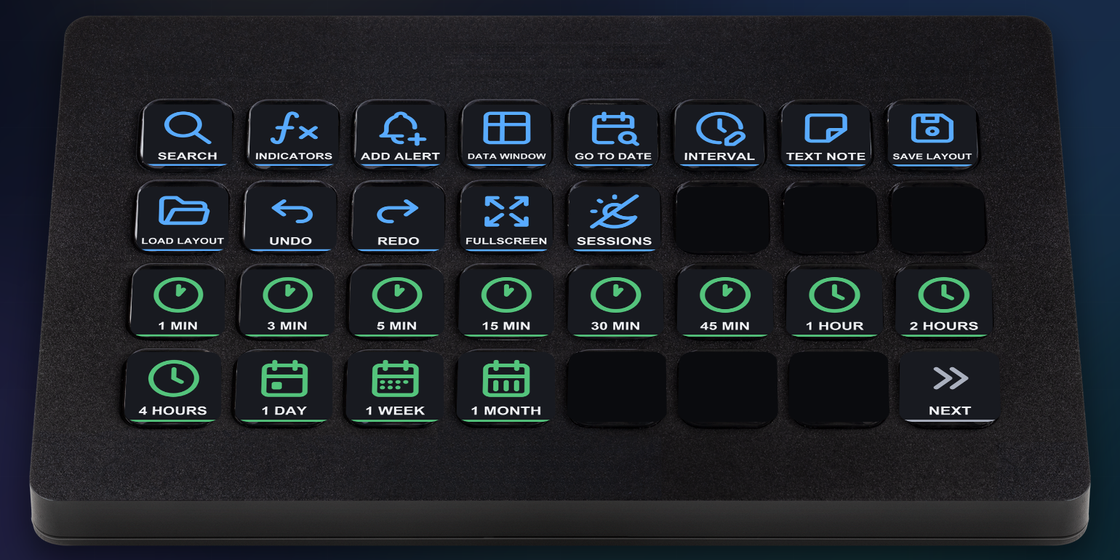
What the keys do
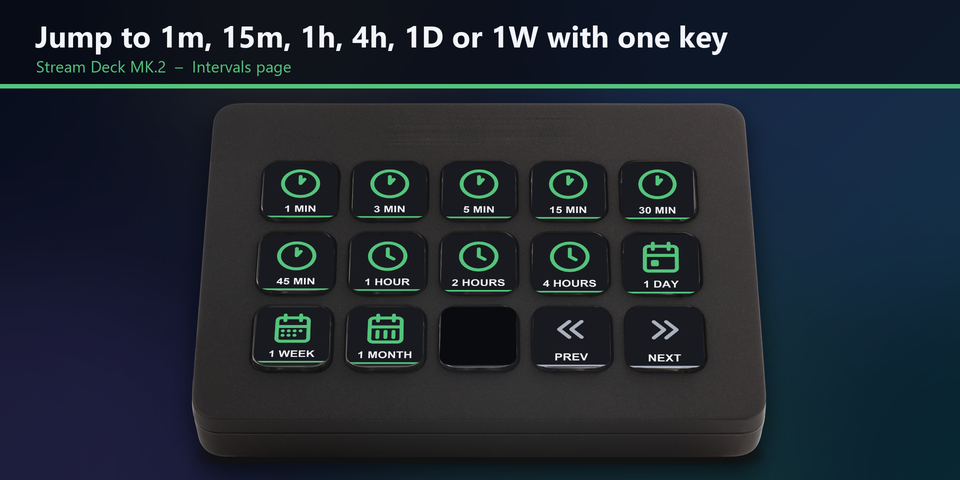
Switch intervals with one key
Jump to 1, 3, 5, 15, 30 or 45 minutes, 1, 2 or 4 hours, or 1 day, 1 week or 1 month. Each key types the interval into TradingView's own interval box and presses Enter.
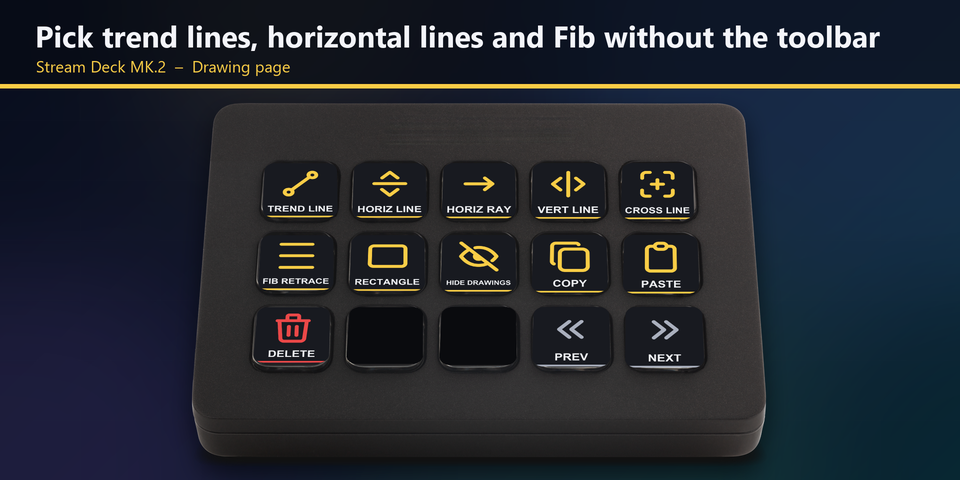
Drawing tools without the toolbar
Pick a trend line, horizontal line or ray, vertical or cross line, Fib retracement or rectangle with one key. Hide drawings, copy, paste and delete sit on the same page.
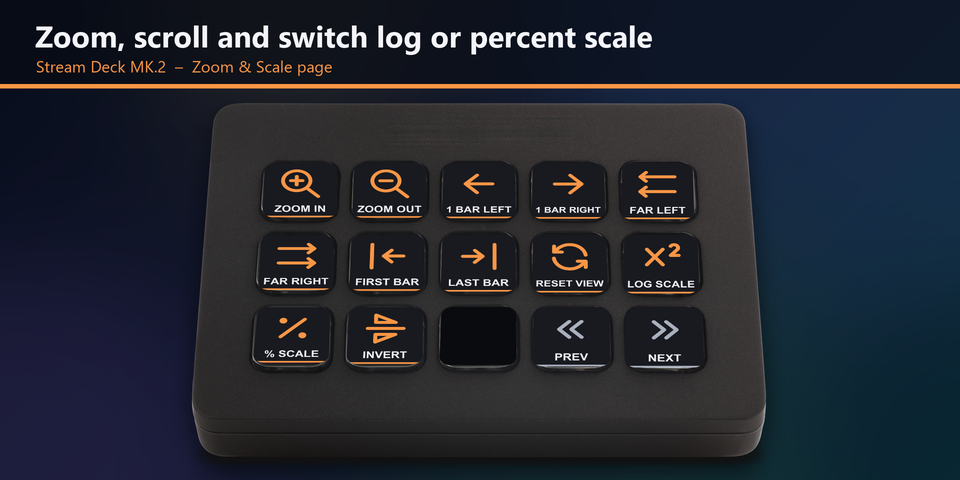
Zoom, scroll and scale
Zoom in and out, move one bar or far to the left or right, jump to the first or last bar, reset the view, and switch to log, percent or inverted scale.
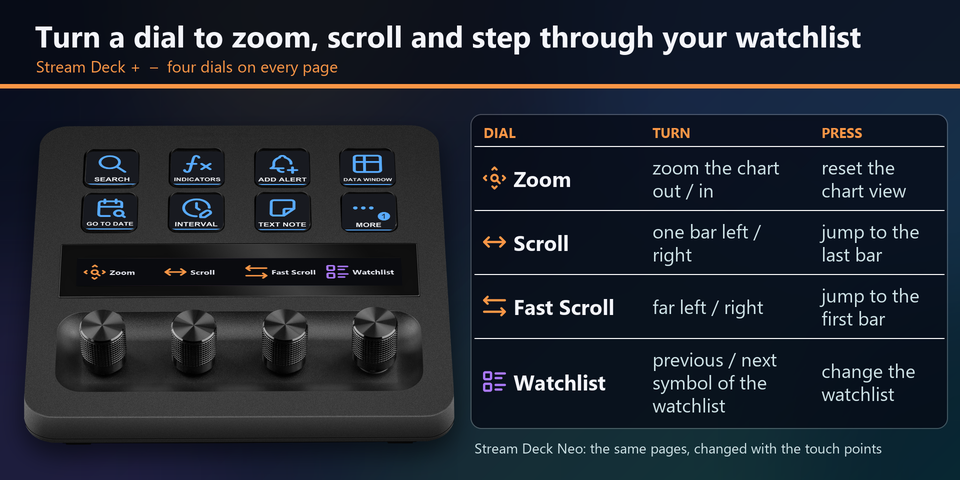
Dials on Stream Deck +
Turn a dial to zoom, scroll, scroll fast or step to the previous or next symbol of your watchlist. Press it to reset the chart view, jump to the last or first bar, or change the watchlist. On the Neo, the same pages change with the touch points.
Profiles for four Stream Deck models
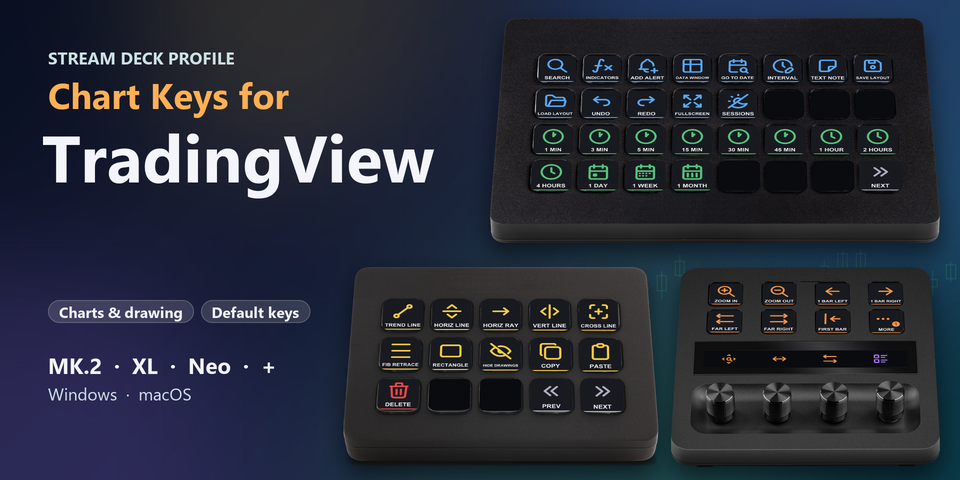
The download holds a profile for each Stream Deck, for Windows and for Mac: MK.2 (15 keys, one page for each group of keys), XL (32 keys: Chart & Intervals, Zoom & Drawing, and Watchlist & Trading each share a page), Neo (8 keys a page, changed with the touch points) and + (8 keys a page and four dials). On the Neo and +, bigger pages open a MORE folder, and BACK returns.
Chart
Quick search, indicators, add alert, data window, go to date, interval box, text note, save and load layout, undo, redo, fullscreen, sessions.
Intervals
1, 3, 5, 15, 30 and 45 minutes; 1, 2 and 4 hours; 1 day, 1 week, 1 month.
Zoom & Scale
Zoom in and out, one bar or far left and right, first and last bar, reset view, log, percent and inverted scale.
Drawing
Trend line, horizontal line and ray, vertical line, cross line, Fib retracement, rectangle, hide drawings, copy, paste, delete.
Watchlist & Share
Add to a watchlist, next and previous symbol, change watchlist, Bar Replay play and step, save or copy the chart image, copy the image link.
Trading
Order ticket, buy, sell, limit buy, limit sell and DOM, in their own red TRADING folder that you open before any order key can be pressed.
Built on the default shortcuts
The keys send TradingView's own default keyboard shortcuts, so your TradingView settings stay as they are.
Works in your web browser and in the TradingView desktop app. Click the chart once so it has the keyboard focus, then press a key.
The order keys sit in their own red TRADING folder. They work with a connected broker or Paper Trading, and TradingView shows its own order confirmation as you have set it up there.
Changed a shortcut in TradingView? Edit that key's Hotkey in the Stream Deck app.
Set up in 3 steps
- Install it from the Elgato Marketplace, or download and unzip the file after buying direct.
- Double-click the .streamDeckProfile file. The Stream Deck app imports it.
- Select the profile on your Stream Deck, click your TradingView chart once and press a key.
Two places to buy
| Elgato Marketplace | Direct from GRAMSHIFT | |
|---|---|---|
| Amount | Same amount | Same amount, tax added at checkout |
| Checkout | Elgato Marketplace | Stripe (card) |
| How you get it | Installed through the Stream Deck app | A zip with a profile file for each Stream Deck and computer |
| Account | Your Elgato account | None needed |
| Key labels | English | English |
Requirements
- Windows 10 or later, or macOS
- Stream Deck MK.2, XL, Neo or +, with the Stream Deck app
- TradingView in a web browser or the TradingView desktop app, with its default shortcuts
- Alert, layout, note, drawing and watchlist keys: signed in to TradingView. Order keys: a connected broker or Paper Trading
Questions
How do I put TradingView shortcuts on a Stream Deck?
Double-click the Chart Keys profile file for your Stream Deck and the Stream Deck app imports it. Select the profile, click your TradingView chart once and press a key: labeled keys send TradingView's default shortcuts for symbol search, alerts, intervals, zoom, drawing tools and the watchlist.
Does it work in the browser and in the TradingView desktop app?
Yes. The keys send keyboard shortcuts to the active window, so they work with TradingView in a web browser and in the TradingView desktop app, on Windows and Mac. Click the chart once so it has the keyboard focus.
Which Stream Deck is it for?
Stream Deck MK.2 (15 keys), XL (32 keys), Neo and +, on Windows or Mac. The download holds a profile for each of them. On the +, four dials zoom, scroll, scroll fast and step through your watchlist.
How do the interval keys work?
Each interval key types the interval into TradingView's own interval box and presses Enter, so the chart switches with one press. With a Japanese input method on, switch it to direct (English) input so the keys type numbers.
Which keys need a TradingView account?
Add alert, save and load layout, text note, the drawing-tool keys and add to watchlist work when you are signed in to TradingView, as in TradingView itself. The order keys in the TRADING folder need a connected broker or Paper Trading.
How do the order keys work?
Order ticket, buy, sell, limit buy, limit sell and DOM sit in their own red TRADING folder: open the folder first, then press the key. They work when a broker or Paper Trading is connected to the chart, and TradingView shows its own order confirmation as you have set it up there.
Is there anything to activate after buying direct?
No. You download a zip with the profile files and a README. There is nothing to activate and no account to create.
How do I get the file again?
Email contact@gramshift.com from the address you paid with, and include your order number, or the payment date and amount. We check the purchase and send a new link to the download page.
Can I get a refund?
Direct buyers, yes. If the profile does not work with your Stream Deck and TradingView, email us within 14 days of purchase for a full refund. The download closes after a refund.
Does it work on a Mac?
Yes. The download has macOS profiles that send TradingView's Mac shortcuts, with Command in place of Ctrl and Option in place of Alt. If the keys do nothing, allow Stream Deck in System Settings > Privacy & Security > Accessibility.
Direct purchase details
- Price
- ¥1,300, the same amount as on the Elgato Marketplace. Tax for your country is added at checkout.
- Payment
- Handled by Stripe through Link, Stripe's checkout service. Link appears as the seller on your receipt and card statement, and your card number never reaches GRAMSHIFT.
- Delivery
- A download link appears right after payment, and the receipt arrives by email. You get the profile files and a README: there is nothing to activate.
- Refunds
- If the profile does not work with your Stream Deck and TradingView, email us within 14 days of purchase for a full refund. You can also ask Link support. The download closes after a refund.
- Use
- For your own use. Please do not share, resell or upload the file.
- Countries
- The direct checkout is not offered in Ascension Island, China, Cuba, Iran, Kosovo, North Korea, Russia, Syria or Tristan da Cunha.
- Seller
- GRAMSHIFT, Tokyo, Japan. Contact: contact@gramshift.com
Limitations
- Made for TradingView's default shortcuts. Changed a shortcut in TradingView? Edit that key's Hotkey in the Stream Deck app.
- Keys work while the chart has the keyboard focus, not while you type in a text box.
- INDICATORS sends the / key, as on US and Japanese keyboard layouts. On other layouts, open Indicators with the mouse or change that key in the Stream Deck app.
- The replay keys work while Bar Replay is on.
- On macOS, HIDE DRAWINGS uses TradingView's Cmd+Option+H, which macOS also uses to hide other apps.
- Typing a symbol name is not on a key: SEARCH opens the search box for you to type in.
- Multi-chart layouts, the Screener, the Pine Script editor, the DOM cells, the Alerts panel and deleting alerts are not on keys, and neither are mouse actions or the mouse wheel.
- Key labels are in English.