Stream Deck plugin for Windows
Keep the mouse on one screen, with one key
Cursor Lock Keys for Windows locks the mouse cursor to one monitor with one Stream Deck key.
On a PC with two or more screens, one press keeps the pointer on the screen it is on, or on a screen you choose, so it does not slip onto the other display while you play or work. Press again to free it.
Lock to Window keeps the pointer inside the window in front, such as a game in a window. Cursor to Monitor moves the pointer to the middle of the next screen. Hold Ctrl, Alt or Shift to let the pointer out for a moment.
- Lock to one monitor
- Lock to the window in front
- Pick a screen
- Jump to the next screen
- Hold a key to leave
- Press again to free it
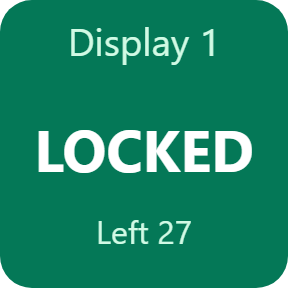
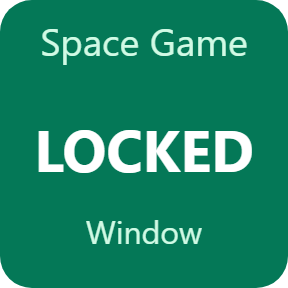
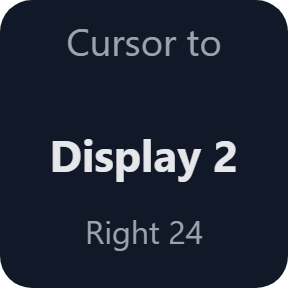
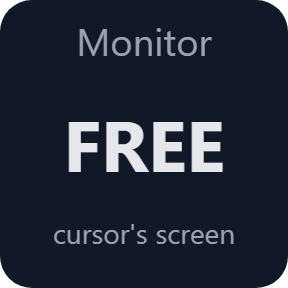
What the keys do
Lock the mouse to one monitor
Lock to Monitor keeps the mouse pointer on the screen it is on when you press, or on a screen you choose in the key's settings. Press the same key again to free it. The key shows the screen and LOCKED only while Windows reports the lock.
Lock it to the window in front
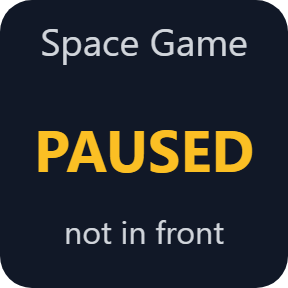
Lock to Window keeps the pointer inside the window in front, for example a game in a window. While another window is in front the pointer is free and the key says PAUSED; the lock comes back when the window is in front again.
Jump to the next screen
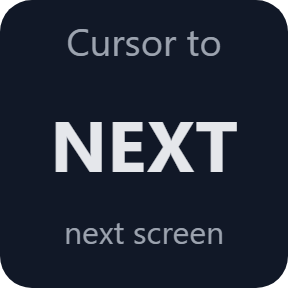
Cursor to Monitor moves the pointer to the middle of the next screen, from left to right and around again, or to the screen you choose. While a lock is on, it leaves the pointer where it is and says unlock first.
Hold a key to leave for a moment
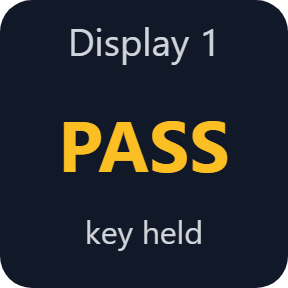
Choose Ctrl, Alt, Shift or Ctrl + Alt as the key to leave. While you hold it on the keyboard, the pointer is free and the key says PASS. Let go and the lock is back.
The key shows what Windows reports
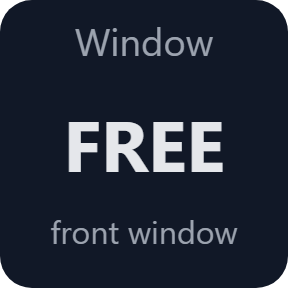
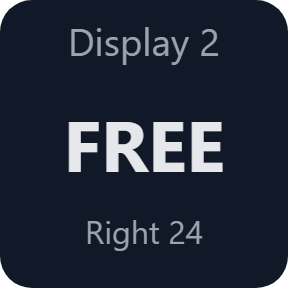
Windows drops a pointer lock by itself when another window comes to the front, so the plugin checks ten times a second and sets it again. The key says LOCKED only while Windows reports the lock, and FREE when it is off.
Tells you when a game takes over
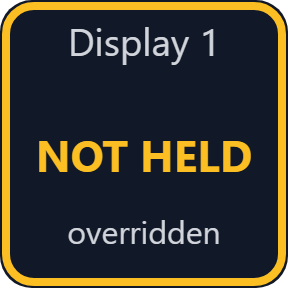
Some games confine the pointer themselves. When another program's limit is in force, the plugin leaves it alone and the key says NOT HELD, so you know at once.
What the key says
The keys read Windows again after each press and ten times a second while a lock is on. The key images on this page are the plugin's own output, with a sample screen layout and window name.
The pointer is always freed
The lock ends by itself when the screen layout changes, when the PC wakes from sleep, when the window closes or is minimized, when no lock key is on the visible Stream Deck page, and when the Stream Deck app closes.
A small helper process watches the plugin. If the plugin is ended by force, the helper frees the pointer.
Only the pointer's limit and position are changed, through Windows. Games, their files and their settings are left alone. No account is needed, and the plugin asks for no administrator rights.
Set up in 3 steps
- Open the plugin file you download after buying. The Stream Deck app installs it.
- In the Stream Deck app, drag Lock to Monitor, Lock to Window or Cursor to Monitor onto a key.
- Enter your license key once in the key's settings to turn the keys on. Then press the key to keep the mouse on its screen.
Two places to buy
| Elgato Marketplace | Direct from GRAMSHIFT | |
|---|---|---|
| Amount | Same amount | Same amount, tax added at checkout |
| Checkout | Elgato Marketplace | Stripe (card) |
| New versions | Installed through the Stream Deck app | Download from your license key page |
| Use on | Your Elgato account | Up to 3 PCs per license key |
| Plugin display | English and Japanese | English and Japanese |
Requirements
- Windows 10 or later
- Stream Deck app 6.9 or later
- A Stream Deck with keys
Questions
How do I lock the mouse to one monitor with a Stream Deck key?
Drag Lock to Monitor onto a key and press it. The mouse pointer stays on the screen it is on, or on the screen you choose in the key's settings. Press the same key again to free it.
How do I stop the mouse going to my second monitor while I play a game?
Press Lock to Monitor, or Lock to Window while the game window is in front. The pointer is held on that screen until you press the key again or hold your leave key.
Can I lock the mouse inside a game window?
Yes. Lock to Window keeps the pointer inside the window in front. While another window is in front the pointer is free, and the lock comes back when the game is in front again.
How do I get the pointer out for a moment?
In the key's settings, choose Ctrl, Alt, Shift or Ctrl + Alt as the key to leave. While you hold it, the pointer is free.
Does it change how the game reads the mouse?
No. It limits where the Windows pointer can go. Camera movement that a game reads straight from the mouse (Raw Input) is not changed.
Why does the key say NOT HELD?
Another program, often the game itself, has set its own limit for the pointer. The plugin leaves that limit alone. Press the key again to end the lock.
How many PCs can use one license key?
Up to 3 of your own PCs. If you replace a PC, contact us and we will free a place for the new one.
How do I install a new version after buying direct?
Download the latest version from your thank-you page or your license key page. Your license key keeps working. If you cannot open that page, email us as the "Recover your license key" page explains.
What if I lose my license key?
Email contact@gramshift.com from the address you paid with, with your order number or the date and amount you paid. We check the purchase and reply with a link to your license key page.
Can I get a refund?
Yes, when you buy direct. If it does not work on your PC, email us within 14 days of buying for a full refund. Your license key stops working after the refund.
Direct purchase: details, refunds and seller
- Price
- ¥780, the same amount as on the Elgato Marketplace. Tax for your country is added at checkout.
- Payment
- Handled by Stripe through Link, Stripe's checkout service. Link appears as the seller on your receipt and card statement, and your card number never reaches GRAMSHIFT.
- Delivery
- Your license key and download link appear right after payment, and the receipt arrives by email.
- Refunds
- If the plugin does not work on your PC, email us within 14 days of purchase for a full refund. You can also ask Link support. The license key stops working after a refund.
- License
- One key for your own use on up to 3 PCs.
- Countries
- The direct checkout is not offered in Ascension Island, China, Cuba, Iran, Kosovo, North Korea, Russia, Syria or Tristan da Cunha.
- Seller
- GRAMSHIFT, Tokyo, Japan. Contact: contact@gramshift.com
Limits
- Windows only, with your Stream Deck on the same PC. Not for Mac. The three actions go on keys, not on dials, and not in Multi Actions. With one screen, Lock to Monitor has nothing to hold back.
- It limits the Windows pointer only. Camera movement that a game reads straight from the mouse (Raw Input) is not changed. A game that confines the pointer itself can take over the lock; the key then says NOT HELD.
- Lock to Window ends when the window is closed, hidden, minimized or smaller than 200 pixels.
- The keys do nothing until your license key is active, and the pointer is never locked or moved. When the license ends (after a refund, for example), the lock is ended and the pointer freed, and the keys stop.
- The direct version checks your license key with our server when you activate it, each time the plugin starts, and about once a day while it runs. If your PC cannot reach the server, the keys keep working for up to 44 days after the last successful check.
- If something does not work, email contact@gramshift.com and we will help.