Stream Deck plugin for Windows
Disable the Windows key while gaming, with one Stream Deck key
Press a key before you play and both Windows keys do nothing, so a slip of the finger does not open the Start menu in the middle of a game.
Another key blocks Alt+Tab, Alt+Esc and Ctrl+Esc, and Alt+F4 if you tick it. Press again to allow them.
Game Guard puts everything you tick on one key and can work only while your game is in front. Ctrl+Alt+Del and Task Manager (Ctrl+Shift+Esc) always work.
- Windows key off
- Alt+Tab · Alt+Esc · Ctrl+Esc
- Optional Alt+F4
- Only while your game is in front
- Ctrl+Alt+Del always works
- Settings in English and Japanese
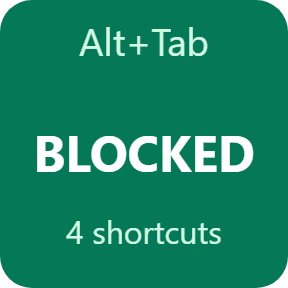
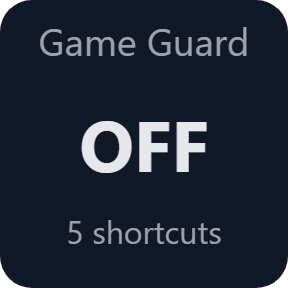
What the keys do
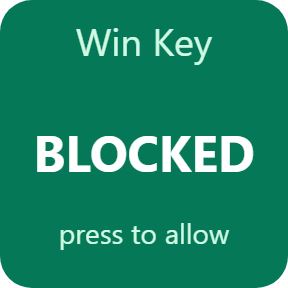
Block Windows Key
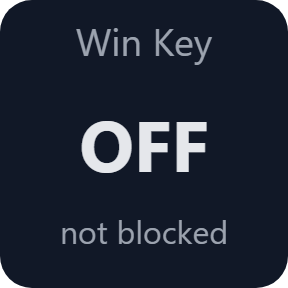
One press and the left and right Windows keys do nothing, alone or together with another key, so the Start menu stays closed. Press again to allow them.
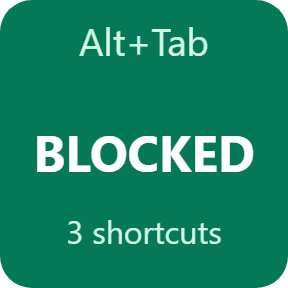
Block Task Switching
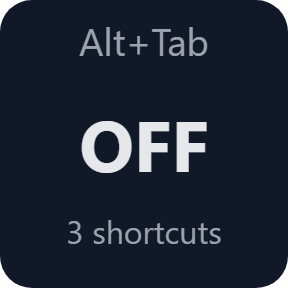
Blocks Alt+Tab, Alt+Esc and Ctrl+Esc. Only Tab or Esc is held back while Alt or Ctrl is down; Alt and Ctrl themselves always reach the game.
Alt+F4 if you want it
Tick Alt+F4 in the key's settings and a slip on Alt+F4 does not close your game either. The key shows how many shortcuts it blocks.
Game Guard
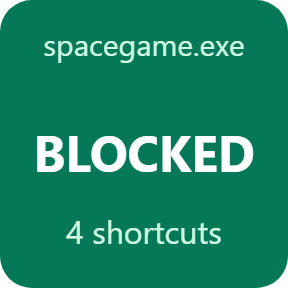
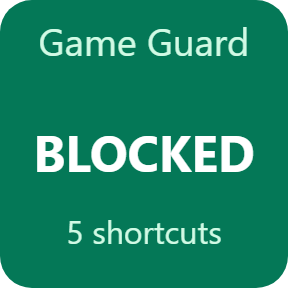
One key for everything you tick: the Windows keys, Alt+Tab, Alt+Esc, Ctrl+Esc and Alt+F4.
Only while your game is in front
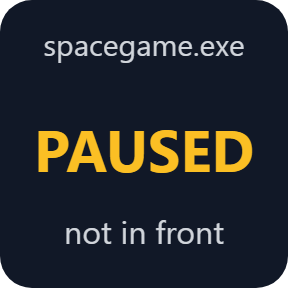
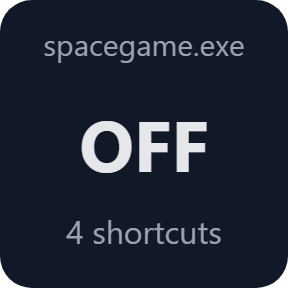
Choose your game in Game Guard's settings. The keys are blocked only while its window is in front; when you switch to another program, the key shows PAUSED and blocks nothing.
BLOCKED you can trust
The key shows BLOCKED only while a check once a second confirms that the block is on. The block ends by itself when the key leaves the visible page, when the PC wakes from sleep, and when Stream Deck quits.
Read it at a glance
Green while the keys are blocked, dark while they are allowed, amber while Game Guard waits for your game to come to the front.
What you type stays yours
A Windows keyboard hook is used only while a block is on.
What you type is not recorded, stored or sent.
The only thing that goes online is the license key check.
Set up in 3 steps
- Open the plugin file you download after buying. The Stream Deck app installs it.
- In the Stream Deck app, drag Block Windows Key, Block Task Switching or Game Guard onto your Stream Deck and enter your license key once in its settings.
- Press the key before you play. It turns green and shows BLOCKED; press it again to allow the keys.
Two places to buy
| Elgato Marketplace | Direct from GRAMSHIFT | |
|---|---|---|
| Amount | Same amount | Same amount, tax added at checkout |
| Checkout | Elgato Marketplace | Stripe (card) |
| New versions | Installed through the Stream Deck app | Download from your license key page |
| Use on | Your Elgato account | Up to 3 PCs per license key |
| Settings | English and Japanese | English and Japanese |
Requirements
- Windows 10 or later
- Stream Deck app 6.9 or later
Questions
How do I disable the Windows key while gaming?
Press the Block Windows Key key of Game Key Guard for Windows before you play. Both Windows keys do nothing until you press the key again, so the Start menu does not open when a finger slips.
Can I block Alt+Tab in games?
Yes. Block Task Switching blocks Alt+Tab, Alt+Esc and Ctrl+Esc, and Alt+F4 if you tick it. Alt and Ctrl themselves still reach the game.
Can it block the keys only while my game is in front?
Yes. Choose the game under Only in front in Game Guard's settings. While another program is in front, the key shows PAUSED and blocks nothing.
Can I still use Ctrl+Alt+Del and Task Manager?
Yes. Ctrl+Alt+Del and Ctrl+Shift+Esc are never blocked.
What if I forget to turn the block off?
The block ends by itself when the key leaves the visible Stream Deck page, when the PC wakes from sleep, and when the Stream Deck app closes. If the plugin is closed, Windows removes the block.
Does it record what I type?
No. A Windows keyboard hook is used only while a block is on, and what you type is not recorded, stored or sent. The only thing that goes online is the license key check.
How many PCs can I use with one license key?
Up to 3 of your own PCs. If you replace a PC, write to us and we free up a place for the new one.
How do I get new versions if I buy direct?
Download the latest version from your thank-you page or the license key page you received. Your license key keeps working. If you cannot open your license key page, email us as the "Recover your license key" page explains.
What if I lose my license key?
Email contact@gramshift.com from the address you paid with, and include your order number, or the date and amount you paid. We check the purchase and reply with a link to your license key page.
Can I get a refund?
Yes, for a direct purchase. If the plugin does not work on your PC, email us within 14 days of purchase and we refund the full amount. The license key stops working after the refund.
Direct purchase: details, refunds and seller
- Price
- ¥780, the same amount as on the Elgato Marketplace. Tax for your country is added at checkout.
- Payment
- Handled by Stripe through Link, Stripe's checkout service. Link appears as the seller on your receipt and card statement, and your card number never reaches GRAMSHIFT.
- Delivery
- Your license key and download link appear right after payment, and the receipt arrives by email.
- Refunds
- If the plugin does not work on your PC, email us within 14 days of purchase for a full refund. You can also ask Link support. The license key stops working after a refund.
- License
- One key for your own use on up to 3 PCs.
- Countries
- The direct checkout is not offered in Ascension Island, China, Cuba, Iran, Kosovo, North Korea, Russia, Syria or Tristan da Cunha.
- Seller
- GRAMSHIFT, Tokyo, Japan. Contact: contact@gramshift.com
Limits
- Windows only.
- It stops what Windows does with these keys; a game that reads the keyboard itself (Raw Input) may still see them.
- Ctrl+Esc means Esc while Ctrl is held; clear it in Game Guard if your game uses that combination.
- While a program that runs as administrator is in front, Windows may not let the plugin block anything.
- Keys only, not dials.
- The direct version checks its license key with our server when you activate it, each time the plugin starts, and about once a day while it runs. If it cannot reach the server, it keeps working for up to 44 days after the last successful check.
- If something does not work, email contact@gramshift.com and we will help.