Corsair Galleon 100 SD profile for Windows
Krita on your Corsair Galleon 100 SD
Yes, Brushwork Keys is a Krita profile for the Corsair Galleon 100 SD.
It puts tool, color, brush, layer, selection, view and file keys on the display keys, and its two dials hold Opacity, Rotate, Layers and Undo / Redo on two layers.
The keys are laid out for the Galleon 100 SD's display keys over ten pages: Tools, Color & Brush, Brush Blending, Layers, Select & Fill, Edit & Adjust, View, File, Brush presets and Scripts, with Previous and Next page keys. On most pages, a More key opens the rest of that page's keys. The keys send Krita's default shortcuts.
- Ten pages for the display keys
- Two dials, two layers
- Tools, layers and selections
- Brush blending modes
- English labels
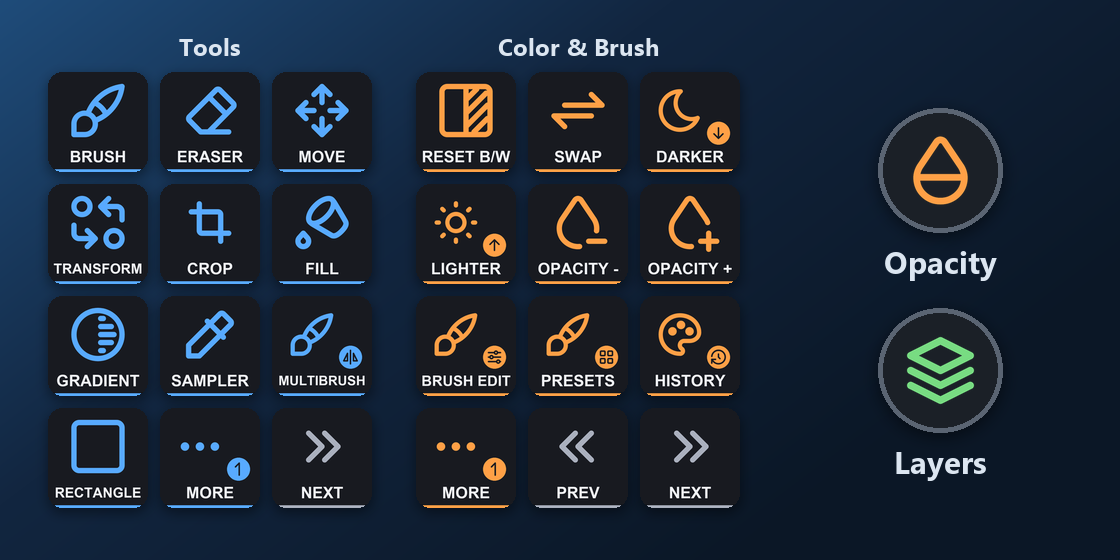
What is on each Galleon 100 SD page?
The profile has ten pages for the display keys. The bottom-right keys turn the pages: Next page on Tools, Previous and Next page on the pages between, and Previous page on Scripts.
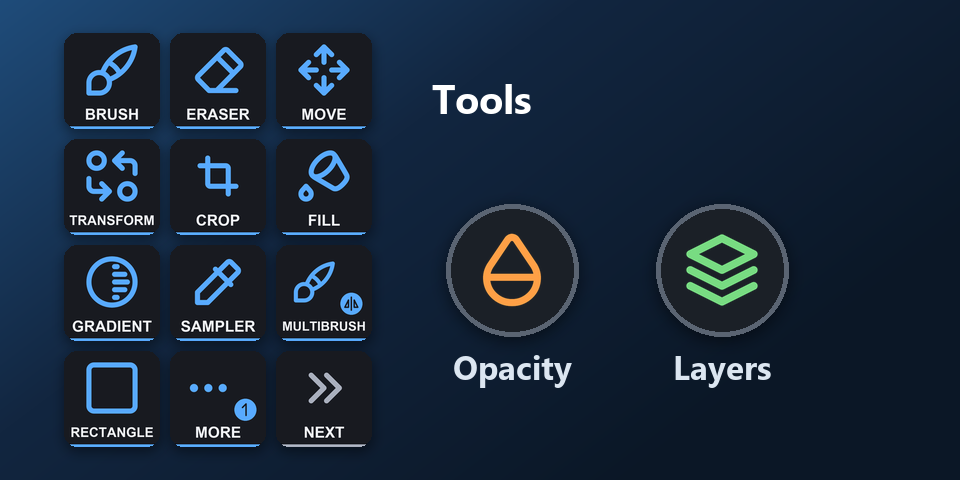
Tools
Brush, eraser mode, move, transform, crop, fill, gradient, color sampler, multibrush, rectangle, ellipse, rectangular and elliptical selection.
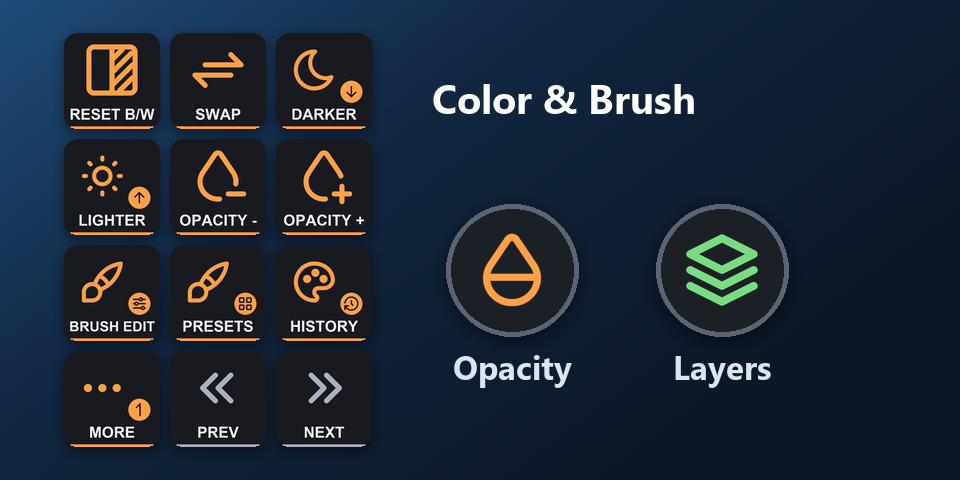
Color & Brush
Reset and swap colors, darker, lighter, opacity, brush editor, presets, color history, common colors, color selectors.
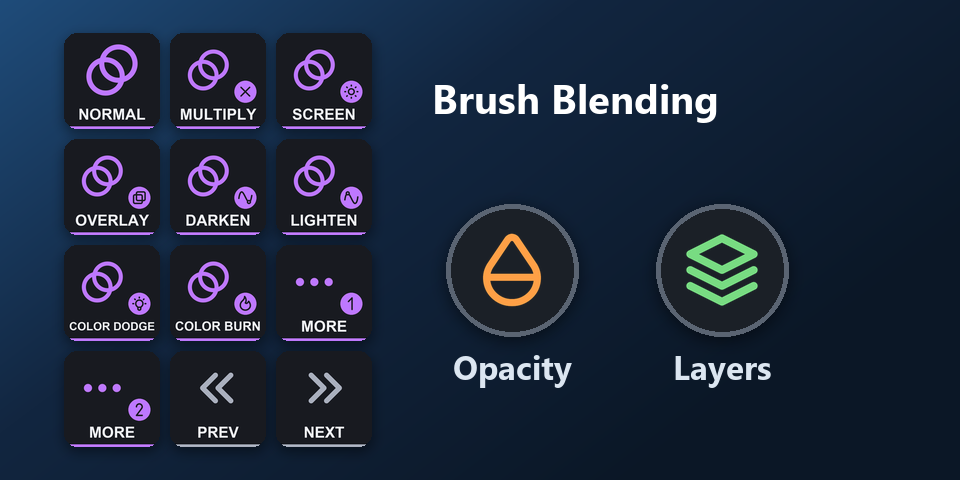
Brush Blending
Blending modes of the current brush: Normal, Multiply, Screen, Overlay, Soft Light, Hard Light, Color Dodge, Color Burn and more.
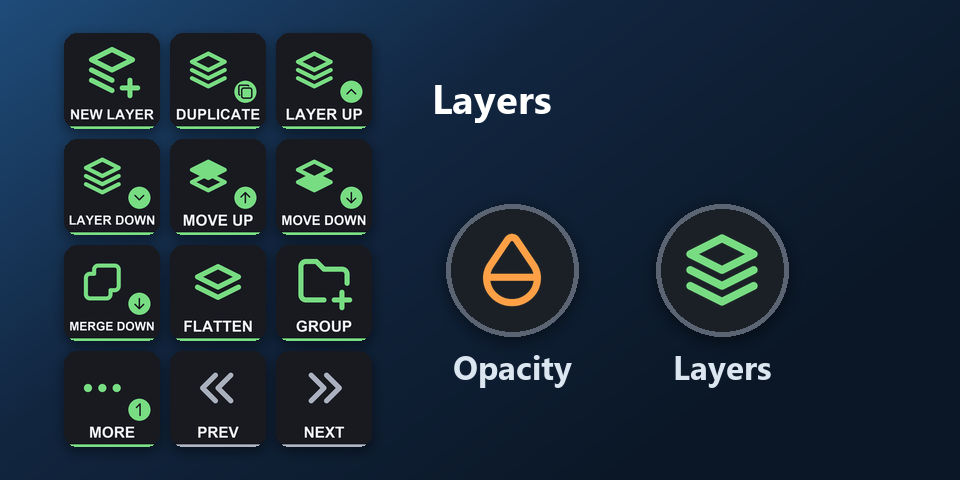
Layers
New layer, duplicate, next and previous layer, move up and down, merge down, flatten, group, clipping group, ungroup, rename, properties, copy or cut the selection to a layer.
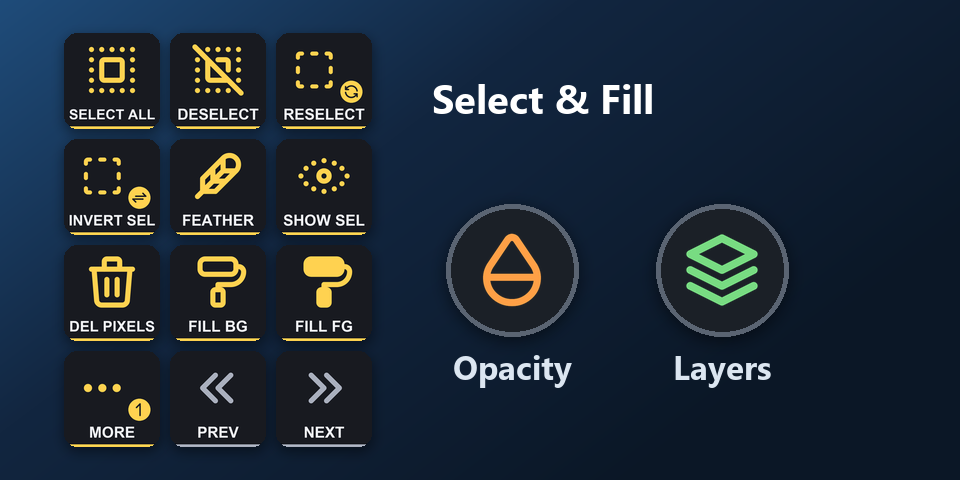
Select & Fill
Select all, deselect, reselect, invert, feather, show selection, clear, fill with the foreground or background color.
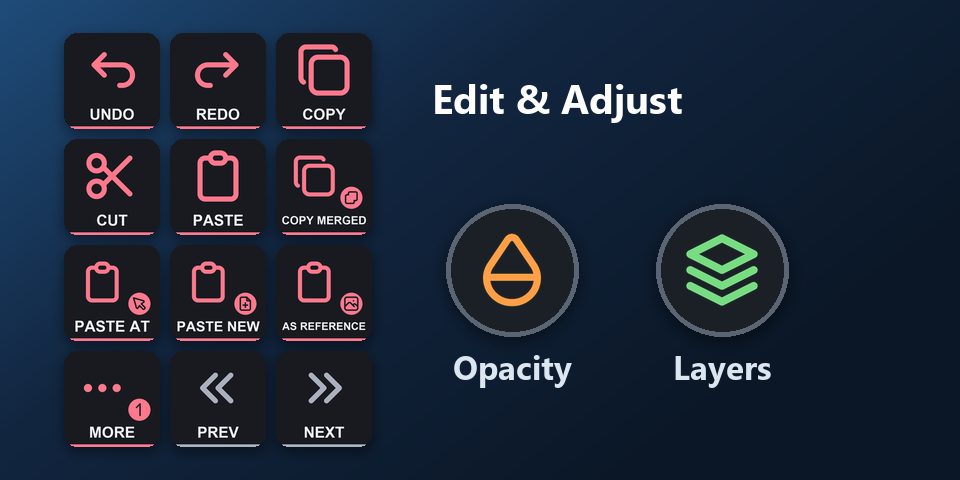
Edit & Adjust
Undo, redo, copy, cut, paste, copy merged, paste at cursor, paste into a new image, paste as reference, levels, curves, HSV, color balance, desaturate, invert, apply filter again, image size, canvas size.
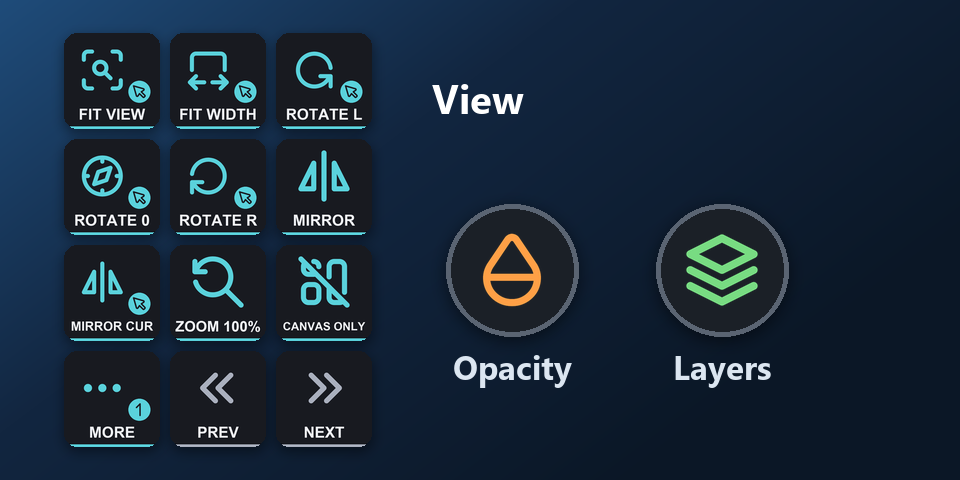
View
Fit to view, fit width, rotate, mirror, zoom 100%, canvas only, full screen, wrap around, instant preview, snap options, soft proofing, gamut warnings.
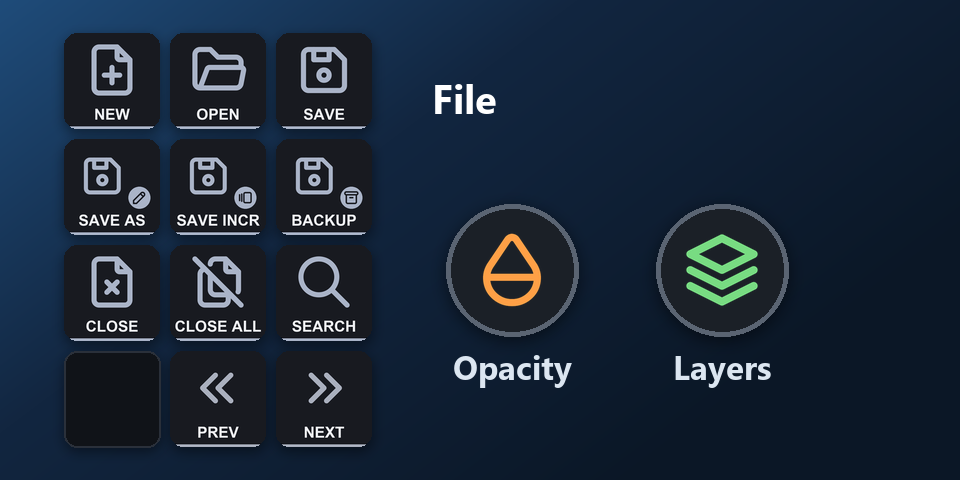
File
New, open, save, save as, incremental version, incremental backup, close, close all, search actions.
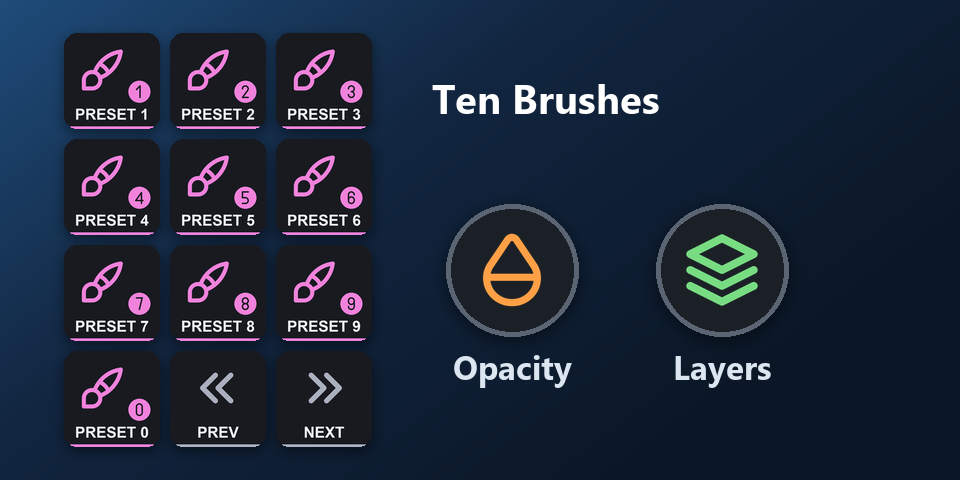
Brush presets
Your brush presets, called with one key each.
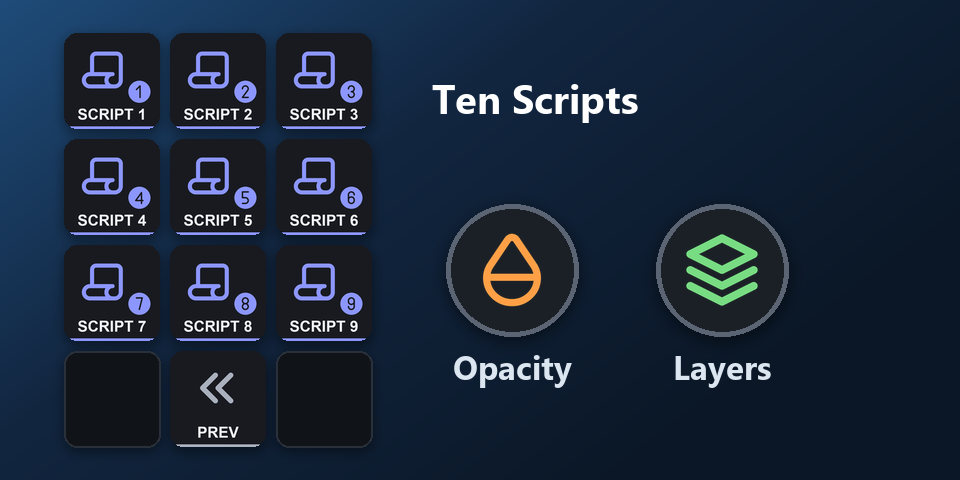
Scripts
The scripts you assign in Krita under Tools > Scripts, one key each.
What do the Galleon 100 SD dials do?
Left dial: Opacity and Rotate
On the first layer, turn it to lower or raise the opacity. Press it to swap the foreground and background colors. On the second layer, turn it to rotate the canvas left or right. Press it to reset the rotation.
Right dial: Layers and Undo / Redo
On the first layer, turn it to move to the layer below or above. Press it to add a new layer. On the second layer, turn it to undo or redo. Press it to save.
Both dials do the same on every page, so they work while any page is on the keys.
How do I set it up on the Galleon 100 SD?
- Buy, then download and unzip the file.
- With the Galleon 100 SD connected, double-click "Brushwork Keys for Krita, Corsair Galleon 100 SD (Windows).streamDeckProfile". The Stream Deck app imports it.
- Select the profile for the Galleon 100 SD in the Stream Deck app, open Krita and press a key.
Requirements
- Windows 10 or later
- Corsair Galleon 100 SD
- The free Stream Deck app, where the Galleon 100 SD's display keys and dials are set up
- Krita with its default shortcuts (the Krita Default shortcut scheme)
- Ten Brushes and Ten Scripts keys: the presets and scripts you assign in Krita
Questions about the Galleon 100 SD
Is there a Krita profile for the Corsair Galleon 100 SD?
Yes. Brushwork Keys for Krita includes a profile laid out for the Galleon 100 SD: ten pages on the display keys (Tools, Color & Brush, Brush Blending, Layers, Select & Fill, Edit & Adjust, View, File, Brush presets and Scripts) and two dials with two layers (Opacity, Rotate, Layers and Undo / Redo). Import it in the Stream Deck app.
How do I set up Krita shortcuts on the Galleon 100 SD?
Double-click the Galleon 100 SD profile file in the download and the Stream Deck app imports it. Select it for the Galleon 100 SD, open Krita and press a key. The keys already match Krita's default shortcuts.
What do the Galleon 100 SD dials do in Krita?
Left dial: Opacity and Rotate. On the first layer, turn it to lower or raise the opacity. Press it to swap the foreground and background colors. On the second layer, turn it to rotate the canvas left or right. Press it to reset the rotation. Right dial: Layers and Undo / Redo. On the first layer, turn it to move to the layer below or above. Press it to add a new layer. On the second layer, turn it to undo or redo. Press it to save.
How do I change pages on the Galleon 100 SD?
Press the Next page or Previous page key at the bottom right of the keys. Tools leads to Color & Brush, Brush Blending, Layers, Select & Fill, Edit & Adjust, View, File, Brush presets and Scripts.
Do I need to buy it again for another Stream Deck?
No. The same download holds profiles for the Corsair Galleon 100 SD and Stream Deck + XL on Windows, and Stream Deck MK.2, XL, Neo and + on Windows and Mac.
Direct purchase details
- Price
- ¥980. Tax for your country is added at checkout.
- Payment
- Handled by Stripe through Link, Stripe's checkout service. Link appears as the seller on your receipt and card statement, and your card number never reaches GRAMSHIFT.
- Delivery
- A download link appears right after payment, and the receipt arrives by email. You get the profile files and a README: there is nothing to activate.
- Refunds
- If the profile does not work with your Stream Deck and Krita, email us within 14 days of purchase for a full refund. You can also ask Link support. The download closes after a refund.
- Use
- For your own use. Please do not share, resell or upload the file.
- Countries
- The direct checkout is not offered in Ascension Island, China, Cuba, Iran, Kosovo, North Korea, Russia, Syria or Tristan da Cunha.
- Seller
- GRAMSHIFT, Tokyo, Japan. Contact: contact@gramshift.com
More about Brushwork Keys for Krita
- All models and details of Brushwork Keys for Krita
- See this profile for Stream Deck + XL
- More Corsair Galleon 100 SD game and app profiles
Limitations
- The Corsair Galleon 100 SD profile is for Krita on Windows.
- Made for Krita's default shortcuts. Changed a shortcut in Krita? Edit that key's Hotkey in the Stream Deck app.
- A brush or script slot does nothing until you assign a preset or script to it in Krita.
- The fit, rotate and mirror keys act where the mouse pointer is.
- Shortcuts on symbol keys (brush size [ ], zoom) are left out, as these keys sit in different places on US and Japanese keyboards.
- On QWERTZ or AZERTY layouts some letter keys may differ.
- Key labels are in English.