Stream Deck profile for Windows
Jurassic World Evolution 3 on your Stream Deck
A Stream Deck profile for Jurassic World Evolution 3 on Windows: change the game speed, open the Control Room tabs, jump to the nearest response team, medical or maintenance facility, frame dinosaur photos in Capture Mode and use a ranger vehicle's camera, equipment, radio and night vision, each on a labeled key.
One purchase covers Stream Deck MK.2, XL, Neo and +, with English or Japanese key labels.
The keys are matched to the keys in the game's settings screen (Settings > Controls), so there is nothing to set up in the game. Each page is named for the part of the game its keys are for: Time, Camera, Build, Menus, Park, Control Room, Capture Mode, Ranger Vehicle and Ranger Photo. On Stream Deck +, the dials follow the page you are on.
- Pause, slow motion and fast speed
- Control Room tabs
- Response, medical and maintenance facilities
- Capture Mode photos
- Ranger vehicle and photo keys
- English or Japanese labels
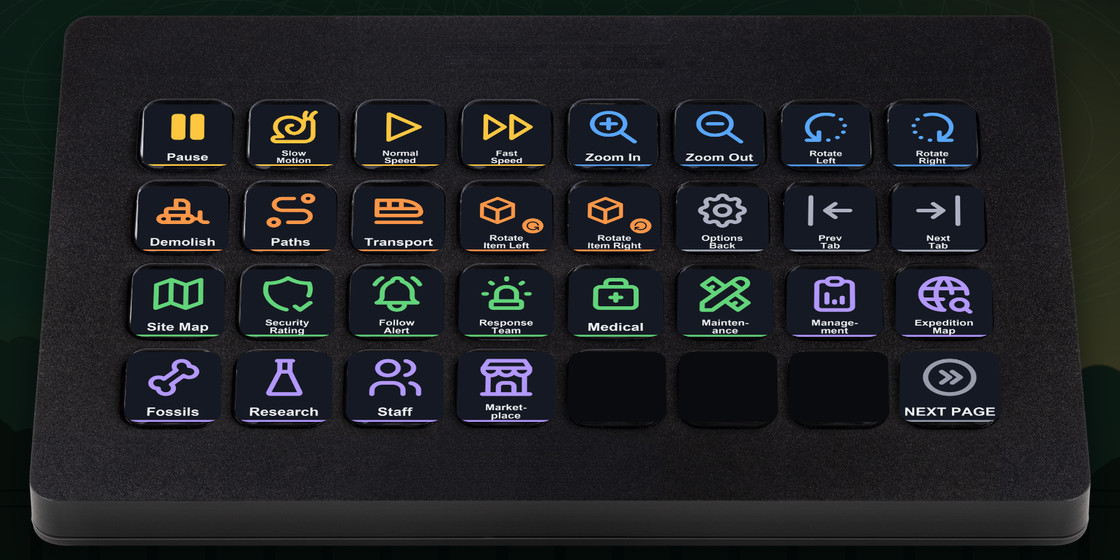
What the keys do
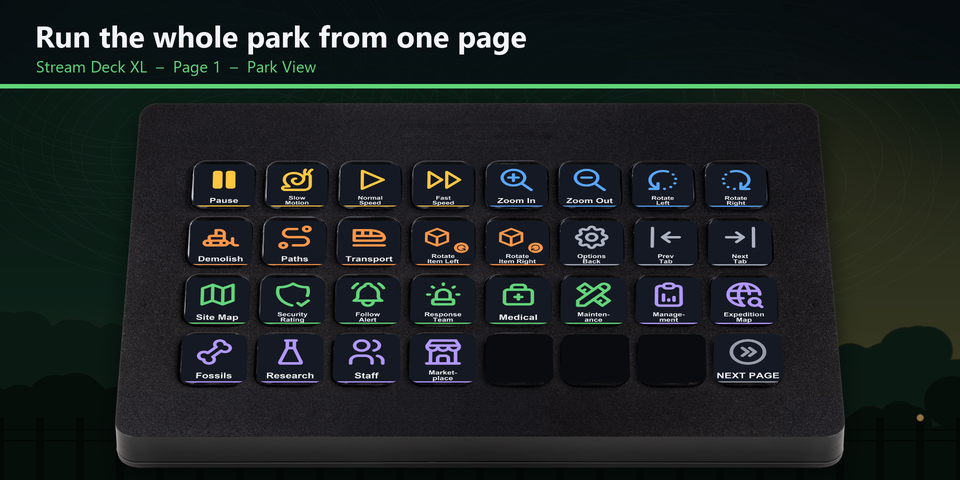
Run the park from one page
Pause, slow motion, normal and fast speed, the camera, build tools, the site map and security rating, the last notification and the park facilities. On Stream Deck XL they share one Park View page with the Control Room tabs.
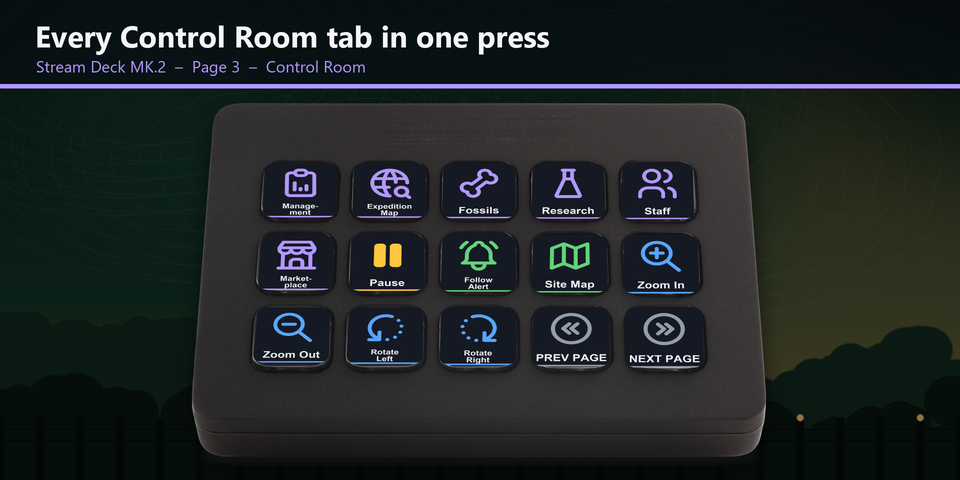
Control Room tabs at a press
Open Management, the Expedition Map, Fossils, Research, Staff Management or the Marketplace from a labeled key, with pause and the site map on the same page.
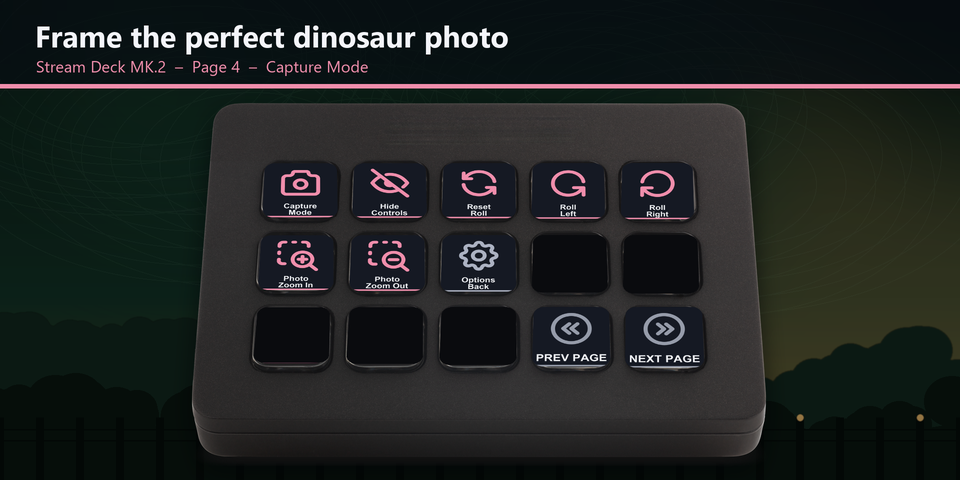
Frame dinosaur photos in Capture Mode
Open Capture Mode, hide the controls, roll the camera left or right, reset the roll and zoom in or out, all from their own page.
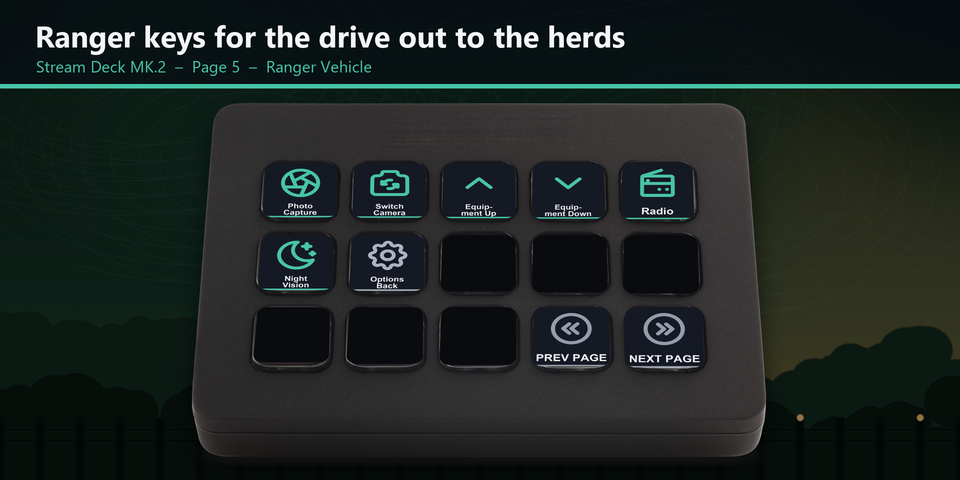
Ranger vehicle and photo keys
In a ranger vehicle, use the photo capture, switch camera, equipment, radio and night vision keys. The Ranger Photo page takes the photo, changes the camera and turns on the dinosaur highlight.
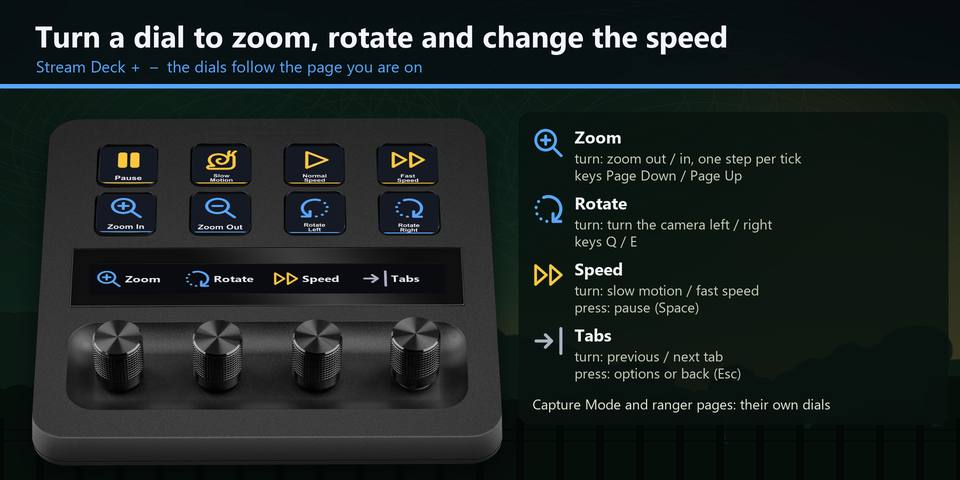
Dials on Stream Deck + that follow the page
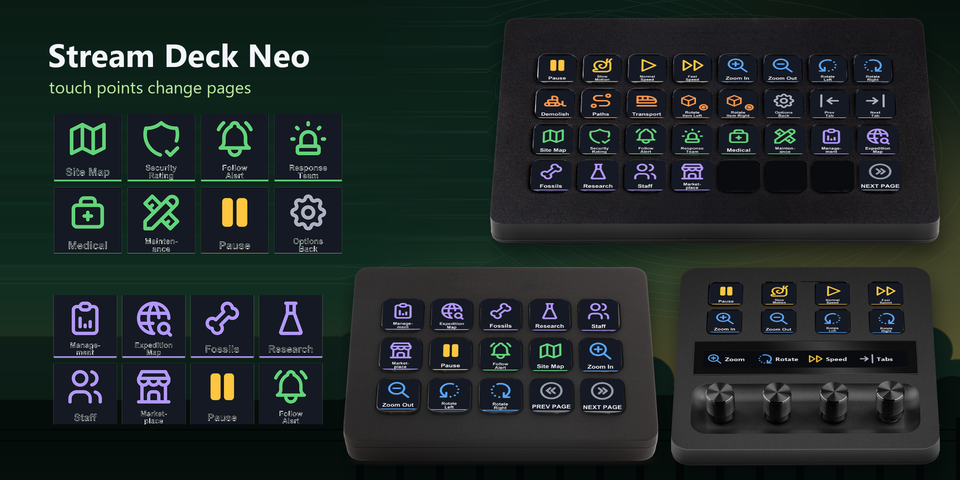
In the park view, turn the dials to zoom, rotate, change the game speed (press to pause) and change tabs (press for options or back). In Capture Mode they zoom and roll the photo camera, and on the ranger pages they switch equipment or cameras. On Stream Deck Neo, the touch points change pages.
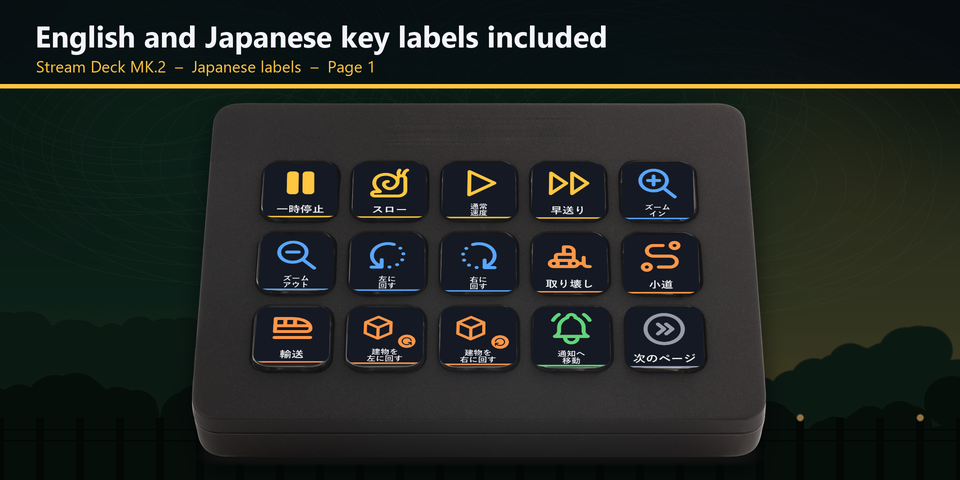
English and Japanese labels
The download holds the same keys twice: once with English labels and once with Japanese labels. Import the set you want.
Profiles for four Stream Deck models
The download holds a profile for each of Stream Deck MK.2, XL, Neo and +, in English and in Japanese. XL puts the whole park view on one page. MK.2, Neo and + split the same keys over pages named for the part of the game they are for. On Neo tap the touch points, and on + swipe the touch strip, to change pages.
Time and camera
Pause, slow motion, normal speed and fast speed. Zoom in and out, and rotate the camera left and right.
Build and menus
Demolish, paths and transport, and rotate the item left or right while you place it. Options and back, previous tab and next tab.
Park
Site map, security rating and the last notification. Go to the nearest response team, palaeo-medical facility or maintenance facility.
Control Room
Management, Expedition Map, Fossils, Research, Staff Management and Marketplace.
Capture Mode
Open Capture Mode, show or hide the controls, roll left and right, reset the roll, and zoom the photo in and out.
Ranger Vehicle and Ranger Photo
Photo capture, switch camera, equipment up and down, radio and night vision. Take a photo, previous and next camera, and the dinosaur highlight.
Set to the game's own keys
The keys are matched to the keys in the game's settings screen (Settings > Controls), so the game stays as it is.
Some letters do different things in different parts of the game, as on your keyboard: Q and E turn the park camera, roll the photo camera in Capture Mode and switch the ranger equipment. That is why each part has its own page, with the labels for that part.
Moving the camera and steering a vehicle are keys you hold down, so they stay on your keyboard. Zoom and rotate are on keys and on the Stream Deck + dials.
Set up in 3 steps
- Buy, then download and unzip the file.
- Double-click the .streamDeckProfile file for your Stream Deck. The Stream Deck app imports it.
- Start Jurassic World Evolution 3, select the profile on your Stream Deck and press a key.
Requirements
- Windows 10 or later
- Stream Deck MK.2, XL, Neo or +
- The Stream Deck app
- Jurassic World Evolution 3 for Windows, with the keys it starts with
Questions
How do I use a Stream Deck for Jurassic World Evolution 3?
Double-click the Park Deck profile file for your Stream Deck and the Stream Deck app imports it. Start the game, select the profile and press a key: the keys send the game's own keys to change the speed, open a Control Room tab, jump to a park facility, open Capture Mode or turn on night vision.
Which version of the game is it for?
Jurassic World Evolution 3 for Windows, with the keys it starts with (Settings > Controls).
Do I need to change the game's keys?
No. The keys are set to the keys the game starts with. If you changed a key in the game, edit that key's Hotkey in the Stream Deck app to the same key.
Which Stream Deck is it for?
Stream Deck MK.2, XL, Neo and +, on Windows. One purchase covers all four, with English or Japanese key labels.
What do the dials on Stream Deck + do?
They follow the page. In the park view: zoom (turn: zoom out / in), rotate (turn: rotate the camera left / right), speed (turn: slow motion / fast speed, press: pause) and tabs (turn: previous / next tab, press: options or back). In Capture Mode: photo zoom, and roll (press: reset the roll). On the ranger pages: equipment (press: switch camera) and camera (press: take a photo). Each tick sends one short key press.
Why do Q and E do different things on different pages?
The game uses Q and E to turn the park camera, to roll the photo camera in Capture Mode and to switch ranger equipment. Each of those has its own page with its own labels, so the label you see is what the key does there.
Why is there no key to move the camera or drive?
Moving and steering are keys you hold down. A Stream Deck key sends one short press, so those stay on the keyboard. Zoom and rotate are on keys and on the Stream Deck + dials.
Why does a key do nothing?
Keep the game window in front: the keys are sent to the window in front. Turn to the page for what you are doing, such as Capture Mode or Ranger Vehicle. If you changed that key in the game, edit its Hotkey in the Stream Deck app to the same key. If another program uses the same key as a shortcut across Windows, change the shortcut in that program.
What do I get when I buy?
A zip with the profile files (MK.2, XL, Neo and +, in English and Japanese) and a README. Double-click the profile file for your Stream Deck to import it. No account is needed.
How do I get the file again?
Email contact@gramshift.com from the address you paid with, and include your order number, or the payment date and amount. We check the purchase and send a new link to the download page.
Can I get a refund?
Yes. If the profile does not work with your Stream Deck and Jurassic World Evolution 3, email us within 14 days of purchase for a full refund. The download closes after a refund.
Purchase details
- Price
- ¥1,500, paid once. Tax for your country is added at checkout.
- Payment
- Handled by Stripe through Link, Stripe's checkout service. Link appears as the seller on your receipt and card statement, and your card number never reaches GRAMSHIFT.
- Delivery
- A download link appears right after payment, and the receipt arrives by email. You get the profile files and a README.
- Refunds
- If the profile does not work with your Stream Deck and Jurassic World Evolution 3, email us within 14 days of purchase for a full refund. You can also ask Link support. The download closes after a refund.
- Use
- For your own use. Please do not share, resell or upload the file.
- Countries
- Checkout is not offered in Ascension Island, China, Cuba, Iran, Kosovo, North Korea, Russia, Syria or Tristan da Cunha.
- Seller
- GRAMSHIFT, Tokyo, Japan. Contact: contact@gramshift.com
Limitations
- For Jurassic World Evolution 3 on Windows, with Stream Deck MK.2, XL, Neo or +. There are no macOS keys.
- Keep the game window in front: the keys go to the window in front.
- Set to the keys the game starts with. After you change a key in the game, edit that key's Hotkey in the Stream Deck app to the same key.
- Moving the camera, steering a vehicle and moving in Capture Mode are keys you hold down, so they stay on your keyboard. Shift for snap placement and Ctrl for the horn stay there too.
- Each key sends one short press, so a zoom or rotate key, or a dial tick, moves the camera one step; press again to move further.
- If another program uses the same key as a shortcut across Windows, that key does not reach the game. Change the shortcut in that program.