Stream Deck plugin for Windows
Copy the text in pictures, videos and error messages with a Stream Deck key
Press a key, drag over any text on your Windows screen, and paste it anywhere.
It reads text you cannot select: pictures, paused videos, scanned PDFs, error messages, games and remote desktops, and copies it to your clipboard as plain text.
Japanese and English are read together, even in one line. A second key reads the same spot every press, such as a subtitle line, a game's chat box or a field in a remote app.
- Pictures · paused videos
- Error messages · scanned PDFs
- Japanese and English together
- Read Fixed Area
- Optional Google Translate
- Settings in English and Japanese
What the keys do
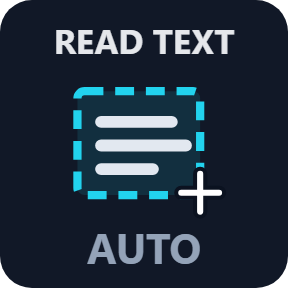
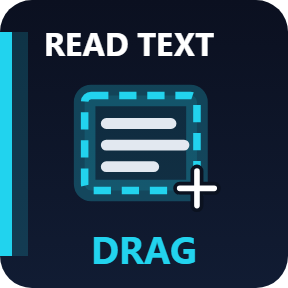
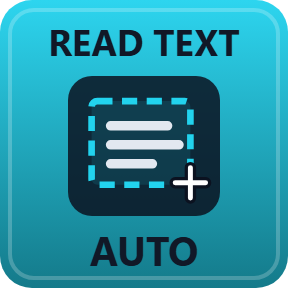
Read Text from Area
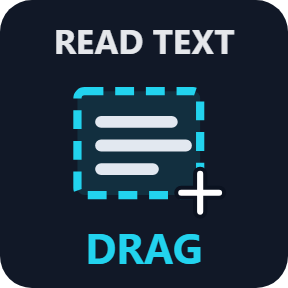
Press the key and the screen dims. Drag over the text, let go, and paste with Ctrl+V. The selection shows its size as you drag.
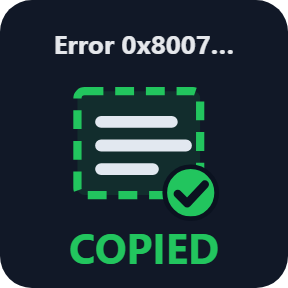
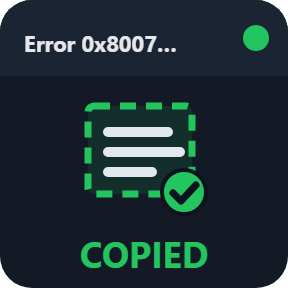
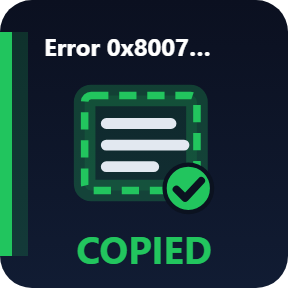
COPIED with the first words
The key turns green and shows the first words it copied, so you know the text is ready to paste. The key's settings show the last read: characters, lines and language.
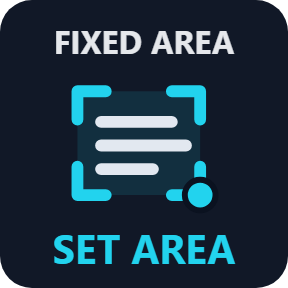
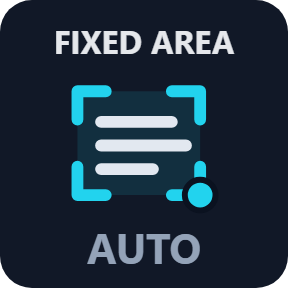
Read Fixed Area
The first press sets the area, such as a subtitle line, a game's chat box or a field in a remote app. After that, each press reads it again in one go. Hold the key for 0.6 seconds to pick a new area.
Japanese and English together
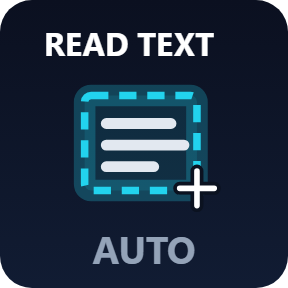
Auto reads Japanese and English in one pass, including English words and numbers inside a Japanese line. Or pick one text recognition language installed in Windows.
Also open in Google Translate
Turn it on in the key's settings to see the copied text in your language right away, in the language you choose. Keep the line breaks as on the screen, or join them into one paragraph.
Your clipboard is safe
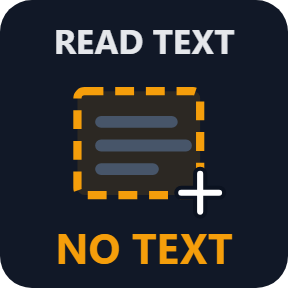
Right-click, Esc or a second press of the key cancels. When no text is found, the key shows NO TEXT and your clipboard stays as it was.
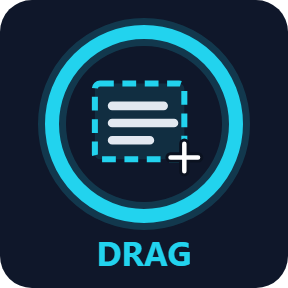
Five looks, chosen per key
Classic, Neon, Ring, Bars and Solid. Choose a look for each key in its settings.
Read it at a glance
The key shows each step: drag over the text, copied, or no text found.
Your screen stays yours
The picture of the screen is read on your PC, only while you drag or press a Read Fixed Area key, and no pictures are saved.
The text goes to your clipboard. Only Also open in Google Translate opens it in your browser, and it is off until you turn it on.
Apart from that, the only thing that goes online is the license key check.
Set up in 3 steps
- Open the plugin file you download after buying. The Stream Deck app installs it.
- In the Stream Deck app, drag Read Text from Area or Read Fixed Area onto your Stream Deck and enter your license key once in its settings.
- Press the key, drag over any text on your screen, and paste it with Ctrl+V.
Two places to buy
| Elgato Marketplace | Direct from GRAMSHIFT | |
|---|---|---|
| Amount | Same amount | Same amount, tax added at checkout |
| Checkout | Elgato Marketplace | Stripe (card) |
| New versions | Installed through the Stream Deck app | Download from your license key page |
| Use on | Your Elgato account | Up to 3 PCs per license key |
| Settings | English and Japanese | English and Japanese |
Requirements
- Windows 10 or later
- Stream Deck app 6.9 or later
- Windows PowerShell (part of Windows)
- A text recognition language installed in Windows (Japanese and English Windows have one). To read Japanese on an English Windows, add Japanese in Settings > Time & language > Language & region
Questions
How do I copy text from an image or a video on Windows?
Press the Read Text from Area key of Copy Text from Screen (OCR), drag over the text in the picture or the paused video, and paste with Ctrl+V.
Can I copy the text of an error message?
Yes. Drag over the message box and the code, for example 0x80070005, is copied as text, ready to paste into a search.
Does it read Japanese?
Yes. Auto reads Japanese and English together, including English words and numbers inside a Japanese line, when Windows has the Japanese language added.
Can one key read the same spot every time?
Yes. Read Fixed Area keeps its area, so one press copies the subtitle line, chat box or field you set. Hold the key to pick a new one. It also works inside a Multi Action.
Does my text leave my PC?
The picture of the screen is read on your PC and the text goes to your clipboard. Only Also open in Google Translate opens the text in your browser, and it is off until you turn it on. Apart from that, the only thing that goes online is the license key check.
How many PCs can I use with one license key?
Up to 3 of your own PCs. If you replace a PC, write to us and we free up a place for the new one.
How do I get new versions if I buy direct?
Download the latest version from your thank-you page or the license key page you received. Your license key keeps working. If you cannot open your license key page, email us as the "Recover your license key" page explains.
What if I lose my license key?
Email contact@gramshift.com from the address you paid with, and include your order number, or the date and amount you paid. We check the purchase and reply with a link to your license key page.
Can I get a refund?
Yes, for a direct purchase. If the plugin does not work on your PC, email us within 14 days of purchase and we refund the full amount. The license key stops working after the refund.
Direct purchase: details, refunds and seller
- Price
- ¥780, the same amount as on the Elgato Marketplace. Tax for your country is added at checkout.
- Payment
- Handled by Stripe through Link, Stripe's checkout service. Link appears as the seller on your receipt and card statement, and your card number never reaches GRAMSHIFT.
- Delivery
- Your license key and download link appear right after payment, and the receipt arrives by email.
- Refunds
- If the plugin does not work on your PC, email us within 14 days of purchase for a full refund. You can also ask Link support. The license key stops working after a refund.
- License
- One key for your own use on up to 3 PCs.
- Countries
- The direct checkout is not offered in Ascension Island, China, Cuba, Iran, Kosovo, North Korea, Russia, Syria or Tristan da Cunha.
- Seller
- GRAMSHIFT, Tokyo, Japan. Contact: contact@gramshift.com
Limits
- Windows only.
- Reading is a best guess: very small text, thin gray text, decorated fonts and busy backgrounds can come out with mistakes, so check a code before you use it.
- Handwriting is read poorly, if at all.
- Games in exclusive full screen may cover the selection: use windowed or borderless mode.
- Text is copied as plain text, without fonts or layout.
- Google Translate takes the first part of very long text.
- Keys only, not dials.
- Needs Windows PowerShell, which is part of Windows; some managed PCs block it.
- The direct version checks its license key with our server when you activate it, each time the plugin starts, and about once a day while it runs. If it cannot reach the server, it keeps working for up to 44 days after the last successful check.
- If something does not work, email contact@gramshift.com and we will help.