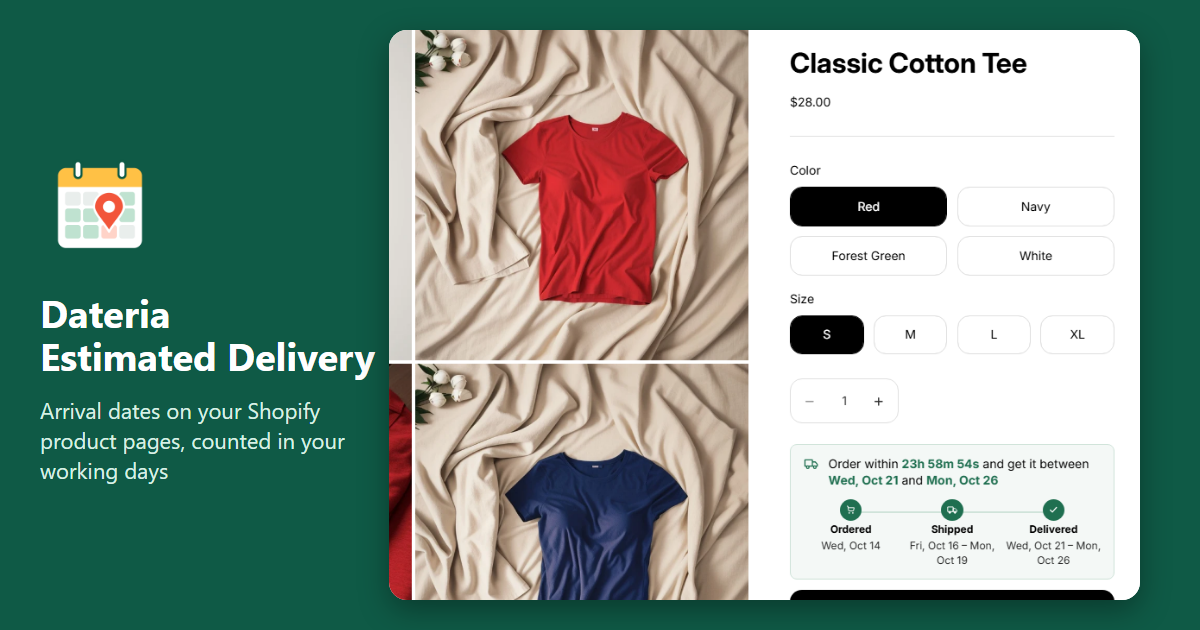
Dateria Estimated Delivery · a Shopify app by GRAMSHIFT (Tokyo, Japan) · Last updated: 2026-10-15
Show an estimated delivery date on your Shopify product page
Dateria Estimated Delivery
Short answer: Dateria Estimated Delivery is a Shopify app that shows each shopper when their order will arrive, right on the product page, for example "Order within 2h 14m 05s and get it between Wed, Oct 21 and Mon, Oct 26". You set your processing time, shipping time and cut-off time once, and the date counts only your working days and skips your holidays.
How it works
Two steps, like a real shipment. Processing time (the business days you need to pack an order) plus shipping time (the days the carrier needs). The app adds them up from the moment of the order.
Cut-off time. Orders after your cut-off (for example 14:00 in your store's time zone) start the next processing day. Before the cut-off, the product page shows a countdown: "Order within 2h 14m 05s".
Your days, not every day. You choose the days you ship (Processing days) and the days carriers deliver (Delivery days) separately, so a store that packs Monday to Friday but has Saturday delivery gets the right date. Add holidays and closed periods, such as a year-end break, and they are skipped. Import public holidays brings in a country's public holidays for the year in one click; you can remove any day before saving.
A preview for any order time. Pick an order day and time, and the app shows the result step by step: when processing starts, when the order ships, which days were skipped and when it arrives.
Out of stock. For a variant that is out of stock but still for sale, hide the date, add extra days or show a different message. Sold-out variants, products that need no shipping (such as digital products) and gift cards show no date.
Your look. Choose Text line, Timeline (Ordered, Shipped, Delivered) or Box, then the icon and colors to match your theme.
In the shopper's language. Weekday and month names follow the language the shopper is viewing your store in. You can translate the message for each of your store languages.
On cart lines and orders. When a shopper adds the product to the cart, the estimate goes with it, so it is on the cart line, the order and the order confirmation. This is on by default and can be switched off in Design.
Nothing shows until you turn it on. Set it up and check the preview first; the date appears on your store only after you switch on Show on store.
Different times for different products or countries (Pro). Create rules by collection, tag, vendor, product type or product, and by the shopper's country. Rules are checked from the top; the first match is used, and the preview shows which rule applied.
Three ways to show a delivery date, and what goes wrong with each
1. Write it in the product description
"Ships in 3–5 days" is easy to add, but the shopper has to count the days, and the text never moves past weekends, holidays or your cut-off time. A date the shopper can read at a glance answers the question "when will it arrive?" without a calculator.
2. Add code to the theme
A few lines of code can add days to today's date. Weekends, holidays, a cut-off time in your time zone, out-of-stock items and other languages each need more code, and theme updates can remove it.
3. Use an app
An app keeps the dates right as days pass and adds the rest (countdown, holidays, languages, rules). Dateria Estimated Delivery does this inside your theme without code edits; turn the app embed off and the product page is as before.
Set it up
Install Dateria Estimated Delivery. The app opens on Home with four steps.
Set your delivery times: Processing time, Shipping time and Cut-off time, then Processing days, Delivery days and your holidays. In Estimate preview next to them, try a Friday evening order and check the steps. Click Save.
Preview: pick a look in Design and check the message in your store's language.
Enable app embed: the theme editor opens with Delivery estimate switched on; click Save. To choose the exact spot on the product page, add the Delivery estimate block in the theme editor instead.
Show on store: switch it on. Open a product page to see the date.
Plans
Free: delivery dates on every product page, cut-off time, working days and holidays, out-of-stock handling, the preview, translations, and the estimate on cart lines and orders. No limit on products or page views.
Pro ($9.99/month or $99.90/year, 7-day free trial): rules by collection, tag, vendor, product type, product and country, rules that run on set dates (sales, busy seasons, closures), and CSV export and import of rules.
FAQ
How do I show an estimated delivery date on my Shopify product page?
Install Dateria Estimated Delivery, enter your processing time, shipping time and cut-off time, and switch on Show on store. The date appears above the Add to cart button, or wherever you place the Delivery estimate block.
Can the delivery date skip weekends and holidays?
Yes. Choose the days you ship and the days carriers deliver, and add your holidays and closed periods. Skipped days are shown in the preview.
How does the cut-off time work?
Orders placed after the cut-off time, in your store's time zone, start processing on the next processing day. Before the cut-off, shoppers see a countdown such as "Order within 2h 14m 05s".
Can I check that the date is right before shoppers see it?
Yes. The preview takes any order day and time and shows each step: processing start, ship date, skipped days and arrival. Nothing is shown on your store until you switch on Show on store.
Can I show different delivery times for different products?
Yes, with Pro. Create a rule for a collection, tag, vendor, product type or product with its own processing and shipping time. To show no date on some products, use Exclude products (also in Free); products that need no shipping, such as digital products, show no date on their own.
Can I show different delivery times for different countries?
Yes, with Pro. A rule can apply to chosen countries. The country is the one the shopper picked in your store's country selector, or your store's country if you sell to one country.
What happens when a product is out of stock?
Choose for out-of-stock variants: hide the date, add extra days, or show a different message. The date changes when the shopper picks another variant.
Will the date show in my customers' language?
Yes. Weekday and month names follow the language of the store page, and you can translate the message for each store language.
Does the estimated delivery date appear in the order?
Yes. The estimate is added to the cart line when the product goes into the cart, so it stays on the order and the order confirmation.
Does it edit my theme code?
No. It works through an app embed and a theme block. Switch it off in the theme editor, or uninstall the app, and the product page is as before.
Is there a limit on page views or products?
No. Free and Pro show the date on every product page, with no limit on page views or products.
What happens when I uninstall?
The date disappears from your store and Shopify stops the subscription.
Good to know
The date is an estimate from the times you enter; carriers can be late. Keep your shipping time to what your carriers really take.
Checkout and the thank-you page are not changed by the app; the estimate reaches the order through the cart line.
Collection pages and the home page are not covered yet.
 Dateria Estimated Delivery