Iromi Color Variant Cards · a Shopify app by GRAMSHIFT (Tokyo, Japan) · Last updated: 2026-10-12
How to show each color as its own product card on a Shopify collection page
Short answer: Shopify themes show one card per product, so a T-shirt sold in red, blue and black appears once, with one photo. To show a card for each color, you can edit your theme's code, create a separate product for every color, or use an app that splits each product into color cards on the storefront. Our app, Iromi Color Variant Cards, does the third: each color gets its own card with its own photo, price and stock, your filters and pages keep working, and no theme code is edited.
Why one card per product hides sales
When a shopper opens a collection, they see the first color of each product. If they were looking for green, they have to guess that the product comes in green and open it to find out. Showing each color as its own card puts every color in front of the shopper on the collection page itself, with the right photo.
The three ways to do it, and what goes wrong with each
1. Edit the theme code
A developer changes the product card loop in your theme (Liquid) so it outputs one card per color variant.
What goes wrong:
Filters and counts stop matching. Shopify's collection filters and product counts work per product. A hand-made loop has to re-check every filter (color, size, availability, price) for each color, or shoppers see colors that do not match what they filtered.
Pagination gets uneven. Shopify pages a collection by product. If the code adds cards without accounting for this, pages can hold very different numbers of cards.
Theme updates overwrite it. When you update or switch themes, the custom code is gone or conflicts with the new version.
Leftovers. Code pasted into theme files stays there until someone removes it. Merchants who tried apps that edit theme files have reported errors on collection pages that remained after uninstalling.
2. Create a separate product for every color
You duplicate the product: "Classic Tee - Red", "Classic Tee - Blue" and so on.
What goes wrong:
More work and split stock. Every price change, description edit and stock count has to be done on each copy.
Near-duplicate pages. Several product pages with the same description can compete with each other in search results.
Reviews and sales history are split across the copies.
The product page no longer offers the other colors unless you link the products together. Shopify's Combined Listings app does this on Shopify Plus; on other plans you need an app for it. (If your store already works this way, our sister app Iromi Color Swatches links separate color products with swatches.)
3. Use an app that splits products into color cards
The product stays one product in your admin. On the storefront, the app shows a card per color. This keeps your catalog clean, but apps differ in the details. Before you install one, check:
Does it edit your theme files, or does it use a theme app extension (an app embed you can switch off)?
Can it split by color only, so sizes stay inside the card instead of one card per size?
Does each card show that color's photo, price and stock, not the first variant's?
Do your filters, sorting and pagination still work?
What is left after you uninstall it?
How Iromi Color Variant Cards does it
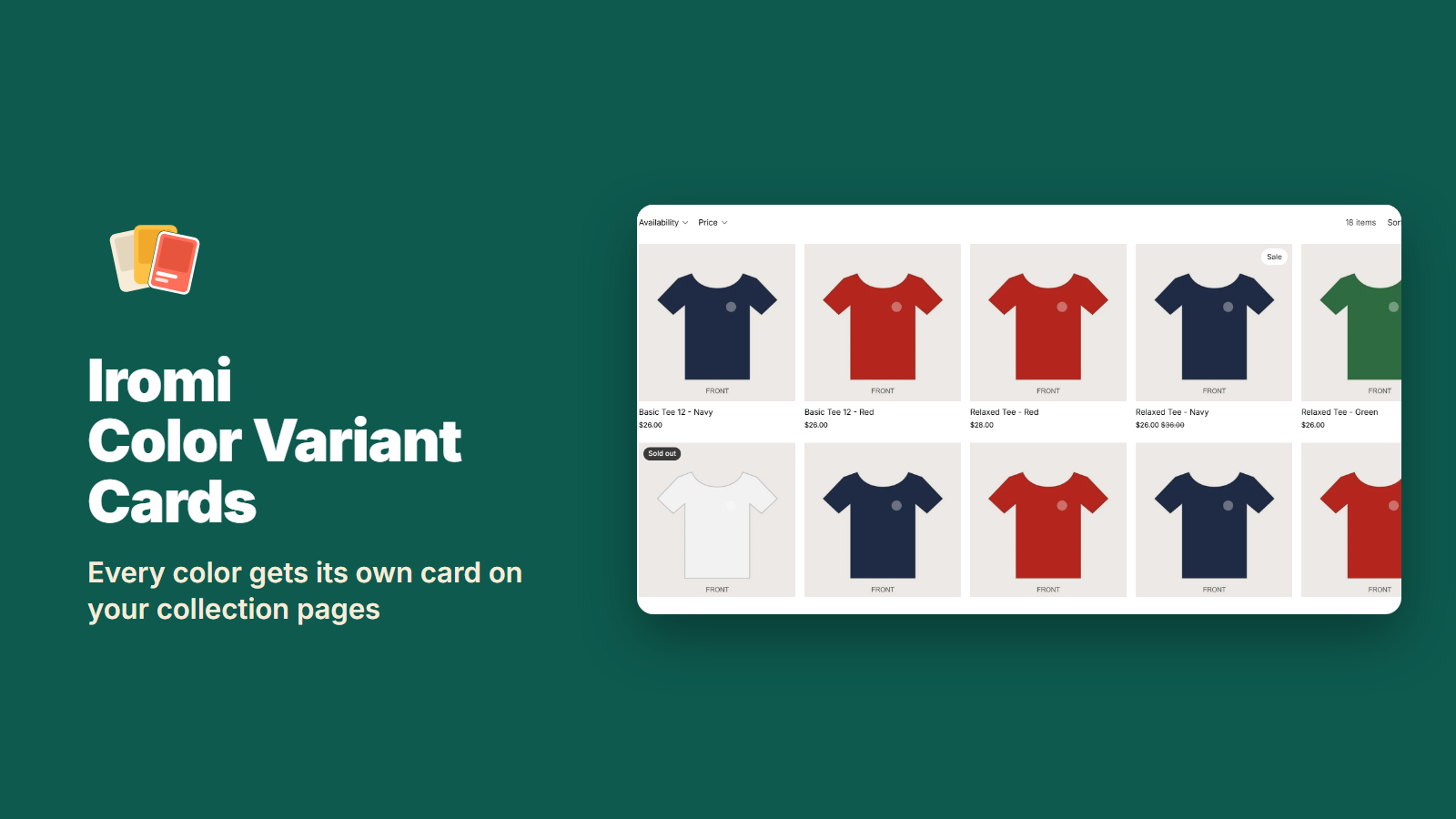
One card per color. Each card shows that color's own photo (the variant image), its price and compare-at price, and a Sold out label when that color is sold out, even if other colors are in stock. The Sale label is hidden on colors that are not on sale.
The click opens the right color. The card links to your product page with that color already selected. Quick add on the card adds that color: on Horizon, quick add on the Red card opens with Red selected, and the cart holds the red one.
Sizes stay inside the card. A tee in 3 colors and 4 sizes becomes 3 cards, not 12. You choose the option to split by: Color is suggested, and you can pick another option such as Material or Pattern.
Filters, sorting and pages keep working. Filter by Red and you see the red cards. Filter by Size M and In stock and you see the colors that have M in stock. A price range keeps the colors in range, and sorting by price also puts each product's colors in price order. Filters that update without reloading the page work too. Pagination stays your theme's: each page shows the same products as before, split into their colors.
No theme code is edited. The cards come from an app embed. Switch it off in the theme editor, or uninstall the app, and your theme shows one card per product again, exactly as before.
Card options. Add the color to the card title ("Classic Tee - Red", with the separator you choose), hide colors that are sold out in every size, and set the most color cards to show per product.
Your data. The app reads your products and collections. It does not access customer data.
Tested on Horizon (Shopify's current default theme) and a Dawn-style Online Store 2.0 theme.
Set it up
Install Iromi Color Variant Cards from the Shopify App Store.
In the app, click Turn on in theme. The theme editor opens with Variant cards switched on under App embeds. Click Save.
Tick the option to split by (Color is suggested).
Choose where to show color cards: the collections you pick, or, on Pro, every collection (or all except some) and the search results page.
Click Save, then open the collection in your store.
Tip: give each color its own variant image in the product admin, so every card shows the right photo.
Plans
Free: color cards in 1 collection of your choice.
Pro: every collection (or all except the ones you choose) plus the search results page. $14.99 per month or $149.90 per year, with a 7-day free trial. Billing is handled by Shopify, so uninstalling the app ends the charge.
FAQ
How do I show each color of a product as a separate card on my Shopify collection page?
Install Iromi Color Variant Cards, turn on its app embed in the theme editor, choose the option to split by (Color is suggested) and the collections to use, then click Save. Each product then shows one card per color, with that color's photo, price and stock.
Do I need to duplicate products or edit my theme code?
No. Your products stay as they are: one product with its color and size variants. The cards are added by an app embed, so no theme file is edited. Switch the embed off, or uninstall the app, and your theme shows one card per product again, exactly as before.
Will my collection filters, sorting and pagination still work?
Yes. The cards follow your storefront filters, including filters that update without reloading the page. Filter by Red and you see the red cards. Filter by Size M and In stock and you see the colors that have M in stock. A price range keeps the colors whose price is in range, and sorting by price also puts each product's colors in price order. Pagination stays your theme's own: each page shows the same products as before, split into their colors.
What happens to sizes and other options?
They stay inside each card. A tee in 3 colors and 4 sizes becomes 3 cards, not 12. You can also split by another option instead of color, such as Material or Pattern.
Which photo, price and stock does each color card show?
Each card uses the image you assigned to that color's variants in your product admin, that color's price and compare-at price, and that color's stock. A Sold out label shows when that color is sold out, even if other colors are in stock, and the Sale label is hidden on colors that are not on sale. Prices are the store's prices for the shopper's country.
What does a shopper see when they click a color card?
The product page opens with that color already selected. If your theme has a quick add button on cards, quick add on the Red card adds red.
Does it create extra pages or change my product pages?
No. No duplicate products or extra pages are created, and your product pages are not changed. A color card links to your normal product page with that color selected.
Can I add the color name to the card title or limit how many colors show?
Yes. You can add the color to the card title, for example Classic Tee - Red, and pick the separator. You can hide colors that are sold out in every size, and set the most color cards to show per product.
Which themes does it work with?
We have tested it on Horizon, Shopify's current default theme, and on a Dawn-style Online Store 2.0 theme. If the cards do not appear on your theme, email contact@gramshift.com and we will look at it.
Where do the color cards appear?
On the collection pages you choose and, on Pro, the search results page. Other product lists, such as a featured collection on the home page, product recommendations and recently viewed products, keep one card per product.
What happens if I uninstall the app?
The color cards disappear and your theme shows one card per product, as before. Nothing was written into your theme files, so there is nothing to clean up, and Shopify stops the Pro charge.
Does the app read my customers' data?
No. It reads your products and collections to build the cards and does not access customer data.
Good to know
Color cards appear on collection pages and, on Pro, the search results page. The search suggestions box, home page featured collections, product recommendations and recently viewed products keep one card per product.
Each product is split by one option (for example Color). Sizes and other options stay inside the card; the app does not make a card for every size.
Tested on Horizon and a Dawn-style Online Store 2.0 theme. Themes with very different product cards may not be picked up; contact us before you rely on it.
Pagination stays your theme's, so each page holds more cards than before, and the number of cards per page depends on how many colors each product has.
Infinite scroll and load-more collection layouts have not been tested yet.
A color without its own variant image will not have a photo of its own on its card.
The cards follow filters made from your product options (for example Color or Size) and the availability and price filters. With a color filter built from the category color metafield, Shopify still filters the products, but each product keeps all of its color cards.
Products with more than 250 variants show color cards for their first 250 variants.