Stream Deck plugin for Windows
The song playing on your PC, with its album art, on Stream Deck
See the cover, title and artist of the song playing in Spotify, YouTube in your browser or any app in the Windows media controls, and play, pause, skip or move through it from your Stream Deck.
Put four keys in a square for one big album cover, switch between apps with one key, turn the Stream Deck + dial to move through the song, and show the song and its cover in OBS.
- Spotify · browser · media apps
- Cover, title and artist
- Big cover from 4 keys
- Skip 5 to 60 seconds
- Stream Deck + dial
- Song files for OBS



What the keys do
Now Playing
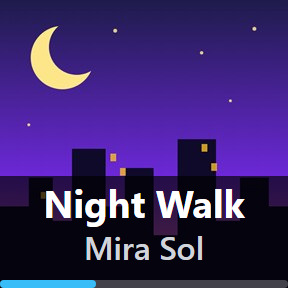
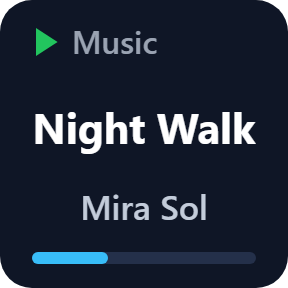
The cover with the title, artist and a time bar. Press it to play or pause, or set the press to next song, previous song or nothing.

Big cover
Set four Now Playing keys in a square to Top left, Top right, Bottom left and Bottom right of 4, and they show one large album cover together.
Play / Pause, Next, Previous
With the cover behind the symbol or a dark look. A key turns grey when the app does not allow that step.
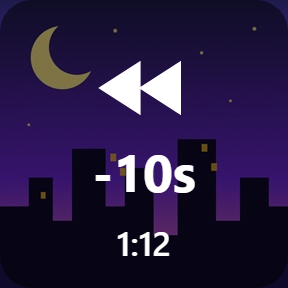
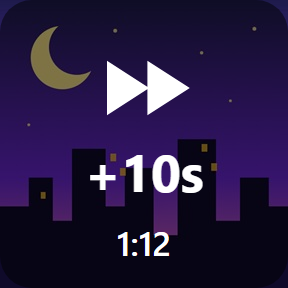
Skip Back / Forward
Move 5, 10, 15, 30 or 60 seconds per press, and the key shows where the song is.
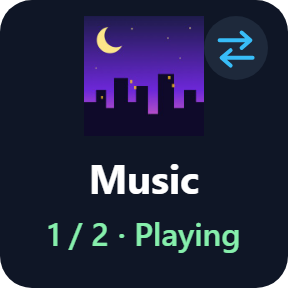
Switch Player
When a music app, a browser and a video player all play, one press picks which one the keys show and control. Or give a key one app of its own.
Song files for OBS
The song as text in your own pattern, such as "{artist} - {title}", plus title, artist and cover files that change with the song, ready for OBS Text and Image sources.
Choose a look per key
Now Playing shows the cover with the song, the song as text, or the cover only. Play / Pause, Next, Previous and Skip show the cover behind the symbol or a dark look.
Read it at a glance
The keys follow the song: what plays, whether it is paused, and which app the keys control.
Your music stays on your PC
No account. The keys read the song from the Windows media controls on this PC.
The songs, covers and apps you play are never sent to us. The song files for streaming are written only when you turn them on, to Documents\Now Playing or a folder you choose.
The only thing that goes online is the license key check.
Set up in 3 steps
- Open the plugin file you download after buying. The Stream Deck app installs it.
- In the Stream Deck app, drag Now Playing onto your Stream Deck and enter your license key once in its settings.
- Play a song in Spotify, your browser or another music app. The key shows its cover, title and artist. Add Play / Pause, Next Track, Previous Track, Skip Back / Forward, Switch Player or the Media Dial where you like.
Two places to buy
| Elgato Marketplace | Direct from GRAMSHIFT | |
|---|---|---|
| Amount | Same amount | Same amount, tax added at checkout |
| Checkout | Elgato Marketplace | Stripe (card) |
| New versions | Installed through the Stream Deck app | Download from your license key page |
| Use on | Your Elgato account | Up to 3 PCs per license key |
| Settings | English and Japanese | English and Japanese |
Requirements
- Windows 10 version 1809 or later, or Windows 11
- Windows PowerShell (part of Windows; nothing to install)
- Stream Deck app 6.9 or later. Stream Deck + for the dial
- A music or video app that shows its song in the Windows media controls, such as Spotify, a browser or the Media Player (no music service included)
Questions
How do I show the song playing in Spotify on my Stream Deck?
Add the Now Playing key of Now Playing & Album Art. It shows the album art, title and artist of the song playing in Spotify, and a press plays or pauses it.
Can I control YouTube in my browser with Stream Deck?
Yes, when the browser shows in the Windows media controls (the box that appears next to the volume when you press a media key). Play / pause, next and moving in the song work as far as the web site allows.
How do I show the current song in OBS?
Turn on "Write the song to text files" in any key's settings. Add a Text source with "Read from file" for nowplaying.txt, and an Image source for cover.jpg. They change with the song.
Can the Stream Deck + dial skip through a song?
Yes. Turn the Media Dial to move back or forward in the song, or set it to skip songs instead. Push to play or pause, touch for the next song, and touch and hold to switch player.
What if two apps play at once?
Press Switch Player to choose which app the keys show and control, or give a key one app of its own.
Do I need to install anything else?
No other app. The plugin uses Windows PowerShell, which comes with Windows.
How many PCs can I use with one license key?
Up to 3 of your own PCs. If you replace a PC, write to us and we free up a place for the new one.
How do I get new versions if I buy direct?
Download the latest version from your thank-you page or the license key page you received. Your license key keeps working. If you cannot open your license key page, email us as the "Recover your license key" page explains.
What if I lose my license key?
Email contact@gramshift.com from the address you paid with, and include your order number, or the date and amount you paid. We check the purchase and reply with a link to your license key page.
Can I get a refund?
Yes, for a direct purchase. If the plugin does not work on your PC, email us within 14 days of purchase and we refund the full amount. The license key stops working after the refund.
Direct purchase: details, refunds and seller
- Price
- ¥900, the same amount as on the Elgato Marketplace. Tax for your country is added at checkout.
- Payment
- Handled by Stripe through Link, Stripe's checkout service. Link appears as the seller on your receipt and card statement, and your card number never reaches GRAMSHIFT.
- Delivery
- Your license key and download link appear right after payment, and the receipt arrives by email.
- Refunds
- If the plugin does not work on your PC, email us within 14 days of purchase for a full refund. You can also ask Link support. The license key stops working after a refund.
- License
- One key for your own use on up to 3 PCs.
- Countries
- The direct checkout is not offered in Ascension Island, China, Cuba, Iran, Kosovo, North Korea, Russia, Syria or Tristan da Cunha.
- Seller
- GRAMSHIFT, Tokyo, Japan. Contact: contact@gramshift.com
Limits
- Windows only. Shows apps that share their song with the Windows media controls; a player that does not (some older desktop players) cannot be shown or controlled.
- When one app plays two things at the same time, the keys show and control the first one.
- Some web sites and live streams do not allow skipping or moving in the song; those keys turn grey.
- The cover and the time come from the app. When an app or web site sends no cover, the key shows a plain colored background with a music note; when it sends no time, there is no time bar.
- No volume control; change the volume in Windows or in the app.
- The direct version checks its license key with our server when you activate it, each time the plugin starts, and about once a day while it runs. If it cannot reach the server, it keeps working for up to 44 days after the last successful check.
- If something does not work, email contact@gramshift.com and we will help.