OpenDeck plugin for Windows and Mac
Checklist keys on Ajazz and Mirabox decks with OpenDeck
On an Ajazz or Mirabox deck running OpenDeck, each key becomes one item of a checklist: press it to check or uncheck it, and a Progress key counts the done items as 3/7.
Use it before you go live, before you shut down or to start the day. The Progress key turns green when every item is checked, and the check marks are saved on your computer.
- Press to check
- Progress such as 3/7
- Stays after a restart
- Daily auto reset
- Five looks
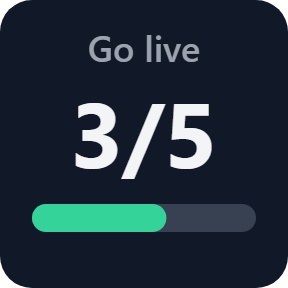


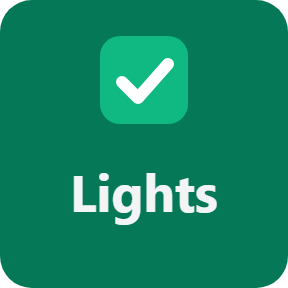


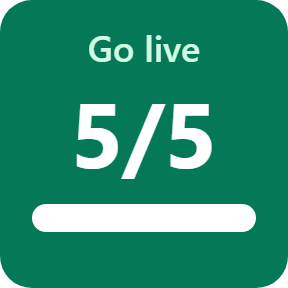
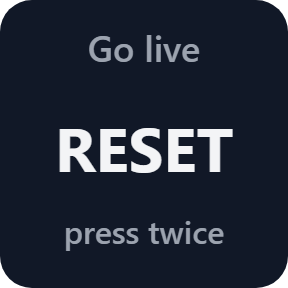
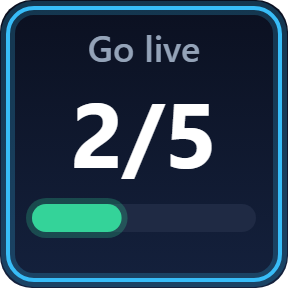

What the keys do
Check Item
Press to check or uncheck one item. Labels can have 1 or 2 lines. A key can also be set to uncheck only with a 1 second hold, so a slip does not undo an item.
Progress
Shows how many items of a list are checked, such as 3/7, counting the keys on every page. It turns green when every item is checked, and a 1 second hold can uncheck the whole list.
Reset List
Unchecks every item of a list when you press twice within 3 seconds or hold for 1 second. A single press does nothing, so a slip never clears your list.
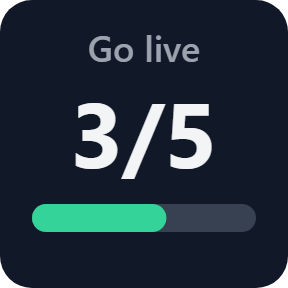
Stays after a restart
Check marks are saved on your computer and are still there after the computer restarts, unless the list has an automatic reset.
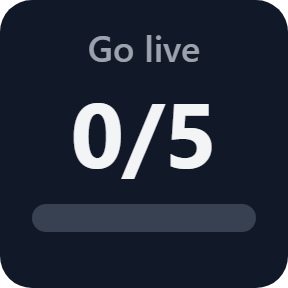
Automatic reset
Each list can reset every day at your time, or each time the plugin starts. If the deck software was closed at that time, the list resets once at the next start.
Several lists
Keys with the same list name form one list, so a pre-stream list and a shutdown list can sit side by side. Case does not matter in list names.
Install in OpenDeck
In OpenDeck, open the Plugins tab, install the .streamDeckPlugin file you downloaded, then enter your license key once in a key's settings.
Requirements
- Windows 10 or later, or macOS 13 or later (Apple silicon or Intel)
- OpenDeck 2.14 or later
Questions
How do I make a checklist on an Ajazz or Mirabox deck with OpenDeck?
Place a Check Item key for each item in OpenDeck and give them the same list name. Press a key to check that item. A Progress key with the same list name shows how many are done, such as 3/7.
Do the check marks stay after I restart my computer?
Yes. Check marks are saved on your computer and stay after a restart, unless you set an automatic reset for that list.
Can the list reset itself every day?
Yes. In the settings of the Progress or Reset List key, choose an automatic reset every day at your time, or each time the plugin starts.
Purchase details, refunds and seller
- Price
- ¥680, paid once. Tax for your country is added at checkout.
- Payment
- Handled by Stripe through Link, Stripe's checkout service. Link appears as the seller on your receipt and card statement, and your card number never reaches GRAMSHIFT.
- Delivery
- Your license key and download link appear right after payment, and the receipt arrives by email.
- Countries
- The direct checkout is not offered in Ascension Island, China, Cuba, Iran, Kosovo, North Korea, Russia, Syria or Tristan da Cunha.
- Seller
- GRAMSHIFT, Tokyo, Japan. Contact: contact@gramshift.com
- Refunds
- If the plugin fails to run on your PC, email contact@gramshift.com within 14 days of purchase for a full refund. The license key stops working after a refund.
- License
- One key for your own use on up to 3 PCs.
Limits
- Works on Windows 10 or later and macOS 13 or later.
- A Check Item key you delete can stay in the count. Remove it with Forget in the settings of the Progress key.
- The direct version checks its license key with our server when you activate it, at each plugin start and about once a day. If the server cannot be reached, it keeps running for up to 44 days after the last successful check.