OpenDeck plugin for Windows
Lock the mouse to one screen with one key: Ajazz, Mirabox, OpenDeck
On an Ajazz or Mirabox deck running OpenDeck, Cursor Lock Keys lock the mouse cursor to one monitor with one key.
On a PC with two or more screens, one press keeps the pointer on the screen it is on, or on a screen you choose, so it does not slip onto the other display while you play or work. Press again to free it.
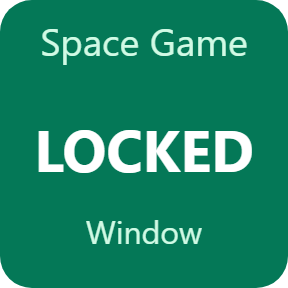
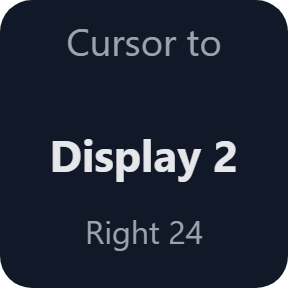
Lock to Window keeps the pointer inside the window in front, such as a game in a window. Cursor to Monitor moves the pointer to the middle of the next screen. Hold Ctrl, Alt or Shift to let the pointer out for a moment.
- Lock to one monitor
- Lock to the window in front
- Pick a screen
- Jump to the next screen
- Press again to free it
What the keys do
Lock the mouse to one monitor
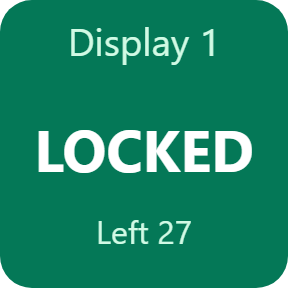
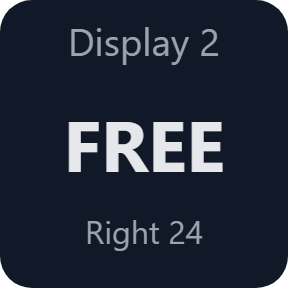
Lock to Monitor keeps the mouse pointer on the screen it is on when you press, or on a screen you choose in the key's settings. Press the same key again to free it. The key shows the screen and LOCKED only while Windows reports the lock.
Lock it to the window in front
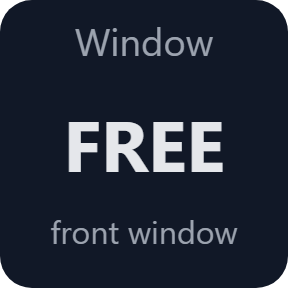
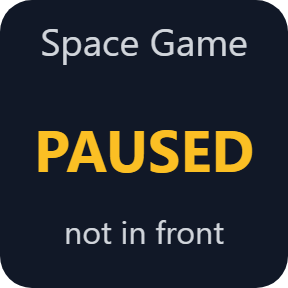
Lock to Window keeps the pointer inside the window in front, for example a game in a window. While another window is in front the pointer is free and the key says PAUSED; the lock comes back when the window is in front again.
Jump to the next screen
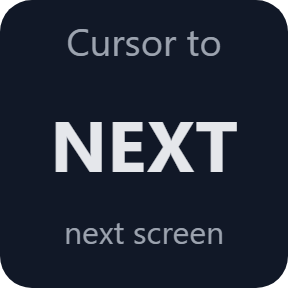
Cursor to Monitor moves the pointer to the middle of the next screen, from left to right and around again, or to the screen you choose. While a lock is on, it leaves the pointer where it is and says unlock first.
Hold a key to leave for a moment
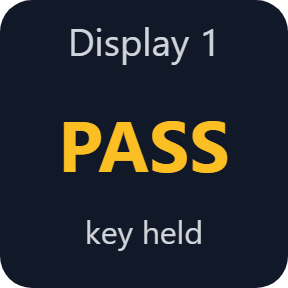
Choose Ctrl, Alt, Shift or Ctrl + Alt as the key to leave. While you hold it on the keyboard, the pointer is free and the key says PASS. Let go and the lock is back.
The key shows what Windows reports
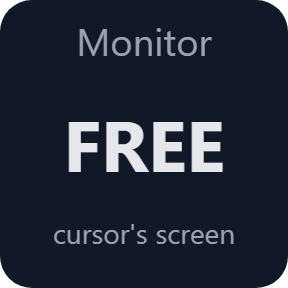
Windows drops a pointer lock by itself when another window comes to the front, so the plugin checks ten times a second and sets it again. The key says LOCKED only while Windows reports the lock, and FREE when it is off.
Tells you when a game takes over
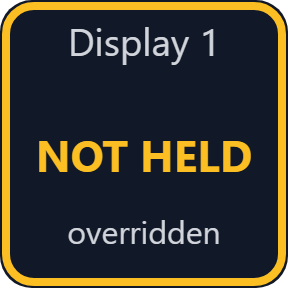
Some games confine the pointer themselves. When another program's limit is in force, the plugin leaves it alone and the key says NOT HELD, so you know at once.
Install in OpenDeck
In OpenDeck, open the Plugins tab, install the .streamDeckPlugin file you downloaded, then enter your license key once in a key's settings.
Requirements
- Windows 10 or later
- Two or more screens, for locking to one of them
- OpenDeck 2.14 or later
Questions
How do I lock the mouse to one monitor with an Ajazz or Mirabox key and OpenDeck?
Place Lock to Monitor on a key in OpenDeck and press it. The mouse pointer stays on the screen it is on, or on the screen you choose in the key's settings. Press the same key again to free it.
How do I stop the mouse going to my second monitor while I play a game?
Press Lock to Monitor, or Lock to Window while the game window is in front. The pointer is held on that screen until you press the key again or hold your leave key.
Does it change how the game reads the mouse?
No. It limits where the Windows pointer can go. Camera movement that a game reads straight from the mouse (Raw Input) is not changed.
Purchase details, refunds and seller
- Price
- ¥780, paid once. Tax for your country is added at checkout.
- Payment
- Handled by Stripe through Link, Stripe's checkout service. Link appears as the seller on your receipt and card statement, and your card number never reaches GRAMSHIFT.
- Delivery
- Your license key and download link appear right after payment, and the receipt arrives by email.
- Countries
- The direct checkout is not offered in Ascension Island, China, Cuba, Iran, Kosovo, North Korea, Russia, Syria or Tristan da Cunha.
- Seller
- GRAMSHIFT, Tokyo, Japan. Contact: contact@gramshift.com
- Refunds
- If the plugin fails to run on your PC, email contact@gramshift.com within 14 days of purchase for a full refund. The license key stops working after a refund.
- License
- One key for your own use on up to 3 PCs.
Limits
- Windows only, with your deck on the same PC. With one screen, Lock to Monitor has nothing to hold back.
- It limits the Windows pointer only. A game that confines the pointer itself can take over the lock; the key then says NOT HELD.
- Lock to Window ends when the window is closed, hidden, minimized or smaller than 200 pixels.
- The direct version checks its license key with our server when you activate it, at each plugin start and about once a day. If the server cannot be reached, it keeps running for up to 44 days after the last successful check.