Stream Deck profile for Windows
CapCut shortcuts on your Stream Deck
Put CapCut's editing shortcuts on your Stream Deck and edit with one press of a labeled key.
Edit Keys for CapCut gives video editors keys for split, delete left or right of the playhead, markers, keyframes, frame steps, undo, group and timeline zoom in the CapCut desktop app.
Profiles for Stream Deck MK.2, XL, Neo and + on Windows, with four dials on the Stream Deck + for jog, cut points, markers and timeline zoom. Every shortcut key sends a CapCut default shortcut, so you can start editing right after the import.
- Play and frame steps
- Split and trim
- Undo, copy and group
- Markers and keyframes
- Timeline and player zoom
- Dials for jog, cuts, markers and zoom
What the pages hold
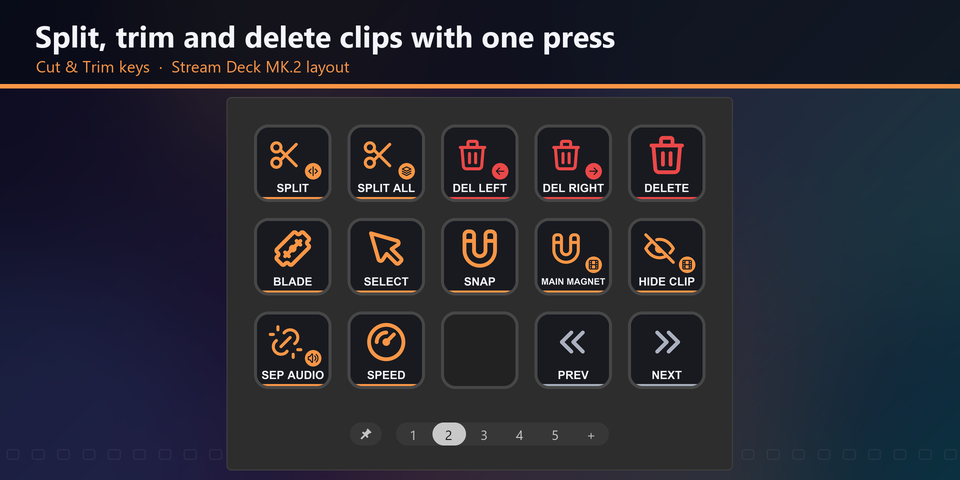
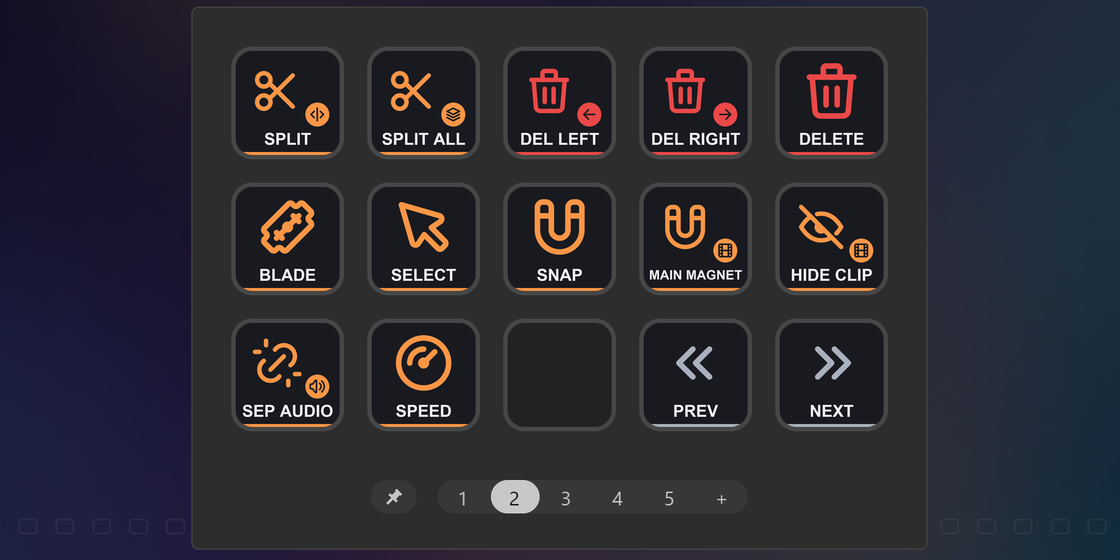
Cut & Trim
Split at the playhead, split all tracks, delete left or right of the playhead, Delete, the Blade and Select tools, snapping, the main-track magnet, hide clip, separate audio and the speed panel.
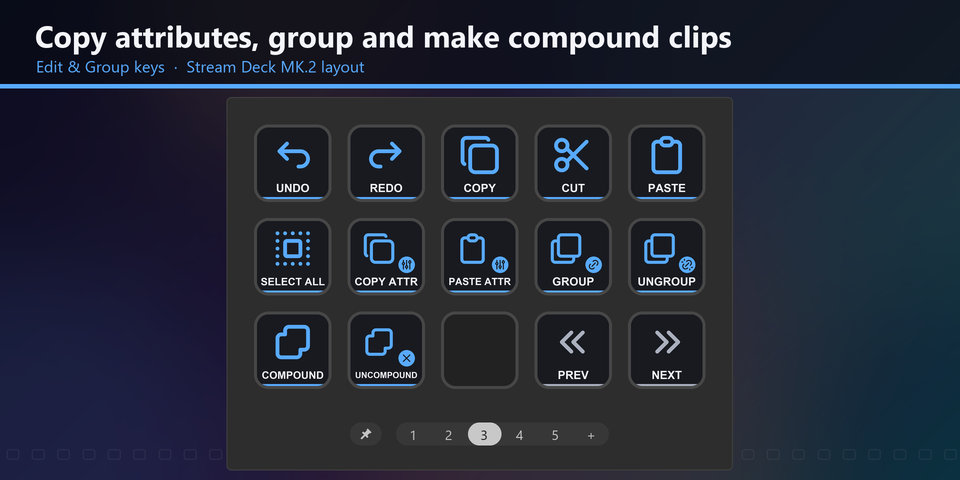
Edit & Group
Undo, Redo, Copy, Cut, Paste, Select all, copy and paste attributes, Group, Ungroup, compound clip and undo compound clip.
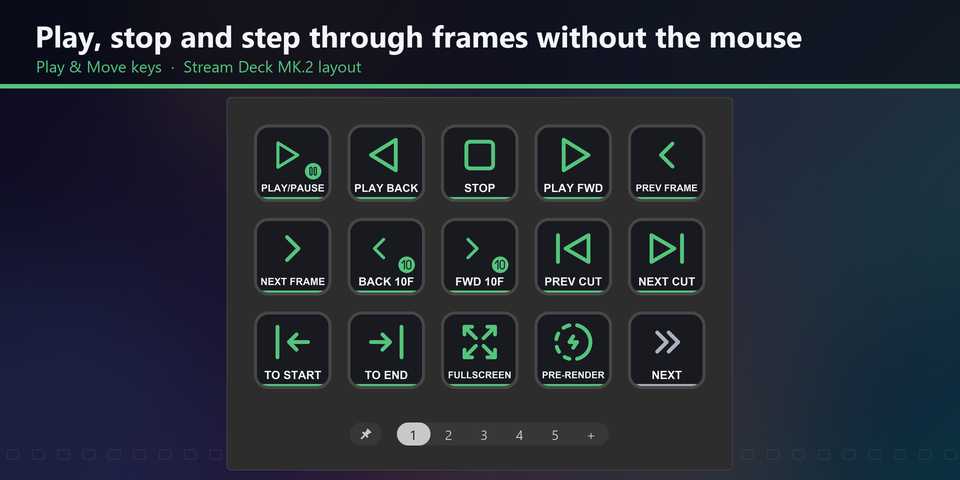
Play & Move
Play / pause, play backward and forward (J K L), stop, one frame or 10 frames back / forward, previous / next cut point, jump to the start or end, full-screen preview and pre-render.
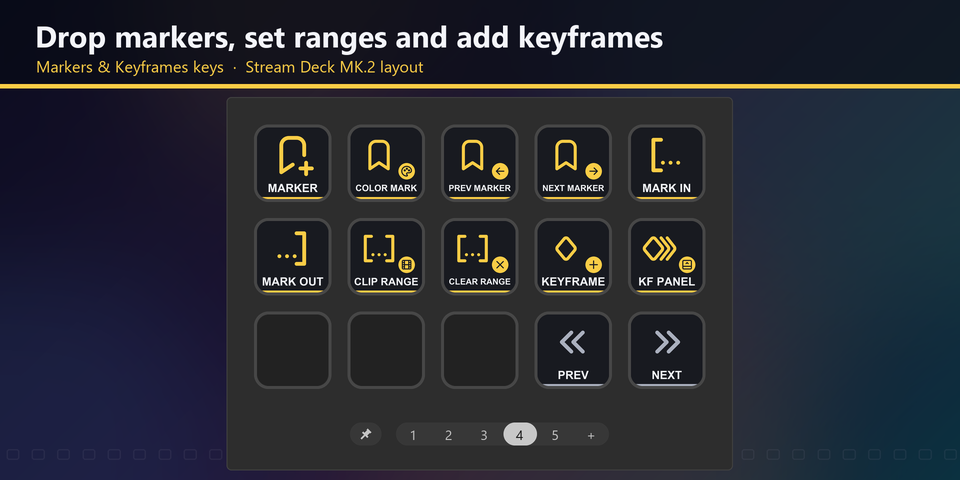
Markers & Keyframes
Add a marker, a marker in another color, previous / next marker, mark in, mark out, a range from the selected clip, clear range, add a keyframe and the keyframe panel.
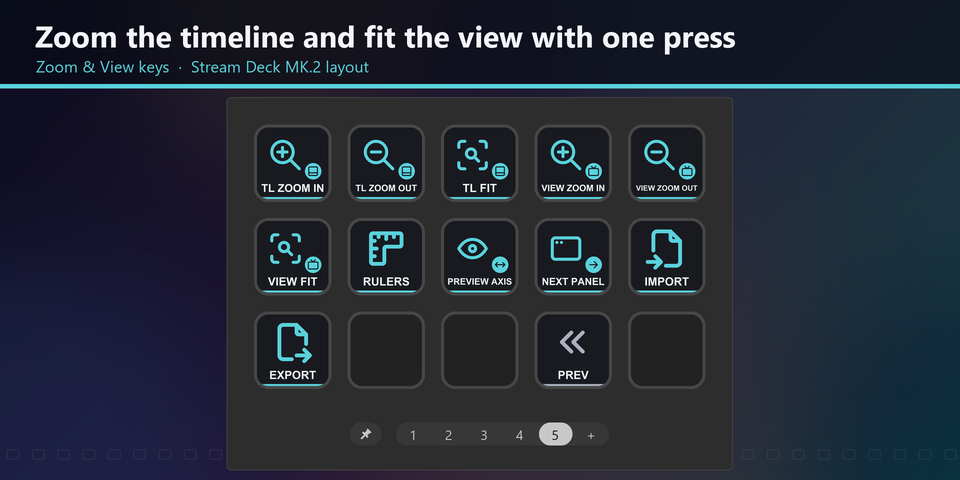
Zoom & View
Timeline zoom in / out / fit, player zoom in / out / fit, player rulers, preview axis, next panel, import media and export.
A profile for each Stream Deck
The download holds a Windows profile for each of these Stream Deck models, with the same five groups of keys on each: Play & Move, Cut & Trim, Edit & Group, Markers & Keyframes, and Zoom & View. Double-click the one for yours and the Stream Deck app imports it.
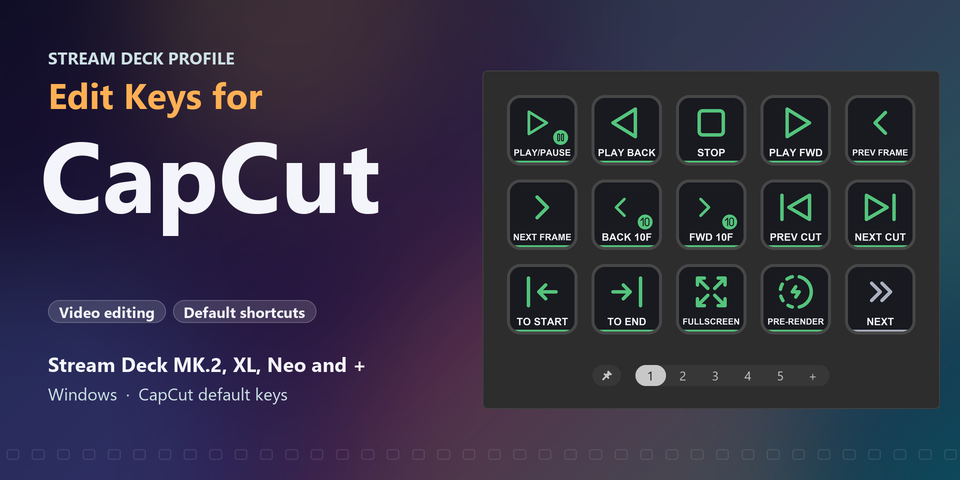
Stream Deck MK.2
15 keys on 5 pages: Play & Move, Cut & Trim, Edit & Group, Markers & Keyframes, and Zoom & View.
Stream Deck XL
32 keys on 3 pages: Play & Cut, Edit & Markers, and Zoom & View.
Stream Deck Neo
8 keys a page: tap the touch points to change pages, and press MORE for the rest of a page.
Stream Deck +
8 keys a page (swipe the touch strip to change pages, MORE opens the rest) and four dials on every page: Jog, Cut Points, Markers and Timeline Zoom.
Built on CapCut's default shortcuts
Every shortcut key sends a shortcut from CapCut's default set, so the keys work as soon as the profile is imported. Nothing is imported into CapCut, and your CapCut settings stay as they are.
Keep the CapCut window in front: the keys are sent to the window in front.
Keys send letters, Space, Tab, Enter, Delete, Home, End, the arrow keys and the number-pad + and -, with Ctrl, Shift or Alt. No Windows key is used, and your keyboard does not need a number pad: the Stream Deck sends the key.
If you changed a shortcut in CapCut, edit that key's Hotkey in the Stream Deck app.
Set up in 3 steps
- Get the profiles from the Elgato Marketplace, or download the zip after buying direct and unzip it.
- Double-click the .streamDeckProfile file for your Stream Deck. The Stream Deck app imports it.
- Open a project in CapCut, keep the CapCut window in front and select the profile on your Stream Deck. Every shortcut key sends its shortcut.
Two places to buy
| Elgato Marketplace | Direct from GRAMSHIFT | |
|---|---|---|
| Amount | Same amount | Same amount, tax added at checkout |
| Checkout | Elgato Marketplace | Stripe (card) |
| How you get it | Installed through the Stream Deck app | A zip with a profile file for each device |
| Devices | MK.2, XL, Neo and + | MK.2, XL, Neo and + |
| Account | Your Elgato account | None needed |
| Key labels | English | English |
Requirements
- Windows 10 or later
- Stream Deck MK.2, XL, Neo or +
- Stream Deck app 6.4 or later
- CapCut for Windows (the desktop app) with its default shortcuts
Questions
Can I use a Stream Deck with CapCut?
Yes. Edit Keys for CapCut puts CapCut's default shortcuts on Stream Deck keys for the CapCut desktop app on Windows. Double-click the profile file for your Stream Deck, open a project in CapCut and press a key to split, delete, add a marker or step a frame.
Do I need to set up anything in CapCut?
No. Every shortcut key sends a shortcut from CapCut's default set, so it works as soon as the profile is imported, and your CapCut settings stay as they are. If you changed a shortcut in CapCut, change that key's Hotkey in the Stream Deck app.
Does it work with CapCut's Premiere Pro shortcut set?
The profile is made for CapCut's default set, which CapCut uses until you pick another set in Settings > Shortcuts. The Premiere Pro set uses other keys, so switch back to the default set to use the profile as it is.
What do the dials on the Stream Deck + do?
Jog steps one frame back or forward (press to play / pause), Cut Points moves to the previous or next cut point (press to split), Markers moves between markers (press to add one) and Timeline Zoom zooms the timeline out or in (press to fit it). The four dials are the same on every page.
Is there anything to activate after I buy direct?
No. You download a zip with the profile files and a README. There is nothing to activate and no account to make.
How do I get the files again?
Email contact@gramshift.com from the address you paid with, and include your order number, or the date and amount you paid. We check the purchase and reply with a new link to your download page.
Can I get a refund?
Yes, for a direct purchase. If the profiles do not work with your Stream Deck and CapCut, email us within 14 days of purchase and we refund the full amount. The download closes after the refund.
Direct purchase details
- Price
- ¥1,000, the same amount as on the Elgato Marketplace. Tax for your country is added at checkout.
- Payment
- Handled by Stripe through Link, Stripe's checkout service. Link appears as the seller on your receipt and card statement, and your card number never reaches GRAMSHIFT.
- Delivery
- A download link appears right after payment, and the receipt arrives by email. You get the profile files and a README: there is nothing to activate.
- Refunds
- If the profiles do not work with your Stream Deck and CapCut, email us within 14 days of purchase for a full refund. You can also ask Link support. The download closes after a refund.
- Use
- For your own use. Please do not share, resell or upload the files.
- Countries
- The direct checkout is not offered in Ascension Island, China, Cuba, Iran, Kosovo, North Korea, Russia, Syria or Tristan da Cunha.
- Seller
- GRAMSHIFT, Tokyo, Japan. Contact: contact@gramshift.com
Limitations
- For the CapCut desktop app on Windows with its default shortcut set. The CapCut web editor, the Mac app and the Premiere Pro shortcut set of CapCut are not covered.
- Keys go to the window in front, so keep CapCut in front. While you type in a text box, such as a caption, the keys type there instead.
- Keys send the default shortcuts. A shortcut you changed in CapCut needs the same change on its key in the Stream Deck app.
- Not included: keys that close CapCut or leave the project (Ctrl+Q, Ctrl+W, Ctrl+N, Ctrl+Alt+Q), the screen recorder, beat marks, the voice input of the AI assistant, keys that work only while typing captions or inside the curve speed editor, keys on symbol keys that move between keyboard layouts, mouse actions and keys that are held down.
- To leave the full-screen preview, press Esc on your keyboard. NEXT PANEL moves the keyboard focus to another panel: click the timeline before you press DELETE.
- Key labels are in English.