OpenDeck plugin for Windows
Internet radio stations on Ajazz and Mirabox keys with OpenDeck
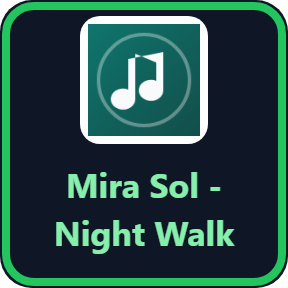
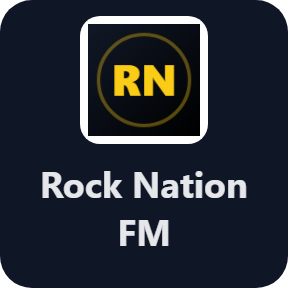
Internet Radio puts a station on each key of your Ajazz or Mirabox deck with OpenDeck: press once to play, press again to stop, and the key shows the station logo and the song now playing.
Search stations worldwide by name or genre, filter by country, or paste a stream URL, with no browser needed. Add volume keys that are separate from Windows volume and a sleep timer that fades out at the end.
- Stations on keys
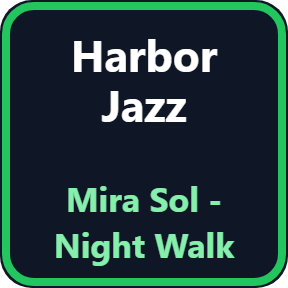
- Song now playing
- Search worldwide
- Your own stream URL
- Sleep timer







What the keys do
Station
One station per key, found by name or genre such as jazz, lofi, news or rock, or by a SHOUTCAST, Icecast or web radio URL you paste. Press to play and again to stop; pressing another station switches over. Long song titles turn pages.
Play / Stop
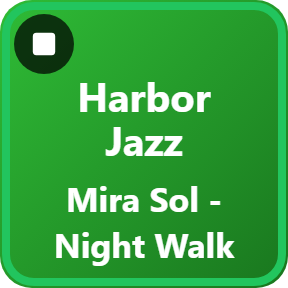
Plays or stops the last station you played, with its name and song on the key.
Volume
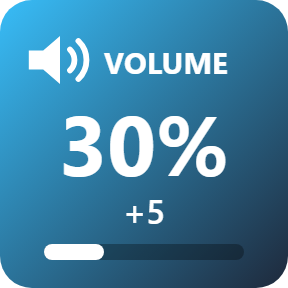
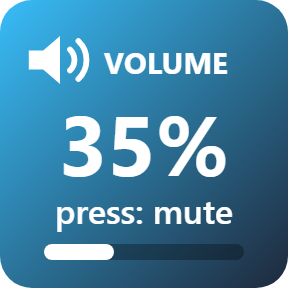
Up, down or mute, separate from the Windows volume, so the radio gets louder or quieter without touching your other sounds.
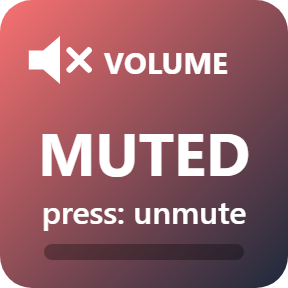
Volume: mute
One press mutes the radio and the key says MUTED; press again to bring it back.
Sleep Timer
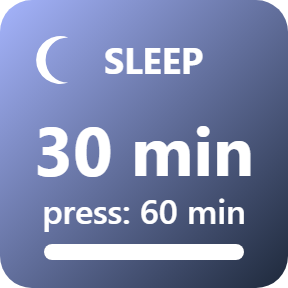
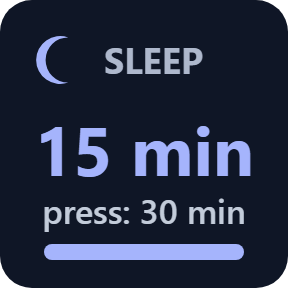
Choose 15, 30, 60 or 90 minutes. Each press steps to the next time, and the radio fades out at the end.
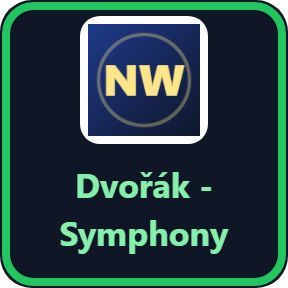
Now playing
The song title comes from the station and shows on the key. Long titles turn pages, so the whole name fits.
Install in OpenDeck
In OpenDeck, open the Plugins tab, install the .streamDeckPlugin file you downloaded, then enter your license key once in a key's settings.
Requirements
- Windows 10 or later
- An internet connection for the radio streams
- OpenDeck 2.14 or later
Questions
How do I play internet radio from an Ajazz or Mirabox deck with OpenDeck?
Add a Station key in OpenDeck, search for a station by name or genre in the key's settings and press the key. Press again to stop.
Can I use my own radio stream URL?
Yes. Paste a SHOUTCAST, Icecast or web radio URL in the key's settings. .m3u and .pls playlist links work too.
Can I change the radio volume without changing the Windows volume?
Yes. The Volume key turns the radio up, down or mutes it, separate from the Windows volume.
Purchase details, refunds and seller
- Price
- ¥500, paid once. Tax for your country is added at checkout.
- Payment
- Handled by Stripe through Link, Stripe's checkout service. Link appears as the seller on your receipt and card statement, and your card number never reaches GRAMSHIFT.
- Delivery
- Your license key and download link appear right after payment, and the receipt arrives by email.
- Countries
- The direct checkout is not offered in Ascension Island, China, Cuba, Iran, Kosovo, North Korea, Russia, Syria or Tristan da Cunha.
- Seller
- GRAMSHIFT, Tokyo, Japan. Contact: contact@gramshift.com
- Refunds
- If the plugin fails to run on your PC, email contact@gramshift.com within 14 days of purchase for a full refund. The license key stops working after a refund.
- License
- One key for your own use on up to 3 PCs.
Limits
- Windows only. It plays the audio formats built into Windows, such as MP3 and AAC.
- Song titles show when the station sends them. After three failed tries a station shows Offline; press the key to try again.
- The direct version checks its license key with our server when you activate it, at each plugin start and about once a day. If the server cannot be reached, it keeps running for up to 44 days after the last successful check.