Stream Deck plugin for Microsoft Flight Simulator 2024 and 2020
Keys that show your aircraft's real state
Live Cockpit for SimConnect turns your Stream Deck into a cockpit panel for Microsoft Flight Simulator 2024 and 2020 (MSFS): keys for the landing gear, flaps, autopilot, lights and transponder show your aircraft's state and switch it with one press.
They connect through SimConnect, built into the sim, so the plugin is all you install. Presses reach the sim while it is in the background, and your keyboard and joystick bindings stay as they are.
- Landing gear
- Flaps
- Autopilot
- Lights
- Transponder
What the keys show
Gear, flaps and brakes
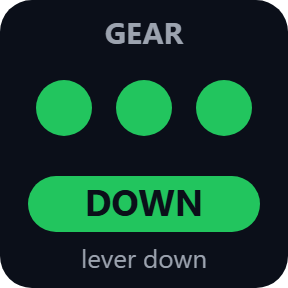
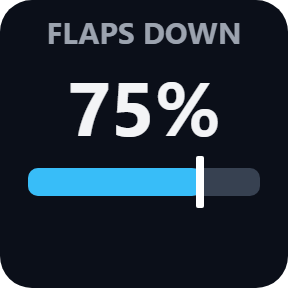
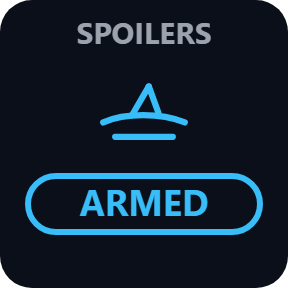
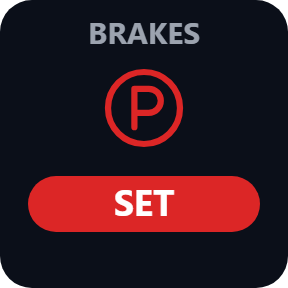
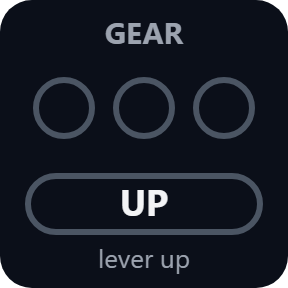
A lamp per gear leg, green when down, red while moving and dark when up, plus the lever; press to raise or lower the gear. The flap position with a bar and the lever mark, MOVING while they travel; press for one notch down or up. Spoilers show ARMED, retracted or how far extended, and the parking brake SET or OFF; press to switch.
Autopilot
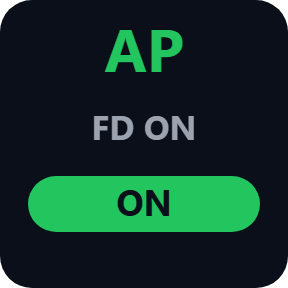
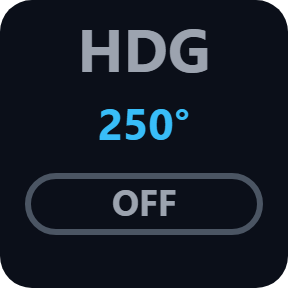
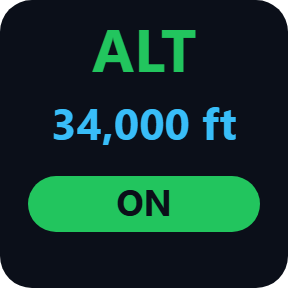
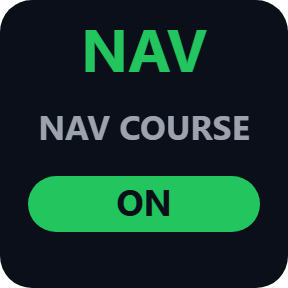
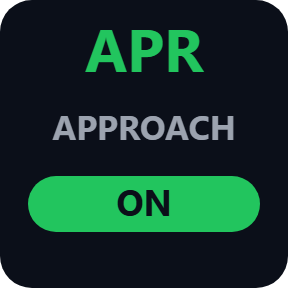
AP, HDG, ALT, NAV, APR and V/S, one mode per key: green when the mode holds and white when armed, with the selected heading, altitude or climb rate. Press to switch that mode.
Lights
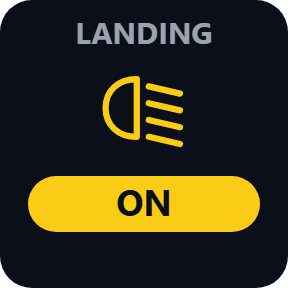
Landing, taxi, strobe, beacon and nav lights, one per key, ON or OFF. Press to switch.
Transponder
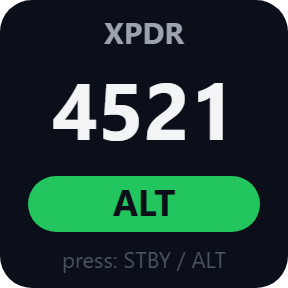
The squawk code and mode. A press switches between standby and ALT, or sends IDENT, as you choose in the key's settings. 7500, 7600 and 7700 turn red.
Flight data
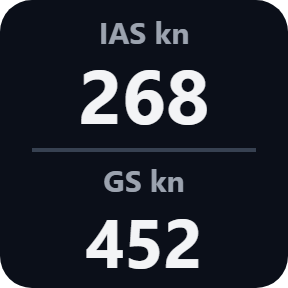
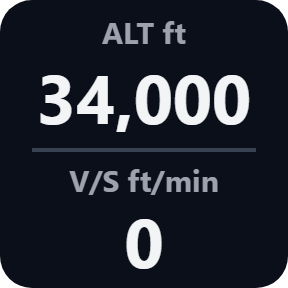
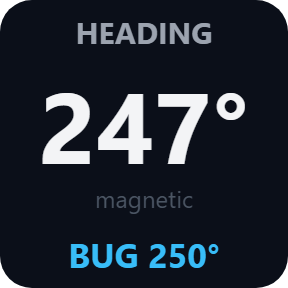
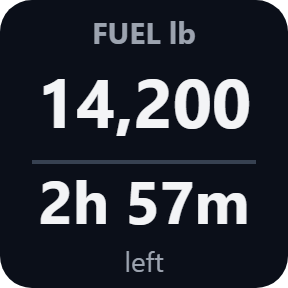
Airspeed and ground speed, altitude and vertical speed, heading with the bug, fuel and the time it lasts at the current flow (orange, then red at the warning time you choose), and the next GPS waypoint with distance and time to go.
Custom Key
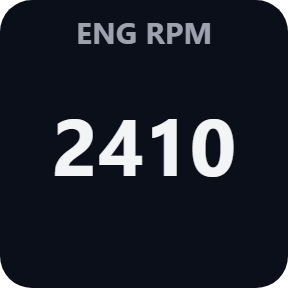
Sends a key event you name, with an optional value, and shows any SimVar or L:var as ON/OFF or as a number. A mistyped SimVar shows ? on its own key.
Keys that follow the sim
The keys change when the sim changes, also when you flip a switch with the mouse. A short white frame shows the sim took your press; a red frame shows it did not, with the reason on the key. Pick the light, the autopilot mode or the flap direction in each key's settings; knots, km/h or mph, feet or meters, pounds or kilograms.
Runs on your PC
It talks to the sim on the same computer through SimConnect. Your Community folder and the sim's files are left as they are.
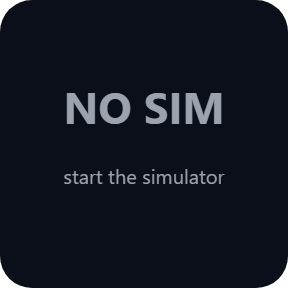
Start the sim and Stream Deck in any order: the keys find the sim and reconnect each time you restart it. They say NO SIM while it is closed and NOT FLYING in its menus instead of old values.
Nothing about your flight leaves your computer. The only thing the direct version sends online is its license key check.
Set up in 3 steps
- Open the plugin file you download after buying. The Stream Deck app installs it.
- In the Stream Deck app, drag the keys you want onto your Stream Deck and enter your license key once in a key's settings.
- Start Microsoft Flight Simulator and load a flight. The keys connect by themselves; pick the light, autopilot mode or flap direction in a key's settings.
Two places to buy
| Elgato Marketplace | Direct from GRAMSHIFT | |
|---|---|---|
| Amount | Same amount | Same amount, tax added at checkout |
| Checkout | Elgato Marketplace | Stripe (card) |
| New versions | Installed through the Stream Deck app | Download from your license key page |
| Use on | Your Elgato account | Up to 3 PCs per license key |
| Plugin display | English and Japanese | English and Japanese |
Requirements
- Windows 10 or later
- Stream Deck app 6.9 or later
- Microsoft Flight Simulator 2024 or 2020 on the same Windows PC
Questions
How do I show my aircraft's gear, flaps and autopilot on Stream Deck keys in MSFS?
Install the plugin, drag the keys you want onto your Stream Deck, then start Microsoft Flight Simulator 2024 or 2020 and load a flight. Each key reads the aircraft's state through SimConnect and switches it with the sim's own key events, so there is no profile of hotkeys to build. The direct version asks for your license key once first.
Do I need to install anything in the sim?
No. The plugin connects through SimConnect, which is built into the sim. Your Community folder and the sim's files stay as they are.
Does the sim have to be the active window?
No. Presses go to the sim as its own key events, so they work while it is in the background.
Does it work with add-on aircraft?
The built-in keys work with aircraft that use the standard SimVars and key events. For others, use a Custom Key with a key event, a SimVar or an L:var. Add-ons inside the sim (WASM, H: events) are not supported.
Why do the keys say NO SIM or NOT FLYING?
NO SIM: the sim is not running. NOT FLYING: the sim is in a menu or loading, so load a flight. The keys connect by themselves when the sim is ready.
How many PCs can I use with one license key?
Up to 3 of your own PCs. If you replace a PC, write to us and we free up a place for the new one.
How do I get new versions if I buy direct?
Download the latest version from your thank-you page or the license key page you received. Your license key keeps working. If you cannot open your license key page, email us as the "Recover your license key" page explains.
What if I lose my license key?
Email contact@gramshift.com from the address you paid with, and include your order number, or the date and amount you paid. We check the purchase and reply with a link to your license key page.
Can I get a refund?
Yes, for a direct purchase. If the plugin does not work on your PC, email us within 14 days of purchase and we refund the full amount. The license key stops working after the refund.
Direct purchase: details, refunds and seller
- Price
- ¥3,300, the same amount as on the Elgato Marketplace. Tax for your country is added at checkout.
- Payment
- Handled by Stripe through Link, Stripe's checkout service. Link appears as the seller on your receipt and card statement, and your card number never reaches GRAMSHIFT.
- Delivery
- Your license key and download link appear right after payment, and the receipt arrives by email.
- Refunds
- If the plugin does not work on your PC, email us within 14 days of purchase for a full refund. You can also ask Link support. The license key stops working after a refund.
- License
- One license key for your own use on up to 3 PCs.
- Countries
- The direct checkout is not offered in Ascension Island, China, Cuba, Iran, Kosovo, North Korea, Russia, Syria or Tristan da Cunha.
- Seller
- GRAMSHIFT, Tokyo, Japan. Contact: contact@gramshift.com
Limits
- Windows only, with the sim and your Stream Deck on the same PC. Xbox is not supported. Stream Deck keys only: the actions do not go on dials.
- The built-in keys work with aircraft that use the standard SimVars and key events; others can use a Custom Key. Add-ons inside the sim (WASM, H: events) are not supported.
- The white frame means the sim accepted the event. An aircraft with its own systems may still not respond to it.
- An L:var the aircraft does not have reads 0, not ?.
- The light keys send the standard toggle events; no circuit is selected.
- NO SIM: the sim is closed. NO ANSWER: the sim is still starting. NOT FLYING: a menu or loading. NOT FOUND, BLOCKED or CHECK CFG: SimConnect could not connect, and the key's settings page gives the reason.
- Includes node-simconnect 4.2.1 (LGPL-3.0-or-later) as separate, unmodified files with its source code; THIRD-PARTY-NOTICES.txt in the plugin explains how to use your own version. SimConnect.dll is not included.
- The direct version checks its license key with our server when you activate it, each time the plugin starts, and about once a day while it runs. If it cannot reach the server, it keeps working for up to 44 days after the last successful check.
- If something does not work, email contact@gramshift.com and we will help.