Stream Deck plugin for Windows
Switch your monitor's input with one key
Monitor Input Keys for Windows puts your monitor's input switch on a Stream Deck key: switch between HDMI, DisplayPort and USB-C instead of digging through the on-screen menu, and see the current input right on the key.
Made for a desk shared by a computer, a work laptop and a game console. One press moves several monitors to the laptop, each to its own input, through the cable you already use.
- Switch input
- Several monitors
- Cycle inputs
- Brightness and contrast
- Monitor volume
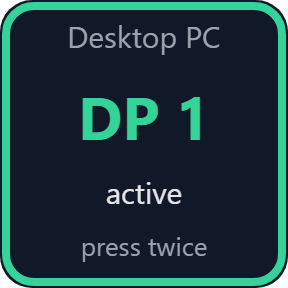
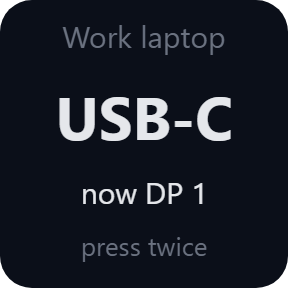
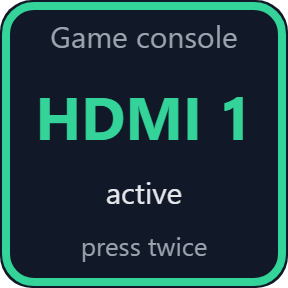
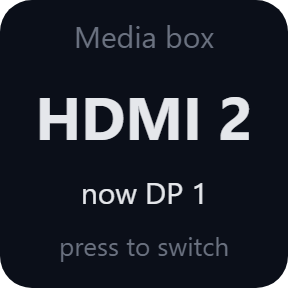
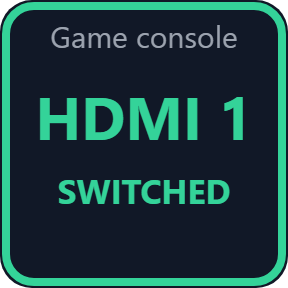
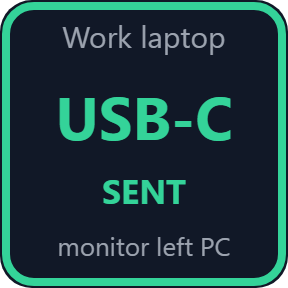
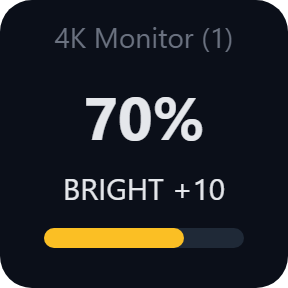
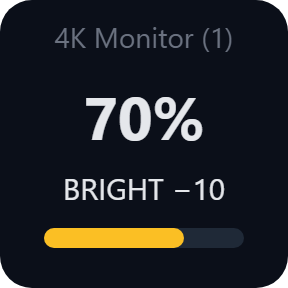
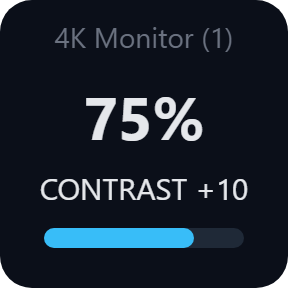
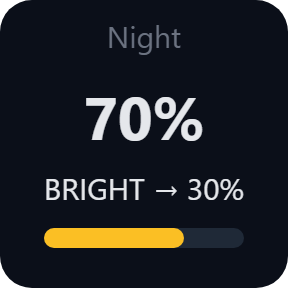
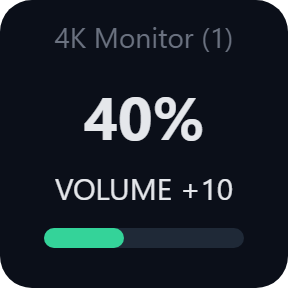
What the keys do
Switch Input
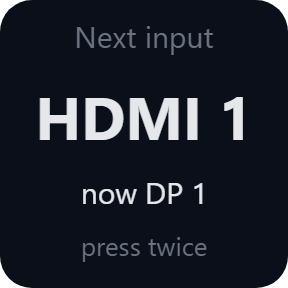
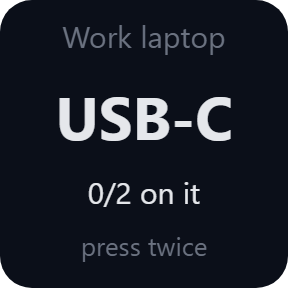
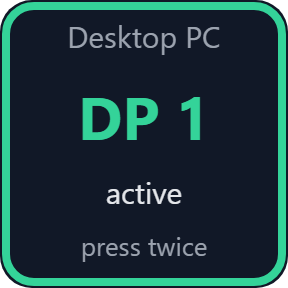
One key per input: DisplayPort 1/2, HDMI 1/2, USB-C, DVI, VGA, or another input code your monitor supports. The key shows the monitor's current input and a green frame when it is already there.
Switch Several Monitors
Up to four monitors on one key, each to the input you pick, for example the left one to USB-C and the right one to HDMI 2. If one does not answer, the others still switch and the key shows which display failed.
Cycle Inputs
One key steps through the inputs you tick, two or more. The key shows where the monitor goes next.
Brightness, contrast and the + dial
Step a monitor's own brightness or contrast up or down, or set a level you pick, say 30% at night. The key shows the level now. On Stream Deck +, turn the dial for brightness, push it to switch to contrast and back, or touch the strip for your own level. Set the dial to Volume to turn the volume and mute on a push.
Volume
Step the volume of the monitor's own speakers or headphone jack, set a level, or mute and unmute.
A stray press leaves your screen as it is
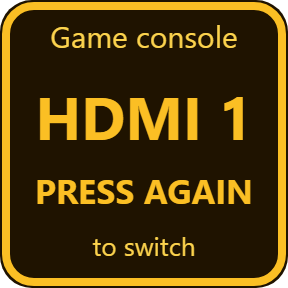
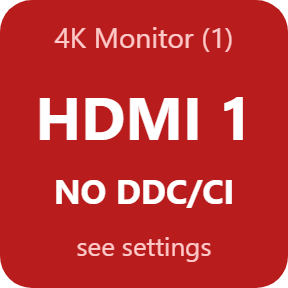
Input keys ask for two presses by default: the first shows where the monitor will go, a second within 3 seconds switches. One press can be set per key, which is also what a Multi Action needs. A level out of range (say 150%) is never sent: the key turns red and its settings mark the field.
Through the cable you already use
It works like the video half of a KVM switch: the computer asks the monitor over DDC/CI through the video cable, so no extra box is needed when the monitor is connected directly.
It writes only the input, brightness, contrast and volume, no other monitor setting.
In each key's settings, Identify shows each display's number on its screen, and Test switches once with the settings you chose, so you know which monitor is which before you press the key.
Nothing the plugin reads from your monitors leaves your computer. The only thing the direct version sends online is its license key check.
Set up in 3 steps
- Open the plugin file you download after buying. The Stream Deck app installs it.
- In the Stream Deck app, drag the keys you want onto your Stream Deck and enter your license key once.
- Turn on DDC/CI in your monitor's own menu, pick the monitor and the input in the key's settings, and press the key twice.
Two places to buy
| Elgato Marketplace | Direct from GRAMSHIFT | |
|---|---|---|
| Amount | Same amount | Same amount, tax added at checkout |
| Checkout | Elgato Marketplace | Stripe (card) |
| New versions | Installed through the Stream Deck app | Download from your key page |
| Use on | Your Elgato account | Up to 3 computers per license key |
| Plugin display | English and Japanese | English and Japanese |
Requirements
- Windows 10 or later
- Stream Deck app 6.9 or later
- Windows PowerShell 5.1 (built into Windows; some company computers block it)
- A monitor with DDC/CI turned on in its menu (most desktop monitors have it)
Questions
How do I switch my monitor's input with Stream Deck?
Drag the Switch Input key onto your Stream Deck, pick the monitor and the input (for example HDMI 1) in its settings, and press the key twice. The plugin asks the monitor to switch over DDC/CI through the video cable, and the key shows the input it is on now.
Can one key switch two monitors to my laptop?
Yes. In the Switch Several Monitors settings, give each row a monitor and its input, for example the left one to USB-C and the right one to HDMI 2. One switch moves them one after the other; if one does not answer, the others still switch.
Does it replace a KVM switch?
It does the video half: it switches the monitors' inputs. The keyboard and mouse stay with this computer. In a Multi Action, with the key set to one press, it can run together with an audio device or a USB switch.
Why does my monitor disappear after switching?
Over DisplayPort and USB-C, a monitor usually leaves the computer once it switches to another input. Switch it back from the other device or with the monitor's buttons. Over HDMI many monitors stay visible, and a second key switches back.
Can I change monitor brightness with a Stream Deck + dial?
Yes. The Brightness / Contrast / Volume Dial changes the monitor's own brightness as you turn it, switches to contrast when you push it, and goes to your touch level when you tap the strip. Set to Volume, it turns the monitor's volume and mutes on a push.
How many computers can I use with one license key?
Up to 3 of your own computers. If you replace a computer, write to us and we free up a place for the new one.
How do I get new versions if I buy direct?
Download the latest version from your thank-you page or the key page you received. Your license key keeps working. If you cannot open your key page, email us as the "Recover a lost key" page explains.
What if I lose my license key?
Email contact@gramshift.com from the address you paid with, and include your order number, or the date and amount you paid. We check the purchase and reply with a link to your key page.
Can I get a refund?
Yes, for a direct purchase. If the plugin does not work with your monitors, email us within 14 days of purchase and we refund the full amount. The license key stops working after the refund.
Does it work on a Mac?
No. It is for Windows 10 or later only.
Direct purchase details
- Price
- ¥500, the same amount as on the Elgato Marketplace. Tax for your country is added at checkout.
- Payment
- Handled by Stripe through Link, Stripe's checkout service. Link appears as the seller on your receipt and card statement, and your card number never reaches GRAMSHIFT.
- Delivery
- Your license key and download link appear right after payment, and the receipt arrives by email.
- Refunds
- If the plugin does not work with your monitors, email us within 14 days of purchase for a full refund. You can also ask Link support. The license key stops working after a refund.
- License
- One key for your own use on up to 3 computers.
- Countries
- The direct checkout is not offered in Ascension Island, China, Cuba, Iran, Kosovo, North Korea, Russia, Syria or Tristan da Cunha.
- Seller
- GRAMSHIFT, Tokyo, Japan. Contact: contact@gramshift.com
Limitations
- A monitor that does not answer DDC/CI cannot be switched or changed; the key says so and its settings show the Windows error. Turn DDC/CI on in the monitor's own menu first.
- Laptop built-in screens, and many docks, adapters, KVM switches and DisplayLink connections, do not pass DDC/CI. Connect the monitor directly.
- Over DisplayPort and USB-C, a monitor usually leaves this computer after it switches. Switch it back from the other device or with the monitor's buttons.
- Some monitors switch but do not report their current input; the key then shows "now ?".
- Monitors chained from one DisplayPort output (daisy chain) may all leave this computer when the first one switches. If yours do, put the last monitor of the chain in the first row of Switch Several Monitors.
- Some monitors do not let a computer change brightness, contrast or volume; the key then says so. These are the monitor's own settings, not Windows night light or volume. Volume needs monitor speakers or a headphone jack.
- A monitor on a duplicated display is not switched or changed. Use "Extend" in the Windows display settings.
- It switches the screen only: the keyboard and mouse stay with this computer. Some company computers block PowerShell, and the plugin cannot run there.
- The direct version checks its license key with our server when you activate it, each time the plugin starts, and about once a day while it runs. If it cannot reach the server, it keeps working for up to 44 days after the last successful check.