OpenDeck plugin for Windows
See on your OpenDeck keys when an app is using your mic
For meetings, calls and streams: On Air shows on your Ajazz or Mirabox deck in OpenDeck whether an app is recording from a microphone of your PC right now, and which app.
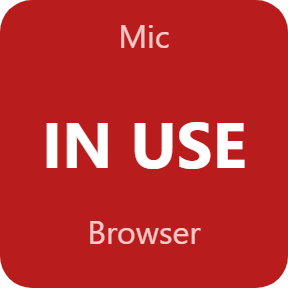
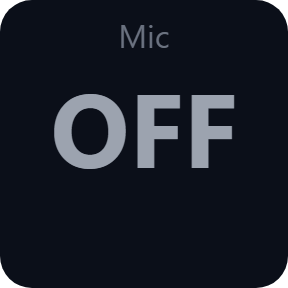
The key turns red (IN USE or ON AIR) while a mic is in use and goes back to OFF when the app stops.
It watches every recording device, such as a headset, a webcam mic or a USB mic, and updates every second. It never listens to the microphone: it only asks Windows which apps are recording.
- IN USE and the app
- ON AIR lamp
- Every recording device
- Ignore apps you name
- Updates every second





What the keys do
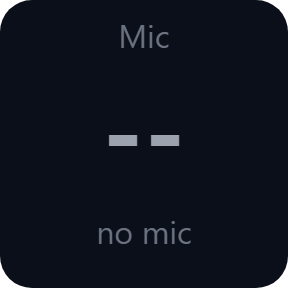
Mic In Use
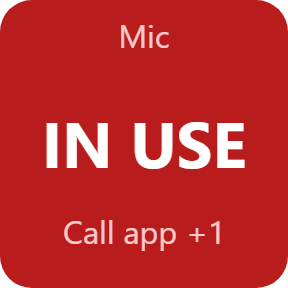
Red IN USE and the app's name while an app records from a microphone. Gray OFF when no app does.
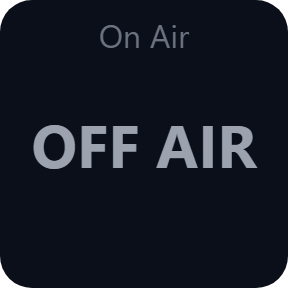
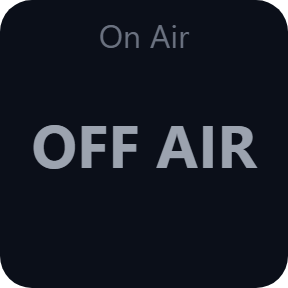
On Air
A big red ON AIR lamp while an app records, with the app's name. OFF AIR otherwise.
Several apps at once
When more than one app records, the key shows one name and "+1".
Every recording device
All recording devices are watched: your headset, the mic of your webcam and a USB mic.
Ignore the apps you name
An app that records all the time, such as a voice assistant, would keep the lamp on. Name it in the On Air key's Ignore apps setting and the key stays OFF AIR.
Press for the mic settings
Press either key to open the Windows microphone privacy settings.
Install in OpenDeck
In OpenDeck, open the Plugins tab, install the .streamDeckPlugin file you downloaded, then enter your license key once in a key's settings.
Requirements
- Windows 10 or later
- No account
- OpenDeck 2.14 or later
Questions
Can an Ajazz or Mirabox deck on OpenDeck show when my microphone is in use?
Yes. Add a Mic In Use key in OpenDeck: it turns red and says IN USE with the app's name while an app records from a microphone, and shows OFF when no app does.
Does it listen to my microphone?
No. It only asks Windows which apps have a recording stream running, once a second. It does not hear or save any sound.
An app records all the time and keeps the lamp on. What can I do?
Write the app's name in the Ignore apps setting of the On Air key, as the Status line of its settings shows it. Several names are separated by commas. That key then stays OFF AIR for those apps.
Purchase details, refunds and seller
- Price
- ¥780, paid once. Tax for your country is added at checkout.
- Payment
- Handled by Stripe through Link, Stripe's checkout service. Link appears as the seller on your receipt and card statement, and your card number never reaches GRAMSHIFT.
- Delivery
- Your license key and download link appear right after payment, and the receipt arrives by email.
- Countries
- The direct checkout is not offered in Ascension Island, China, Cuba, Iran, Kosovo, North Korea, Russia, Syria or Tristan da Cunha.
- Seller
- GRAMSHIFT, Tokyo, Japan. Contact: contact@gramshift.com
- Refunds
- If the plugin fails to run on your PC, email contact@gramshift.com within 14 days of purchase for a full refund. The license key stops working after a refund.
- License
- One key for your own use on up to 3 PCs.
Limits
- Read only: it does not mute, turn off or block anything, and it changes no setting. It does not watch the camera.
- A mute switch on the microphone or headset itself is not visible to Windows, so the key stays IN USE. An app that is muted but keeps recording also counts as IN USE.
- When Windows does not answer, the keys show "--". It shows only what Windows reports; it is not a security tool.
- The direct version checks its license key with our server when you activate it, at each plugin start and about once a day. If the server cannot be reached, it keeps running for up to 44 days after the last successful check.