Stream Deck plugin for Windows
Show your ping on Stream Deck and see where lag starts
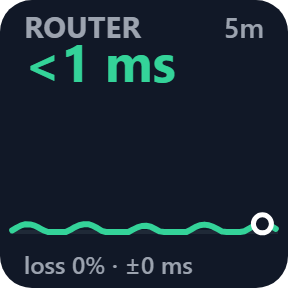
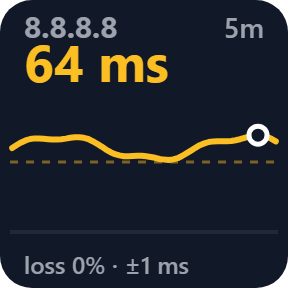
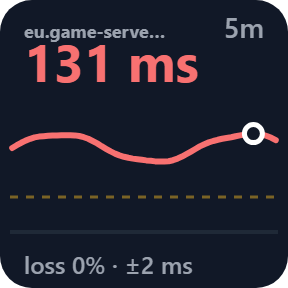
Ping Graph shows the live ms to your router, 1.1.1.1, 8.8.8.8 or your game server on a key, with a graph, packet loss and jitter.
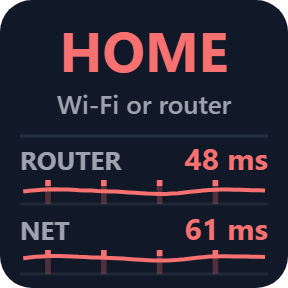
Lag Check pings your router and the internet together and points to where lag starts: at home (Wi-Fi, router) or past it (your provider or beyond), so you know where to look.
- Live ms and graph
- Packet loss and jitter
- Home or internet lag
- Any address or game server
- English and Japanese
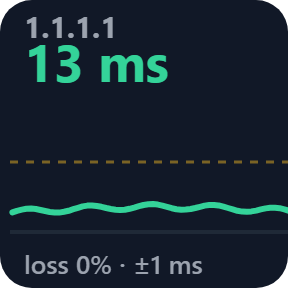
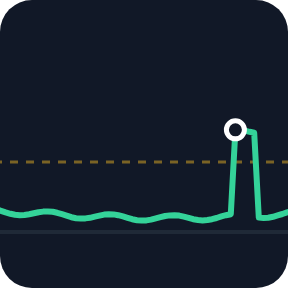
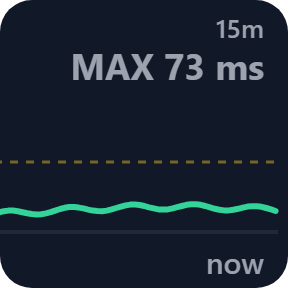
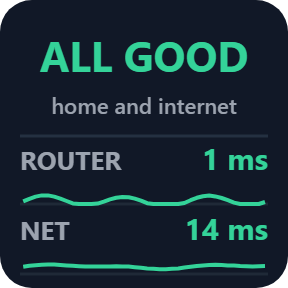
What it does
Ping Graph
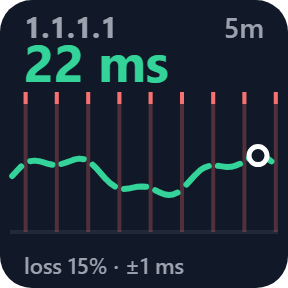
The ms right now, packet loss and jitter, over a graph of 1, 5, 15 or 60 minutes. A red mark on the graph is a lost ping.
Lag Check
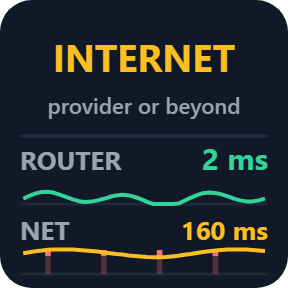
Pings your router and the internet together and compares the last 30 seconds. HOME means Wi-Fi, cable or router. INTERNET means your provider or beyond. ALL GOOD means the internet is fine.
One long graph
Put Ping Graph keys side by side in one row with the same address, period, look and colors, and they become one long graph.
Numbers on a press
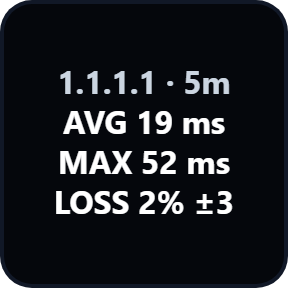
Press Ping Graph for the average, max, loss and jitter of the period for 4 seconds. Hold it for half a second and release for the next period. Press Lag Check for the numbers of the last 30 seconds.
Your router or your game server
Your router is found automatically. Pick 1.1.1.1 or 8.8.8.8, or type any IP address or host name, and give the key a name such as EU server.
Colors you choose
The ping turns yellow and red at the ms you choose, so you can tell at a glance. Pinging goes on for 60 minutes after you switch to another page, so the graph shows that time when you come back.
Five looks, chosen per key
Choose a look for each key in its settings.
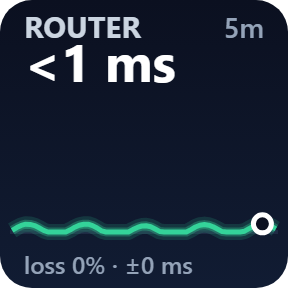
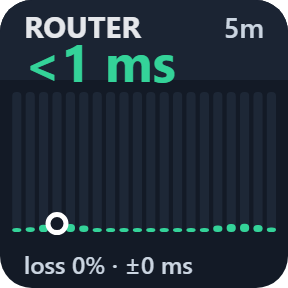
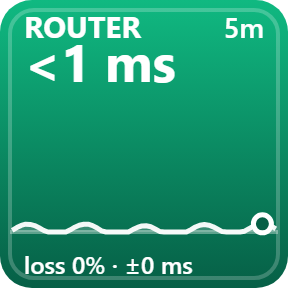
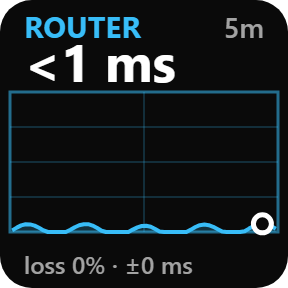
See where the lag starts
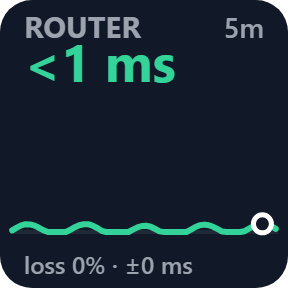
Lag Check reads the answer on the key, with the ping to your router and to the internet below it.
Pings only where you choose
Only your router and the addresses you pick are pinged, one small packet a second to each.
No extra software, no account and no administrator rights.
The results stay on your PC. The direct version also goes online to check its license key.
Set up in 3 steps
- Open the plugin file you download after buying. The Stream Deck app installs it.
- In the Stream Deck app, drag Ping Graph or Lag Check onto a key.
- Enter your license key once in a key's settings. The key then shows your ping right away.
Two places to buy
| Elgato Marketplace | Direct from GRAMSHIFT | |
|---|---|---|
| Amount | Same amount | Same amount, tax added at checkout |
| Checkout | Elgato Marketplace | Stripe (card) |
| New versions | Installed through the Stream Deck app | Download from your license key page |
| Use on | Your Elgato account | Up to 3 PCs per license key |
| Plugin display | English and Japanese | English and Japanese |
Requirements
- Windows 10 or later
- Stream Deck app 6.9 or later
Questions
How do I show my ping on Stream Deck?
Drag Ping Graph onto a key. It shows the ms to 1.1.1.1 right away. Pick your router, 8.8.8.8 or your game server in the key's settings.
Is my lag from Wi-Fi or my internet?
Add Lag Check. HOME means Wi-Fi, cable or router. INTERNET means your provider or beyond. ALL GOOD means the internet is fine.
Can I ping my game server?
Yes. In the key's settings, choose another address and type the server's IP address or name. A server that ignores pings reads NO REPLY.
Does it keep pinging when I switch to another Stream Deck page?
Yes, for 60 minutes after you switch away, so the graph shows that time when you come back.
How many PCs can I use with one license key?
Up to 3 of your own PCs. If you replace a PC, write to us and we free up a place for the new one.
How do I get new versions if I buy direct?
Download the latest version from your thank-you page or the license key page you received. Your license key keeps working. If you cannot open your license key page, email us as the "Recover your license key" page explains.
What if I lose my license key?
Email contact@gramshift.com from the address you paid with, and include your order number, or the date and amount you paid. We check the purchase and reply with a link to your license key page.
Can I get a refund?
Yes, for a direct purchase. If the plugin does not work on your PC, email us within 14 days of purchase and we refund the full amount. The license key stops working after the refund.
Direct purchase: details, refunds and seller
- Price
- ¥980, the same amount as on the Elgato Marketplace. Tax for your country is added at checkout.
- Payment
- Handled by Stripe through Link, Stripe's checkout service. Link appears as the seller on your receipt and card statement, and your card number never reaches GRAMSHIFT.
- Delivery
- Your license key and download link appear right after payment, and the receipt arrives by email.
- Refunds
- If the plugin does not work on your PC, email us within 14 days of purchase for a full refund. You can also ask Link support. The license key stops working after a refund.
- License
- One key for your own use on up to 3 PCs.
- Countries
- The direct checkout is not offered in Ascension Island, China, Cuba, Iran, Kosovo, North Korea, Russia, Syria or Tristan da Cunha.
- Seller
- GRAMSHIFT, Tokyo, Japan. Contact: contact@gramshift.com
Limits
- Windows only.
- Stream Deck keys only: the actions do not go on dials.
- IPv4 addresses and names only.
- Servers that ignore pings read NO REPLY. If your router ignores them or there is none, Lag Check judges the internet side only.
- The graph history is kept in memory, so it starts fresh when the plugin restarts.
- The direct version checks its license key with our server when you activate it, each time the plugin starts, and about once a day while it runs. If it cannot reach the server, it keeps working for up to 44 days after the last successful check.
- If something does not work, email contact@gramshift.com and we will help.