OpenDeck plugin for Windows
Switch the Windows default printer with one OpenDeck key
Press a key on your Ajazz or Mirabox deck in OpenDeck and the printer you chose becomes the Windows default printer: home, office or PDF.
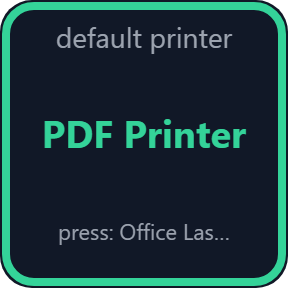
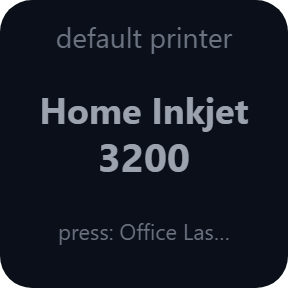
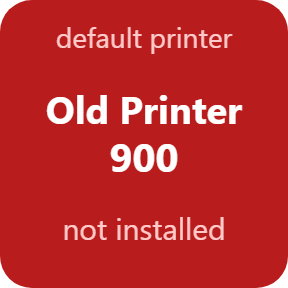
A key can also switch between two printers, and it shows the default printer now, with a green border when it is the one you chose.
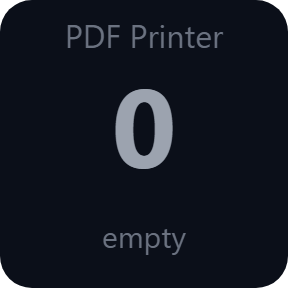
Print Queue shows how many jobs are waiting and flags a printer that is paused, offline or has an error. Press it to open the Windows print queue window, hold it to cancel every job.
- Default printer in one press
- Switch between two printers
- Jobs waiting in the queue
- Paused, offline and errors flagged
- Local, PDF and network printers




What the keys do
Default Printer
One press makes the printer you chose the Windows default printer. The key shows the default printer now, with a green border when it is the one you chose.
Switch between two
Choose a second printer in "Switch with": a press while the first one is the default makes the second one the default, and the next press the first again. The key shows which printer a press switches to.
Print Queue
Shows how many print jobs are waiting, for one printer or for the default printer. Press the key to open the Windows print queue window.
Errors on the key
A printer that is paused, offline or has an error is flagged on the key, so you see it before you walk to the printer.
Hold to cancel every job
Hold the Print Queue key for 1 second to cancel every job in the queue, including the one printing now. Turn it off in the settings if you do not want that.
Follows Windows
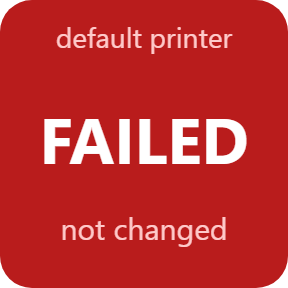
Local, PDF and shared network printers can be chosen. When the default is changed in Windows Settings or by another app, the key follows; if Windows refuses a change, the key says so.
Install in OpenDeck
In OpenDeck, open the Plugins tab, install the .streamDeckPlugin file you downloaded, then enter your license key once in a key's settings.
Requirements
- Windows 10 or later
- OpenDeck 2.14 or later
Questions
How do I change the default printer with an Ajazz or Mirabox deck on OpenDeck?
Place the Default Printer key in OpenDeck and choose the printer in its settings. One press makes it the Windows default printer.
Can one key switch between two printers?
Yes. Choose a second printer in "Switch with". A press while the first printer is the default makes the second one the default, and the next press the first again.
Can I cancel all print jobs from a key?
Yes. Hold the Print Queue key for 1 second to cancel every job in that queue. It can be turned off in the key's settings.
Purchase details, refunds and seller
- Price
- ¥780, paid once. Tax for your country is added at checkout.
- Payment
- Handled by Stripe through Link, Stripe's checkout service. Link appears as the seller on your receipt and card statement, and your card number never reaches GRAMSHIFT.
- Delivery
- Your license key and download link appear right after payment, and the receipt arrives by email.
- Countries
- The direct checkout is not offered in Ascension Island, China, Cuba, Iran, Kosovo, North Korea, Russia, Syria or Tristan da Cunha.
- Seller
- GRAMSHIFT, Tokyo, Japan. Contact: contact@gramshift.com
- Refunds
- If the plugin fails to run on your PC, email contact@gramshift.com within 14 days of purchase for a full refund. The license key stops working after a refund.
- License
- One key for your own use on up to 3 PCs.
Limits
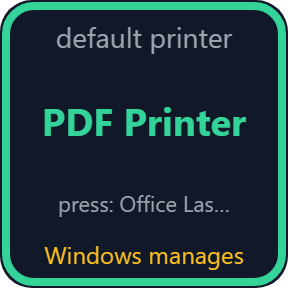
- If "Let Windows manage my default printer" is on in Windows Settings, Windows may change the default again. The key shows this, and the plugin never changes that setting.
- Printers managed by your organization may refuse changes; the key then says so. Jobs of other users are cancelled only when Windows lets you manage them.
- The direct version checks its license key with our server when you activate it, at each plugin start and about once a day. If the server cannot be reached, it keeps running for up to 44 days after the last successful check.