OpenDeck plugin for Windows
Rocket League Scoreboard on Ajazz and OpenDeck
Rocket League on your Ajazz or Mirabox deck: with OpenDeck, the keys show the score and match clock, your goals, assists and saves, your boost and speed, and your wins and streak for the session, instead of an overlay on the game screen.
Replay keys show or hide the HUD, pause, slow a replay and switch the camera to the ball or a player. A setup key turns on the game's stats setting for you, with no game mod to install.
- Score and clock
- Your stats
- Boost and speed
- Session record
- Replay camera keys

What the keys do
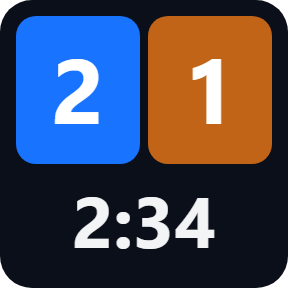
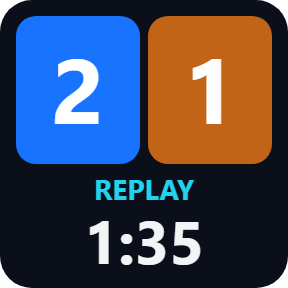
Score & Clock
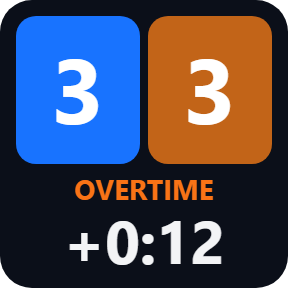
Both teams' goals in their colors and the match clock, with OVERTIME, REPLAY and PAUSED as they happen.
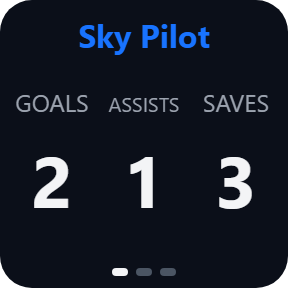
My Stats
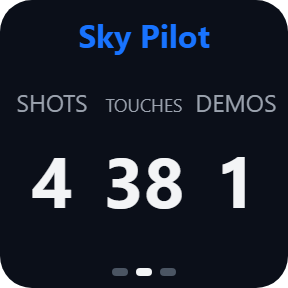
Your goals, assists and saves. Press to turn the page to your shots, touches and demolitions, then your match points.
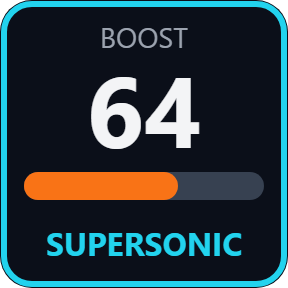
Boost & Speed
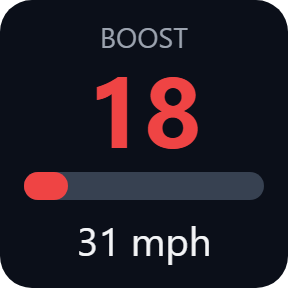
Your boost with a bar and your speed in km/h or mph, with SUPERSONIC and DEMOLISHED the moment they happen.
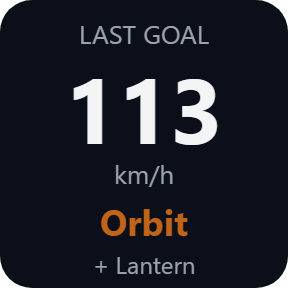
Last Goal
How fast the last goal went in, who scored it and who assisted. Before the first goal it shows the hardest hit of the match so far.
Session Record
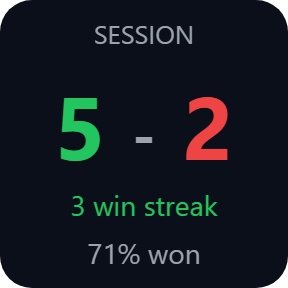
Your wins and losses since you started the session, your streak and the percent won. Press twice to start a new session.
Replay Control
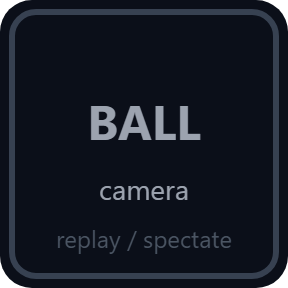
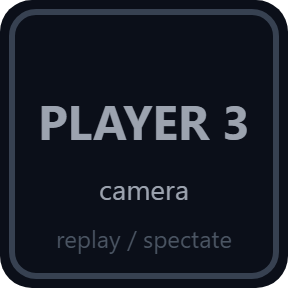
One command per key: HUD, pause, replay speed, ball camera, a player's camera, director camera or auto camera.
Install in OpenDeck
In OpenDeck, open the Plugins tab, install the .streamDeckPlugin file you downloaded, then enter your license key once in a key's settings.
Requirements
- Windows 10 or later
- Rocket League on PC (Steam or Epic Games), on the same PC as your deck
- OpenDeck 2.14 or later
Questions
How do I show my Rocket League score and stats on an Ajazz or Mirabox deck with OpenDeck?
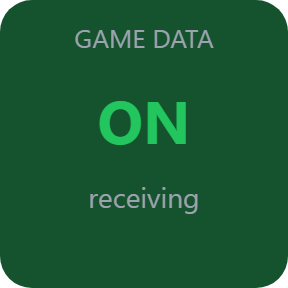
Place the keys you want in OpenDeck, enter your license key in a key's settings, press Game Data Setup twice and restart Rocket League once. In a match the keys show the score, the clock, your stats and your boost.
Do I need a Rocket League mod or an overlay?
No. The plugin reads the match data the game itself offers on your PC. The setup key turns on the game's stats setting for you, and the numbers stay on the deck instead of your game screen.
Can a deck key control the Rocket League replay camera?
Yes. Replay Control gives one command per key: show or hide the HUD, pause, replay speed (1x, 0.5x, 0.25x), ball camera, a player's camera, director camera or auto camera. Speed and pause work in replays, the camera keys in replays and while you spectate.
Purchase details, refunds and seller
- Price
- ¥980, paid once. Tax for your country is added at checkout.
- Payment
- Handled by Stripe through Link, Stripe's checkout service. Link appears as the seller on your receipt and card statement, and your card number never reaches GRAMSHIFT.
- Delivery
- Your license key and download link appear right after payment, and the receipt arrives by email.
- Countries
- Checkout is not offered in Ascension Island, China, Cuba, Iran, Kosovo, North Korea, Russia, Syria or Tristan da Cunha.
- Seller
- GRAMSHIFT, Tokyo, Japan. Contact: contact@gramshift.com
- Refunds
- If the plugin fails to run on your PC, email contact@gramshift.com within 14 days of purchase for a full refund. The license key stops working after a refund.
- License
- One key for your own use on up to 3 PCs.
Limits
- Windows PC only, with Rocket League and your deck on the same PC. Consoles are not supported. After the stats setting is turned on for the first time, Rocket League needs one restart.
- The keys show only what the game shares in its match data, so your rank is not shown. Only pause shows the game's answer; HUD, speed and camera keys briefly show "sent".
- A match you leave before it ends is not counted in Session Record.
- The direct version checks its license key with our server when you activate it, at each plugin start and about once a day. If the server cannot be reached, it keeps running for up to 44 days after the last successful check.