OpenDeck plugin for Windows
SSD Health and Temperature on OpenDeck
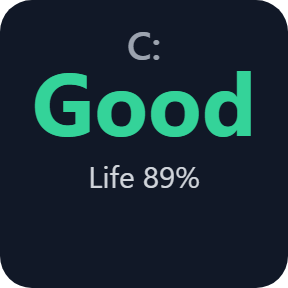
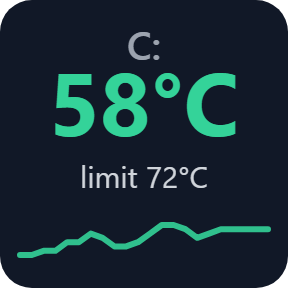
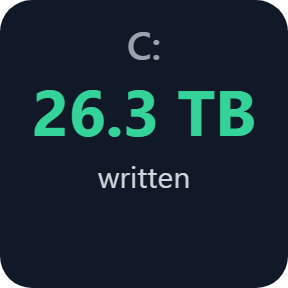
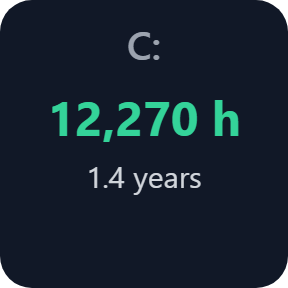
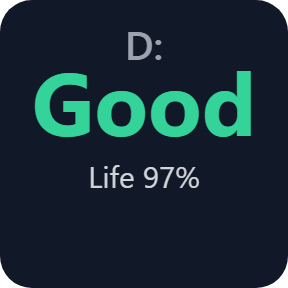
On an Ajazz or Mirabox deck with OpenDeck, each key reads a drive's own SMART data and shows its health as Good, Caution or Bad, life left in %, the temperature with a graph, data written in TB or power-on hours.
It covers NVMe SSDs, SATA SSDs and hard drives.
No other monitoring software, no administrator rights, no account: place a key and it shows your system drive (C:) right away. Press it for the next drive.
- Health and life left
- Temperature graph
- Your alert temperature
- Data written (TBW)
- Power-on hours
What the keys do
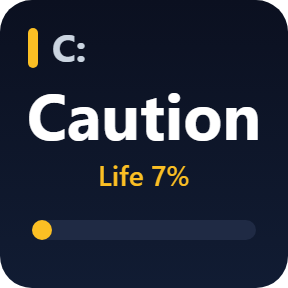
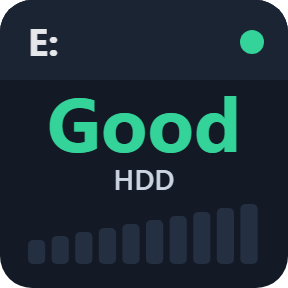
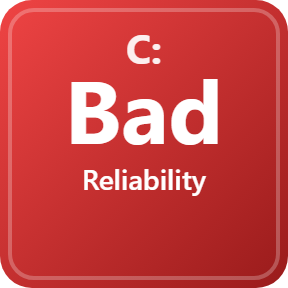
Drive Health
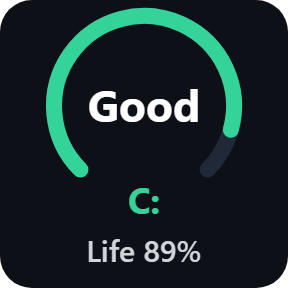
Good, Caution or Bad, with life left in % below. When a drive is not Good, the key says why, such as "Life 7%", "Spare low" or "Reallocated 3".
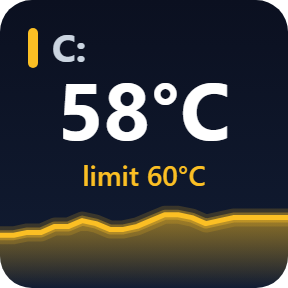
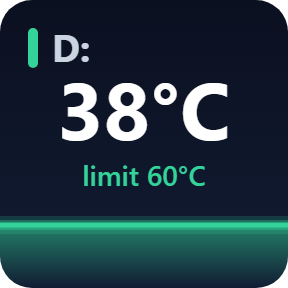
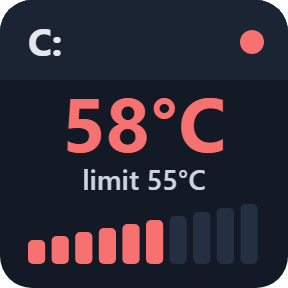
Drive Temperature
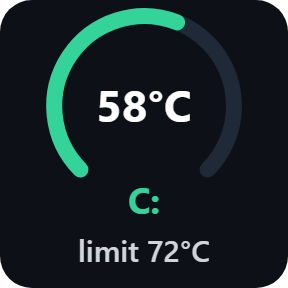
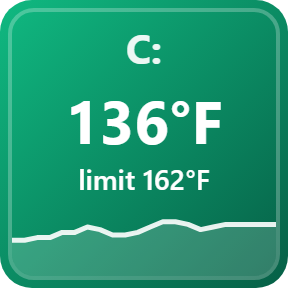
The live temperature with a short graph. Yellow 5 degrees before your alert temperature, red at it, plus one short alert on the key when it gets there.
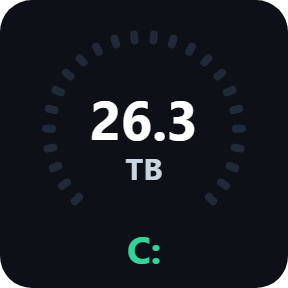
Data Written
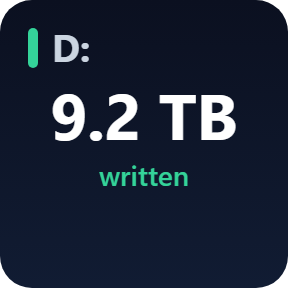
How much your PC has written to the SSD so far, in TB, to compare with the rated endurance (TBW) on the drive's data sheet.
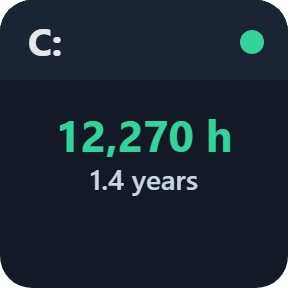
Power-On Hours
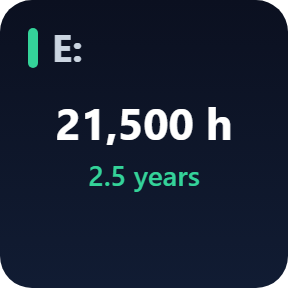
The drive's total running time, with days or years below.
Press for the next drive
A new key shows your system drive (C:). Press it for the next drive. Each key remembers its drive by its serial number.
Your alert and unit
Use the drive's own temperature limit, or pick one from 50 to 80 degrees C, and show Celsius or Fahrenheit, for each key.
Install in OpenDeck
In OpenDeck, open the Plugins tab, install the .streamDeckPlugin file you downloaded, then enter your license key once in a key's settings.
Requirements
- Windows 10 or later
- No other monitoring software, administrator rights or account
- OpenDeck 2.14 or later
Questions
Can an Ajazz or Mirabox deck with OpenDeck show my SSD temperature?
Yes. Add a Drive Temperature key: it shows the drive temperature with a graph, turns yellow 5 degrees before your alert temperature and red at it.
How do I check SSD health from a deck key?
Add a Drive Health key. It shows Good, Caution or Bad and the life left in %, from the drive's own SMART data.
What should I do when the key says Caution or Bad?
Back up your data. Caution means life left is 10% or less, the spare blocks are at the drive's limit, or a hard drive has reallocated, pending or unreadable sectors. Bad means the drive itself warns of failure, the spare blocks of an NVMe SSD fell below its limit, or the life left of a SATA SSD reached 0%.
Purchase details, refunds and seller
- Price
- ¥780, paid once. Tax for your country is added at checkout.
- Payment
- Handled by Stripe through Link, Stripe's checkout service. Link appears as the seller on your receipt and card statement, and your card number never reaches GRAMSHIFT.
- Delivery
- Your license key and download link appear right after payment, and the receipt arrives by email.
- Countries
- The direct checkout is not offered in Ascension Island, China, Cuba, Iran, Kosovo, North Korea, Russia, Syria or Tristan da Cunha.
- Seller
- GRAMSHIFT, Tokyo, Japan. Contact: contact@gramshift.com
- Refunds
- If the plugin fails to run on your PC, email contact@gramshift.com within 14 days of purchase for a full refund. The license key stops working after a refund.
- License
- One key for your own use on up to 3 PCs.
Limits
- USB enclosures and USB sticks: Windows shares their drive data with administrator tools only, so the keys show "USB: n/a".
- Life left on SATA SSDs is read the way each maker reports it. WD and SanDisk SATA SSDs, and makers the plugin does not recognize, show "--" for life left; temperature, hours and the drive's own warning still show.
- Data written on SATA SSDs shows for Samsung, Crucial/Micron and Intel; other SATA SSDs show "--". Drives behind a RAID controller or a maker's own storage driver may show "--".
- The direct version checks its license key with our server when you activate it, at each plugin start and about once a day. If the server cannot be reached, it keeps running for up to 44 days after the last successful check.