Plugin for OpenDeck on Windows and Mac
CPU, GPU and RAM readouts on your OpenDeck keys
See how hard your PC is working without leaving your game or your editor: live CPU, GPU, memory, disk and network numbers sit right on your keys.
Place a key and it refreshes every 2 seconds with values read from Windows or macOS itself. On Windows, GPU temperature is included.
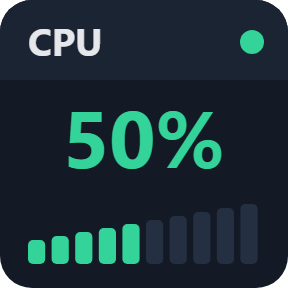
- CPU
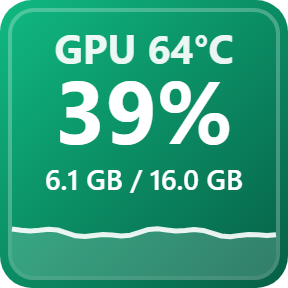
- GPU
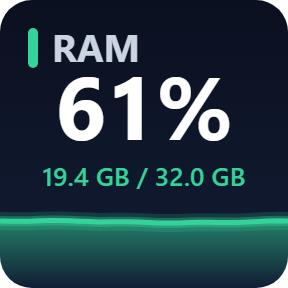
- Memory
- Disk
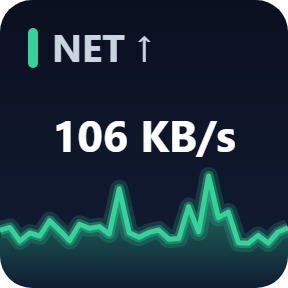
- Network

What the keys show
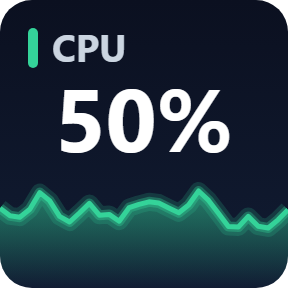
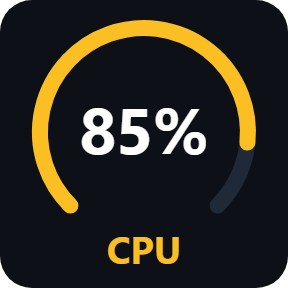
CPU
Total processor usage in percent, with a graph of the last 60 seconds.
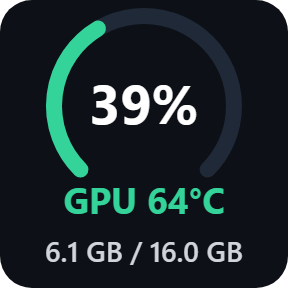
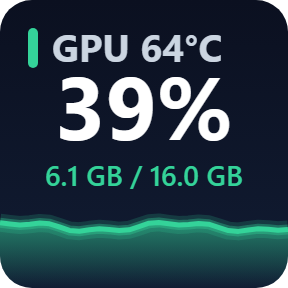
GPU
Usage, temperature and video memory in use, plus a 60-second graph. If your PC has several GPUs you choose which one to watch, and switch between °C and °F.
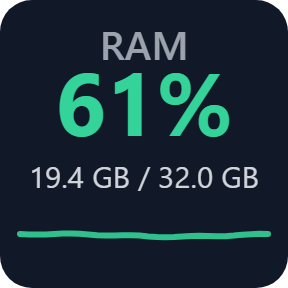
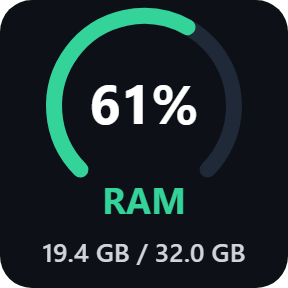
Memory
Percent of RAM in use and the GB used out of your total, with a 60-second graph.
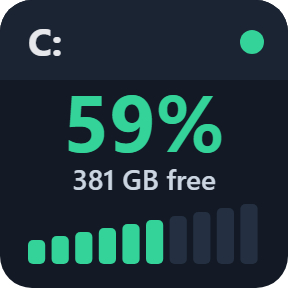
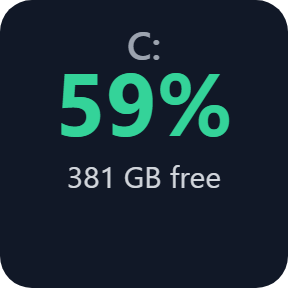
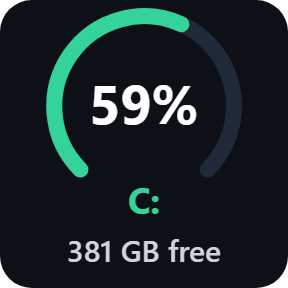
Disk
How full a drive is and how much space is left. Press the key to step to the next drive (C:, D:, and so on).
Network
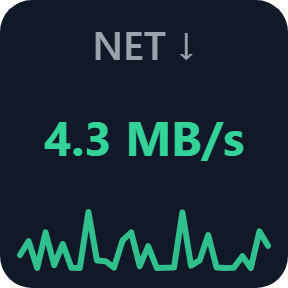
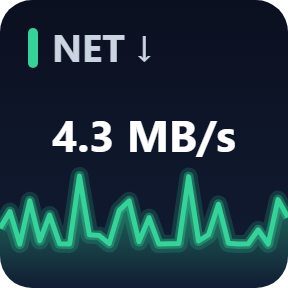
Download or upload speed of your Ethernet and Wi-Fi adapters. Press the key to flip between the two.
Install in OpenDeck
In OpenDeck, open the Plugins tab, install the .streamDeckPlugin file you downloaded, then enter your license key once in a key's settings.
Requirements
- Windows 10 or later, or macOS 13 or later (Apple silicon or Intel)
- OpenDeck 2.14 or later
Questions
Can I show CPU and RAM usage on an Ajazz deck with OpenDeck?
Yes. Add the CPU and Memory keys in OpenDeck and both show live numbers within a few seconds. CPU gives total usage in percent, Memory gives percent in use and GB used, each with a 60-second graph updated every 2 seconds.
How do I see my GPU temperature on a Mirabox deck?
Place the GPU key. It reports GPU usage, temperature and video memory in use, read from Windows itself. A GPU that does not report a temperature to Windows shows --°C.
Does System Monitor work on a Mac?
Yes, on macOS 13 or later with Apple silicon or Intel. Pick the startup disk or an external drive in the Disk key's settings. On a Mac the GPU key shows usage without temperature.
Purchase details, refunds and seller
- Price
- ¥780, paid once. Tax for your country is added at checkout.
- Payment
- Handled by Stripe through Link, Stripe's checkout service. Link appears as the seller on your receipt and card statement, and your card number never reaches GRAMSHIFT.
- Delivery
- Your license key and download link appear right after payment, and the receipt arrives by email.
- Countries
- The direct checkout is not offered in Ascension Island, China, Cuba, Iran, Kosovo, North Korea, Russia, Syria or Tristan da Cunha.
- Seller
- GRAMSHIFT, Tokyo, Japan. Contact: contact@gramshift.com
- Refunds
- If the plugin fails to run on your PC, email contact@gramshift.com within 14 days of purchase for a full refund. The license key stops working after a refund.
- License
- One key for your own use on up to 3 PCs.
Limits
- On Windows, network speed and GPU readings are read through Windows PowerShell, which is part of Windows. If it is blocked, those keys show "--" and the other keys keep working.
- GPU temperature appears only when the GPU reports it to Windows; otherwise the key shows --°C. On a Mac the GPU key shows usage only.
- The direct version checks its license key with our server when you activate it, at each plugin start and about once a day while running. If the server cannot be reached, it keeps working for up to 44 days after the last successful check.