Stream Deck plugin for Todoist on Windows
Your next Todoist task, on a Stream Deck key
Task Keys puts your next Todoist task on a Stream Deck key with its priority color and due date, and you hold the key to complete it.
Other keys count your tasks, add a task with one press and fill a ring toward your daily goal.
Use any Todoist filter, such as today | overdue, p1 or #Work. The keys refresh every minute and right after you complete or add a task, and a 5-second Undo brings a task back.
- Next task
- Hold to complete
- Overdue count
- Quick add
- Daily goal


What the keys do
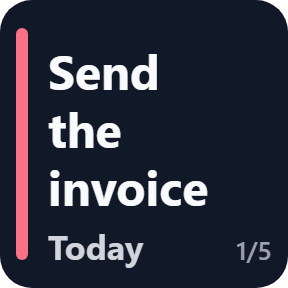
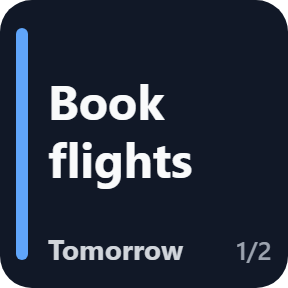
Next Task
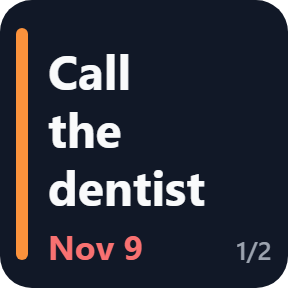
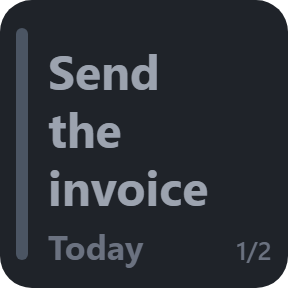
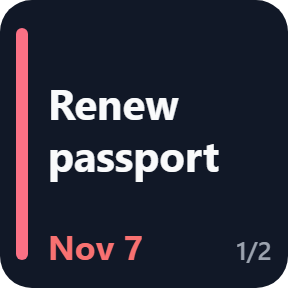
The first task of your filter with its priority color band and due date: orange when a timed task is less than an hour away, red when it is late. Press for the next task.
Hold to complete
Hold the key for 0.6 seconds to complete the task. Undo shows for 5 seconds: a press brings the task back, and a recurring task returns to its date.
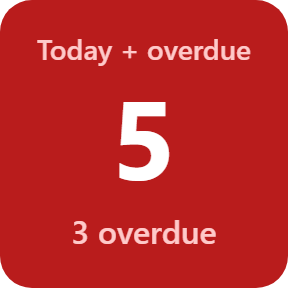
Task Count
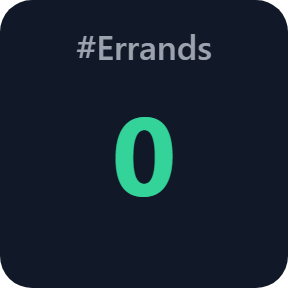
How many tasks your filter has, red when one is overdue and green when the list is empty. A press opens the filter in Todoist.
Add Task
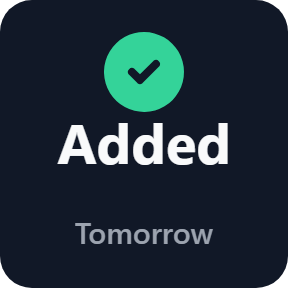
Adds a task you set with Todoist's quick add, so dates in words, p1 to p4, @label and #Project all work. The key shows a tick and the date the task got.
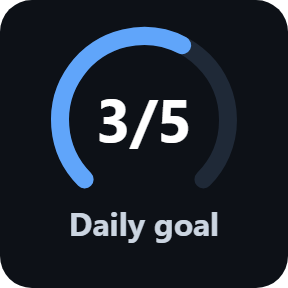
Daily Goal
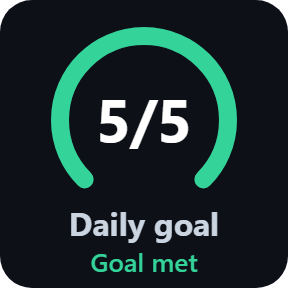
Tasks completed today in a ring toward your Todoist daily goal. The ring turns green when the goal is met.
Clear when offline
When the connection drops, the key keeps your last list in grey. If Todoist refuses the token, the key says Check token.
Colors you read at a glance
A late task turns its date red, an empty list turns the count green, and the goal ring turns green when you reach your daily goal. On Stream Deck +, the touch strip shows the task name and date: turn the dial for the next task and push it to complete.
Your token, your tasks
Your Todoist token is saved only in the Stream Deck app on your PC, kept out of exported profiles, and sent only to Todoist over an encrypted connection.
Tasks are completed or added only when you press a key. The plugin never deletes anything.
All keys share one token and one refresh per filter, so you paste the token once.
Set up in 3 steps
- Open the plugin file you download after buying. The Stream Deck app installs it.
- Drag the actions you want onto your Stream Deck and enter your license key once in a key's settings.
- Press "Open the token page in Todoist" in the same settings, copy your API token from Settings, Integrations, Developer and paste it. Type a filter, or leave it empty for today | overdue.
Requirements
- Windows 10 or later
- Stream Deck app 6.9 or later
- Any Stream Deck with keys (the dial and touch strip need Stream Deck +)
- A Todoist account and its API token (Settings, Integrations, Developer)
Questions
How do I show my next Todoist task on Stream Deck?
Drag Next Task onto your Stream Deck and enter your license key in its settings. Press "Open the token page in Todoist", copy your API token and paste it. The key shows the first task of today | overdue, or of any filter you type.
Can I complete a Todoist task from Stream Deck?
Yes. Hold the Next Task key for 0.6 seconds and the task is completed. Undo shows on the key for 5 seconds; a press brings the task back with its open subtasks, and a recurring task returns to its date.
Which Todoist filters can I use?
Any filter you can type in Todoist, such as today | overdue, p1, #Work, @phone or 7 days. Each key can have its own filter, and its own order: Todoist's order, priority or due date.
Can I add a task with one press?
Yes. Type the task in the Add Task key's settings, for example Buy milk tomorrow p2 #Errands. A press adds it with Todoist's quick add, and the key shows a tick and the date. Write dates in the language your Todoist is set to.
Does it work with Stream Deck + dials?
Yes. Put Next Task on a dial: the touch strip shows the task name and date, turning the dial goes to the next task and pushing it completes the task. Push or tap during Undo to bring it back.
Where is my Todoist token kept?
Only in the Stream Deck app on your PC. It is left out of exported profiles and sent only to Todoist. GRAMSHIFT never receives it.
How many PCs can I use with one license key?
Up to 3 of your own PCs. If you replace a PC, write to us and we free up a place for the new one.
How do I get new versions?
Download the latest version from your thank-you page or the license key page you received. Your license key keeps working. If you cannot open your license key page, email us as the "Recover your license key" page explains.
What if I lose my license key?
Email contact@gramshift.com from the address you paid with, and include your order number, or the date and amount you paid. We check the purchase and reply with a link to your license key page.
Can I get a refund?
Yes. If the plugin does not work on your PC, email us within 14 days of purchase and we refund the full amount. The license key stops working after the refund.
Direct purchase: details, refunds and seller
- Price
- ¥1,200, paid once. Tax for your country is added at checkout.
- Payment
- Handled by Stripe through Link, Stripe's checkout service. Link appears as the seller on your receipt and card statement, and your card number never reaches GRAMSHIFT.
- Delivery
- Your license key and download link appear right after payment, and the receipt arrives by email.
- Refunds
- If the plugin does not work on your PC, email us within 14 days of purchase for a full refund. You can also ask Link support. The license key stops working after a refund.
- License
- One key for your own use on up to 3 PCs.
- Countries
- Checkout is not offered in Ascension Island, China, Cuba, Iran, Kosovo, North Korea, Russia, Syria or Tristan da Cunha.
- Seller
- GRAMSHIFT, Tokyo, Japan. Contact: contact@gramshift.com
Limits
- Windows only.
- You paste your Todoist API token into the settings; there is no sign-in button.
- Add Task reads dates in the language your Todoist is set to: with Todoist in Japanese, write 明日 rather than tomorrow.
- The plugin checks its license key with our server when you activate it, each time the plugin starts, and about once a day while it runs. If it cannot reach the server, it keeps working for up to 44 days after the last successful check.
- If something does not work, email contact@gramshift.com or see the support page, and we will help. Tell us what you would like next: we add the most-requested features in the next version.