Stream Deck plugin for Windows
Safely eject USB drives from your Stream Deck
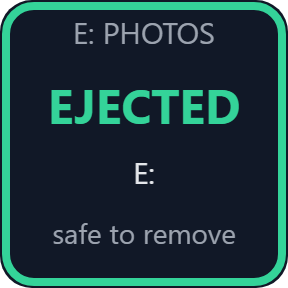
USB Drive Eject for Windows safely ejects a USB flash drive, external hard drive or external SSD from one Stream Deck key, the same way as "Safely Remove Hardware" in the Windows tray. The key shows a green "EJECTED" when it is safe to unplug.
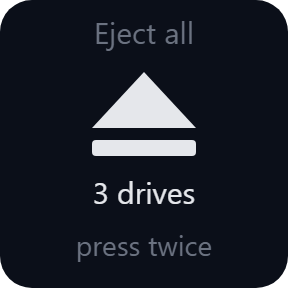
Pick a drive by name and the key keeps finding it when Windows gives it a new letter. Eject All removes every USB drive and keeps the ones you choose connected. When a program is still using a drive, the key shows which one.
- Safely Remove Hardware
- Eject by name
- Eject All
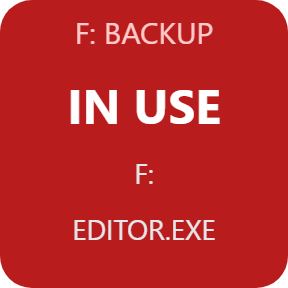
- Shows the program in use
- English and Japanese
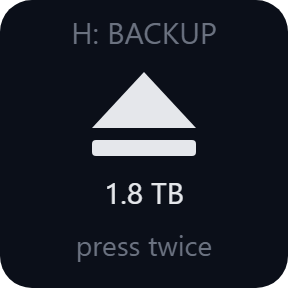
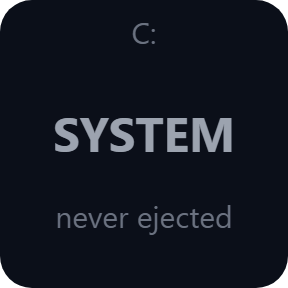
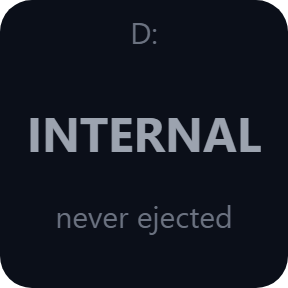
What it does
Eject Drive
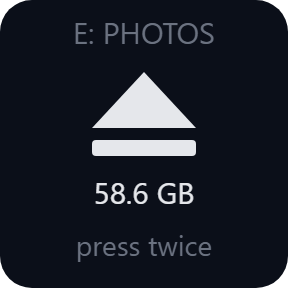
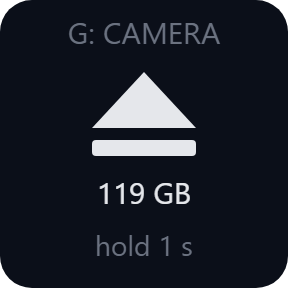
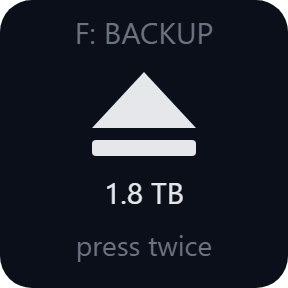
Ejects one USB drive: a flash drive, thumb drive, external hard drive or external SSD. The key shows its letter, name and size.
Follows the drive, not the letter
Choose the drive by name (its volume name and model, for example BACKUP on a WD My Passport) and the key stays on it when Windows gives it another letter. A drive letter, or Automatic when one USB drive is connected, also works.
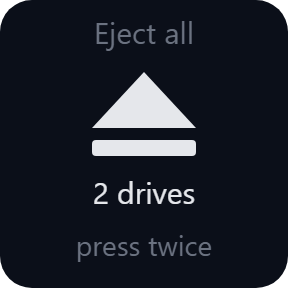
Eject All, keep your backup
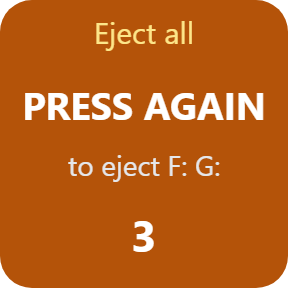
Ejects every USB drive, one after another. Drives checked under "Leave connected" stay plugged in, whatever their drive letter.
Drive Count
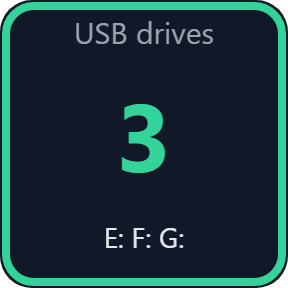
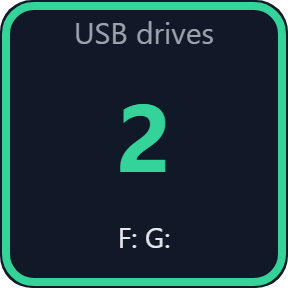
Shows how many USB drives can be ejected and their letters, updated every few seconds.
If in use
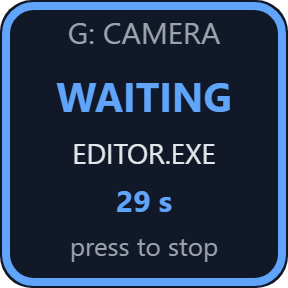
The key shows the program at once, or set it to keep trying for up to 30 seconds or 2 minutes. It tries again every 2 seconds, so the drive is ejected within a few seconds of being free. Press the key to stop waiting.
Confirm first
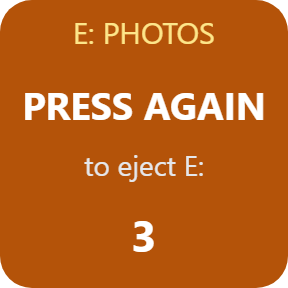
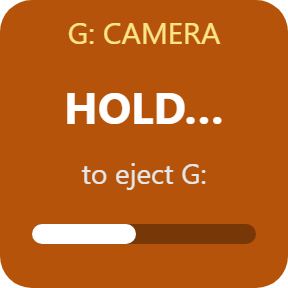
Press again within 3 seconds, or hold for 1 second. One tap alone keeps the drive connected. You can also put your own label on the key, for example Backup.
A clear result on the key
Green "EJECTED, safe to remove". Red "IN USE" with the program that has files open (for example EXCEL.EXE) when Windows names it, or the reason Windows gave. Internal drives, the Windows drive, drives holding the page file and card readers built into the PC stay connected, and the key says why.
Runs on your PC, as you
Runs as your Windows user and never asks for administrator rights.
It ejects drives and never reads or writes your files.
The only thing the direct version sends online is its license key check.
Set up in 3 steps
- Open the plugin file you download after buying. The Stream Deck app installs it.
- In the Stream Deck app, drag Eject Drive, Eject All or Drive Count onto a key. Select an Eject Drive key and choose your drive under Drive.
- Enter your license key once in a key's settings. Press the key, press again within 3 seconds, and unplug the drive when it shows EJECTED.
Two places to buy
| Elgato Marketplace | Direct from GRAMSHIFT | |
|---|---|---|
| Amount | Same amount | Same amount, tax added at checkout |
| Checkout | Elgato Marketplace | Stripe (card) |
| New versions | Installed through the Stream Deck app | Download from your key page |
| Use on | Your Elgato account | Up to 3 PCs per license key |
| Plugin display | English and Japanese | English and Japanese |
Requirements
- Windows 10 or later
- Stream Deck app 6.9 or later
Questions
How do I safely eject a USB drive with a Stream Deck key?
Drag the Eject Drive action onto a key and choose your drive. Press the key, then press again within 3 seconds (or hold it for 1 second). The key shows a green EJECTED when it is safe to unplug, the same as "Safely Remove Hardware" in the Windows tray.
My drive gets a different letter every time. Will the key still find it?
Yes. Choose the drive by name and the key follows it to its new letter.
Can I eject everything except my backup drive?
Yes. Check the backup drive under "Leave connected" on the Eject All key.
What happens when a program is still using the drive?
The key turns red and shows the program's name when Windows reports it. Close the program and press again, or set "If in use" to keep trying for up to 2 minutes.
How many PCs can I use with one license key?
Up to 3 of your own PCs. If you replace a PC, write to us and we free up a place for the new one.
How do I get new versions if I buy direct?
Download the latest version from your thank-you page or the key page you received. Your license key keeps working. If you cannot open your key page, email us as the "Recover a lost key" page explains.
What if I lose my license key?
Email contact@gramshift.com from the address you paid with, and include your order number, or the date and amount you paid. We check the purchase and reply with a link to your key page.
Can I get a refund?
Yes, for a direct purchase. If the plugin does not work on your PC, email us within 14 days of purchase and we refund the full amount. The license key stops working after the refund.
Direct purchase: details, refunds and seller
- Price
- ¥780, the same amount as on the Elgato Marketplace. Tax for your country is added at checkout.
- Payment
- Handled by Stripe through Link, Stripe's checkout service. Link appears as the seller on your receipt and card statement, and your card number never reaches GRAMSHIFT.
- Delivery
- Your license key and download link appear right after payment, and the receipt arrives by email.
- Refunds
- If the plugin does not work on your PC, email us within 14 days of purchase for a full refund. You can also ask Link support. The license key stops working after a refund.
- License
- One key for your own use on up to 3 PCs.
- Countries
- The direct checkout is not offered in Ascension Island, China, Cuba, Iran, Kosovo, North Korea, Russia, Syria or Tristan da Cunha.
- Seller
- GRAMSHIFT, Tokyo, Japan. Contact: contact@gramshift.com
Limits
- Windows only.
- Ejects drives connected over USB. Internal drives, the Windows drive, drives holding the page file and card readers built into the PC are left connected.
- Windows ejects a drive only when no program has files open on it. The key names the program when Windows reports it.
- One eject at a time. While one key ejects or waits for a drive, another key you press shows WAITING or BUSY and that drive for 3 seconds. It works again once the first key is done.
- The direct version checks its license key with our server when you activate it, each time the plugin starts, and about once a day while it runs. If it cannot reach the server, it keeps working for up to 44 days after the last successful check.