OpenDeck plugin for Windows
CPU, GPU, Memory and Network Graphs on OpenDeck
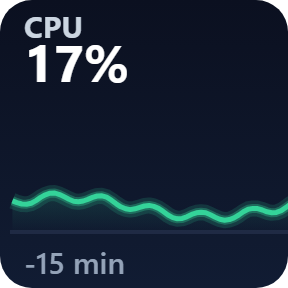
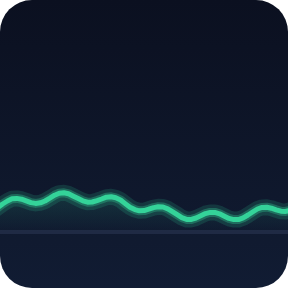
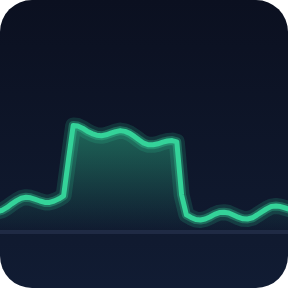
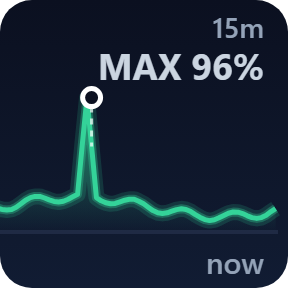
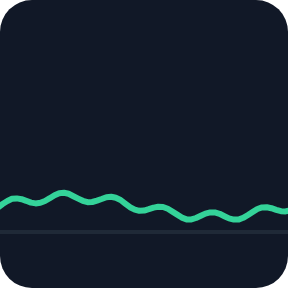
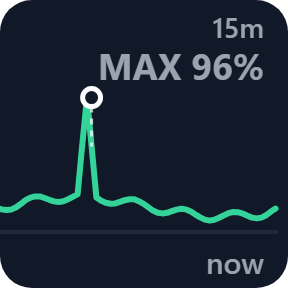
On an Ajazz or Mirabox deck with OpenDeck, keys draw live graphs of your Windows PC: CPU, GPU, memory, disk and network speed.
Glance at the deck while a game, a render or a build runs and see which part is the busy one.
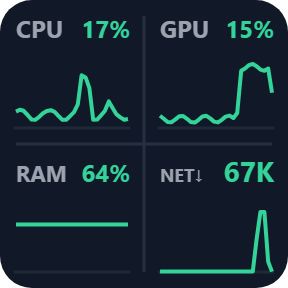
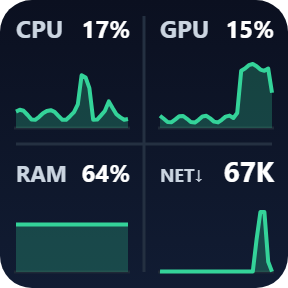
One overview key packs CPU, GPU, memory and a fourth graph, download, upload or disk, into four small graphs on a single key. Pick from five looks, and the CPU follows the same measure as Task Manager on Windows 11.
- CPU, GPU, memory graphs
- Disk and network speed
- Four graphs on one key
- Five looks
- Same CPU measure as Task Manager
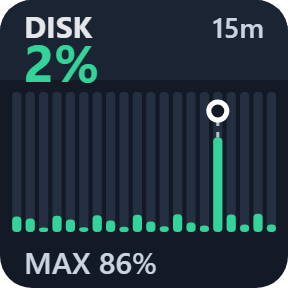
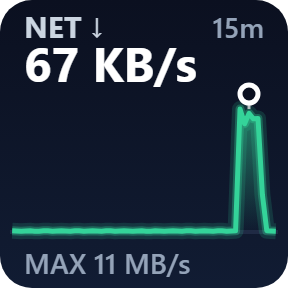
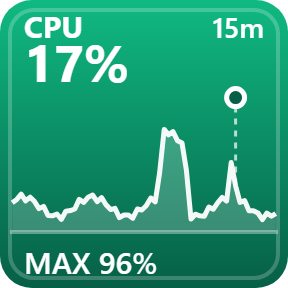
What the keys do
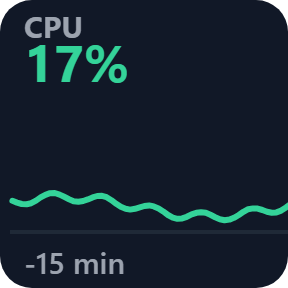
CPU
Total CPU usage, by the same measure as Task Manager on Windows 11.
GPU
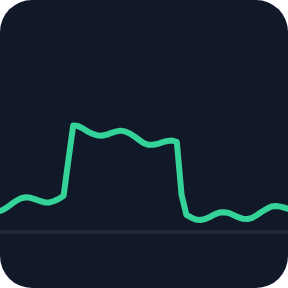
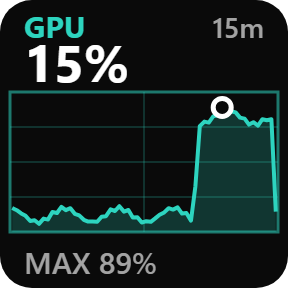
How busy your GPU is: its busiest engine (3D, video, copy...), as Windows reports it. With two GPUs, it follows the busier one.
Memory
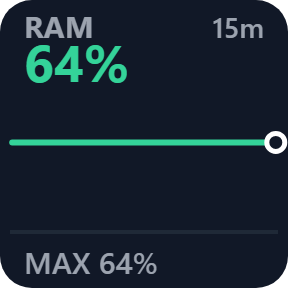
How much of your RAM is in use, as a percentage.
Disk
Active time of your busiest disk.
Network
Download or upload speed: the total of your PC's physical adapters, in bytes per second (MB/s, not Mbps). The graph scales to the fastest moment of the period.
Performance Overview
CPU, GPU and memory, plus download, upload or disk as a fourth, as four small graphs on one key.
Install in OpenDeck
In OpenDeck, open the Plugins tab, install the .streamDeckPlugin file you downloaded, then enter your license key once in a key's settings.
Requirements
- Windows 10 or later (checked on Windows 11)
- OpenDeck 2.14 or later
Questions
How do I show CPU and GPU usage on an Ajazz or Mirabox deck with OpenDeck?
Place the CPU and GPU keys in OpenDeck. Each draws a live graph of its usage, and the Performance Overview key shows CPU, GPU, memory and a fourth graph on one key.
Does the network key show Mbps or MB/s?
MB/s, in bytes per second, not Mbps. It is the total of your PC's physical adapters, and the graph scales to the fastest moment of the period.
Does the graph history stay after a restart?
No. History is kept in memory only. Restarting clears it, there is no log file, and the time a PC sleeps shows as a gap.
Purchase details, refunds and seller
- Price
- ¥980, paid once. Tax for your country is added at checkout.
- Payment
- Handled by Stripe through Link, Stripe's checkout service. Link appears as the seller on your receipt and card statement, and your card number never reaches GRAMSHIFT.
- Delivery
- Your license key and download link appear right after payment, and the receipt arrives by email.
- Countries
- The direct checkout is not offered in Ascension Island, China, Cuba, Iran, Kosovo, North Korea, Russia, Syria or Tristan da Cunha.
- Seller
- GRAMSHIFT, Tokyo, Japan. Contact: contact@gramshift.com
- Refunds
- If the plugin fails to run on your PC, email contact@gramshift.com within 14 days of purchase for a full refund. The license key stops working after a refund.
- License
- One key for your own use on up to 3 PCs.
Limits
- Windows only. Temperatures, fan speeds, clock speeds and FPS are not shown.
- You cannot pick one GPU or one disk: the keys show the busiest engine of the GPU and the busiest disk. You cannot pick one network adapter either. On a PC where Windows gives no GPU figures, the GPU key says no reading.
- Recording starts when a key first appears. If no key is on screen for more than 60 minutes, recording stops and the history is cleared.
- The direct version checks its license key with our server when you activate it, at each plugin start and about once a day. If the server cannot be reached, it keeps running for up to 44 days after the last successful check.