Avatar tools
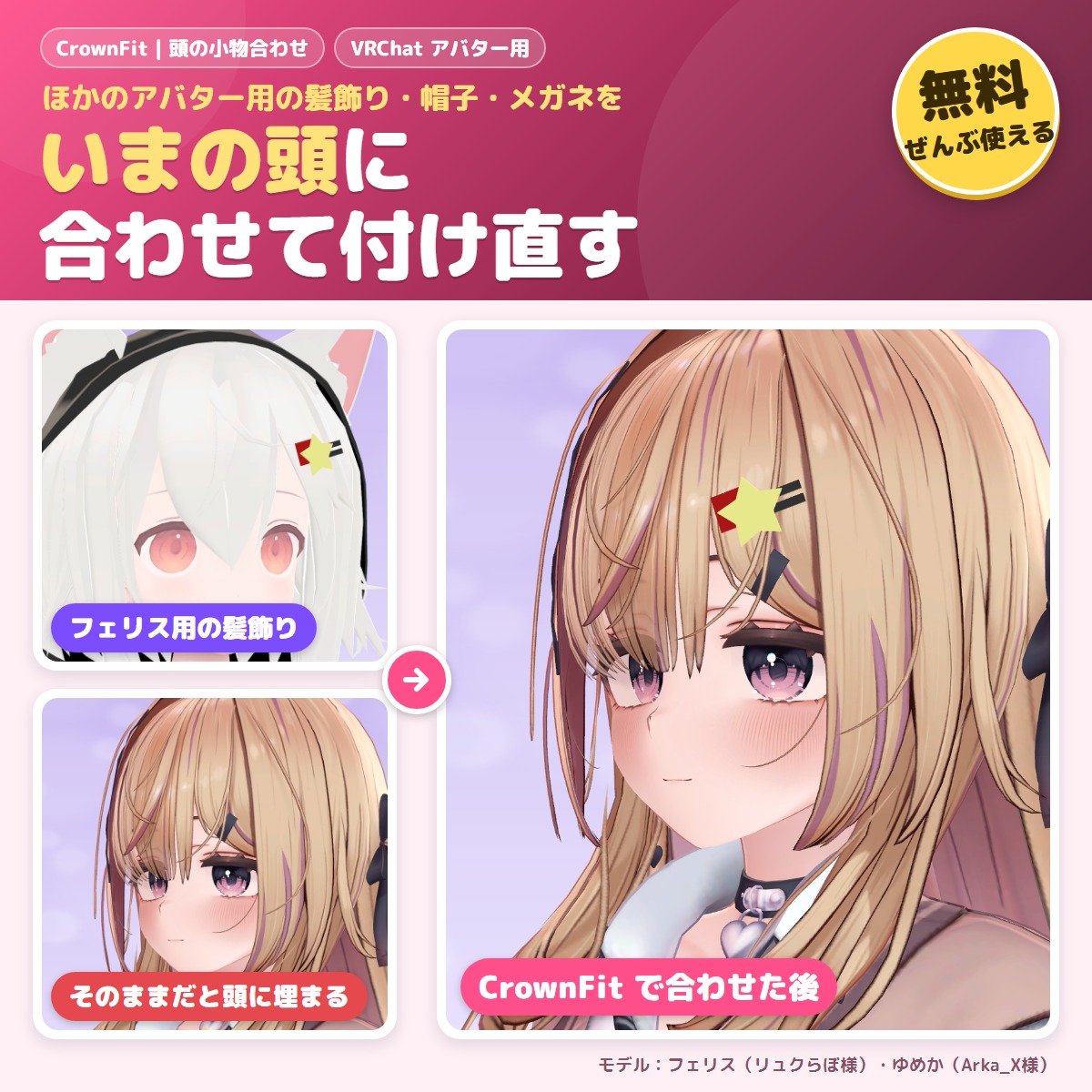
CrownFit - free: fit hats, glasses and hair ornaments to your avatar
A free tool that fits hair ornaments, hairpins, hats and glasses made for another avatar to your avatar's head.
FreeUpdates in VCC
Released Nov 20, 2026 · latest version 1.0.0
You pay when you confirm the order. Refunds: the full amount within 14 days of purchase if a tool does not work in your setup. Legal notice (Japan)
Check it on your own avatar before you buy.
Not in the trial: If an older trial (unitypackage) is in your Assets, delete Assets/GRAMSHIFT/FingerPeek first, then add this one.
This tool uses Modular Avatar (free, the standard tool for avatar edits). If Modular Avatar is not in your VCC yet, press the button below first. You only do this once; after that, VCC installs it together with the tool.
Add Modular Avatar to VCC (free)
For ALCOM or manual setup: https://vpm.nadena.dev/vpm.json
https://gramshift.com/vpm-shop/free/index.jsonCheckout is not offered in your region. Free items (such as trials) are still available on this page.
Estimate: the ECB rate of 2026-11-20 plus the Stripe conversion fee (about 4%). Checkout shows the exact amount, or you can choose to pay in Japanese yen.
Prices include Japanese tax. In some countries, local tax may be added at checkout; you see the total before you pay. Right after payment you get an "Add to VCC" button and a zip download. Add it to VCC (the free official app from VRChat) or ALCOM (a free app that does the same), and new versions install with one click.
Added to your cart.View cart
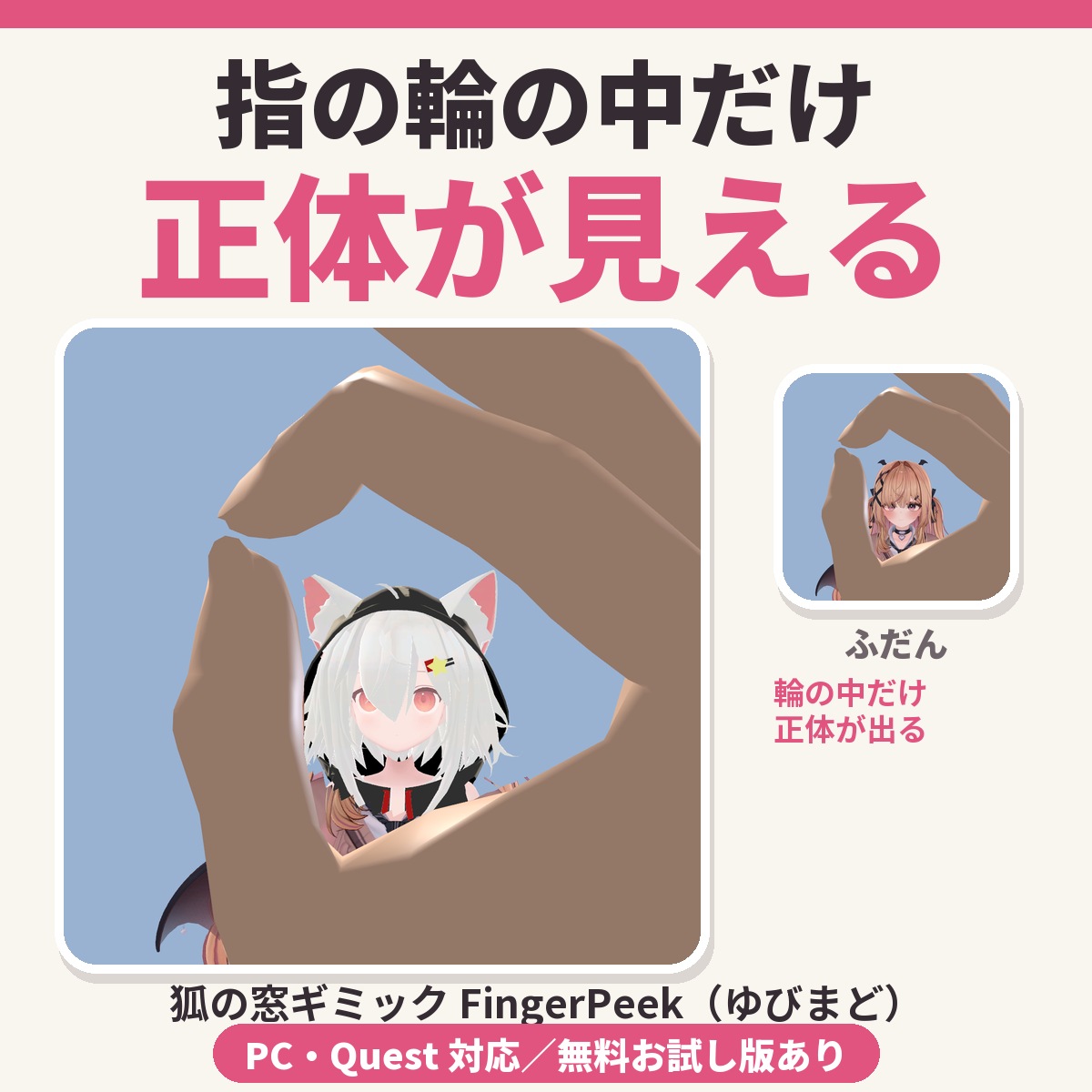
A gimmick for VRChat avatars: look through a ring made with your fingers (a fox window) and only the inside of the ring shows another form (PC and Quest.
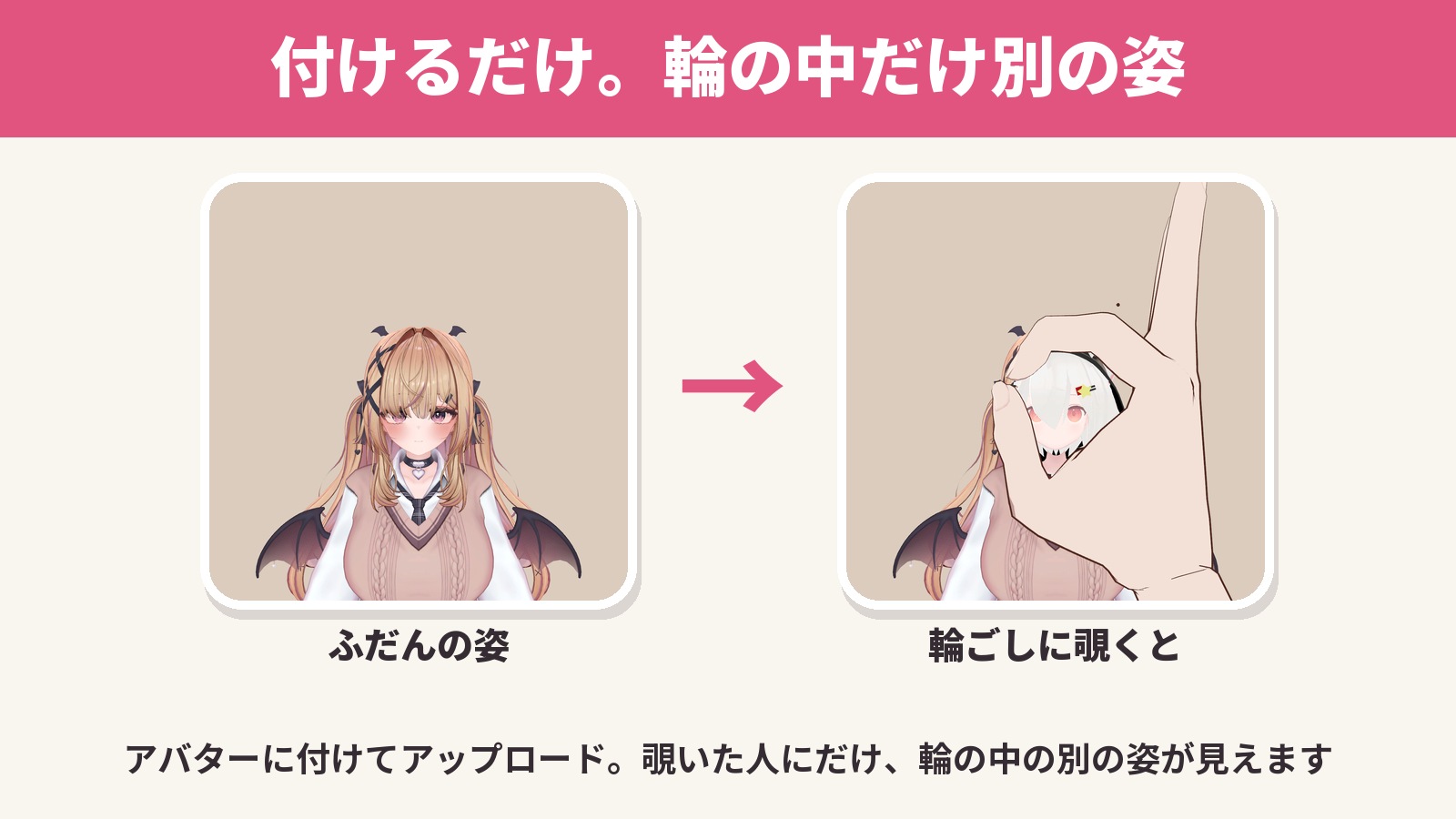
A gimmick for VRChat avatars: look through a ring made with your fingers (a fox window) and only the inside of the ring shows another form (PC and Quest, NDMF, non-destructive). Put the other form (another outfit, a beast form, your true self) into your avatar and upload; the outside of the ring stays as it was, and only the person looking through the ring sees the other form inside it. In the Expression Menu, "Window" turns it on and off, "Whole body" shows the whole avatar in the other form, and "Invert" swaps the inside and outside of the ring. The free trial lets you check how the inside of the ring looks on your own avatar before you buy.
Features
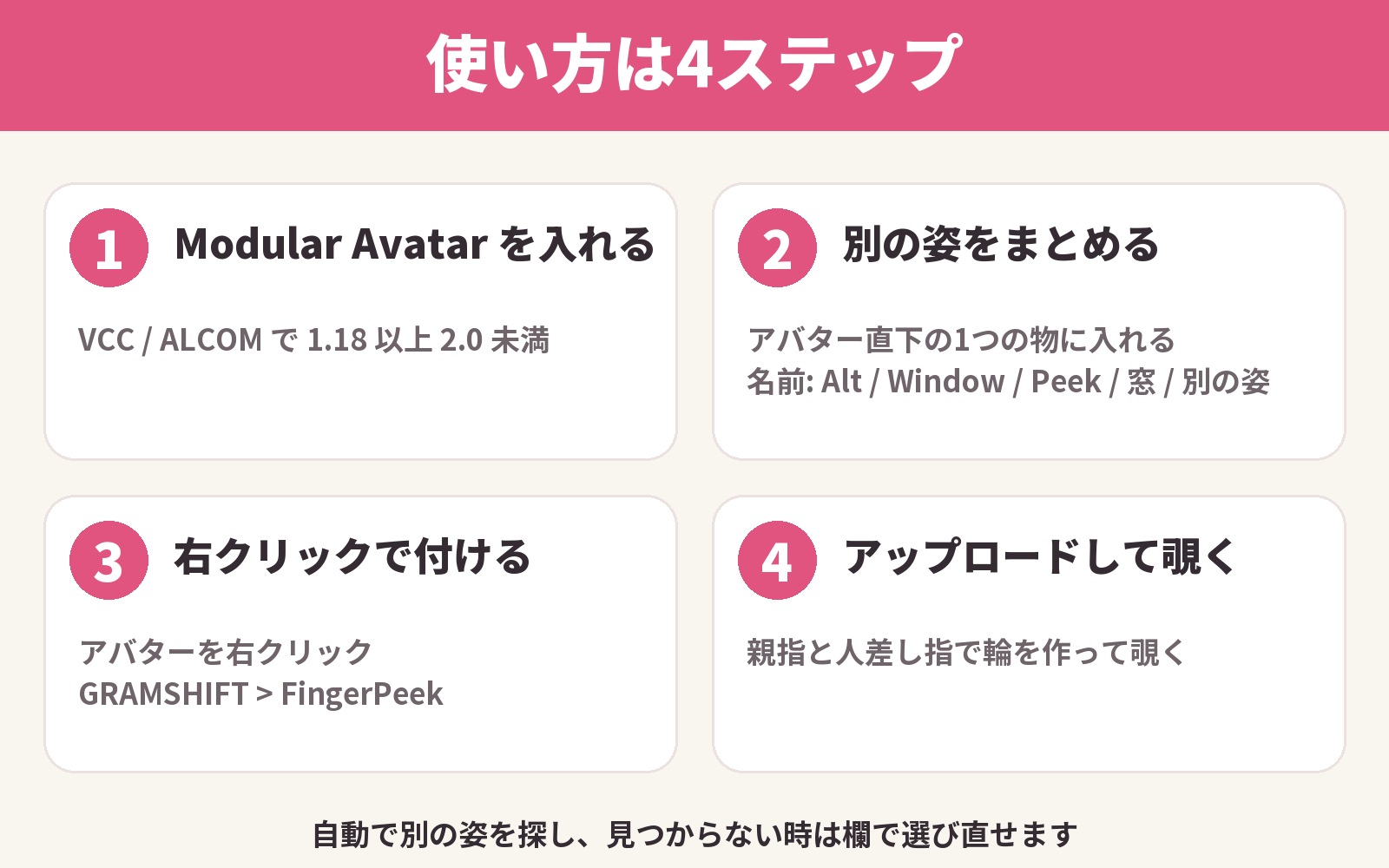
How to use: add this tool in VCC (or ALCOM) (Modular Avatar and NDMF are added with it) → put the other form's outfit, body and props into one object directly under the avatar (named Alt, Window, Peek, 窓 or 別の姿) → right-click the avatar in the Hierarchy → GRAMSHIFT → FingerPeek → check it with "Peek through a sample ring" in Scene preview, and upload as usual → in VRChat, make a ring with thumb and index finger and look through it (with "Window" on in the Expression Menu "FingerPeek").
Expression Menu ("FingerPeek"): Window (on/off), Whole body, Invert (inside the ring shows the original, outside shows the other form; kept for next time), On my screen (off: the window does not open on your own screen, only on other players' screens).
Free trial: in the Scene preview, see how the inside of the ring looks on your own avatar, and the whole body in the other form (diagonal lines run across the preview window). Uploading needs the full version. When you add the full version in VCC, the trial is removed automatically. Parts you set up with the trial keep working.
Requirements: Unity 2022.3, VRChat SDK3 Avatars 3.7 or later, Modular Avatar 1.18 to below 2.0 (NDMF 1.14 to below 2.0 comes with it). The window opens on PC avatars (Quest gets the parameters only). Tested avatars: Felis (リュクらぼ), Hayakawa Aoi (WARPSTORE), Yumeka (Arka_X) and RadDollV3 (三丁目の魔界); avatars, outfits and stands in the images are not included. Please check first that the avatar's and outfit's terms allow modification (handling materials, animations, adding menus).
FAQ
Q. Can I show another form only inside a ring made with my fingers?
A. Yes. Put the other form together, add FingerPeek and upload; anyone looking through a ring made with thumb and index finger sees the other form inside it.
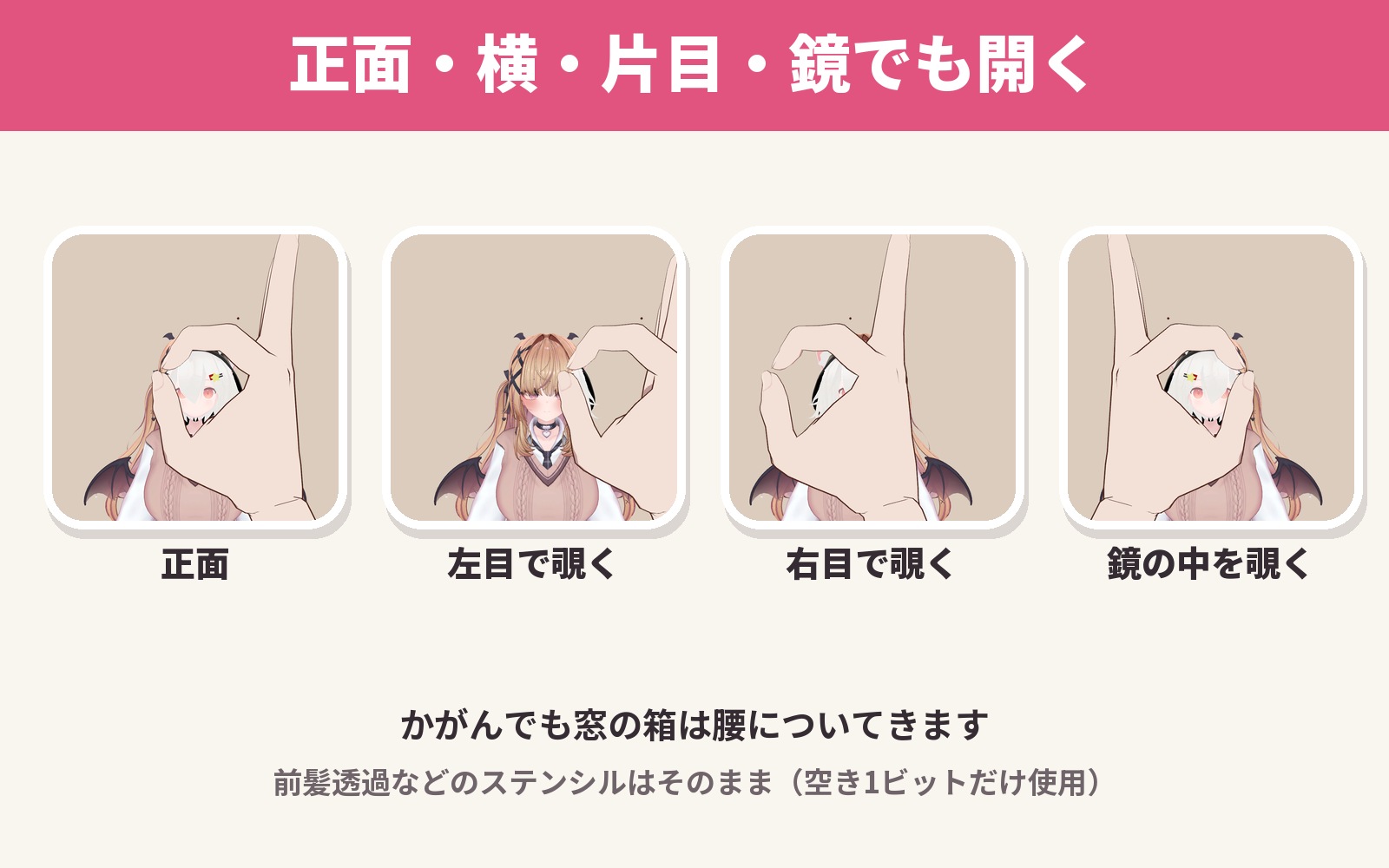
Q. Does it open when I look at a mirror?
A. Yes. It opens from the front, from the side, with one eye, and when you look at your avatar in a mirror through the ring.
Limitations: when the hand's material has Render Queue 2501 or higher (such as lilToon fur that is not fur cutout), a ring made by that hand does not open the window; lilToon transparent, cutout and fur cutout hands (2500 or lower) do. lilToon Fur does not appear inside the window. Materials without stencil settings, locked Poiyomi materials and materials with an unusual stencil compare show both inside and outside the window (their names are shown at upload; unlock Poiyomi to split them). The window opens in worlds with a shadowed directional light (most VRChat worlds); "Open the window in worlds without light" adds a small light so it opens elsewhere too, but the light item of the PC performance rank becomes Poor (off by default). On Quest the other form is hidden and the window does not open. Viewers who turned off this avatar's shaders in their Safety settings do not see the window. The other form casts no shadow. If your avatar's expressions use the same hand sign, the expression changes with it. It uses 3 synced parameter bits (Window, Whole body, Invert). Add only one per avatar.
Requests: the most requested features go into the next versions; tell us the window shapes and looks you want.
Made by GRAMSHIFT with the help of AI tools.
If something does not work, feel free to contact the shop (your avatar name and any message shown). The most-requested features go into the next version.
Partly AI-assisted
First release
First release
No reviews yet.
Only people who bought this item here can review it (from the Library after buying).
No published questions yet.
For how to use this item, ask GRAMSHIFT in "Questions and answers" above.
For help with payment or downloads, just email contact
Avatar tools
A free tool that fits hair ornaments, hairpins, hats and glasses made for another avatar to your avatar's head.
Avatar tools
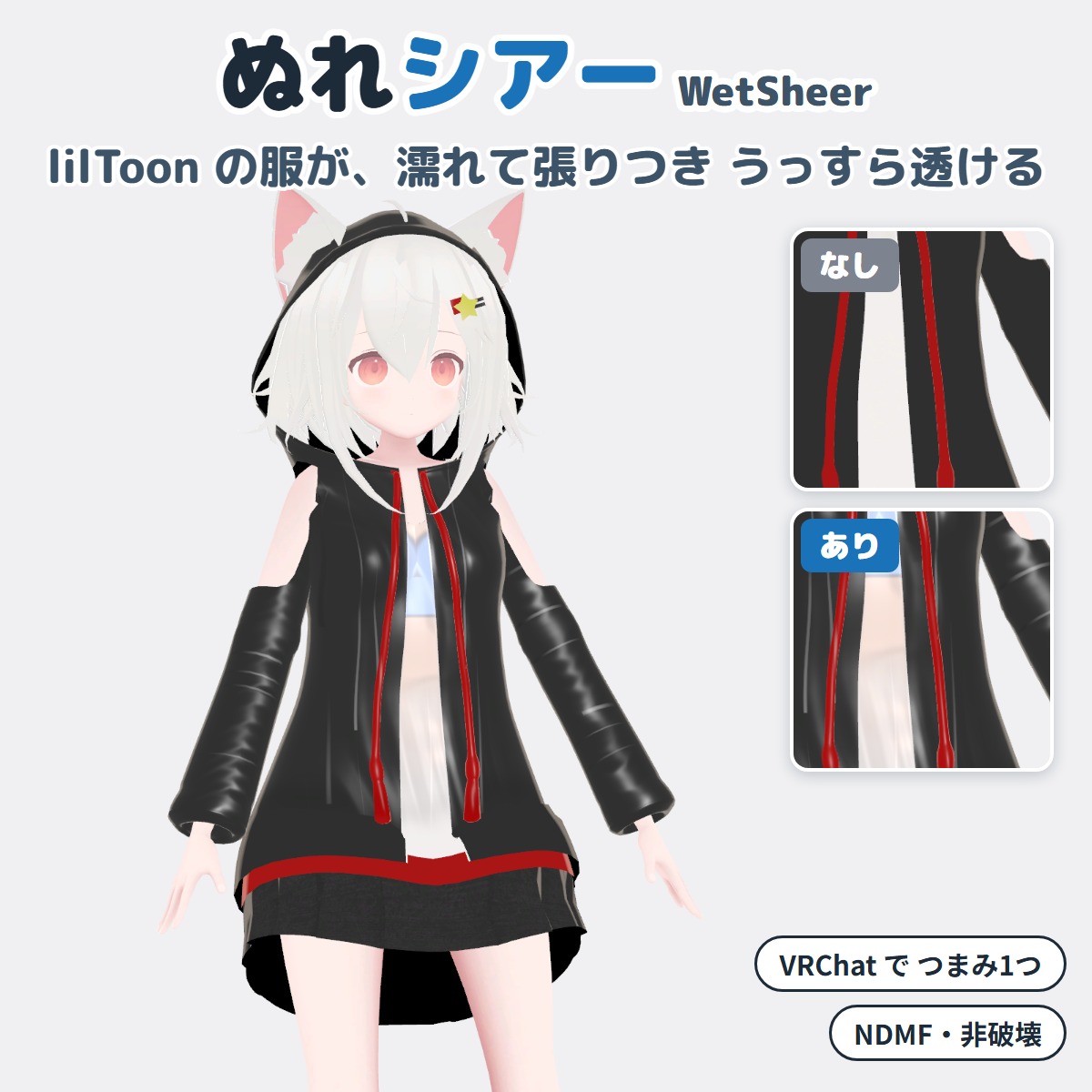
A Unity editor extension that makes your VRChat avatar's lilToon clothing look wet and see-through (won't change your original avatar).
Avatar tools
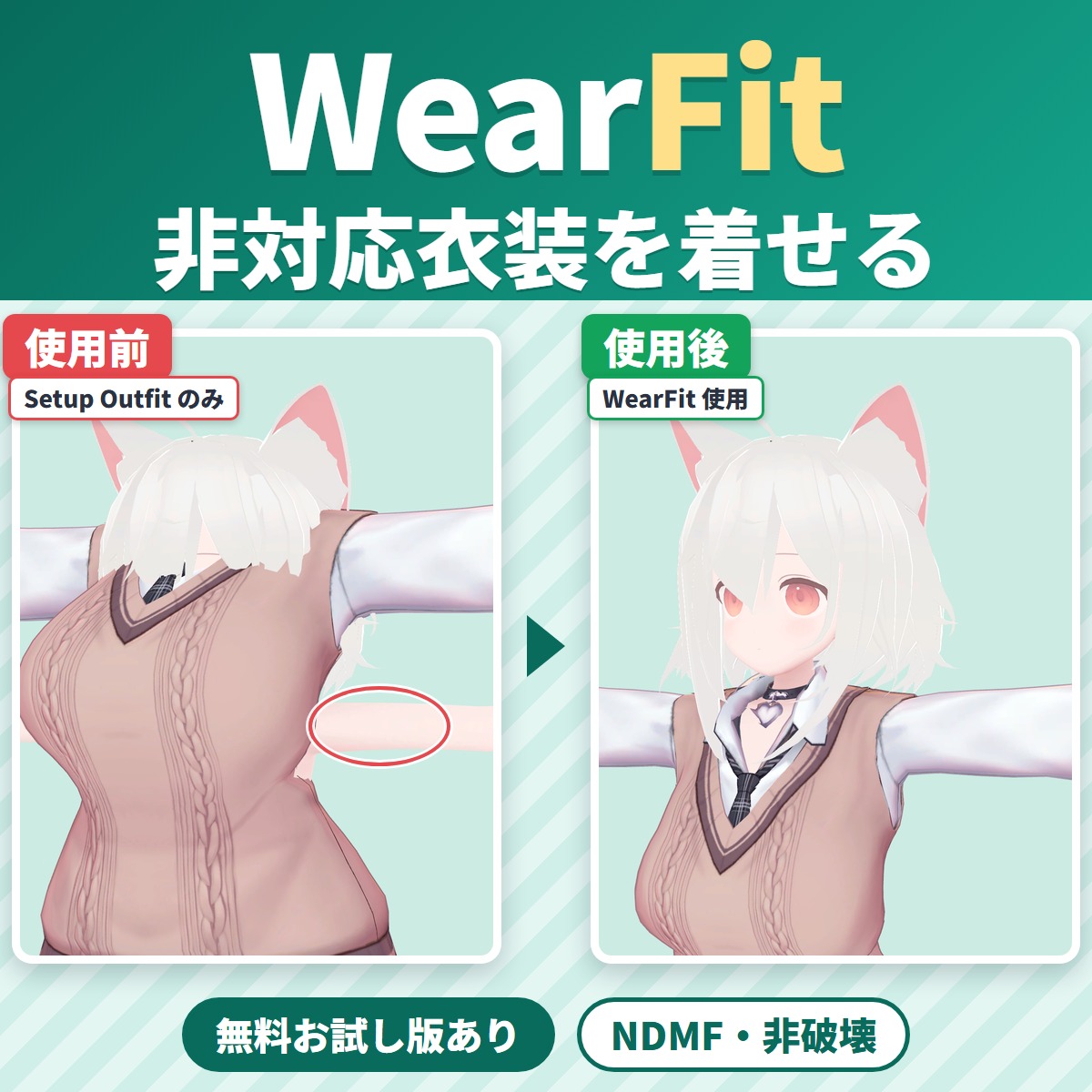
WearFit fits an outfit made for another avatar (an unsupported outfit) to your VRChat avatar's body.
Avatar tools
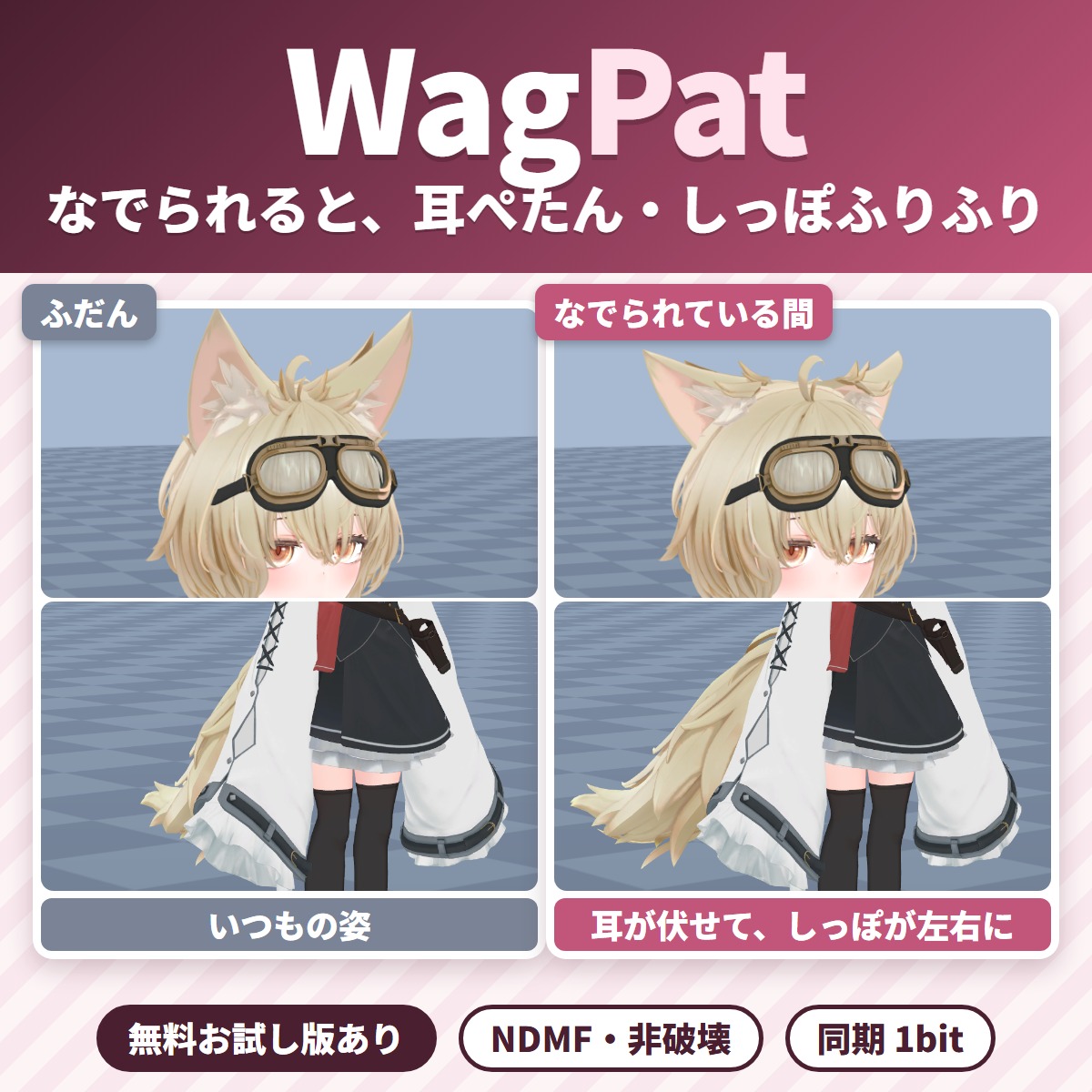
Pat your VRChat avatar's head and its ears fold down and its tail wags; take the hand away and everything goes back.
Avatar tools
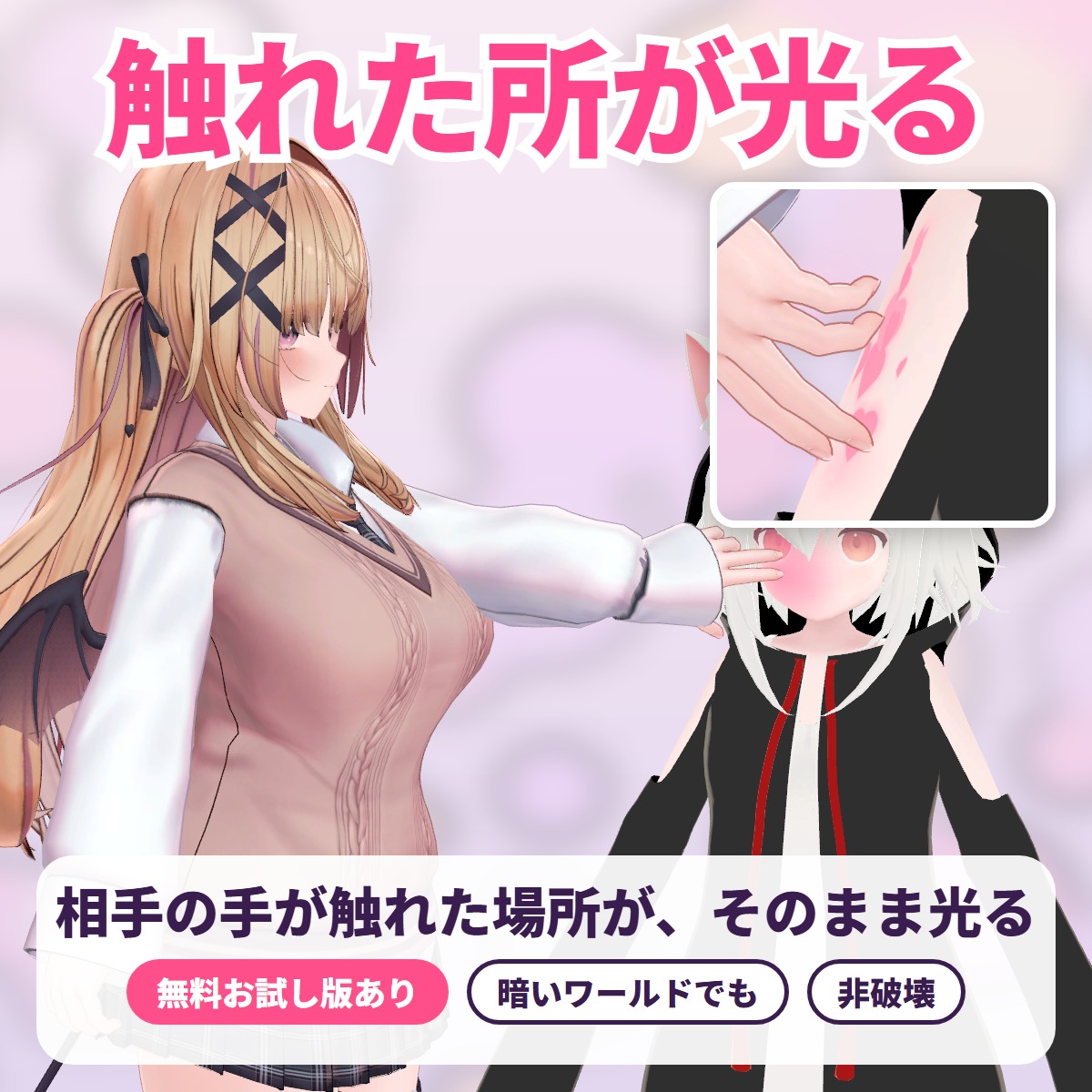
The exact spot another player's hand or finger touches lights up with a soft color glow, ripples or hearts: a tool for VRChat avatars.
Avatar tools
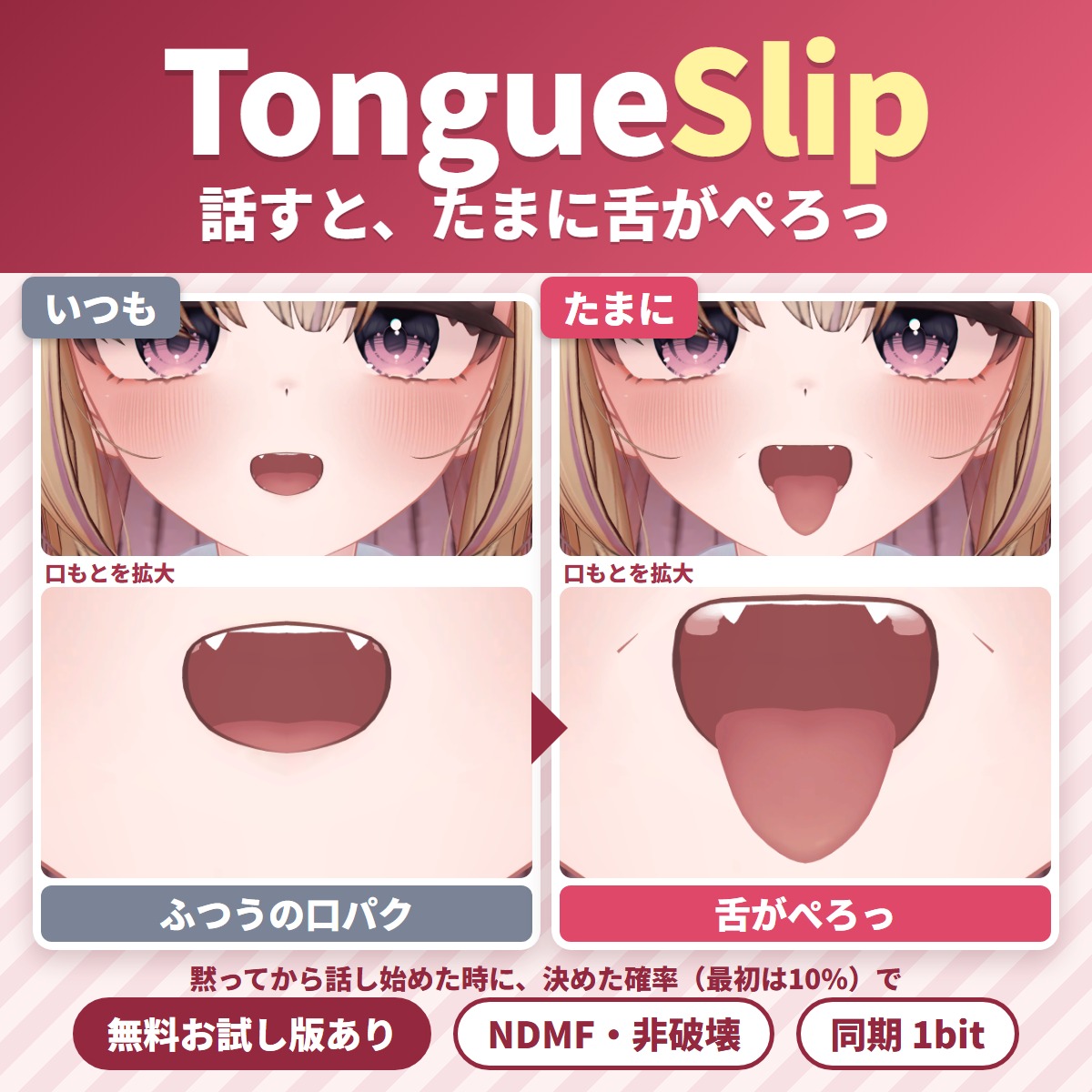
A Unity editor extension that makes your tongue slip out now and then while you talk in VRChat.
Avatar tools
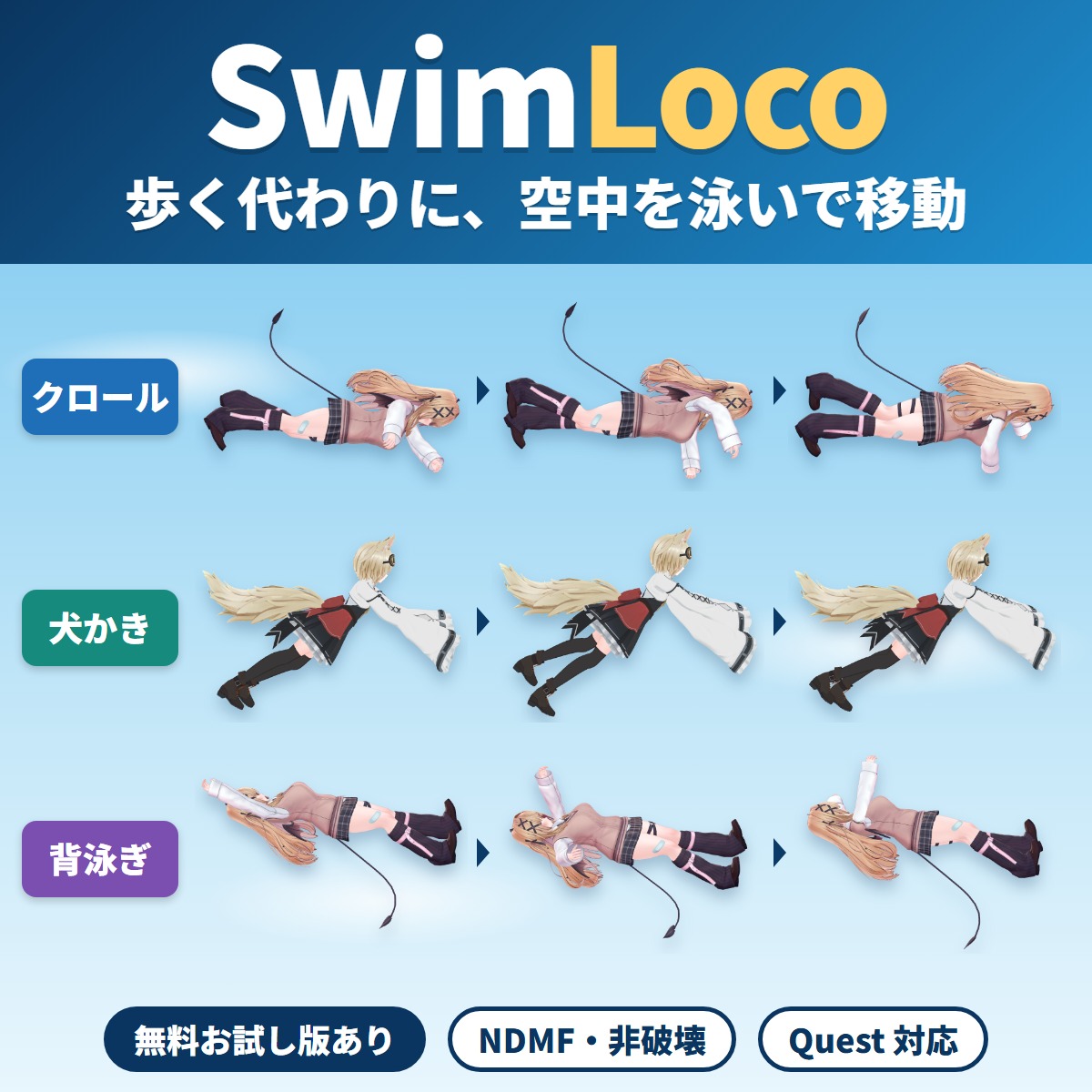
Your VRChat avatar swims through the air anywhere instead of walking or running: a swim locomotion gimmick you add with Modular Avatar by attaching one compone.
Avatar tools
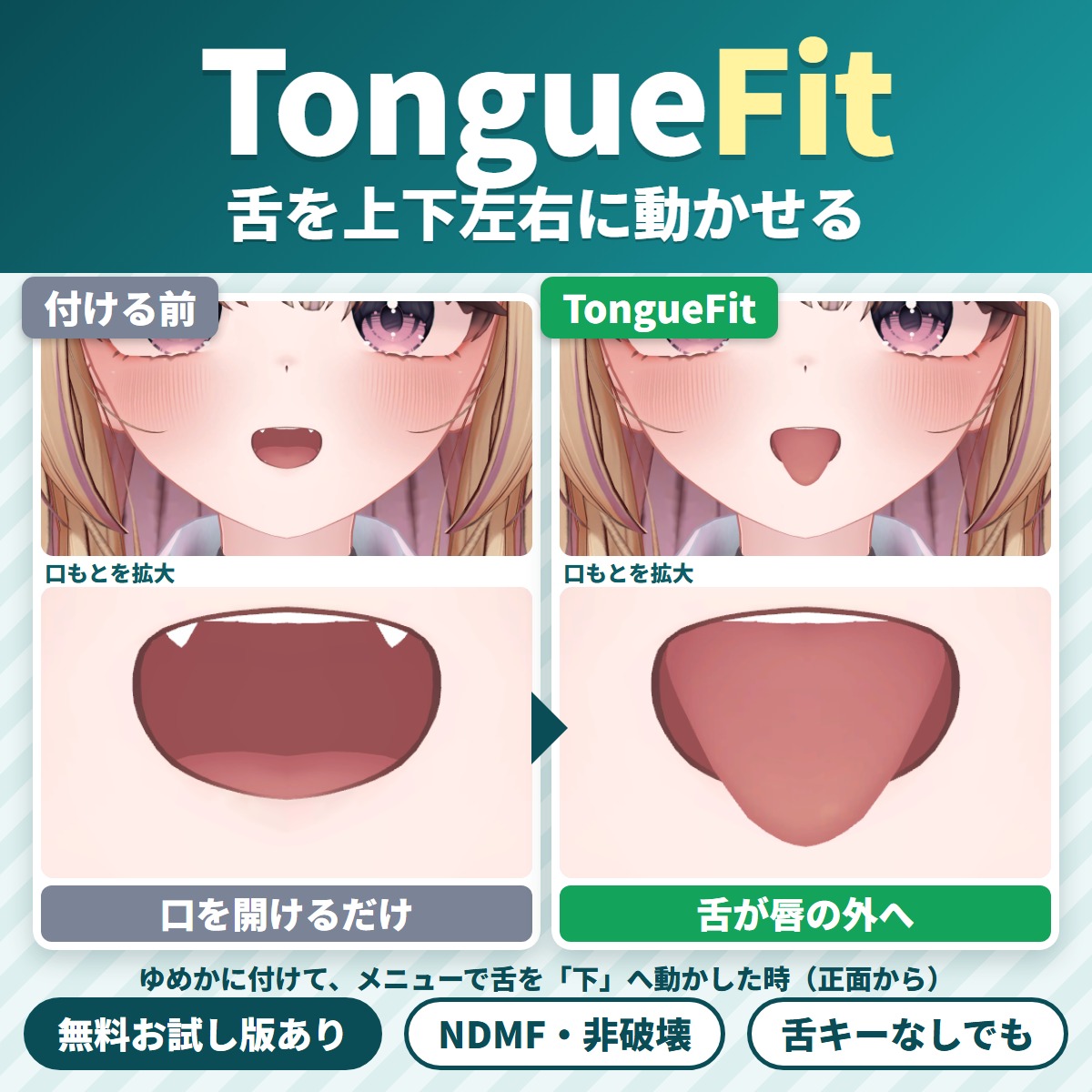
TongueFit is a Unity editor extension that lets your VRChat avatar move its tongue up, down, left and right from the Expressions menu.