Avatar tools
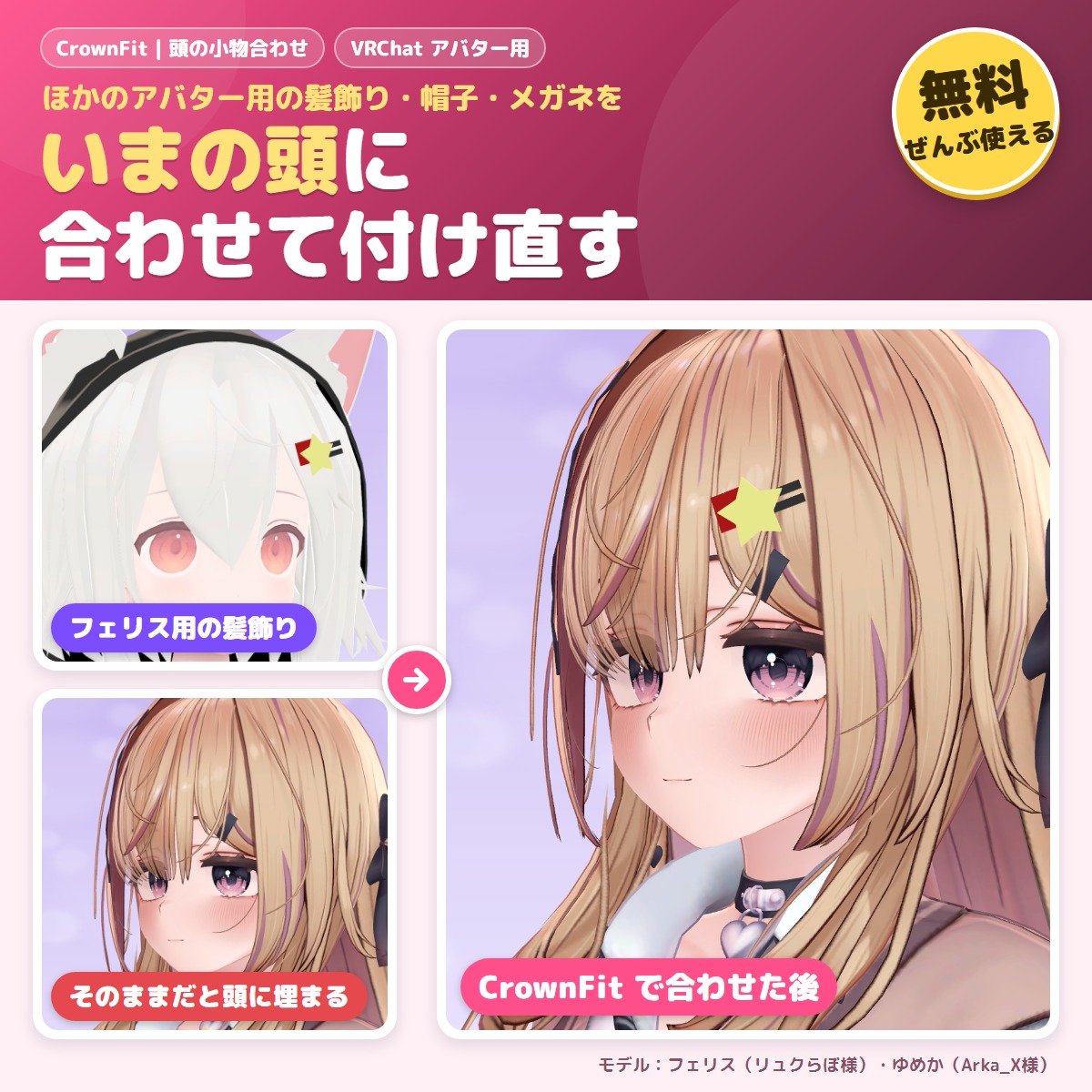
CrownFit - free: fit hats, glasses and hair ornaments to your avatar
A free tool that fits hair ornaments, hairpins, hats and glasses made for another avatar to your avatar's head.
FreeUpdates in VCC
Released Nov 20, 2026 · latest version 1.0.1
You pay when you confirm the order. Refunds: the full amount within 14 days of purchase if a tool does not work in your setup. Legal notice (Japan)
This tool uses Modular Avatar (free, the standard tool for avatar edits). If Modular Avatar is not in your VCC yet, press the button below first. You only do this once; after that, VCC installs it together with the tool.
Add Modular Avatar to VCC (free)
For ALCOM or manual setup: https://vpm.nadena.dev/vpm.json
Checkout is not offered in your region.
Estimate: the ECB rate of 2026-11-20 plus the Stripe conversion fee (about 4%). Checkout shows the exact amount, or you can choose to pay in Japanese yen.
Prices include Japanese tax. In some countries, local tax may be added at checkout; you see the total before you pay. Right after payment you get an "Add to VCC" button and a zip download. Add it to VCC (the free official app from VRChat) or ALCOM (a free app that does the same), and new versions install with one click.
Added to your cart.View cart
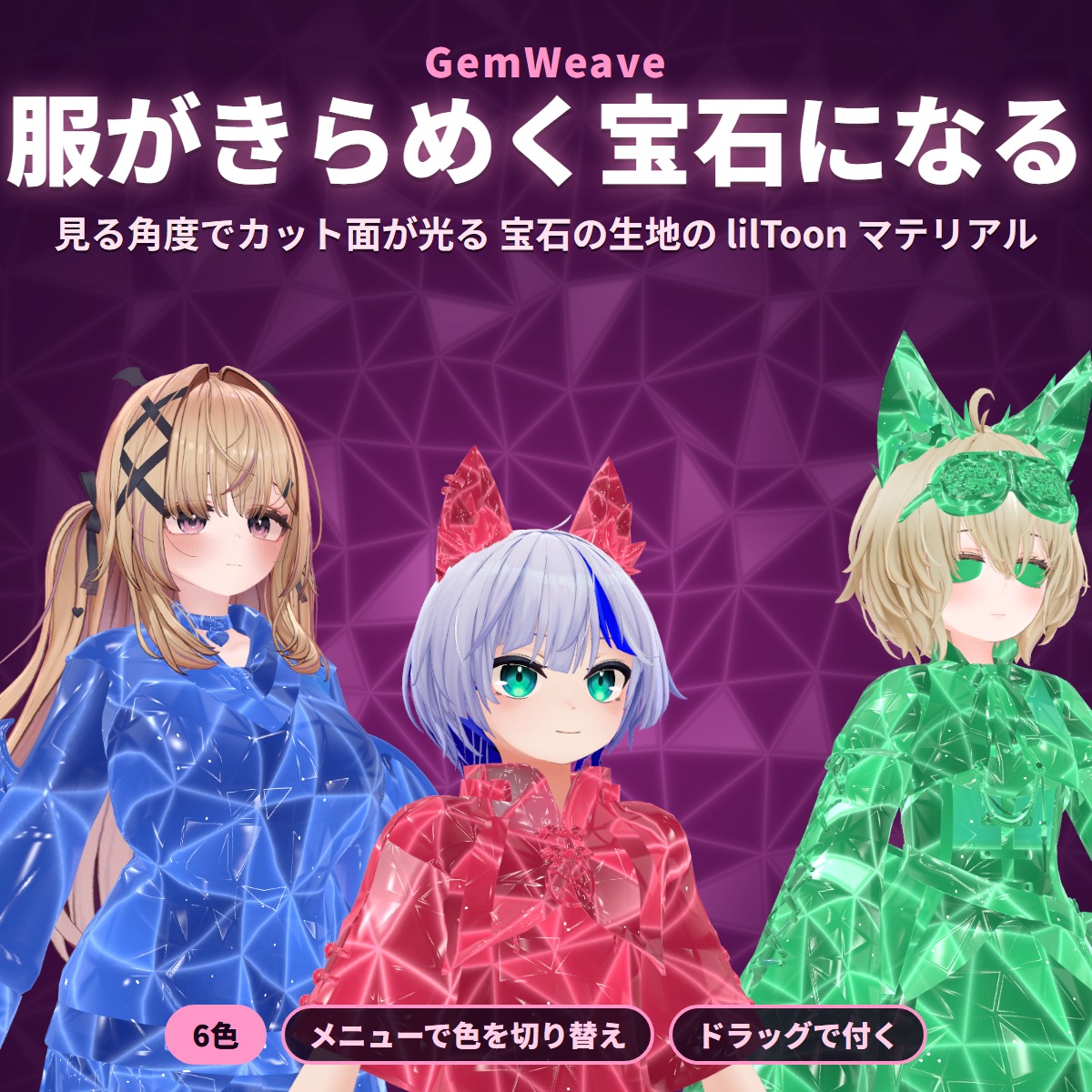
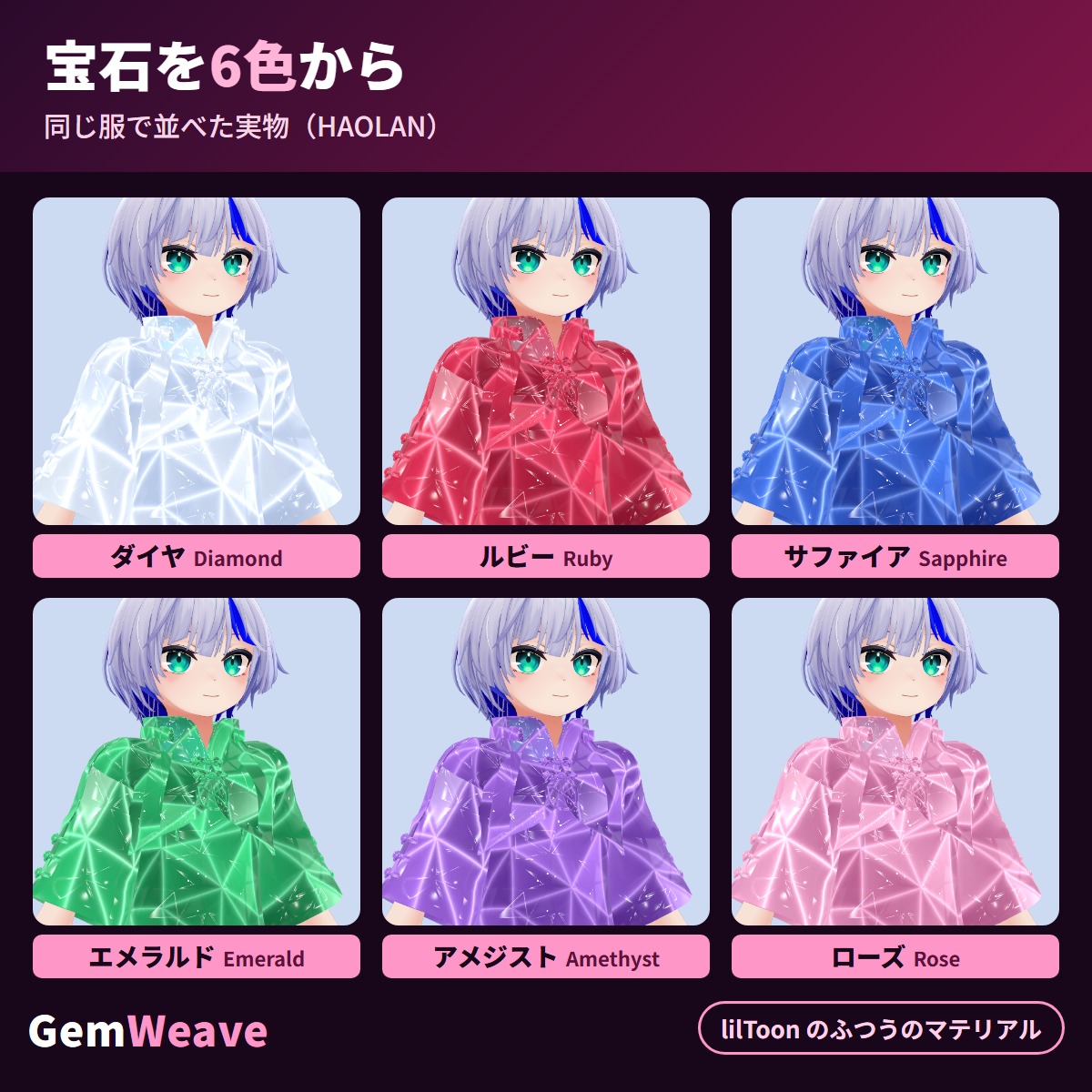
Six lilToon materials (Diamond, Ruby, Sapphire, Emerald, Amethyst, Rose) that turn the outfit you wear into cut-gem fabric.
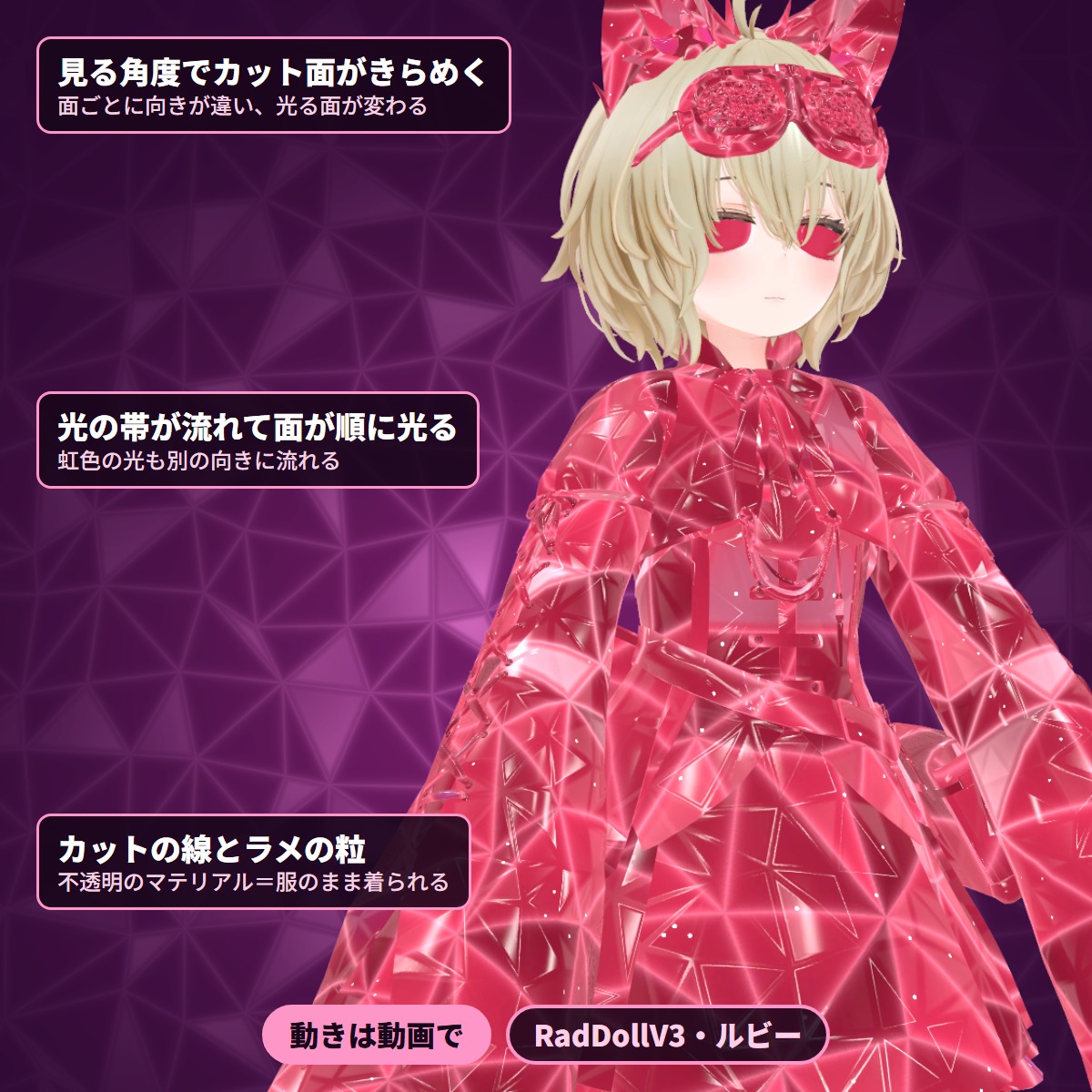
Six lilToon materials (Diamond, Ruby, Sapphire, Emerald, Amethyst, Rose) that turn the outfit you wear into cut-gem fabric, with triangular facets that sparkle one by one as the viewing angle changes. Drag one onto your outfit and it works; with Modular Avatar you can also switch between the six colors from the VRChat Expressions menu.
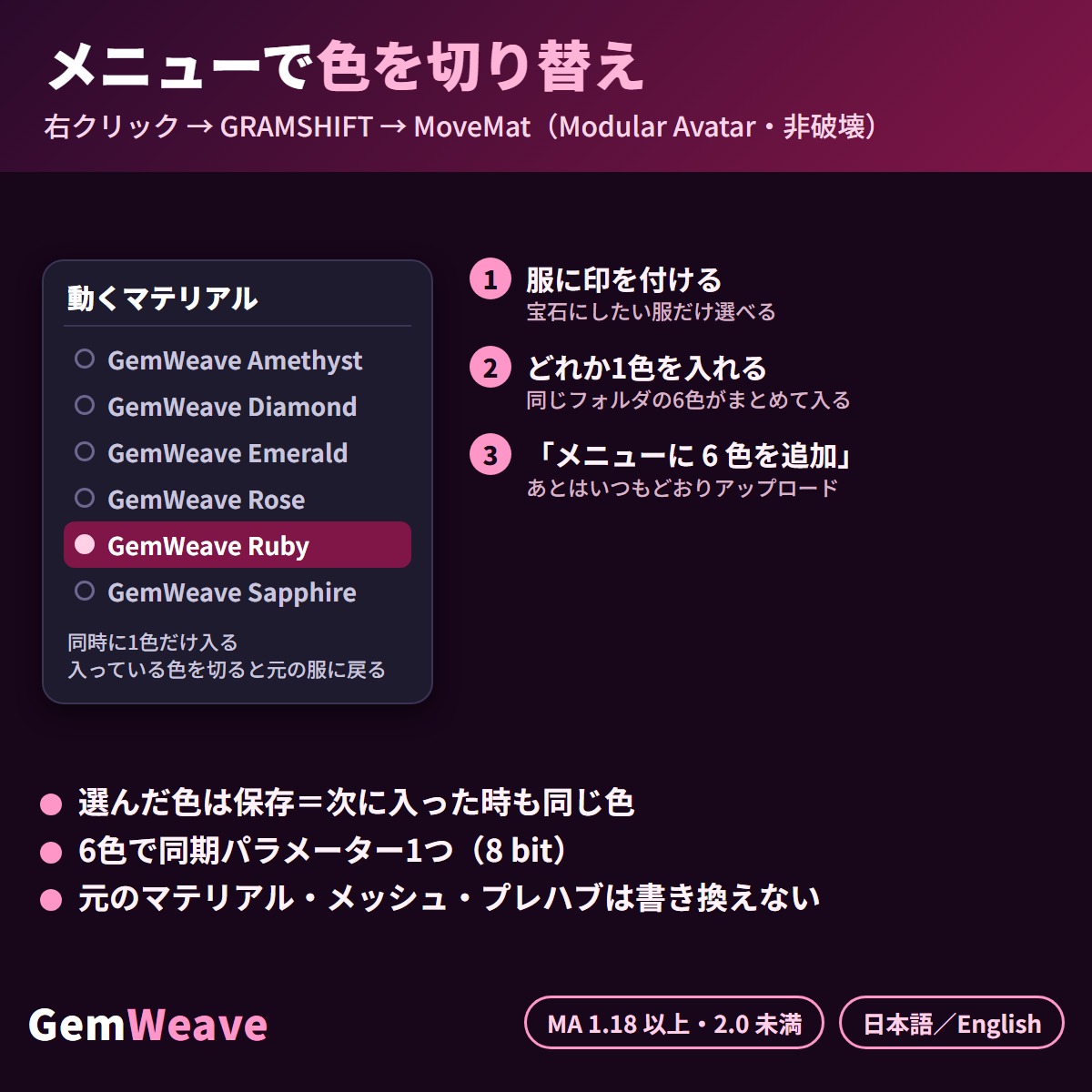
They are opaque materials, so nothing shows through and they work as clothing. A band of light sweeps across the fabric so the facets flash in turn, and rainbow facets and small sparkles are included too. For menu switching, right-click your outfit in the Hierarchy → GRAMSHIFT → MoveMat. Your original materials, meshes and prefabs stay as they are; the swap happens at upload time.
We put all six colors on the outfits of four humanoid avatars built in different ways and shot them inside Unity (the avatars in the images are from that shoot).
1. Add this tool in VCC (or ALCOM) to an avatar project (Modular Avatar, NDMF and lilToon are added with it)
2. Drag any color from Assets/GRAMSHIFT/GemWeave/Materials onto your outfit → upload as usual
To switch from the menu:
3. Right-click your outfit (or avatar) in the Hierarchy → GRAMSHIFT → MoveMat
4. Check the outfits you want as gem fabric, set any one GemWeave color, press "Add 6 colors to menu" → upload
5. Pick a color in the "Moving materials" folder of the VRChat Expressions menu
Q. Can I use it without Modular Avatar?
A. Yes. Drag a material onto your outfit and it becomes gem fabric. Modular Avatar is needed only for switching colors from the menu.
Q. Does it show through?
A. All six colors are opaque materials; the glowing facets and gloss sit on top of the fabric.
Q. Can I get my original outfit back?
A. Turn off the active color in the menu and the original outfit comes back.
Q. I want to change the color myself
A. Duplicate the material (Ctrl+D), then change the Main Color, Emission and Rim Light colors. The original six stay. If you use the copies in the menu, put them in a different folder (materials in the same folder are added together).
If something does not work, feel free to contact the shop (your avatar name and any message shown). The most-requested features go into the next version.
Partly AI-assisted
First release
No reviews yet.
Only people who bought this item here can review it (from the Library after buying).
No published questions yet.
For how to use this item, ask GRAMSHIFT in "Questions and answers" above.
For help with payment or downloads, just email contact
Avatar tools
A free tool that fits hair ornaments, hairpins, hats and glasses made for another avatar to your avatar's head.
Avatar tools
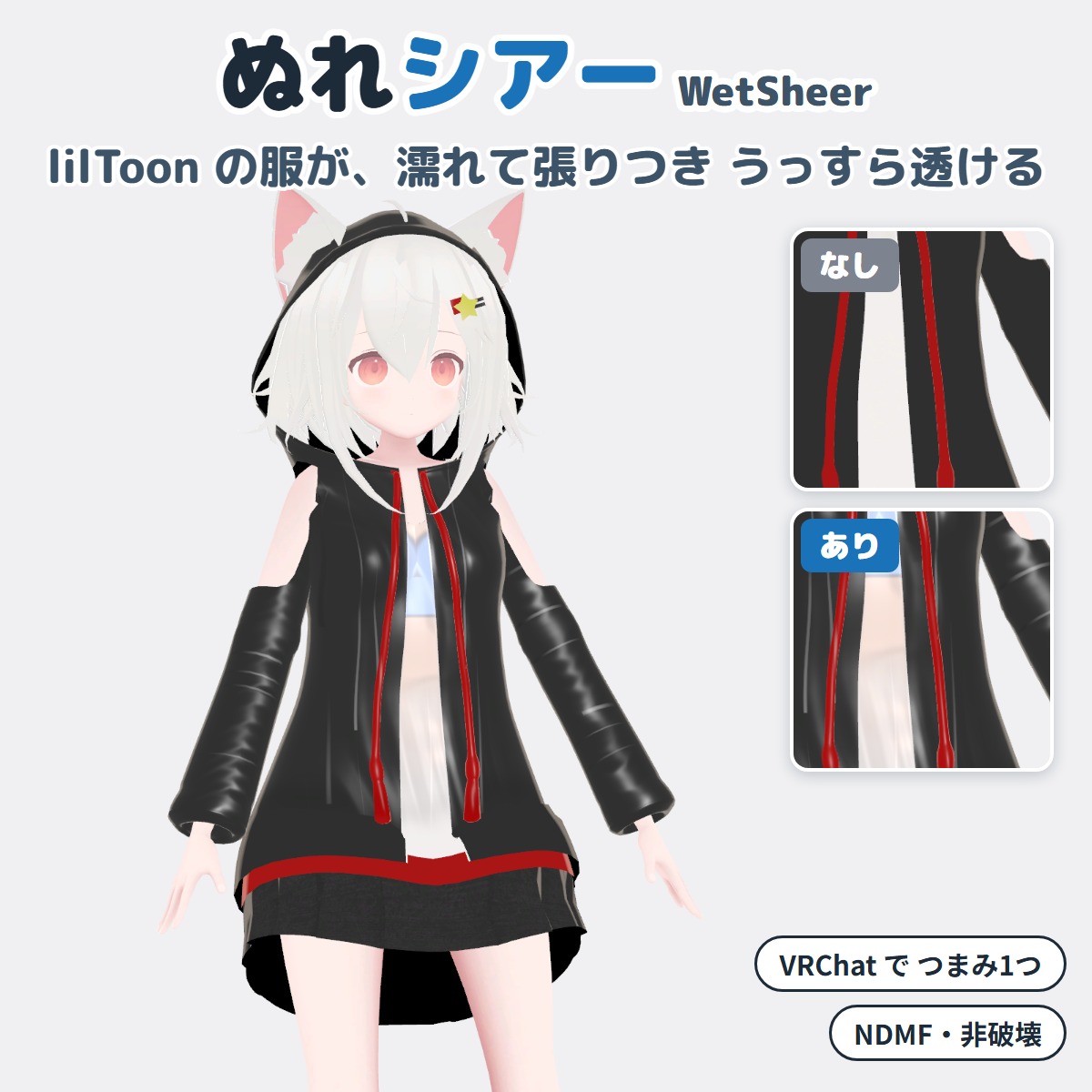
A Unity editor extension that makes your VRChat avatar's lilToon clothing look wet and see-through (won't change your original avatar).
Avatar tools
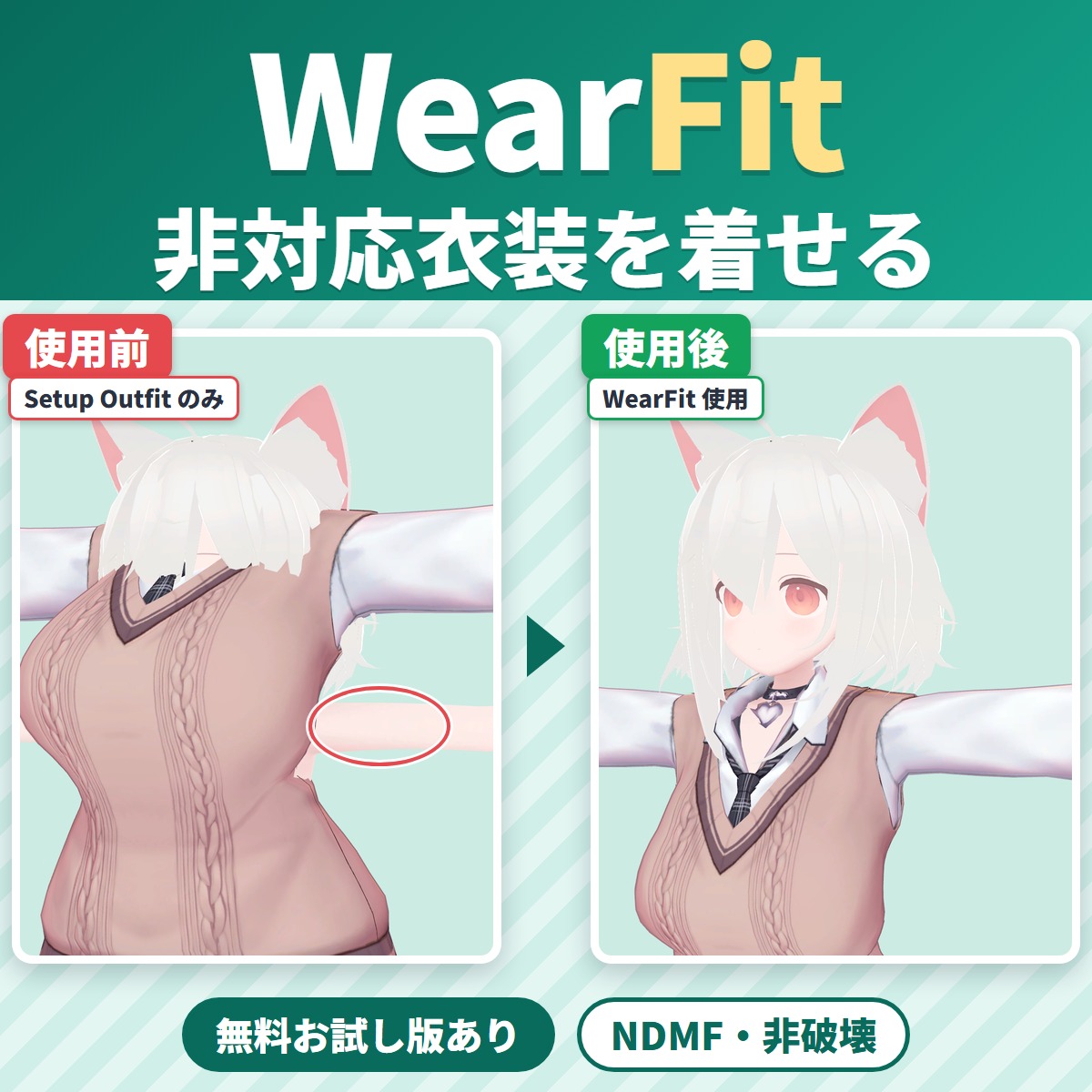
WearFit fits an outfit made for another avatar (an unsupported outfit) to your VRChat avatar's body.
Avatar tools
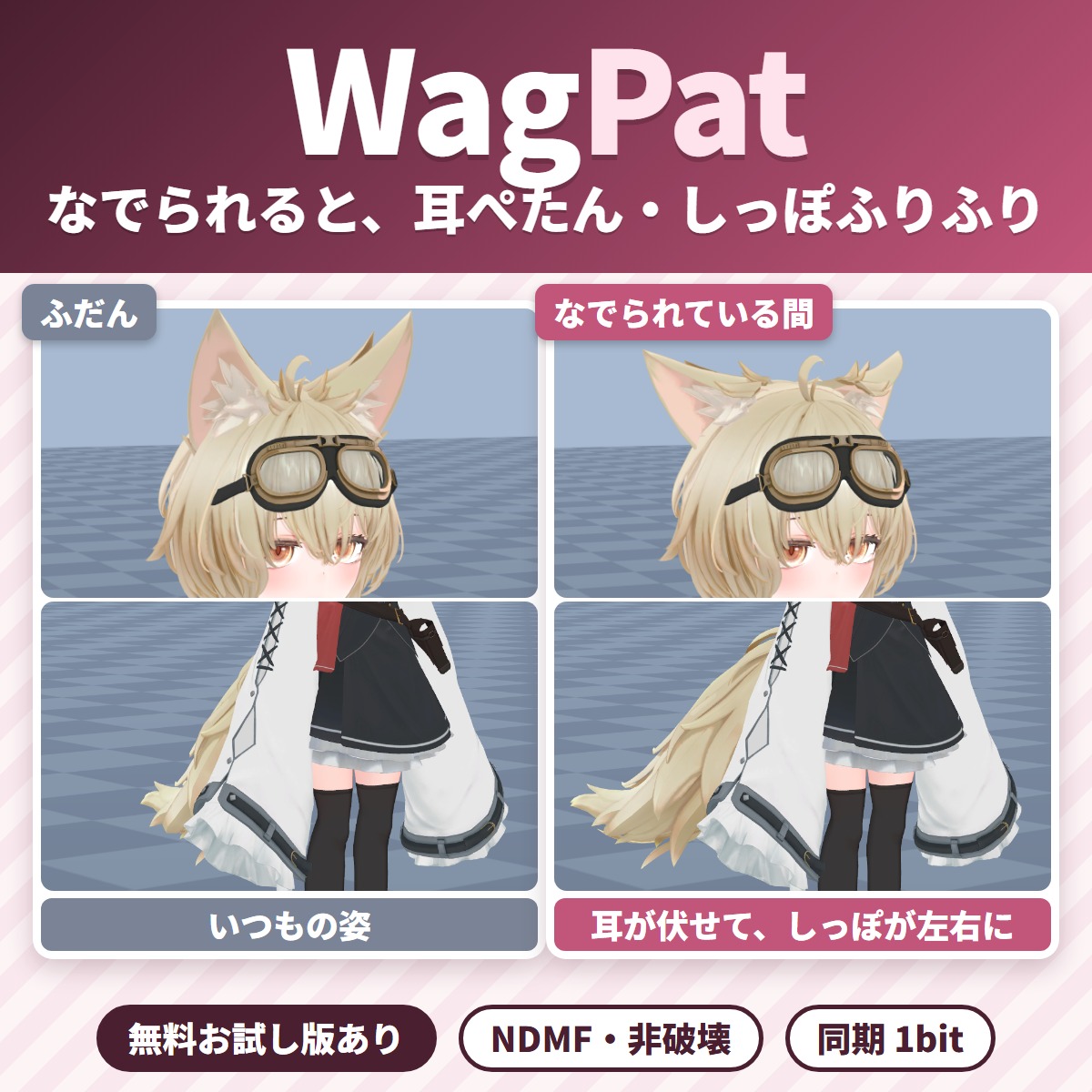
Pat your VRChat avatar's head and its ears fold down and its tail wags; take the hand away and everything goes back.
Avatar tools
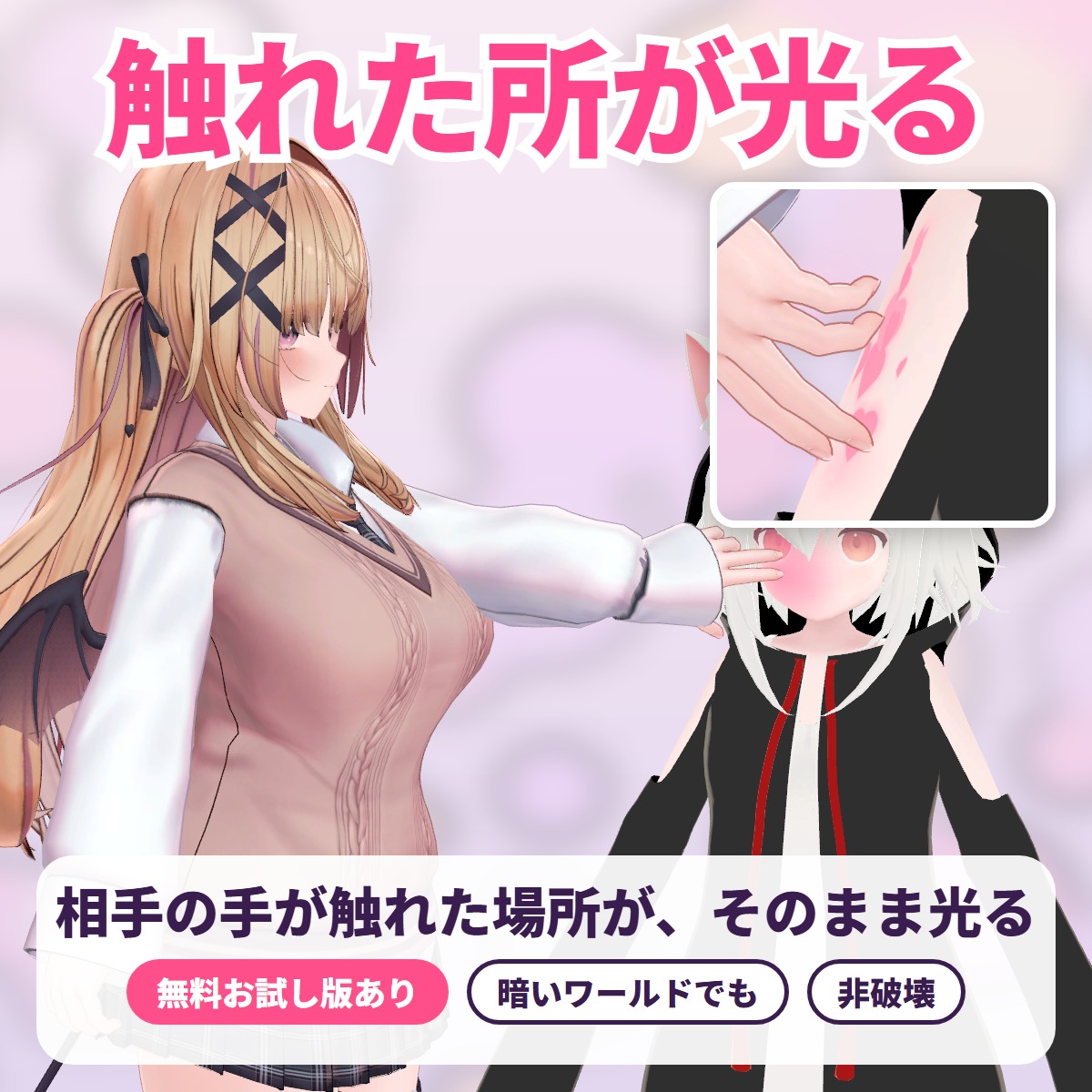
The exact spot another player's hand or finger touches lights up with a soft color glow, ripples or hearts: a tool for VRChat avatars.
Avatar tools
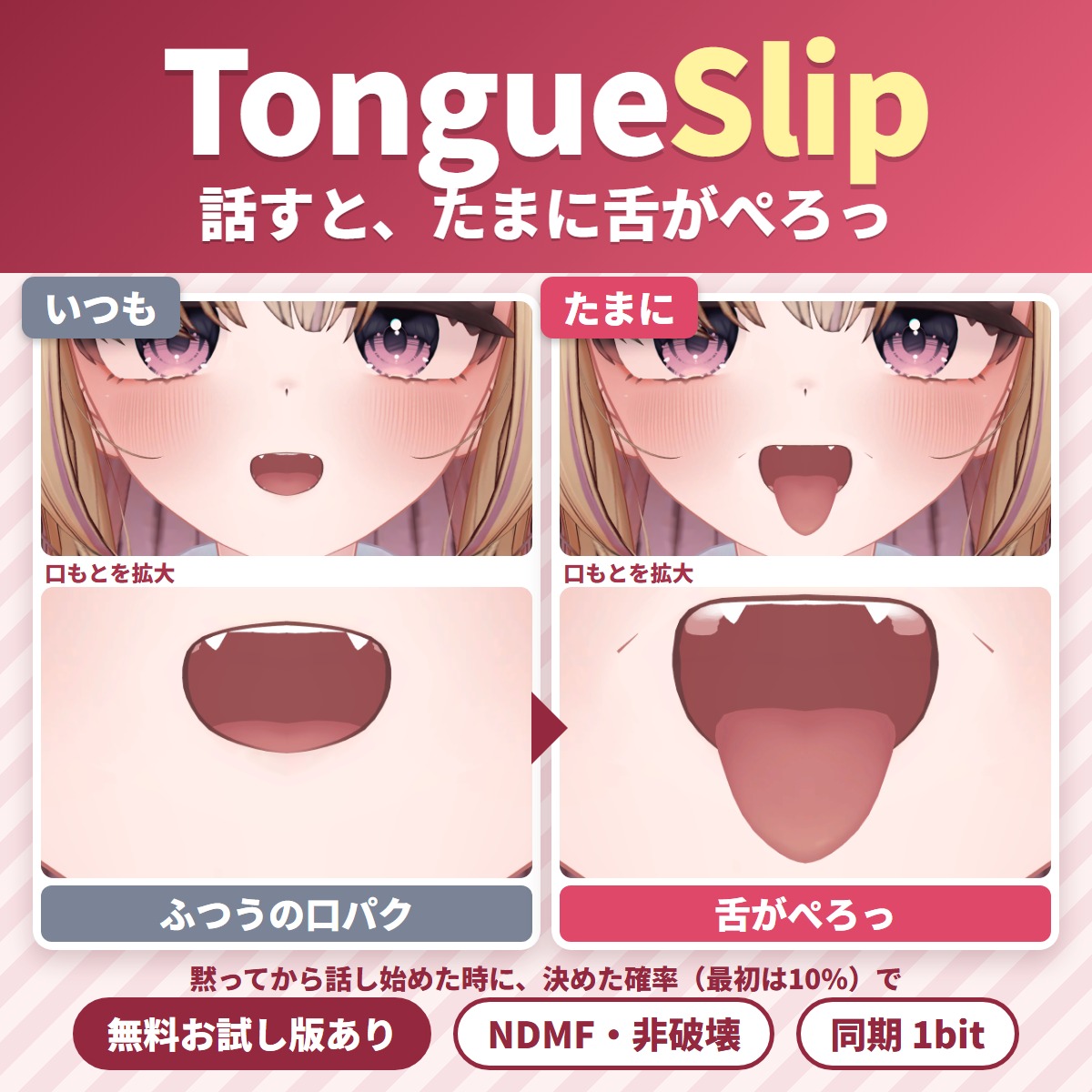
A Unity editor extension that makes your tongue slip out now and then while you talk in VRChat.
Avatar tools
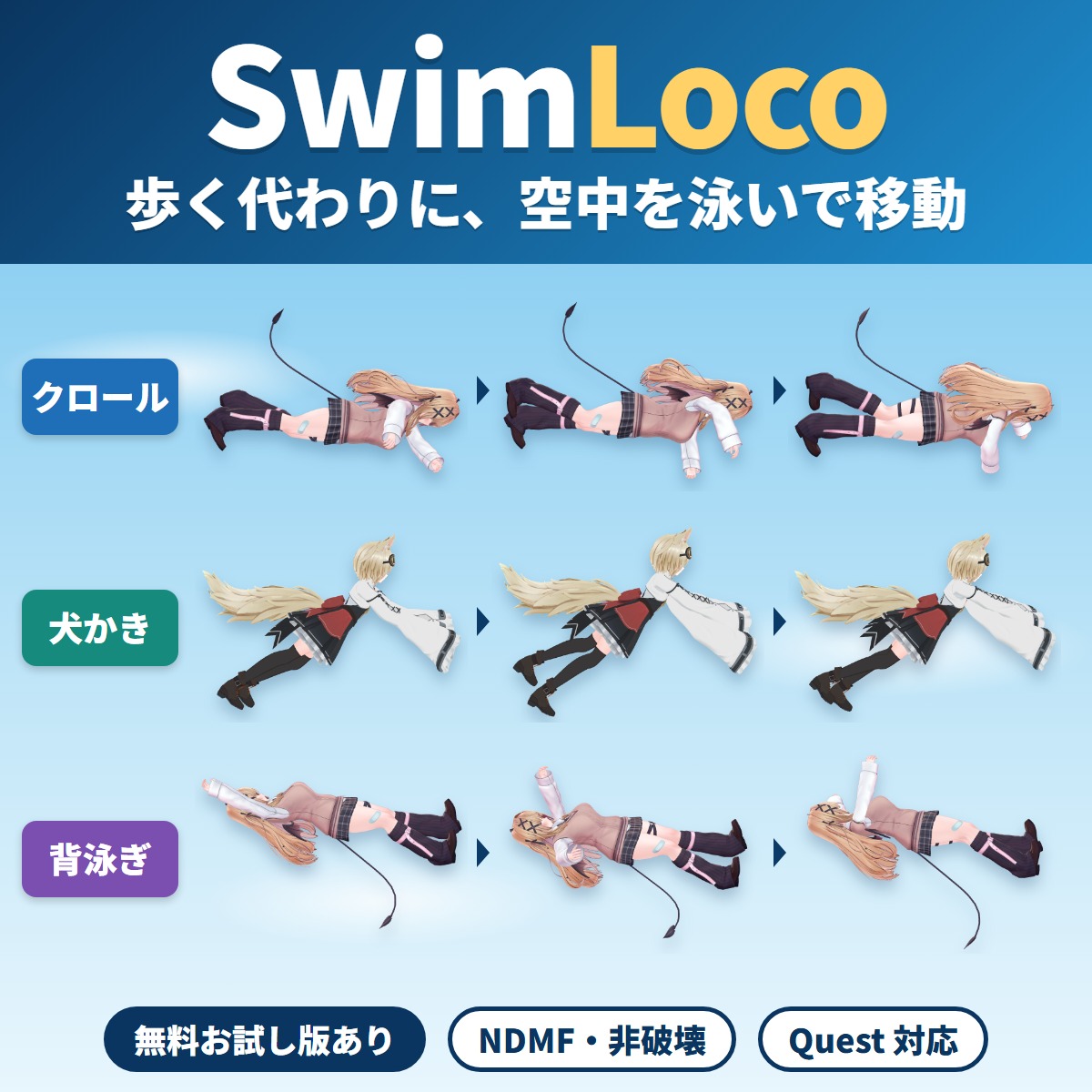
Your VRChat avatar swims through the air anywhere instead of walking or running: a swim locomotion gimmick you add with Modular Avatar by attaching one compone.
Avatar tools
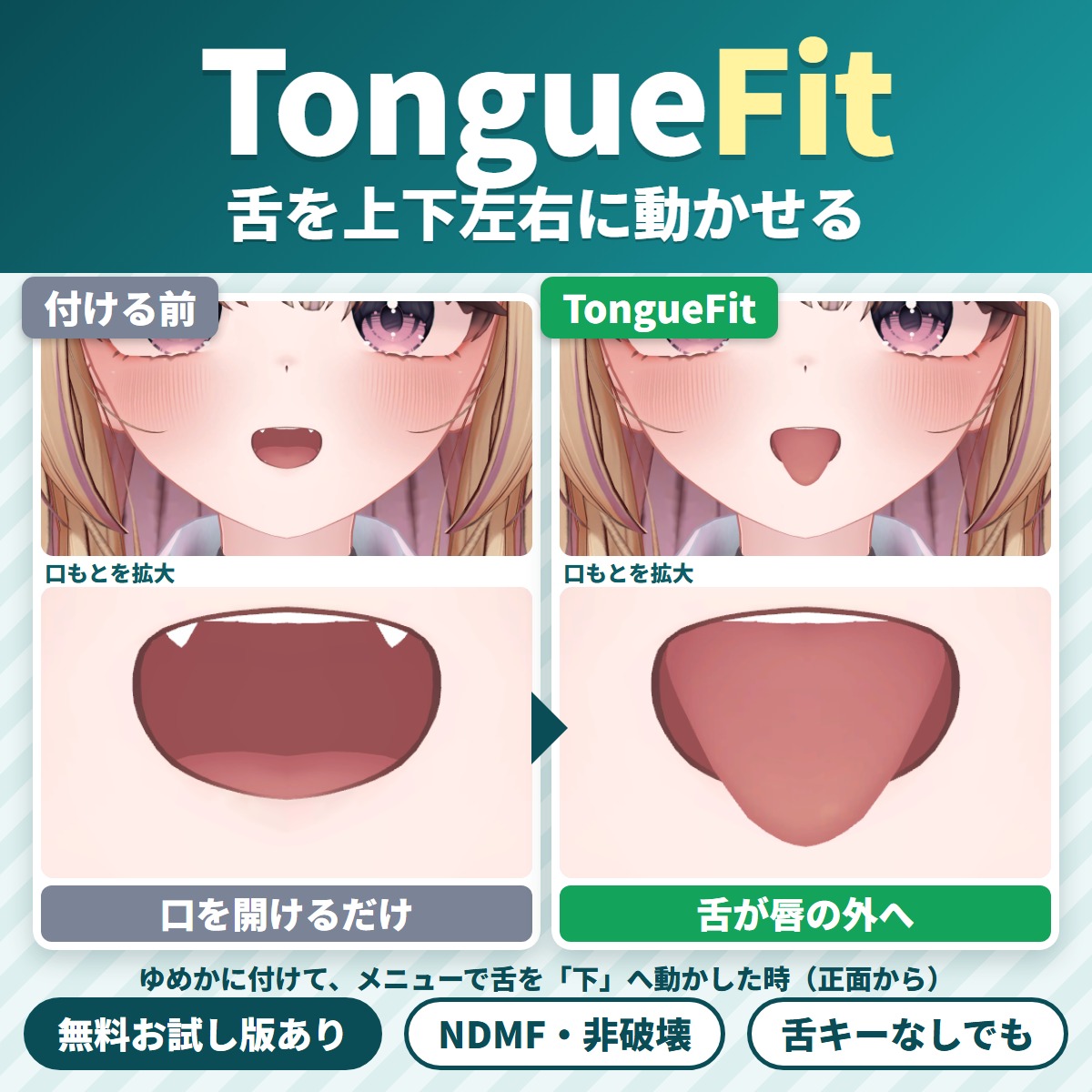
TongueFit is a Unity editor extension that lets your VRChat avatar move its tongue up, down, left and right from the Expressions menu.