Avatar tools
CrownFit - free: fit hats, glasses and hair ornaments to your avatar
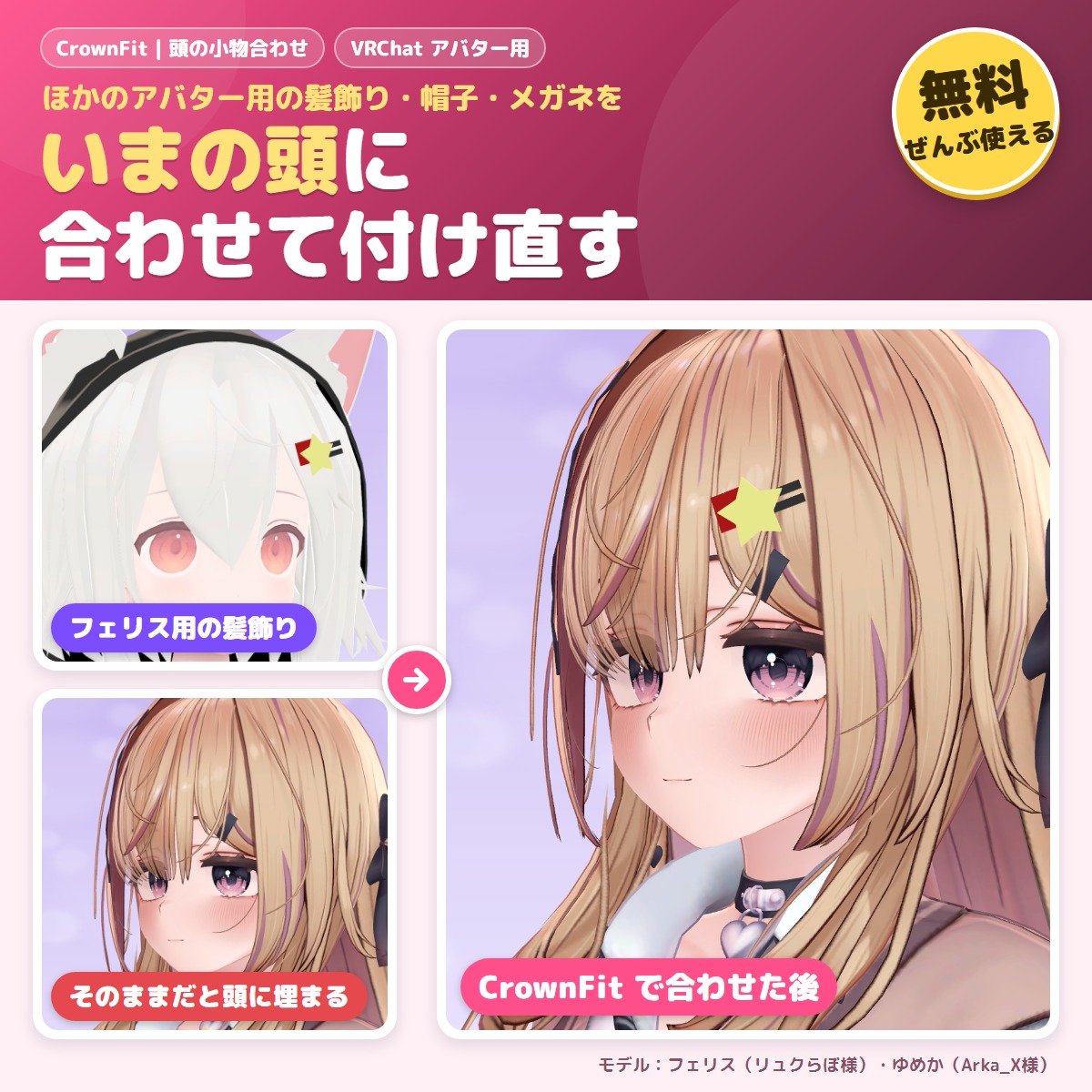
A free tool that fits hair ornaments, hairpins, hats and glasses made for another avatar to your avatar's head.
FreeUpdates in VCC
Released Nov 24, 2026 · latest version 1.0.0
You pay when you confirm the order. Refunds: the full amount within 14 days of purchase if a tool does not work in your setup. Legal notice (Japan)
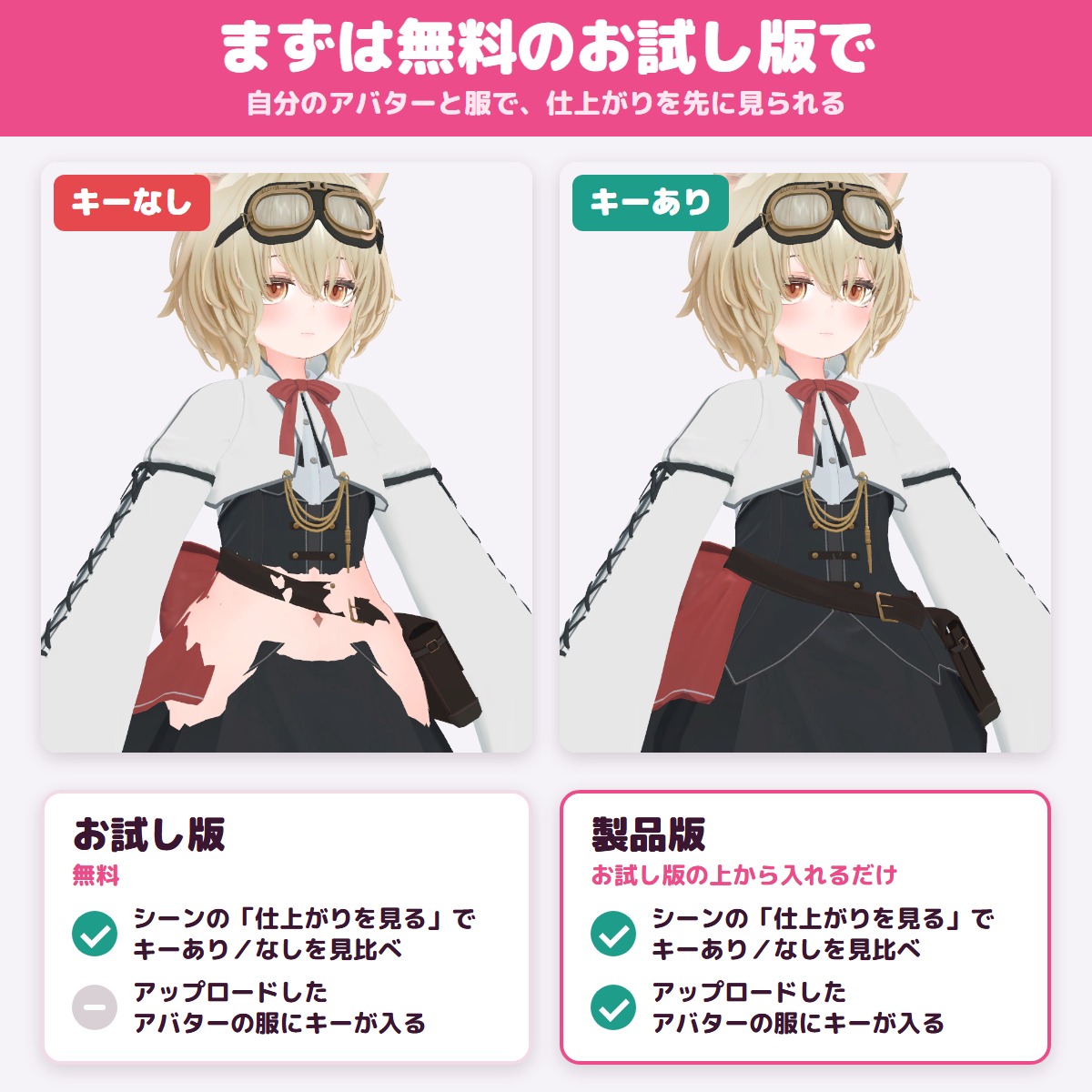
Check it on your own avatar before you buy.
Not in the trial: Scene preview ("Preview result", With keys / Without) only. Keys are not added to the outfits of uploaded avatars.
This tool uses Modular Avatar (free, the standard tool for avatar edits). If Modular Avatar is not in your VCC yet, press the button below first. You only do this once; after that, VCC installs it together with the tool.
Add Modular Avatar to VCC (free)
For ALCOM or manual setup: https://vpm.nadena.dev/vpm.json
https://gramshift.com/vpm-shop/free/index.jsonCheckout is not offered in your region. Free items (such as trials) are still available on this page.
Estimate: the ECB rate of 2026-11-23 plus the Stripe conversion fee (about 4%). Checkout shows the exact amount, or you can choose to pay in Japanese yen.
Prices include Japanese tax. In some countries, local tax may be added at checkout; you see the total before you pay. Right after payment you get an "Add to VCC" button and a zip download. Add it to VCC (the free official app from VRChat) or ALCOM (a free app that does the same), and new versions install with one click.
Added to your cart.View cart
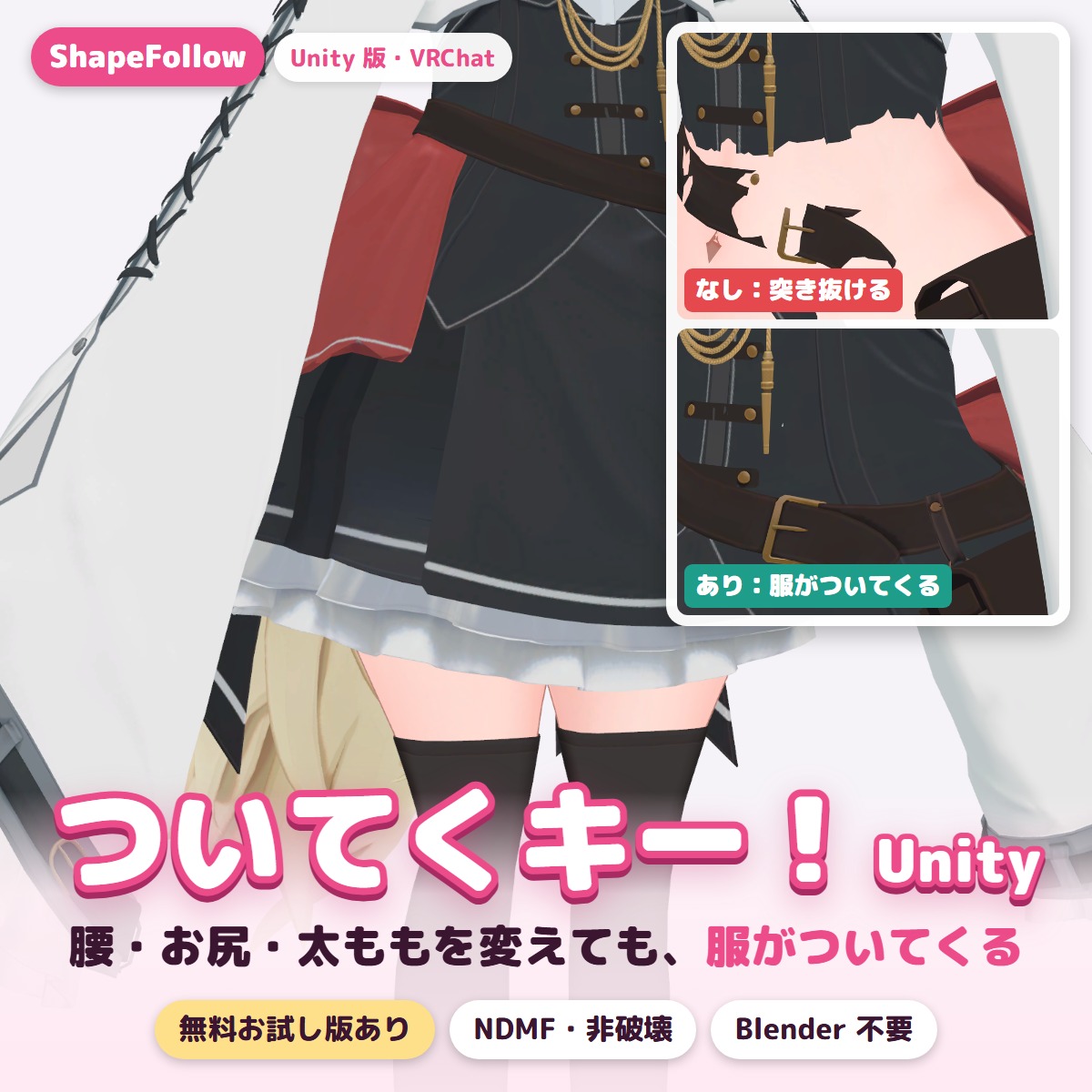
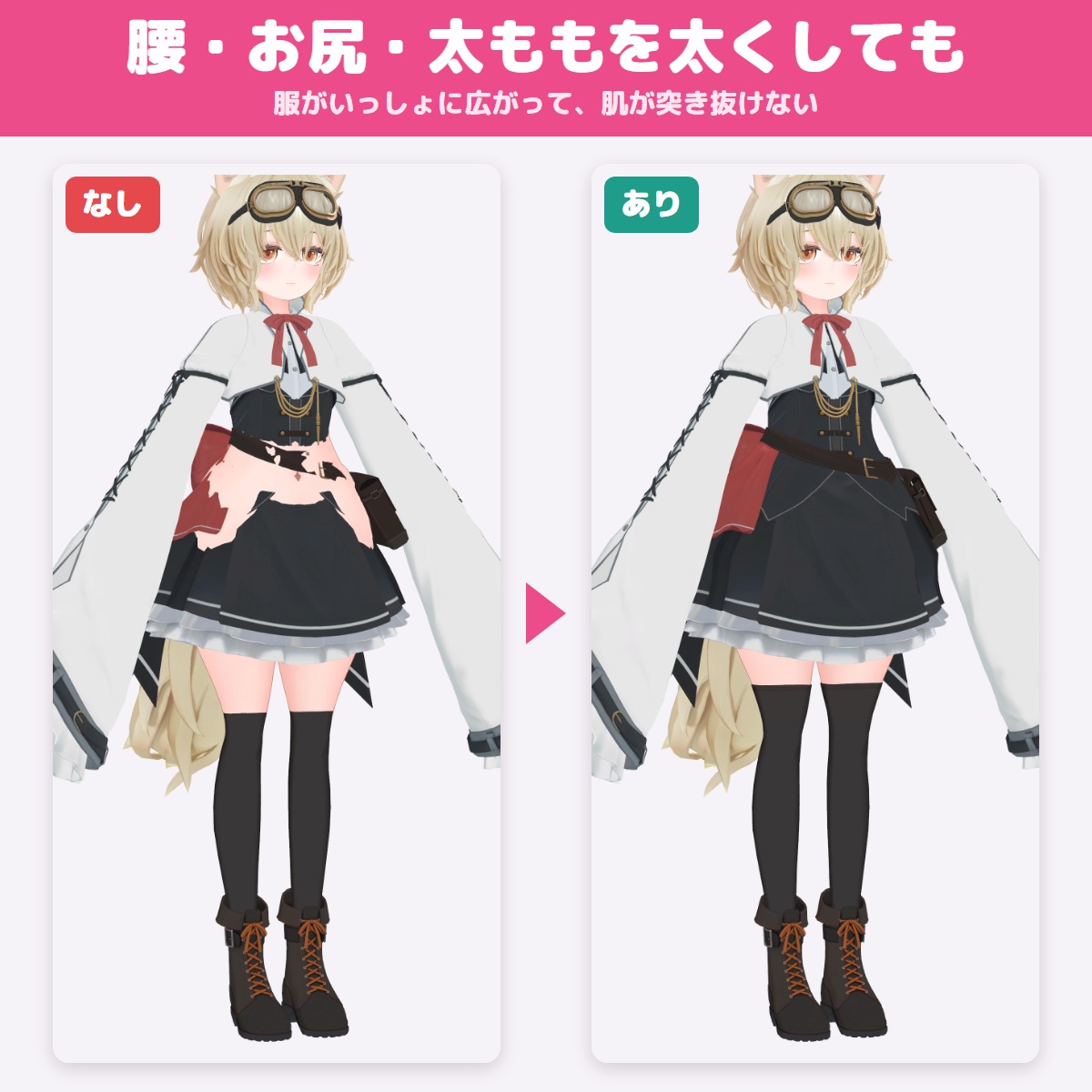
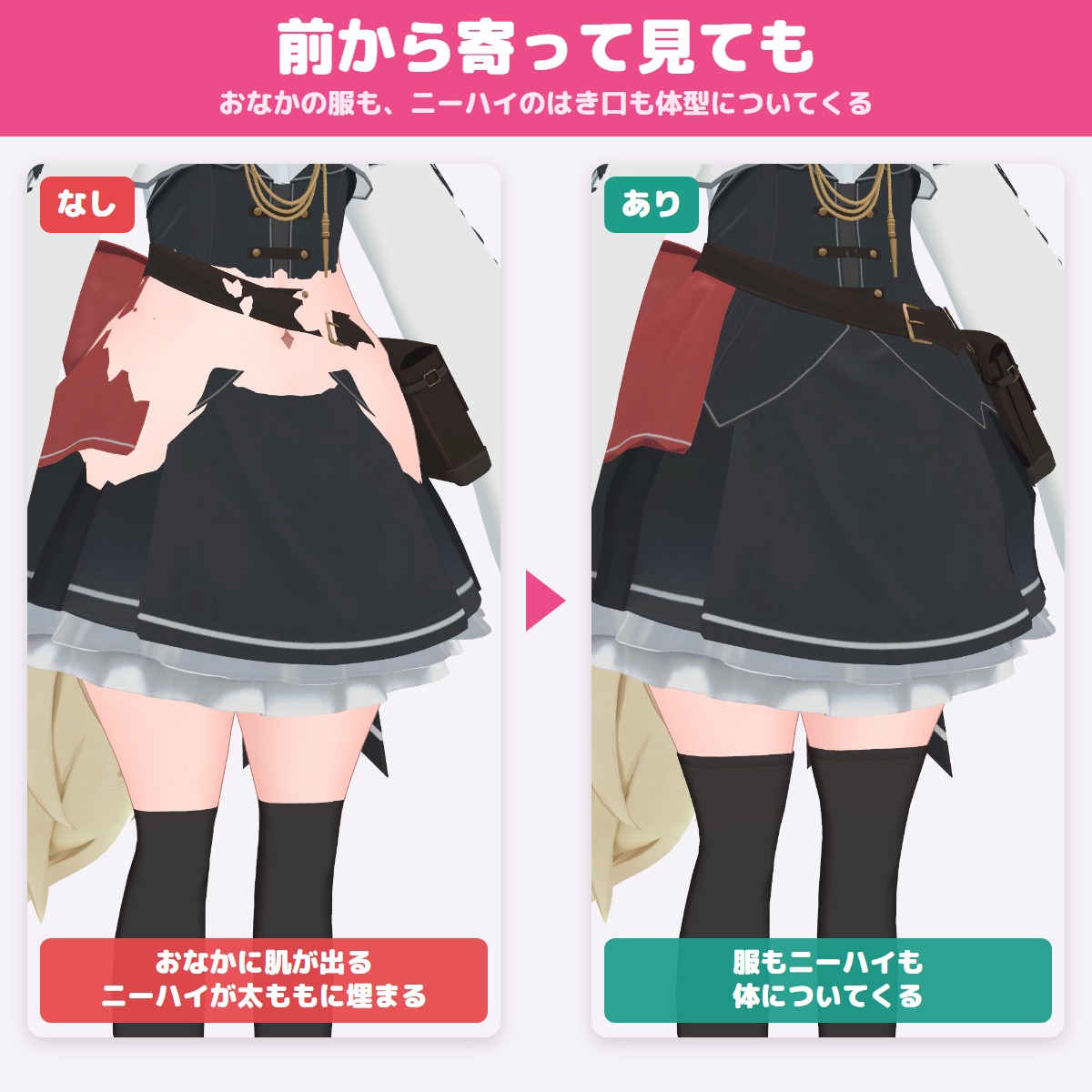
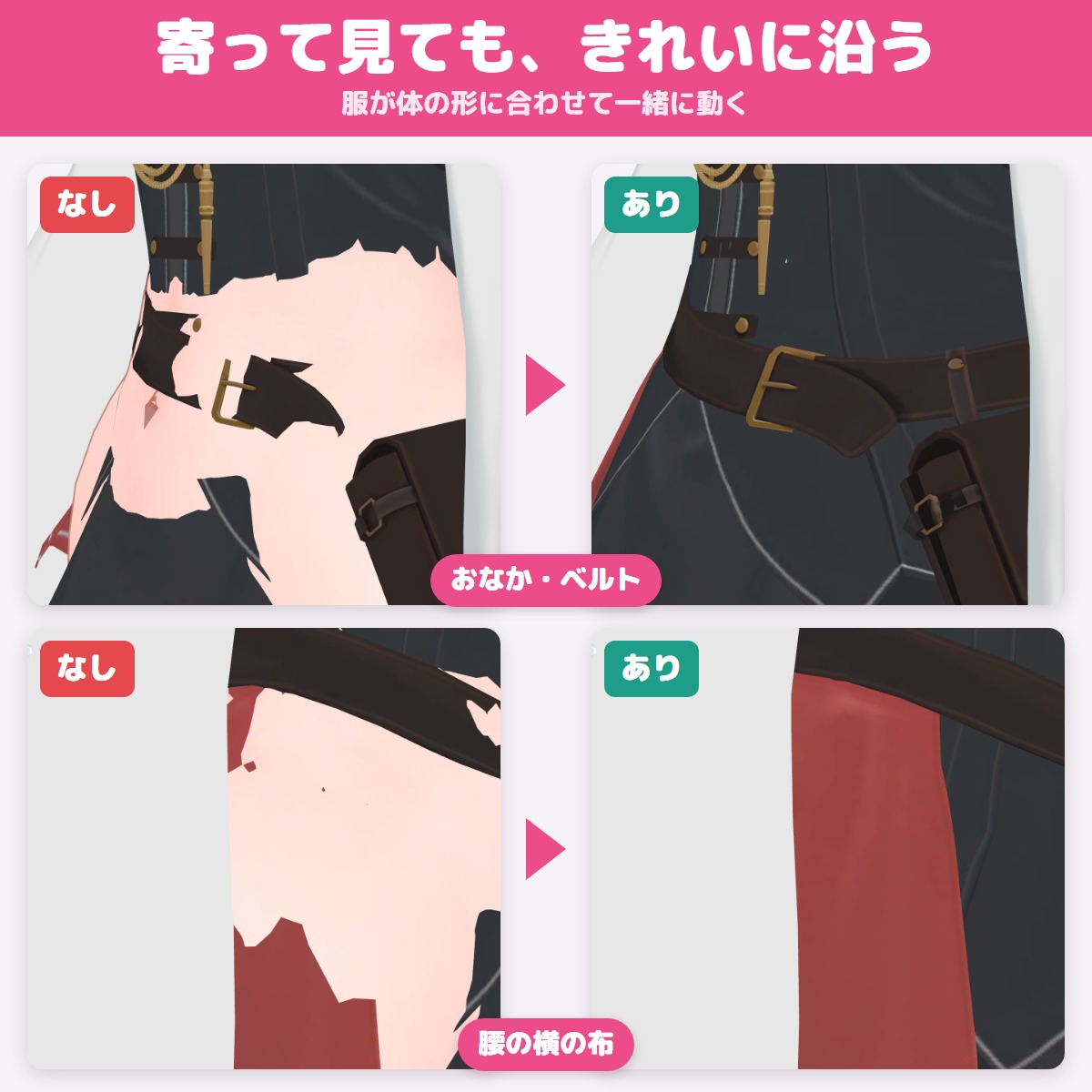
A Unity tool for VRChat: adds the body's shape keys to outfits under the same names, so outfits move with the body and less skin pokes through. No Blender.
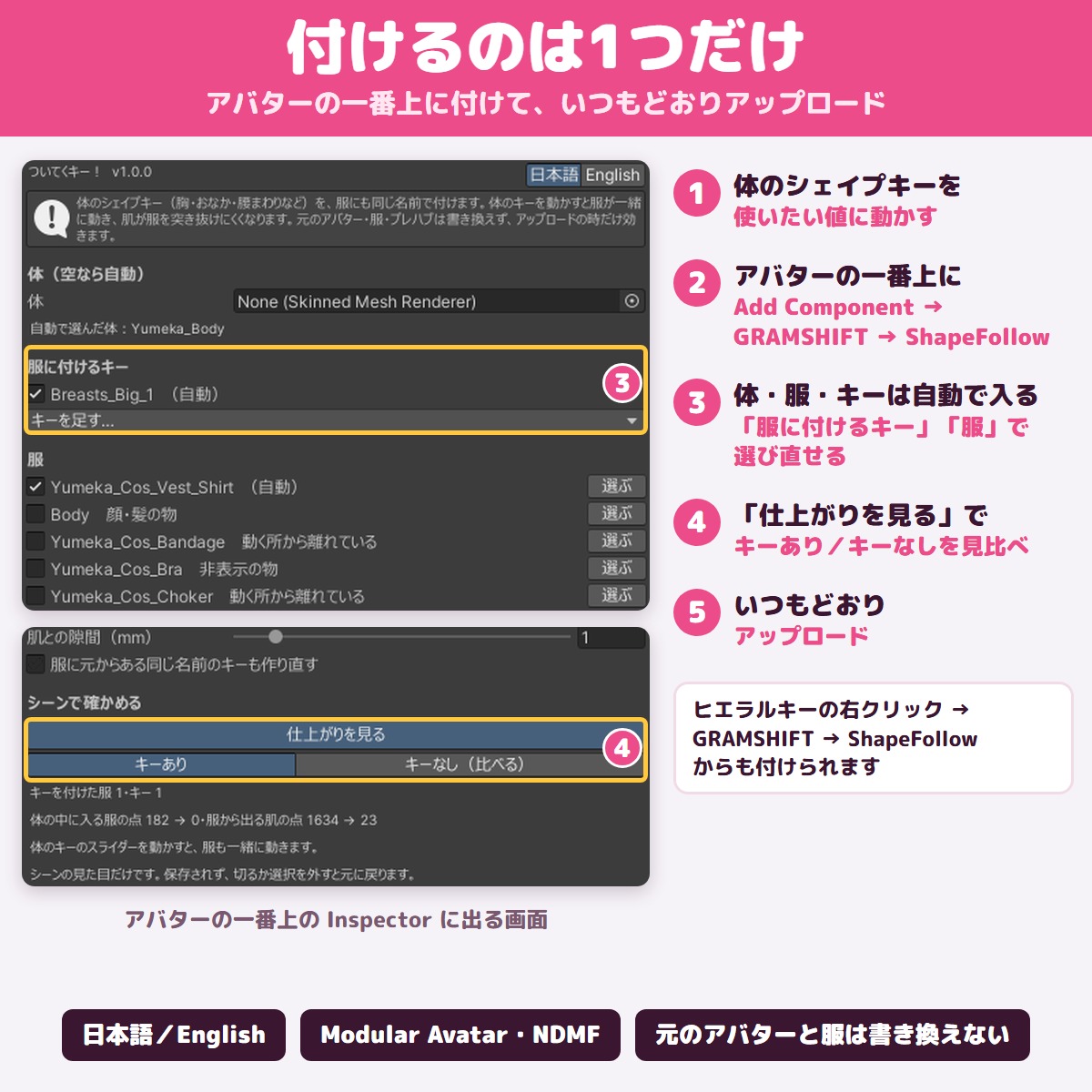
When you change a body shape key (chest, belly, waist, hips, thighs) and the skin pokes through or sinks into an outfit that does not have that key, ShapeFollow adds the key to the outfit under the same name, so the outfit moves with the body. Add one component to the top of your avatar and upload as usual: poke-through after body-shape changes is greatly reduced (no Blender needed, NDMF, Modular Avatar, non-destructive). A Unity tool for VRChat.
1. Add this tool in VCC (or ALCOM) (Modular Avatar and NDMF are added with it)
2. Move the body's shape keys to the values you want
3. Add Component > GRAMSHIFT > ShapeFollow on the top of the avatar (or right-click in the Hierarchy > GRAMSHIFT > ShapeFollow)
4. Check the look with Preview result, then upload as usual
Q. My skin pokes through the outfit when I change a body shape key. What can I do?
A. Add ShapeFollow to the top of the avatar and upload. The outfit gets keys with the same names as the body and moves with them, so poke-through is greatly reduced.
Q. Unity version or Blender version?
A. The Unity version if you want to stay in Unity and apply it only at upload; the Blender version if you want the keys written into the outfit FBX itself.
Q. Do outfits follow when the body shape is changed from the Expressions menu?
A. Yes. They also follow when animations move the body keys.
Q. Does it change my original outfit data?
A. No. The original avatar and outfits stay as they are; it applies only to the uploaded avatar.
If something does not work, feel free to contact the shop (with any message shown). The most-requested features go into the next version.
Partly AI-assisted
First release
First release
No reviews yet.
Only people who bought this item here can review it (from the Library after buying).
No published questions yet.
For how to use this item, ask GRAMSHIFT in "Questions and answers" above.
For help with payment or downloads, just email contact
Avatar tools
A free tool that fits hair ornaments, hairpins, hats and glasses made for another avatar to your avatar's head.
Avatar tools
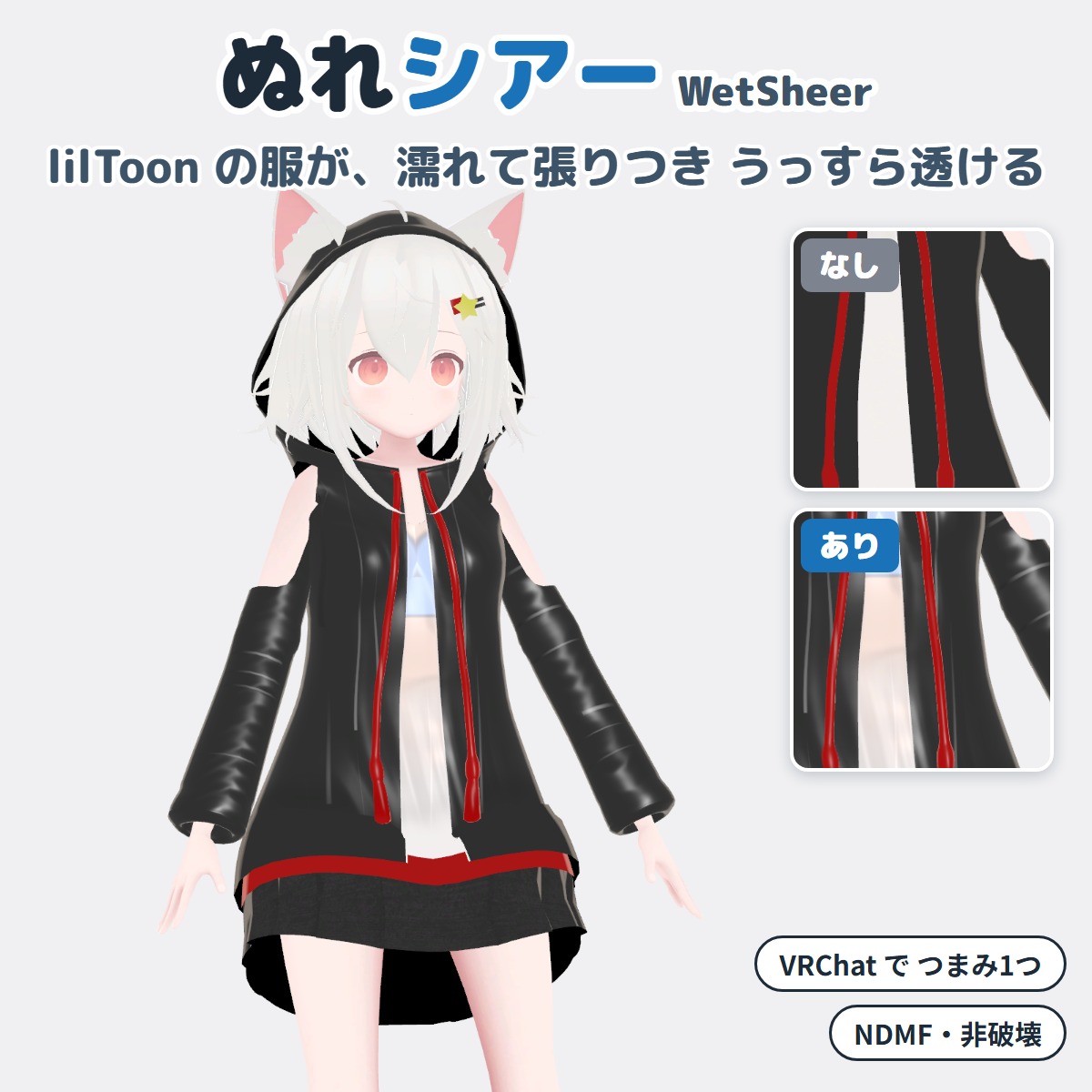
A Unity editor extension that makes your VRChat avatar's lilToon clothing look wet and see-through (won't change your original avatar).
Avatar tools
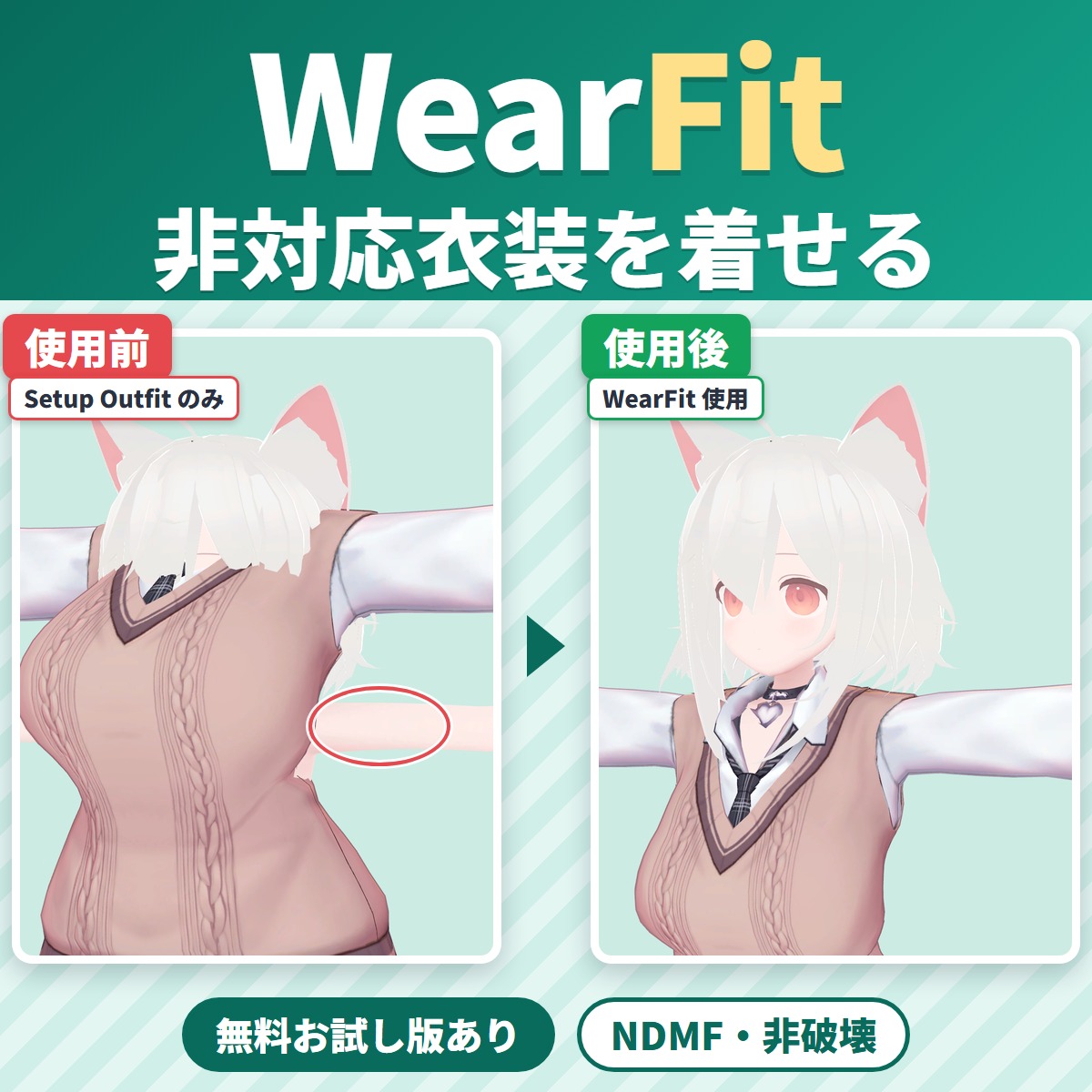
WearFit fits an outfit made for another avatar (an unsupported outfit) to your VRChat avatar's body.
Avatar tools
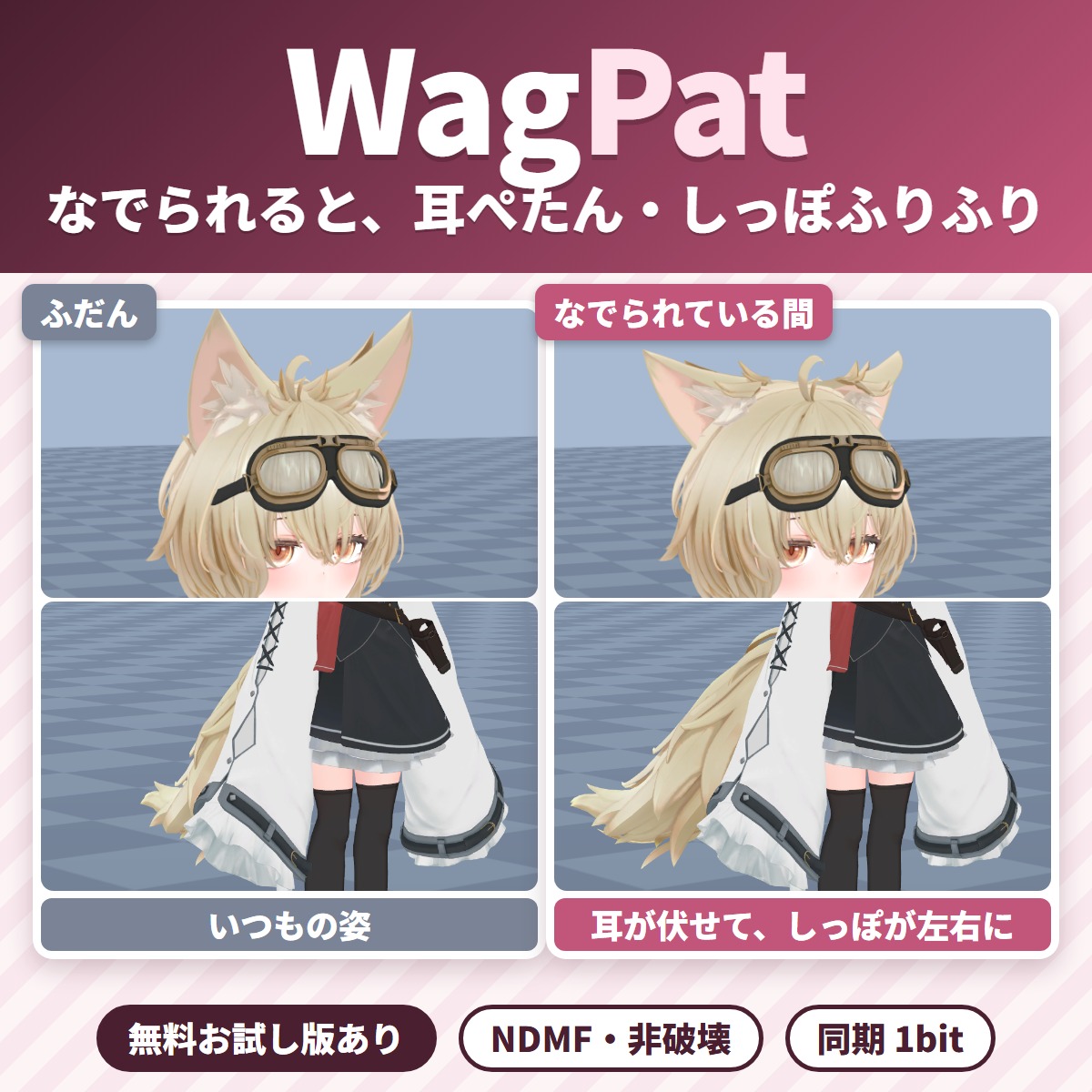
Pat your VRChat avatar's head and its ears fold down and its tail wags; take the hand away and everything goes back.
Avatar tools
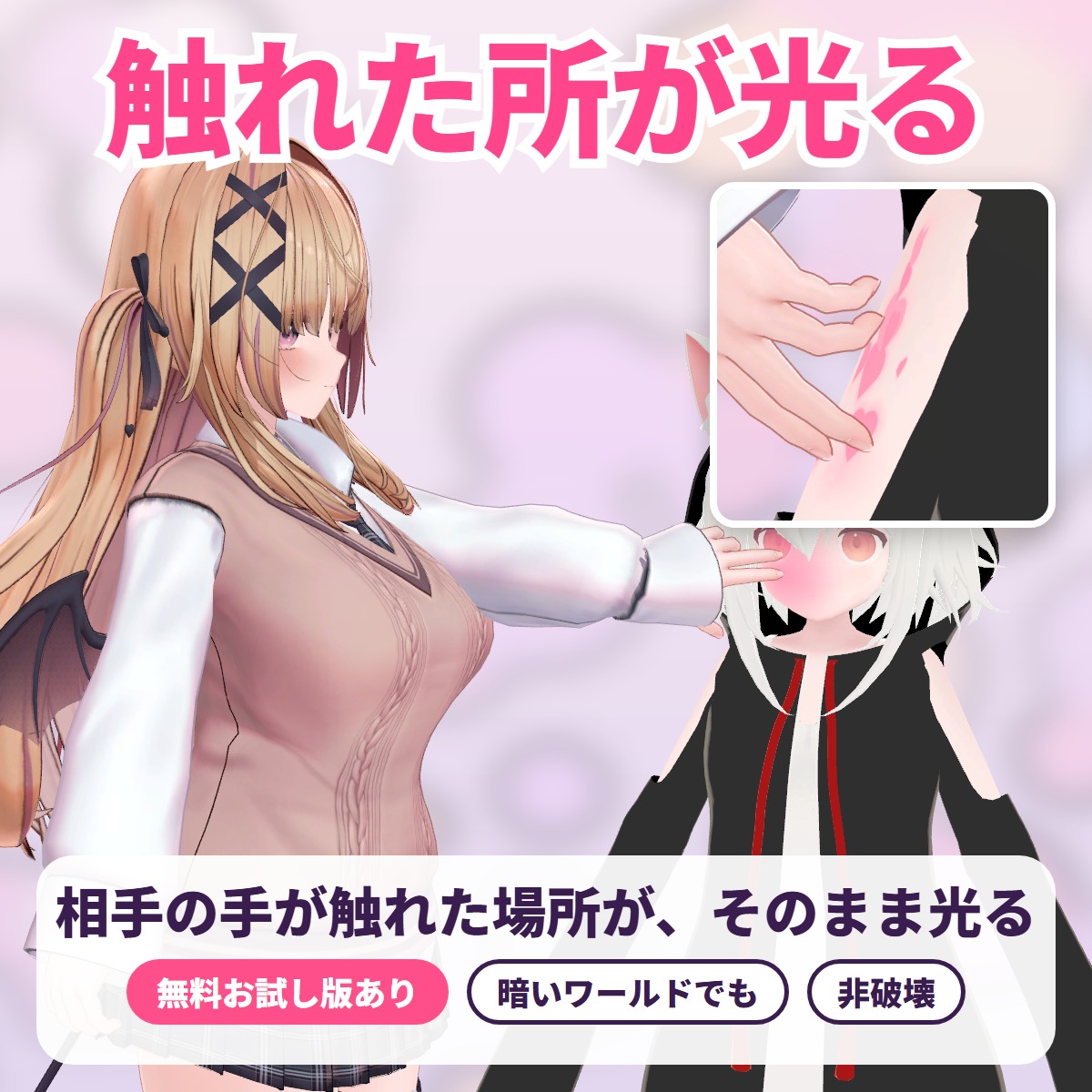
The exact spot another player's hand or finger touches lights up with a soft color glow, ripples or hearts: a tool for VRChat avatars.
Avatar tools
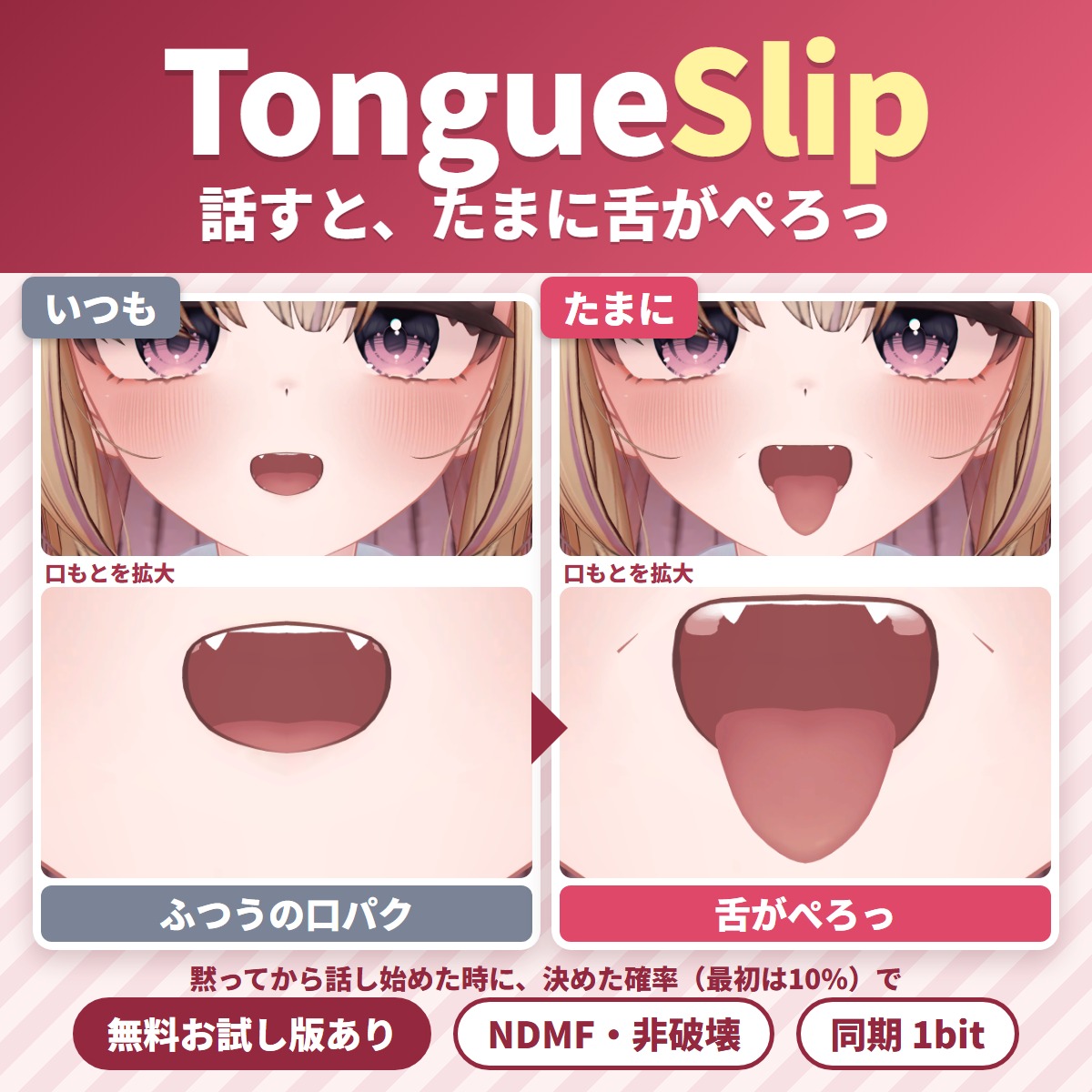
A Unity editor extension that makes your tongue slip out now and then while you talk in VRChat.
Avatar tools
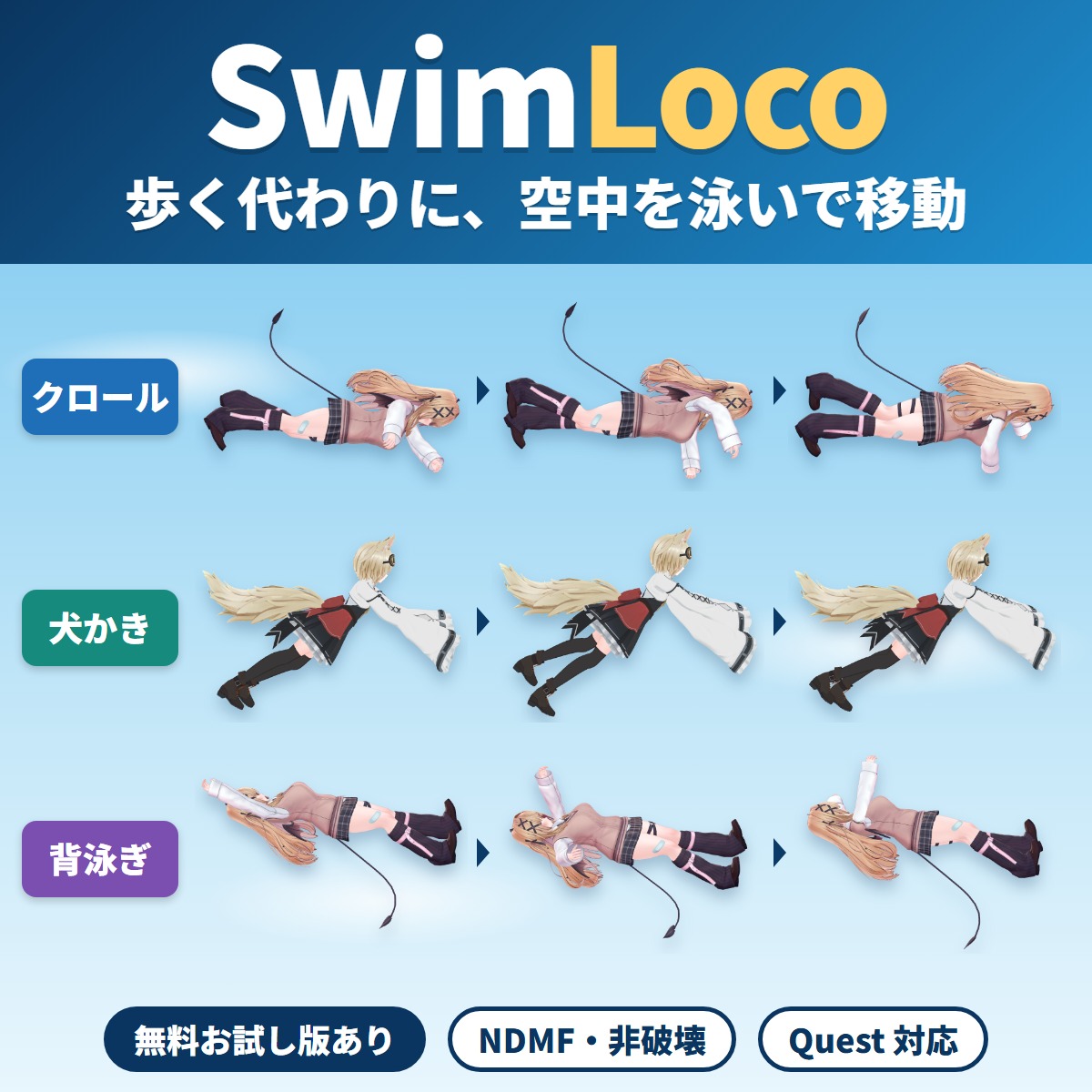
Your VRChat avatar swims through the air anywhere instead of walking or running: a swim locomotion gimmick you add with Modular Avatar by attaching one compone.
Avatar tools
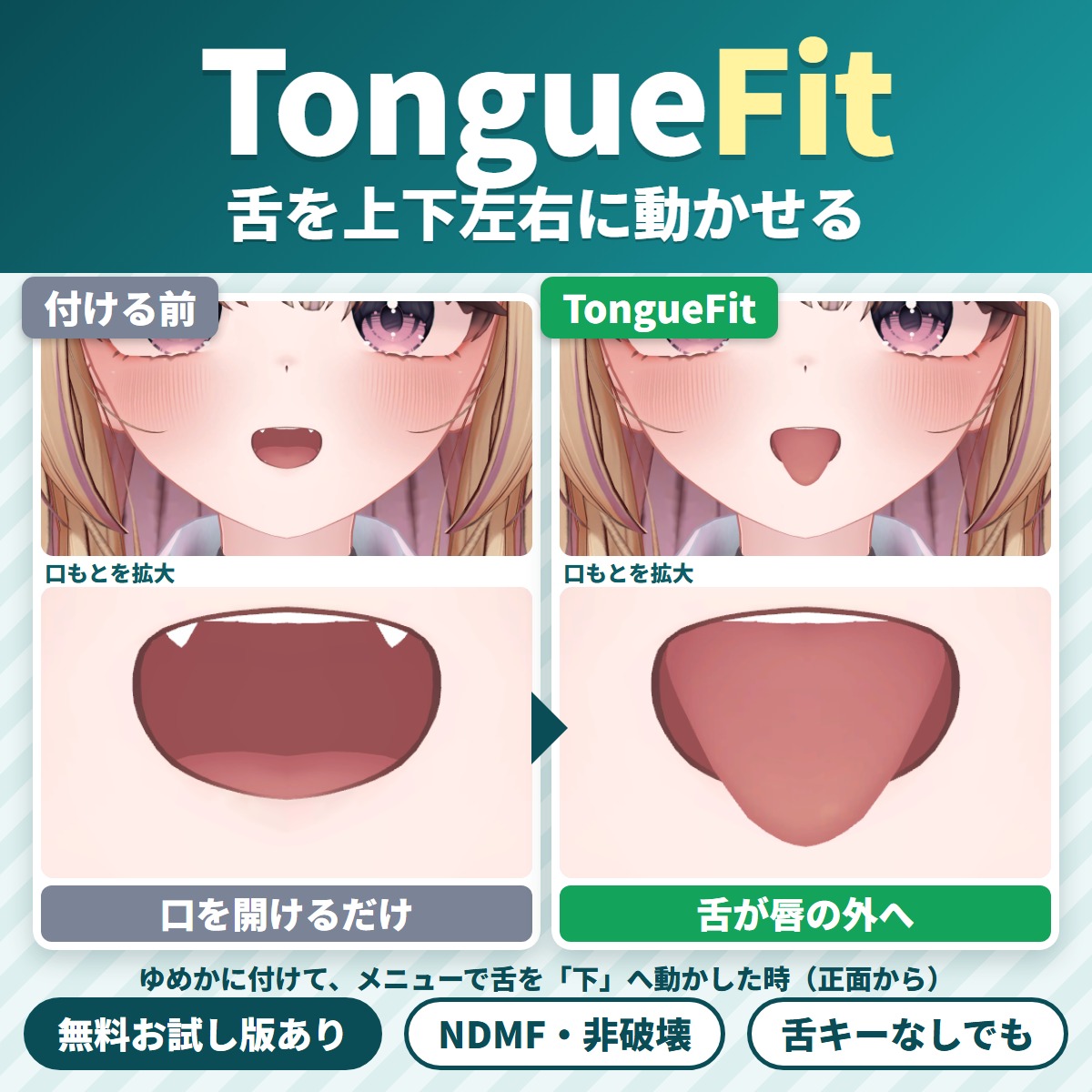
TongueFit is a Unity editor extension that lets your VRChat avatar move its tongue up, down, left and right from the Expressions menu.