Stream Deck plugin for Windows
Switch dark mode and other Windows settings with one Stream Deck key
Desktop Toggles switches the Windows display settings you change most from your Stream Deck, one key each: dark mode, taskbar auto-hide, desktop icons, hidden files and file extensions.
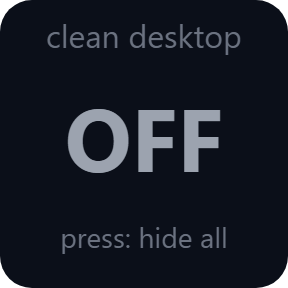
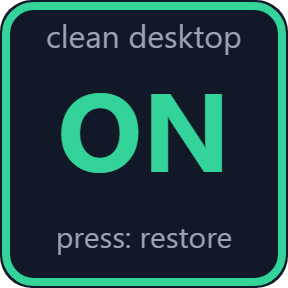
Clean Desktop hides the desktop icons and the taskbar before screen sharing or recording, and the next press puts them back as they were. Every key shows the current state.
- One key per setting
- Clean Desktop for screen sharing
- Keys show the current state
- Stays after a restart
- English and Japanese
What it does
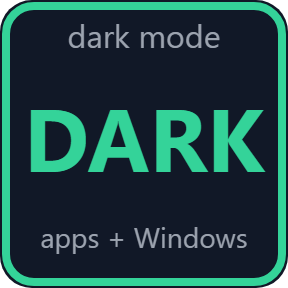
Dark Mode
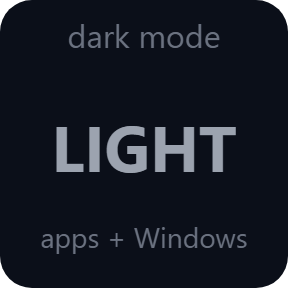
Switch between dark and light with one press, for apps and Windows (taskbar, Start), or for apps only. The same setting as Windows Settings > Personalization > Colors.
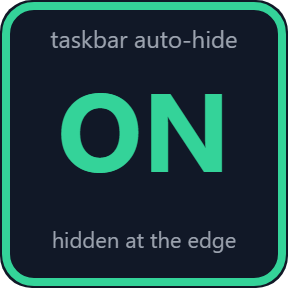
Taskbar Auto-Hide
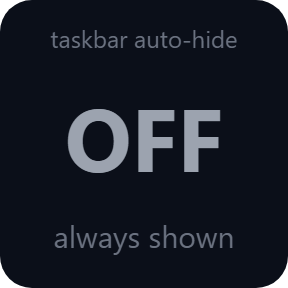
Turn "Automatically hide the taskbar" on or off. While it is on, the taskbar comes back when the pointer touches the screen edge.
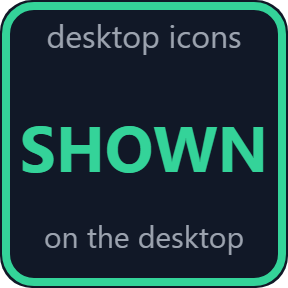
Desktop Icons
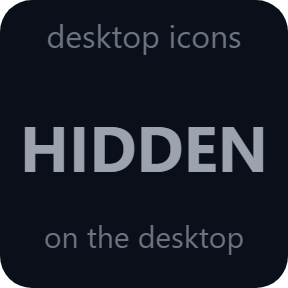
Hide or show the desktop icons. Your files stay where they are.
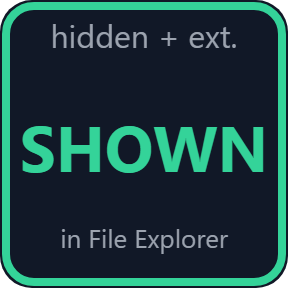
Hidden Files & Extensions
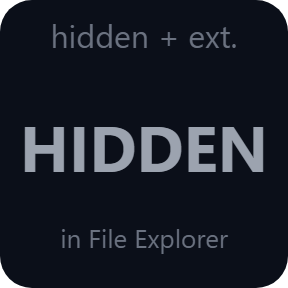
Show or hide hidden files and file name extensions in File Explorer: one of them or both. Open File Explorer windows update too.
Clean Desktop
Before a screen share or recording, one press hides the desktop icons and the taskbar. The next press puts them back as they were.
Keys that follow Windows
Change a setting in Windows Settings, File Explorer or the desktop menu and the key catches up within seconds. If Windows refuses a change, the key says so and shows the real state.
See the current state on the key
Each key shows the current state, so you can tell before you press.
The same settings you already use
Changes are saved the same way Windows Settings saves them, so they stay after a restart.
It never asks for administrator rights.
The only thing the direct version sends online is its license key check.
Set up in 3 steps
- Open the plugin file you download after buying. The Stream Deck app installs it.
- In the Stream Deck app, drag Dark Mode, Taskbar Auto-Hide, Desktop Icons, Hidden Files & Extensions or Clean Desktop onto a key.
- Enter your license key once in a key's settings. Press the key to switch.
Two places to buy
| Elgato Marketplace | Direct from GRAMSHIFT | |
|---|---|---|
| Amount | Same amount | Same amount, tax added at checkout |
| Checkout | Elgato Marketplace | Stripe (card) |
| New versions | Installed through the Stream Deck app | Download from your license key page |
| Use on | Your Elgato account | Up to 3 PCs per license key |
| Plugin display | English and Japanese | English and Japanese |
Requirements
- Windows 10 or later
- Stream Deck app 6.9 or later
Questions
How do I switch Windows dark mode with a Stream Deck key?
Drag Dark Mode onto a key and press it. Windows switches to dark, and the next press goes back to light. In the key's settings, choose apps and Windows (taskbar, Start), or apps only.
How do I hide desktop icons and the taskbar before a screen share?
Press the Clean Desktop key. It hides the desktop icons and the taskbar, and the next press puts them back as they were. A taskbar that was already set to hide itself stays that way.
Can a key show hidden files or file name extensions?
Yes. Hidden Files & Extensions switches hidden files only, file name extensions only, or both, in File Explorer. Protected operating system files stay hidden.
Does the key stay right if I change the setting in Windows?
Yes. The keys follow changes made in Windows Settings, File Explorer or the desktop menu within seconds. Changes stay after a restart, and if Windows refuses one, the key says so and shows the real state.
How many PCs can I use with one license key?
Up to 3 of your own PCs. If you replace a PC, write to us and we free up a place for the new one.
How do I get new versions if I buy direct?
Download the latest version from your thank-you page or the license key page you received. Your license key keeps working. If you cannot open your license key page, email us as the "Recover your license key" page explains.
What if I lose my license key?
Email contact@gramshift.com from the address you paid with, and include your order number, or the date and amount you paid. We check the purchase and reply with a link to your license key page.
Can I get a refund?
Yes, for a direct purchase. If the plugin does not work on your PC, email us within 14 days of purchase and we refund the full amount. The license key stops working after the refund. If Clean Desktop is on, press its key to put things back before the refund.
Direct purchase: details, refunds and seller
- Price
- ¥980, the same amount as on the Elgato Marketplace. Tax for your country is added at checkout.
- Payment
- Handled by Stripe through Link, Stripe's checkout service. Link appears as the seller on your receipt and card statement, and your card number never reaches GRAMSHIFT.
- Delivery
- Your license key and download link appear right after payment, and the receipt arrives by email.
- Refunds
- If the plugin does not work on your PC, email us within 14 days of purchase for a full refund. You can also ask Link support. The license key stops working after a refund. If Clean Desktop is on, press its key to put things back before the refund.
- License
- One key for your own use on up to 3 PCs.
- Countries
- The direct checkout is not offered in Ascension Island, China, Cuba, Iran, Kosovo, North Korea, Russia, Syria or Tristan da Cunha.
- Seller
- GRAMSHIFT, Tokyo, Japan. Contact: contact@gramshift.com
Limits
- Windows only.
- Stream Deck keys only: the actions do not go on dials.
- Dark Mode switches apps that follow the Windows setting. Apps with their own theme setting keep it.
- Protected operating system files stay hidden.
- Settings managed by an organization may be blocked. The key then says the change failed.
- The direct version checks its license key with our server when you activate it, each time the plugin starts, and about once a day while it runs. If it cannot reach the server, it keeps working for up to 44 days after the last successful check.
- If the license key stops working while Clean Desktop is on, the key can no longer put things back. Enter a valid key, or show the icons from the desktop menu and turn taskbar auto-hide off in Windows Settings.
- If something does not work, email contact@gramshift.com and we will help.