Plugin for OpenDeck on Windows
Switch Windows monitor layouts from OpenDeck keys
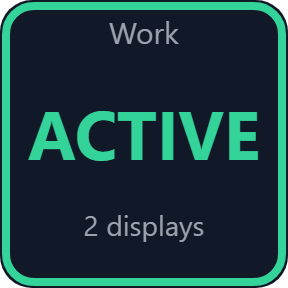
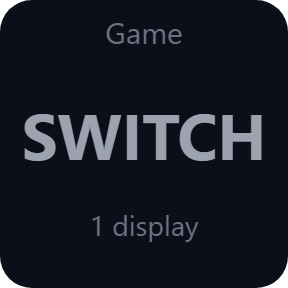
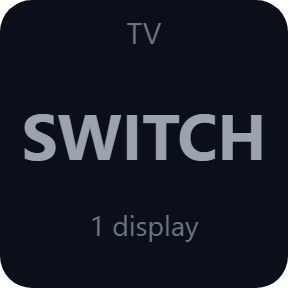
Save your dual or multi-monitor setup once, then switch between Work, Game or TV layouts with a single key press.
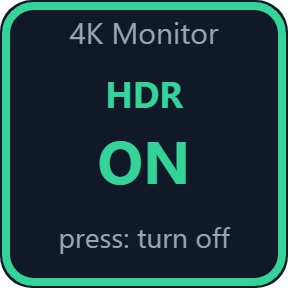
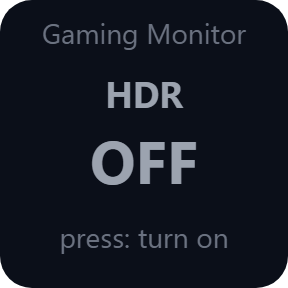
Other keys handle one job each: primary display, projection mode, turning a monitor off and on, resolution, refresh rate and HDR. Risky changes revert after 15 seconds unless you keep them.
- Saved layouts
- Resolution
- Refresh rate
- HDR on and off
- Primary display
- Monitor on and off
What the keys do
Save and switch layouts
Save which displays are on, their positions, resolutions, refresh rates, rotation, HDR and the primary display under a name. One key per layout brings it back.
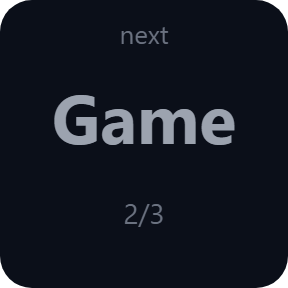
Cycle layouts
A single key steps through the layouts you tick, moving to the one after the layout you are using now.
Set primary display
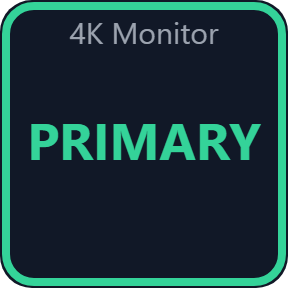
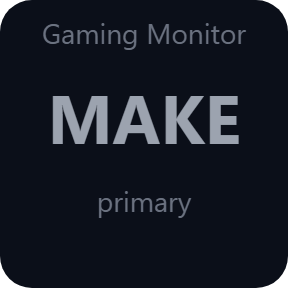
Makes one monitor your main display, with the taskbar clock and new windows. The other monitors keep their places.
Projection modes
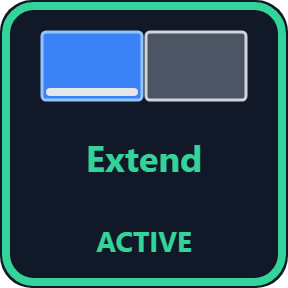
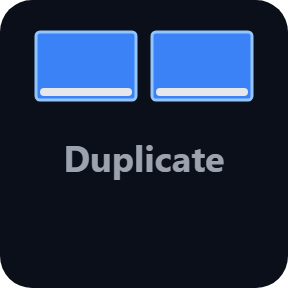
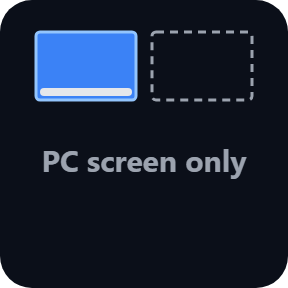
Each Win+P mode on its own key: PC screen only, Duplicate, Extend or Second screen only. No saved layout needed.
Toggle a display
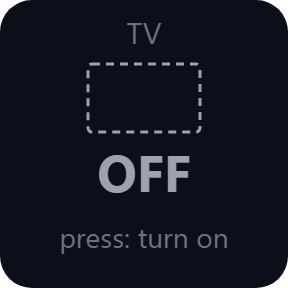
Turns one monitor off while the rest stay as they are. Press again to bring the layout back, primary display included, if the other displays have not changed.
Resolution and refresh rate
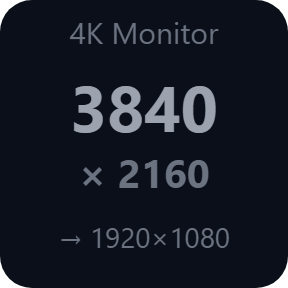
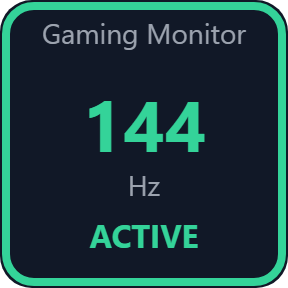
Pick a size or rate for a game, such as 1920x1080 or 144 Hz, or step to the next one. Only what your monitor offers is used, and the key shows the value in use.
Install in OpenDeck
In OpenDeck, open the Plugins tab, install the .streamDeckPlugin file you downloaded, then enter your license key once in a key's settings.
Requirements
- Windows 10 or later
- OpenDeck 2.14 or later
- No administrator rights needed
Questions
Can I switch monitor layouts with a key on an Ajazz deck using OpenDeck?
Yes. Arrange your monitors in Windows, press a Save Profile key with a name such as Gaming, then put a Switch Profile key with the same name on your deck. Press it, and press again within 15 seconds to keep the layout; otherwise the previous one returns.
Can one key change my screen resolution or refresh rate?
Yes. Put the Resolution or Refresh Rate key on your deck, choose the monitor and the value, and press. If the picture looks wrong, wait 15 seconds and the old setting comes back by itself.
Which monitor is number 1 and which is number 2?
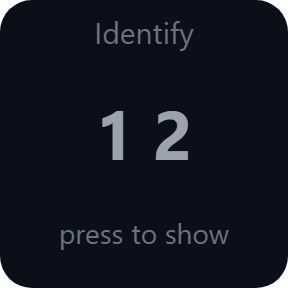
Press the Identify Displays key. Each screen shows its own number and name for 3 seconds, so you can pick the right one in the other keys.
Purchase details, refunds and seller
- Price
- ¥780, paid once. Tax for your country is added at checkout.
- Payment
- Handled by Stripe through Link, Stripe's checkout service. Link appears as the seller on your receipt and card statement, and your card number never reaches GRAMSHIFT.
- Delivery
- Your license key and download link appear right after payment, and the receipt arrives by email.
- Countries
- The direct checkout is not offered in Ascension Island, China, Cuba, Iran, Kosovo, North Korea, Russia, Syria or Tristan da Cunha.
- Seller
- GRAMSHIFT, Tokyo, Japan. Contact: contact@gramshift.com
- Refunds
- If the plugin fails to run on your PC, email contact@gramshift.com within 14 days of purchase for a full refund. The license key stops working after a refund.
- License
- One key for your own use on up to 3 PCs.
Limits
- Windows only. Display scaling, color profiles, night light and brightness are not changed, because Windows keeps those per monitor.
- If one of a layout's monitors is not connected, nothing changes and the key shows MISSING. It does not run on the lock screen or in some remote desktop sessions.
- The direct version checks its license key online when you activate it, at each start and about once a day, and keeps working up to 44 days if the server cannot be reached.