Stream Deck plugin for Windows
Switch your monitor layout with one key
Display Layout Switcher puts your Windows display settings on Stream Deck keys: save a dual or multi-monitor layout once, such as Work or Game, and switch back to it with a key, instead of opening the Windows display settings each time.
Each key also does one thing on its own: the primary display, Win+P projection, a second monitor off and on, the resolution, the refresh rate and HDR. A change to the layout, resolution or refresh rate goes back by itself after 15 seconds unless you keep it.
- Saved layouts
- Primary display
- Win+P projection
- Second monitor off / on
- Resolution and refresh rate
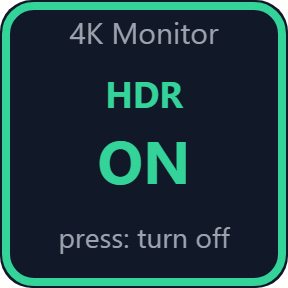
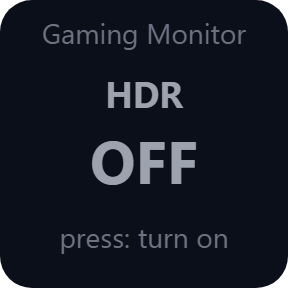
- HDR
What the keys do
Switch Profile and Save Profile
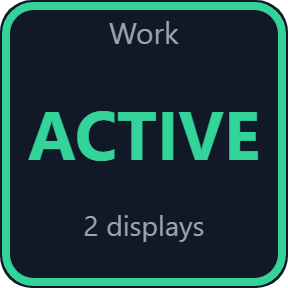
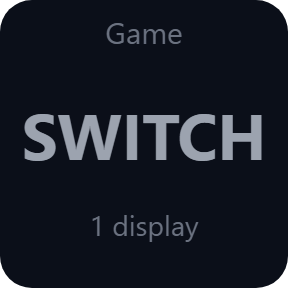
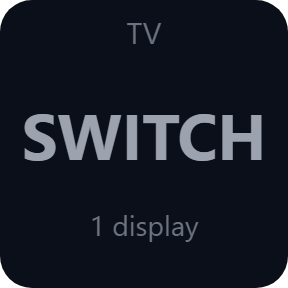
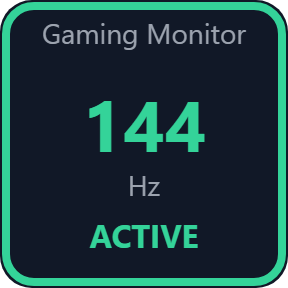
Save your layout once under a name, such as Work, Game or TV: which displays are on, their positions, resolutions, refresh rates, rotation, HDR and the primary display. One Switch Profile key per layout brings it back, and shows ACTIVE when that layout is in use.
Cycle Profiles
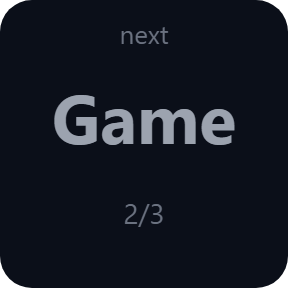
One key steps through the layouts you tick, going to the next one after the layout in use now.
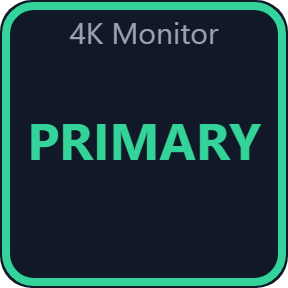
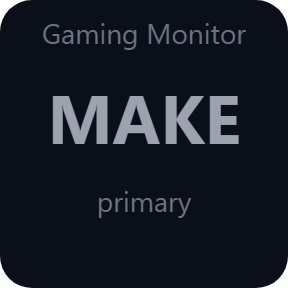
Set Primary
Makes one monitor the main display (taskbar clock, new windows). The others keep their places.
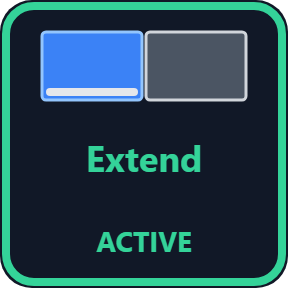
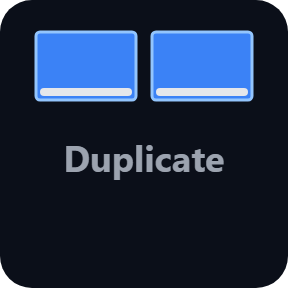
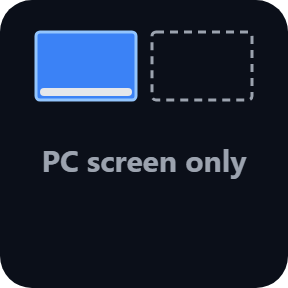
Set Projection
Each Win+P mode on its own key: PC screen only, Duplicate, Extend or Second screen only. No saved layout needed.
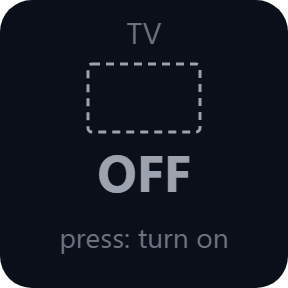
Toggle Display
Turns one monitor off while the others stay as they are. Pressed again, the layout comes back as it was, the primary display included, if the other displays have not changed.
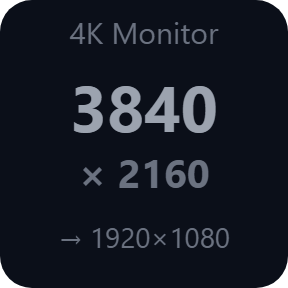
Resolution and Refresh Rate
The next size or rate, or one you pick, such as 1920x1080 or 144 Hz for a game. Only what the monitor offers is used, and the key shows the value in use. On Stream Deck +, turn the dial to choose and push to keep it.
HDR
Turns "Use HDR" on, off or back for one monitor, or for all the monitors that have HDR. The key shows whether HDR is on.
Identify Displays
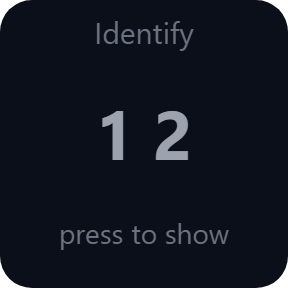
Shows each monitor's number and name on its own screen for 3 seconds, so you know which display to pick in the other keys. It does not take the keyboard or the mouse.
A wrong setting comes back by itself
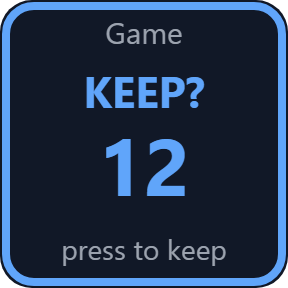
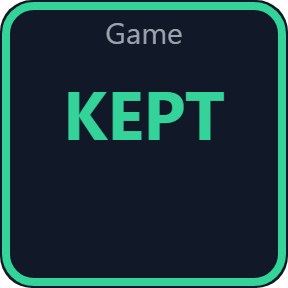
Layout keys ask for two presses by default, so a stray press changes nothing. After a change to the layout, resolution or refresh rate, the key counts down 15 seconds: press it once more to keep the new setting. If you do not, for example because a screen stayed black, the previous setting comes back by itself, also when Stream Deck restarts the plugin within 2 minutes. A key that cannot read a monitor's settings turns red and a press changes nothing.
Through Windows' own display settings
The keys change the same settings as the Windows display settings and Win+P, so no extra software or box is needed.
It changes the layout, the primary display, the resolution, the refresh rate and HDR only. Display scaling, color profiles, night light and brightness stay as Windows has them.
No administrator rights are needed: it runs as your user.
Your layouts and your display settings stay on your computer. The only thing the direct version sends online is its license key check.
Set up in 3 steps
- Open the plugin file you download after buying. The Stream Deck app installs it.
- In the Stream Deck app, drag the keys you want onto your Stream Deck and enter your license key once.
- Set your monitors the way you like in Windows, put a name on a Save Profile key and press it. A Switch Profile key with that name brings the layout back.
Two places to buy
| Elgato Marketplace | Direct from GRAMSHIFT | |
|---|---|---|
| Amount | Same amount | Same amount, tax added at checkout |
| Checkout | Elgato Marketplace | Stripe (card) |
| New versions | Installed through the Stream Deck app | Download from your key page |
| Use on | Your Elgato account | Up to 3 computers per license key |
| Plugin display | English and Japanese | English and Japanese |
Requirements
- Windows 10 or later
- Stream Deck app 6.9 or later
- No administrator rights needed
Questions
How do I switch between monitor layouts with Stream Deck?
Set your monitors the way you want in Windows, give a Save Profile key a name such as Gaming and press it. Then put a Switch Profile key with that name on your Stream Deck and press it twice. Press once more within 15 seconds to keep the layout; otherwise the previous one comes back.
Can a Stream Deck key change my screen resolution?
Yes. Put Resolution on a key and pick the monitor and the sizes. If the picture is wrong, wait 15 seconds and the old size comes back.
Can one key turn my second monitor off and back on?
Yes. Toggle Display turns one monitor off while the others stay. Pressed again, the monitor comes back where it was, if the other displays have not changed.
Can I turn HDR on or off on all my monitors with one key?
Yes, the ones with HDR. Put HDR on a key and choose All displays.
Which monitor is 1 and which is 2 in the plugin's lists?
Press Identify Displays: each screen shows its number there for 3 seconds.
How many computers can I use with one license key?
Up to 3 of your own computers. If you replace a computer, write to us and we free up a place for the new one.
How do I get new versions if I buy direct?
Download the latest version from your thank-you page or the key page you received. Your license key keeps working. If you cannot open your key page, email us as the "Recover a lost key" page explains.
What if I lose my license key?
Email contact@gramshift.com from the address you paid with, and include your order number, or the date and amount you paid. We check the purchase and reply with a link to your key page.
Can I get a refund?
Yes, for a direct purchase. If the plugin does not work with your displays, email us within 14 days of purchase and we refund the full amount. The license key stops working after the refund.
Does it work on a Mac?
No. It is for Windows 10 or later only.
Direct purchase details
- Price
- ¥780, the same amount as on the Elgato Marketplace. Tax for your country is added at checkout.
- Payment
- Handled by Stripe through Link, Stripe's checkout service. Link appears as the seller on your receipt and card statement, and your card number never reaches GRAMSHIFT.
- Delivery
- Your license key and download link appear right after payment, and the receipt arrives by email.
- Refunds
- If the plugin does not work with your displays, email us within 14 days of purchase for a full refund. You can also ask Link support. The license key stops working after a refund.
- License
- One key for your own use on up to 3 computers.
- Countries
- The direct checkout is not offered in Ascension Island, China, Cuba, Iran, Kosovo, North Korea, Russia, Syria or Tristan da Cunha.
- Seller
- GRAMSHIFT, Tokyo, Japan. Contact: contact@gramshift.com
Limitations
- Display scaling, color profiles, night light, brightness and monitor inputs are not changed; Windows keeps those per monitor.
- If one of a layout's monitors is not connected, nothing changes and the key shows MISSING.
- Layouts remember each monitor with its connector. A monitor on another port is still found when it is the only one of its model; with an identical model connected too, the key shows MISSING and you save the layout again.
- Windows may move the screens next to a resized one so they still touch.
- HDR switches only where Windows offers it for that monitor, without the countdown. If Stream Deck stops while several monitors switch HDR, some may stay switched: press the key again.
- A monitor plugged in during the countdown stays off when the previous setup comes back.
- Duplicated (mirrored) screens share one resolution and refresh rate.
- Set Projection uses the last layout of that kind Windows remembers, and Duplicate, Extend and Second screen only need 2 displays connected.
- It does not work on the lock screen or in some remote desktop sessions.
- The direct version checks its license key with our server when you activate it, each time the plugin starts, and about once a day while it runs. If it cannot reach the server, it keeps working for up to 44 days after the last successful check.