Corsair Galleon 100 SD profile, included in the plugin
Monitor layouts on your Corsair Galleon 100 SD
Yes, Display Layout Switcher works on the Corsair Galleon 100 SD, and the plugin comes with a profile laid out for it.
Its keys bring back your saved multi-monitor layouts on Windows, set the primary display, turn one monitor off and on, pick a Win+P projection and switch HDR, and the two dials change the resolution and the refresh rate.
After you install the plugin, pick "Display Layout Switcher, Galleon 100 SD" in the Stream Deck app's profile list. It has two pages for the display keys, Layouts and Screen, with Previous and Next page keys. Then choose your own monitor on the Set Primary and Toggle Display keys, and press each Save key once with your monitors set the way you want.
- Comes with the plugin
- Two pages for the display keys
- Resolution and refresh rate on the dials
- Desk, Gaming and TV layouts
- 15-second safe countdown
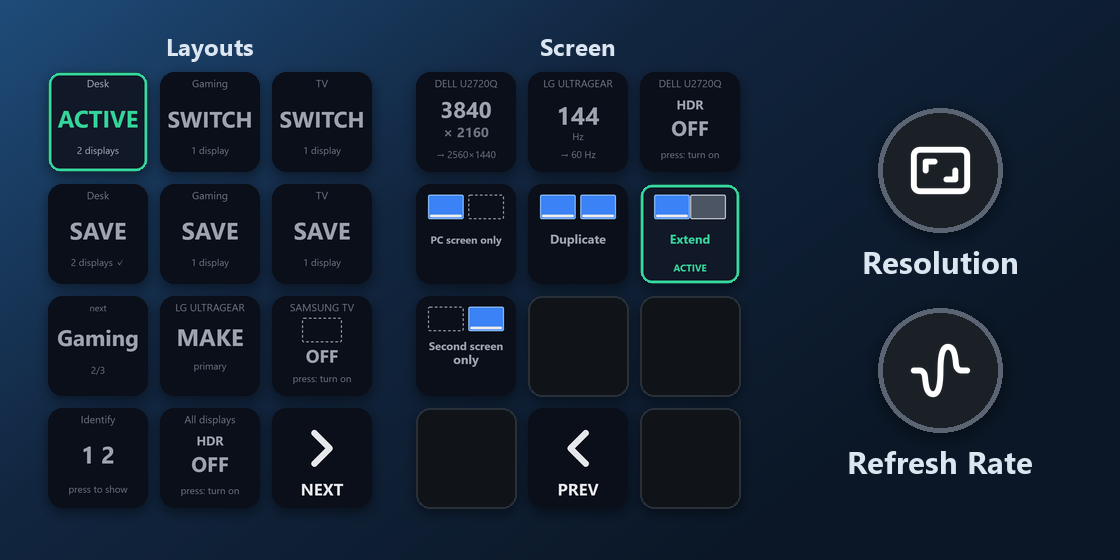
What is on each Galleon 100 SD page?
The profile has two pages for the display keys. The keys in the bottom row turn the pages: Next page on Layouts, Previous page on Screen.
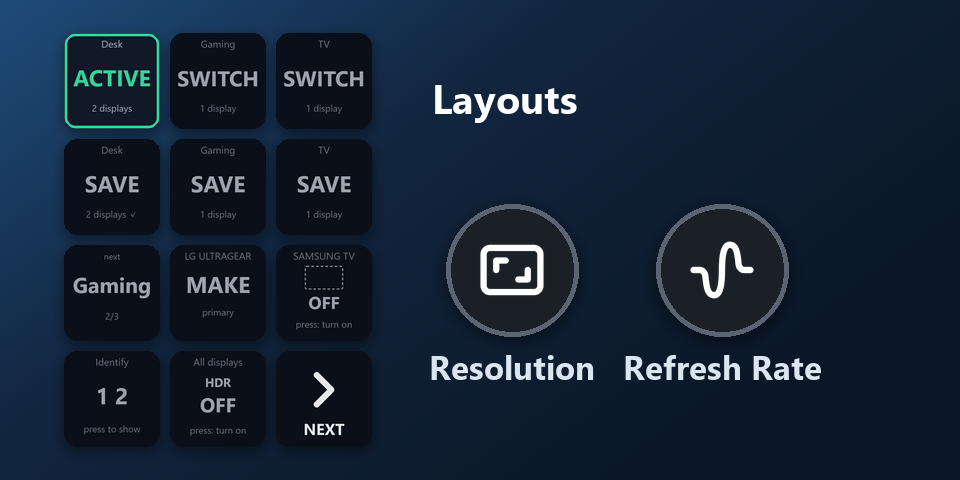
Layouts
Switch to the Desk, Gaming and TV layouts, a Save key for each of them, Cycle through the three, Set Primary, Toggle Display, Identify Displays, and HDR for every monitor that has it.
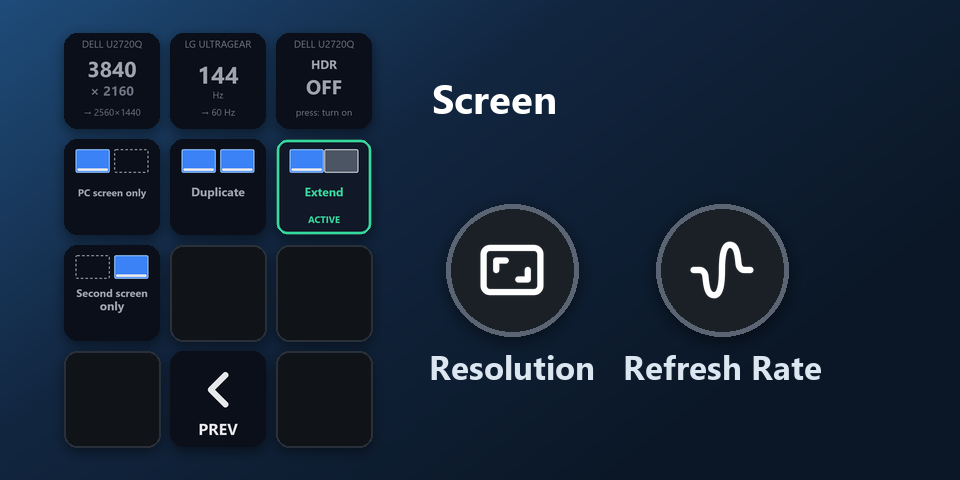
Screen
Resolution, Refresh Rate and HDR of the primary display, and the four Win+P choices: PC screen only, Duplicate, Extend and Second screen only.
What do the Galleon 100 SD dials do?
Left dial: Resolution
Turn it to pick a size the monitor offers. The size changes about a second after you stop turning, or at once when you push. Push within 15 seconds to keep it; otherwise the previous size comes back.
Right dial: Refresh Rate
Turn it to pick a rate the monitor offers at its size now, such as 144 Hz for a game. It changes about a second after you stop turning, or at once when you push. Push within 15 seconds to keep it.
Both dials do the same on every page and change the primary display. To use them on another monitor, pick it in the dial's settings.
How do I set it up on the Galleon 100 SD?
- Open the plugin file you download after buying. The Stream Deck app installs it, with its profiles.
- In the Stream Deck app, pick "Display Layout Switcher, Galleon 100 SD" in the profile list for your Galleon 100 SD. Your current profiles stay as they are.
- Enter your license key once in a key's settings.
- Choose your own monitor in the settings of the Set Primary and Toggle Display keys. Until then they say "pick a display".
- Set your monitors the way you use them at your desk in Windows and press the Save Desk key. Do the same for Gaming and TV. The Switch keys bring those layouts back.
Requirements
- Corsair Galleon 100 SD
- Windows 10 or later
- The free Stream Deck app 6.9 or later, where the Galleon 100 SD's display keys and dials are set up
- No administrator rights needed
Questions about the Galleon 100 SD
Is there a multi-monitor profile for the Corsair Galleon 100 SD?
Yes. Display Layout Switcher comes with a profile laid out for the Galleon 100 SD: two pages on the display keys (Layouts and Screen) and two dials (Resolution and Refresh Rate). It is part of the plugin, so there is nothing else to buy.
How do I get the Display Layout Switcher profile on the Galleon 100 SD?
Install the plugin, then pick "Display Layout Switcher, Galleon 100 SD" in the Stream Deck app's profile list for your Galleon 100 SD. Enter your license key once, choose your monitor on the Set Primary and Toggle Display keys, and press each Save key once.
What do the Galleon 100 SD dials do?
The left dial changes the resolution and the right dial the refresh rate of the primary display, or of the monitor you pick in the dial's settings. Turn to choose, push to change at once, and push again within 15 seconds to keep it.
How do I change pages on the Galleon 100 SD?
Press the Next page key on Layouts or the Previous page key on Screen, in the bottom row of the keys.
Can I rename the Desk, Gaming and TV layouts?
Yes. Give a Save key and a Switch key the same new name, such as Work, and change the names in the Cycle key's list. Every key can also be moved or changed in the Stream Deck app like any other key.
What happens if a layout leaves a screen black?
Wait. After a change to the layout, resolution or refresh rate, the key counts down 15 seconds; if you do not press it again, the previous setting comes back by itself.
Direct purchase details
- Price
- ¥780. Tax for your country is added at checkout.
- Payment
- Handled by Stripe through Link, Stripe's checkout service. Link appears as the seller on your receipt and card statement, and your card number never reaches GRAMSHIFT.
- Delivery
- Your license key and download link appear right after payment, and the receipt arrives by email.
- Refunds
- If the plugin does not work with your displays, email us within 14 days of purchase for a full refund. You can also ask Link support. The license key stops working after a refund.
- License
- One key for your own use on up to 3 computers.
- Countries
- The direct checkout is not offered in Ascension Island, China, Cuba, Iran, Kosovo, North Korea, Russia, Syria or Tristan da Cunha.
- Seller
- GRAMSHIFT, Tokyo, Japan. Contact: contact@gramshift.com
More about Display Layout Switcher
Limitations
- Display scaling, color profiles, night light, brightness and monitor inputs are not changed; Windows keeps those per monitor.
- If one of a layout's monitors is not connected, nothing changes and the key shows MISSING.
- HDR switches only where Windows offers it for that monitor.
- The profile's page names are in English. Key labels follow your Stream Deck app: English or Japanese.
- The direct version checks its license key with our server when you activate it, each time the plugin starts, and about once a day while it runs. If it cannot reach the server, it keeps working for up to 44 days after the last successful check.