OpenDeck plugin for Windows
Draw on your screen and highlight your cursor with OpenDeck
On an Ajazz or Mirabox deck running OpenDeck, Draw on Screen and Highlight puts a pen and marker with arrows and boxes, a cursor ring or glow, a spotlight, a laser pointer, click ripples and a magnifier on your keys.
For presenting, sharing your screen in Teams or Zoom, and recording tutorials on Windows.
One key each turns an effect on and off, and the key lights up while it is on. Pointer effects let your clicks through, and while you draw, arrow keys still turn your slides.
- Pen and marker
- Arrows and boxes
- Cursor highlight
- Spotlight
- Laser pointer
- Click ripples
- Magnifier
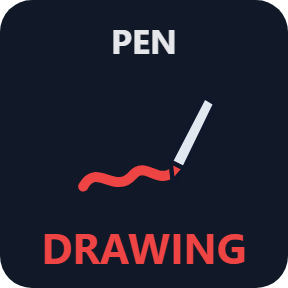
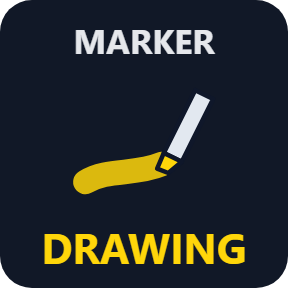
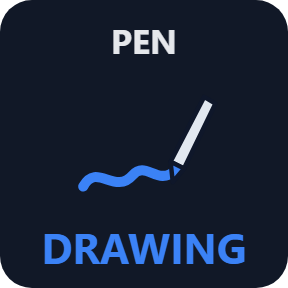
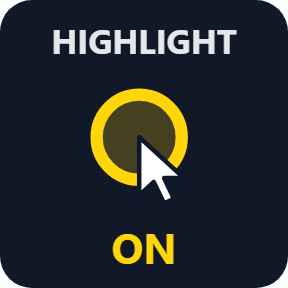
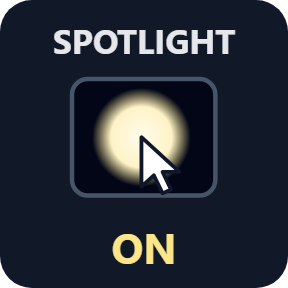
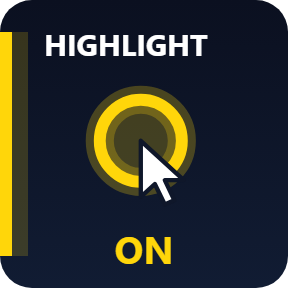
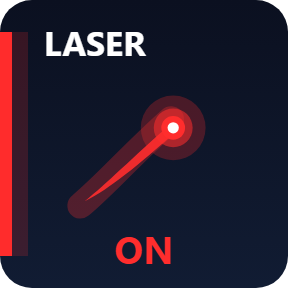

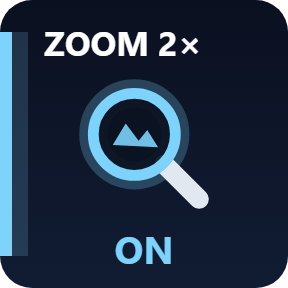
Six keys
Draw on Screen
A pen or a see-through marker right on your screen, over any app. Hold Shift for a straight line, Ctrl for an arrow, Ctrl+Shift for a box; right-click takes back the last line.
Cursor Highlight
A ring, a soft glow or a disc follows your mouse pointer on every screen, in 10 colors and 4 sizes, so viewers find it at once.
Spotlight
Dims everything except a soft circle at your pointer, or everything except the window in front.
Laser Pointer
A glowing dot at the tip of your pointer, with a short tail that fades as you move.

Click Ripples
A ripple where you click, left and right clicks in their own colors, so viewers see what you press.
Magnifier
A round lens follows your pointer and shows what is under it larger, live, from 1.5x to 4x.
Install in OpenDeck
In OpenDeck, open the Plugins tab, install the .streamDeckPlugin file you downloaded, then enter your license key once in a key's settings.
Requirements
- Windows 10 or later
- No other software or account
- OpenDeck 2.14 or later
Questions
How do I draw on my screen during a presentation with an Ajazz or Mirabox deck and OpenDeck?
Place a Draw on Screen key in OpenDeck and press it: you draw right on the screen with a pen or a see-through marker, with straight lines (Shift), arrows (Ctrl) and boxes (Ctrl+Shift). Press the key again to stop.
How do I highlight my mouse cursor?
Place a Cursor Highlight key. It puts a ring, a soft glow or a disc around your mouse pointer, in 10 colors and 4 sizes, and your clicks still go to your apps.
Will viewers see it in Teams or Zoom?
Yes, when you share or record your whole screen.
Purchase details, refunds and seller
- Price
- ¥780, paid once. Tax for your country is added at checkout.
- Payment
- Handled by Stripe through Link, Stripe's checkout service. Link appears as the seller on your receipt and card statement, and your card number never reaches GRAMSHIFT.
- Delivery
- Your license key and download link appear right after payment, and the receipt arrives by email.
- Countries
- The direct checkout is not offered in Ascension Island, China, Cuba, Iran, Kosovo, North Korea, Russia, Syria or Tristan da Cunha.
- Seller
- GRAMSHIFT, Tokyo, Japan. Contact: contact@gramshift.com
- Refunds
- If the plugin fails to run on your PC, email contact@gramshift.com within 14 days of purchase for a full refund. The license key stops working after a refund.
- License
- One key for your own use on up to 3 PCs.
Limits
- Windows only. To show the effects to viewers, share or record your whole screen, not one window.
- Exclusive full-screen games cover the effects; borderless window mode works.
- In a slide show, Esc also ends the show. To stop drawing there, press the Draw on Screen key instead.
- The direct version checks its license key with our server when you activate it, at each plugin start and about once a day. If the server cannot be reached, it keeps running for up to 44 days after the last successful check.