Stream Deck plugin for Windows
Draw on your screen and highlight your cursor from Stream Deck
Draw on Screen and Highlight puts a pen and marker with arrows and boxes, a cursor ring or glow, a spotlight, a laser pointer, click ripples and a magnifier on your Stream Deck keys.
For presenting, sharing your screen in Teams or Zoom, and recording tutorials on Windows.
One key each turns an effect on and off, and the key lights up while it is on. Pointer effects let your clicks through, and while you draw, arrow keys still turn your slides.
- Pen and marker
- Arrows and boxes
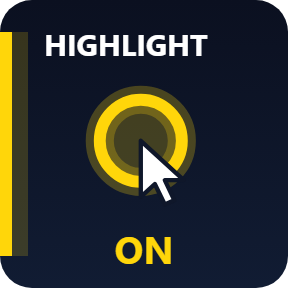
- Cursor highlight
- Spotlight
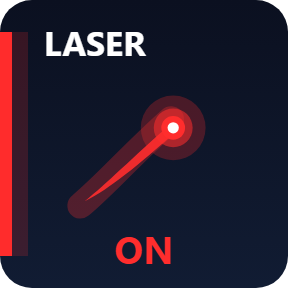
- Laser pointer
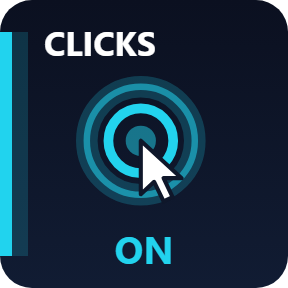
- Click ripples
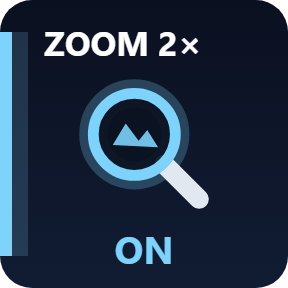
- Magnifier
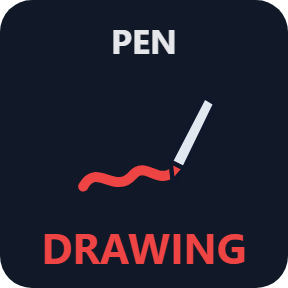
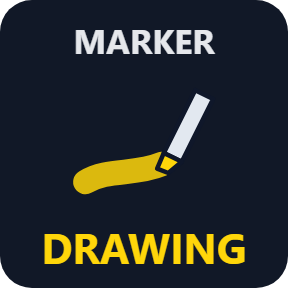
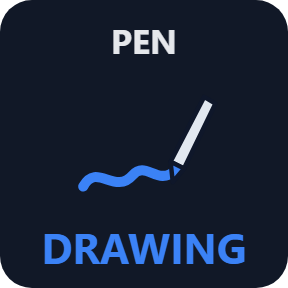

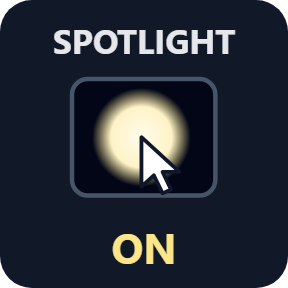
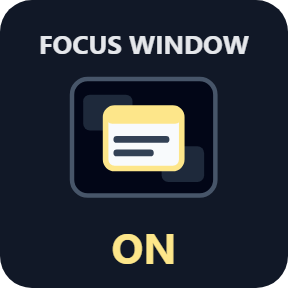

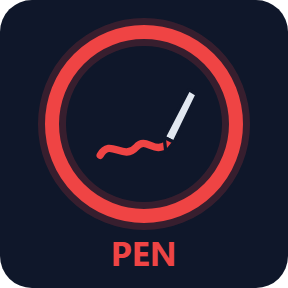
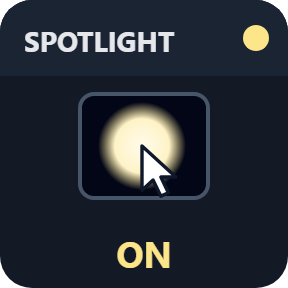
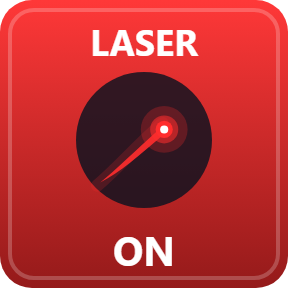
Six keys
Draw on Screen
A pen or a see-through marker right on your screen, over any app. Hold Shift for a straight line, Ctrl for an arrow, Ctrl+Shift for a box; right-click takes back the last line. Keep your lines on screen and click through them.
Cursor Highlight
A ring, a soft glow or a disc follows your mouse pointer on every screen, in 10 colors and 4 sizes, so viewers find it at once.
Spotlight
Dims everything except a soft circle at your pointer, or everything except the window in front.
Laser Pointer
A glowing dot at the tip of your pointer, with a short tail that fades as you move.
Click Ripples
A ripple where you click, left and right clicks in their own colors, so viewers see what you press.
Magnifier
A round lens follows your pointer and shows what is under it larger, live, from 1.5x to 4x.
Choose your look
Pick a look in each key's settings: Classic, Neon, Ring, Bars or Solid. Every key lights up while its effect is on.

One key per color or tool
Put several keys of one effect side by side, each with its own color, tool or size. Press another one to switch to it, even while you draw.
Made for presenting
Cursor Highlight, Spotlight, Laser Pointer, Click Ripples and Magnifier let your clicks through to your apps. Only the pen takes clicks, while you draw.
While you draw, the keyboard stays with your app, so arrow keys and a presentation remote still turn your slides.
Esc pressed twice within 0.6 seconds turns every effect off.
What you draw stays on your PC. The only thing that goes online is the license key check.
Set up in 3 steps
- Open the plugin file you download after buying. The Stream Deck app installs it.
- In the Stream Deck app, drag Draw on Screen, Cursor Highlight, Spotlight, Laser Pointer, Click Ripples or Magnifier onto your Stream Deck and enter your license key once in its settings.
- Press the key to turn the effect on, and again to turn it off. Choose the color, size and look in its settings.
Two places to buy
| Elgato Marketplace | Direct from GRAMSHIFT | |
|---|---|---|
| Amount | Same amount | Same amount, tax added at checkout |
| Checkout | Elgato Marketplace | Stripe (card) |
| New versions | Installed through the Stream Deck app | Download from your license key page |
| Use on | Your Elgato account | Up to 3 PCs per license key |
| Keys and settings | English and Japanese | English and Japanese |
Requirements
- Windows 10 or later
- Stream Deck app 6.9 or later
- No other software or account
Questions
How do I draw on my screen during a presentation with Stream Deck?
Add a Draw on Screen key of Draw on Screen and Highlight and press it: you draw right on the screen with a pen or a see-through marker, with straight lines (Shift), arrows (Ctrl) and boxes (Ctrl+Shift). Press the key again to stop.
How do I highlight my mouse cursor on Stream Deck?
Add a Cursor Highlight key. It puts a ring, a soft glow or a disc around your mouse pointer, in 10 colors and 4 sizes, and your clicks still go to your apps.
Will viewers see it in Teams or Zoom?
Yes, when you share or record your whole screen.
Does it block my mouse or keyboard?
Only the pen takes clicks, while you draw. The keyboard stays with your app, so arrow keys and a presentation remote still turn your slides.
How do I turn everything off at once?
Press Esc twice within 0.6 seconds. Every effect turns off.
How many PCs can I use with one license key?
Up to 3 of your own PCs. If you replace a PC, write to us and we free up a place for the new one.
How do I get new versions if I buy direct?
Download the latest version from your thank-you page or the license key page you received. Your license key keeps working. If you cannot open your license key page, email us as the "Recover your license key" page explains.
What if I lose my license key?
Email contact@gramshift.com from the address you paid with, and include your order number, or the date and amount you paid. We check the purchase and reply with a link to your license key page.
Can I get a refund?
Yes, for a direct purchase. If the plugin does not work on your PC, email us within 14 days of purchase and we refund the full amount. The license key stops working after the refund.
Direct purchase: details, refunds and seller
- Price
- ¥780, the same amount as on the Elgato Marketplace. Tax for your country is added at checkout.
- Payment
- Handled by Stripe through Link, Stripe's checkout service. Link appears as the seller on your receipt and card statement, and your card number never reaches GRAMSHIFT.
- Delivery
- Your license key and download link appear right after payment, and the receipt arrives by email.
- Refunds
- If the plugin does not work on your PC, email us within 14 days of purchase for a full refund. You can also ask Link support. The license key stops working after a refund.
- License
- One key for your own use on up to 3 PCs.
- Countries
- The direct checkout is not offered in Ascension Island, China, Cuba, Iran, Kosovo, North Korea, Russia, Syria or Tristan da Cunha.
- Seller
- GRAMSHIFT, Tokyo, Japan. Contact: contact@gramshift.com
Limits
- Windows only.
- To show the effects to viewers, share or record your whole screen, not one window.
- Exclusive full-screen games cover the effects; borderless window mode works.
- In a slide show, Esc also ends the show. To stop drawing there, press the Draw on Screen key instead.
- The direct version checks its license key with our server when you activate it, each time the plugin starts, and about once a day while it runs. If it cannot reach the server, it keeps working for up to 44 days after the last successful check.
- If something does not work, email contact@gramshift.com and we will help.