Stream Deck plugin for Windows
Switch your Windows mouse speed with one key
Mouse Speed Switcher puts your pointer speeds on Stream Deck keys. Press for your slow, precise speed and press again for your fast one, each with a name you choose and its own pointer precision setting.
Other keys switch pointer precision and the lines the wheel scrolls. On Stream Deck +, a dial sets the speed from 1 to 20. The keys read Windows every 2 seconds and show the real value, also when Windows Settings or another program changes it.
- Pointer speed 1 to 20
- Pointer precision
- Scroll lines
- Speed dial
- Your own names
- Follows Windows Settings
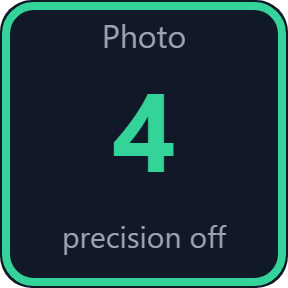
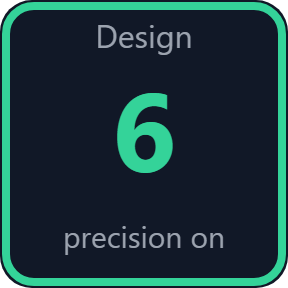
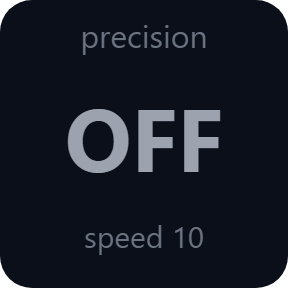
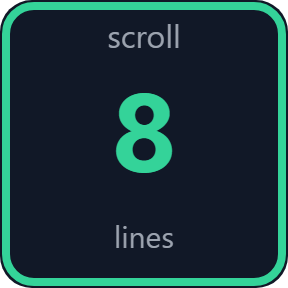
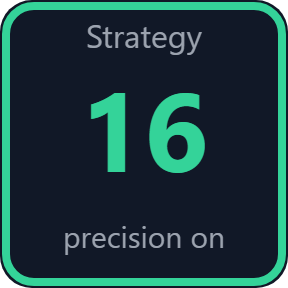
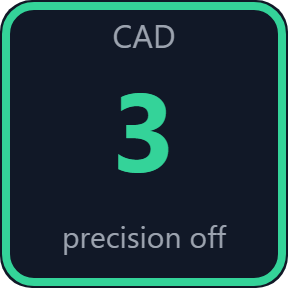
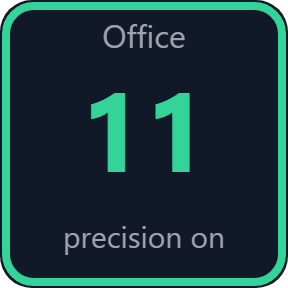
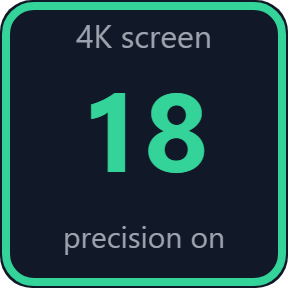
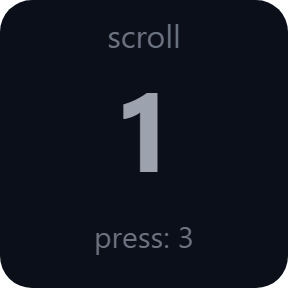
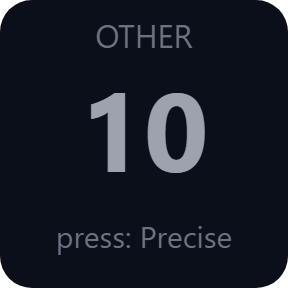
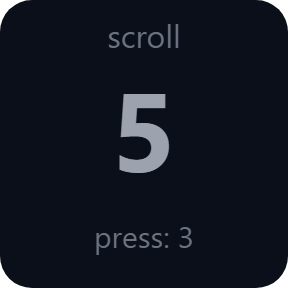
What the keys do
Two speeds on one key
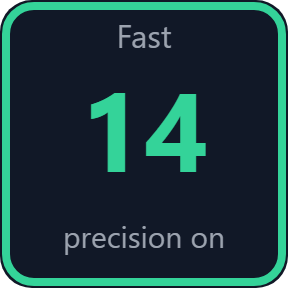
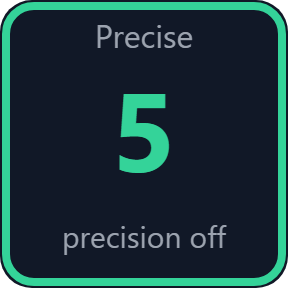
Give the Mouse Speed key two sets, each with a name, a speed from 1 to 20 and pointer precision on, off or left as it is. Each press goes to the other set. It starts with Precise (5, precision off) and Fast (14, precision on).
Always the real value
The key reads Windows every 2 seconds. When the speed or pointer precision was changed elsewhere and matches neither set, the key says OTHER and shows the number. The next press goes to your first set.
Pointer precision
A key for the Windows setting Enhance pointer precision (mouse acceleration). Press to turn it on or off. The key shows which it is.
Scroll lines
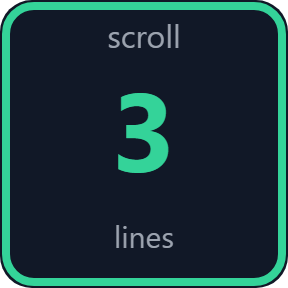
Switch the lines one wheel notch scrolls between two values, such as 3 and 8. Choose 1 to 20, 25, 30, 40, 50 or 100 lines.
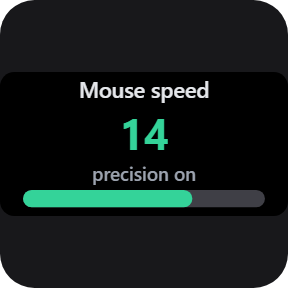
Speed dial for Stream Deck +
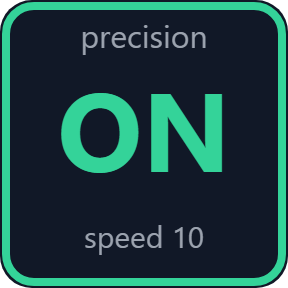
Turn for speed 1 to 20, one step per notch. Press for pointer precision. Touch the screen to go back to your speed, 10 unless you choose another.
Tells you when a change fails
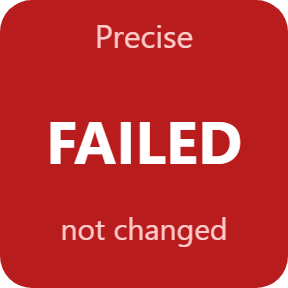
After each change the plugin reads the value back. If Windows refuses or the value does not stay, the key says so with an alert and shows the real value.
Name each speed for what you do
The key shows the name and the number, so you can see which speed you are on from across the desk. The key images on this page are the plugin's own output with sample names.
Pointer precision and scrolling
Turn mouse acceleration off for steady hand movement and on again for daily work. Set more scroll lines for long pages. Each key shows the value now in Windows.
The same settings as in Windows
The keys change the pointer speed, Enhance pointer precision and the scroll lines of Windows, and write them to your Windows user profile. You see the same values in Windows Settings.
The speed applies to the Windows pointer in your apps and in games that use the Windows cursor. It applies to every mouse on the PC, and the DPI of your mouse stays as it is.
No account is needed, and the plugin asks for no administrator rights.
Set up in 3 steps
- Open the plugin file you download after buying. The Stream Deck app installs it.
- In the Stream Deck app, drag a Mouse Speed key onto your Stream Deck.
- Enter your license key once in the key's settings to turn the keys on. In the same settings, choose your two speeds and name them.
Two places to buy
| Elgato Marketplace | Direct from GRAMSHIFT | |
|---|---|---|
| Amount | Same amount | Same amount, tax added at checkout |
| Checkout | Elgato Marketplace | Stripe (card) |
| New versions | Installed through the Stream Deck app | Download from your license key page |
| Use on | Your Elgato account | Up to 3 PCs per license key |
| Plugin display | English and Japanese | English and Japanese |
Requirements
- Windows 10 or later (see "How we checked it" below)
- Stream Deck app 6.9 or later
- A Stream Deck with keys (the speed dial needs Stream Deck +)
Questions
How do I change my mouse speed with a Stream Deck key?
Drag a Mouse Speed key onto your Stream Deck and choose two speeds in its settings. Each press switches the Windows pointer speed to the other one, and the key shows the name and the number.
What do the numbers mean?
They are the Windows pointer speed: 1 is the slowest, 20 is the fastest and 10 is the Windows default.
Does it change the DPI of my mouse?
No. It changes the Windows pointer speed, like the slider in Windows Settings. The DPI of the mouse stays as it is.
Does it work in games?
In games that use the Windows cursor, such as many strategy, MOBA, MMO and card games, the pointer follows this speed. Games that read the mouse directly (Raw Input), such as most FPS games, do not use it, so set the sensitivity inside the game. We have not tried it in individual games.
What does pointer precision do?
It is the Windows setting Enhance pointer precision, also called mouse acceleration. With it off, the same hand movement always moves the pointer the same distance. A set can turn it on or off, or leave it as it is.
Does the speed switch by itself when I open an app?
No. The speed changes when you press a key or turn the dial.
Does the speed stay after I restart the PC?
The plugin writes the change to your Windows user profile, the place Microsoft documents for a lasting setting. We have not restarted a PC after a change in our own checks.
My mouse software keeps changing the speed. What can I do?
Some mouse software sets the speed itself. The key then shows not applied, or the value goes back. Look for the pointer speed setting in that software and stop it from controlling the speed.
Does it need administrator rights?
The plugin asks for none. If Windows refuses a change, the key says so.
How many PCs can use one license key?
Up to 3 of your own PCs. If you replace a PC, contact us and we will free a place for the new one.
How do I install a new version after buying direct?
Download the latest version from your thank-you page or your license key page. Your license key keeps working. If you cannot open that page, email us as the "Recover your license key" page explains.
What if I lose my license key?
Email contact@gramshift.com from the address you paid with, with your order number or the date and amount you paid. We check the purchase and reply with a link to your license key page.
Can I get a refund?
Yes, when you buy direct. If it does not work on your PC, email us within 14 days of buying for a full refund. Your license key stops working after the refund.
Direct purchase: details, refunds and seller
- Price
- ¥780, the same amount as on the Elgato Marketplace. Tax for your country is added at checkout.
- Payment
- Handled by Stripe through Link, Stripe's checkout service. Link appears as the seller on your receipt and card statement, and your card number never reaches GRAMSHIFT.
- Delivery
- Your license key and download link appear right after payment, and the receipt arrives by email.
- Refunds
- If the plugin does not work on your PC, email us within 14 days of purchase for a full refund. You can also ask Link support. The license key stops working after a refund.
- License
- One key for your own use on up to 3 PCs.
- Countries
- The direct checkout is not offered in Ascension Island, China, Cuba, Iran, Kosovo, North Korea, Russia, Syria or Tristan da Cunha.
- Seller
- GRAMSHIFT, Tokyo, Japan. Contact: contact@gramshift.com
Limits
- Windows only, with your Stream Deck on the same PC. Mouse Speed, Pointer Precision and Scroll Lines go on keys, and the speed dial goes on Stream Deck + dials. None of them can go inside Multi Actions.
- The speed is one Windows setting for the whole PC: it applies to every mouse and every app, not to one app or one mouse.
- Games that read the mouse directly (Raw Input), such as most FPS games, do not use the Windows pointer speed.
- Mouse software that sets the pointer speed itself can put the value back. The key then shows not applied or the value that is really there.
- The keys do nothing until your license key is active, and they do not change your mouse settings. When the license ends (after a refund, for example), the keys stop and Windows keeps the last values; you can change them in Windows Settings.
- The plugin does not remember your speed from before the first press, and removing the plugin does not restore it: Windows keeps the last values. Note your current speed before the first press if you want to go back to it. You can change it in Windows Settings.
- Turning precision on sets the Windows default thresholds.
- How we checked it: this direct version ran on one Windows 11 PC (Japanese) under a test tool that stands in for the Stream Deck app, with a test activation server. Presses, dial turns and refused changes ran against a stand-in for the Windows mouse settings; on the real Windows the plugin only read the values, and they stayed the same.
- Not checked by us: a real Stream Deck device or the real Stream Deck app with this direct version, a real change of speed followed by moving the pointer, a restart of the PC, Windows 10, English Windows, high-DPI screens and individual games.
- The direct version checks your license key with our server when you activate it, each time the plugin starts, and about once a day while it runs. If it cannot reach the server, it keeps working for up to 44 days after the last successful check.
- If something does not work, email contact@gramshift.com and we will help.