Plugin for OpenDeck on Windows and Mac
Black out one monitor with a key on OpenDeck
Black out or dim the monitor you choose, turn every screen off, or count down to sleep or shutdown, each with one key press.
A side screen goes dark while you game, and an idle OLED monitor goes black by itself. The monitor stays powered, so the picture returns with a press or a double-click.
- Black out
- Dim
- Hide taskbar
- Screens off
- Sleep timer
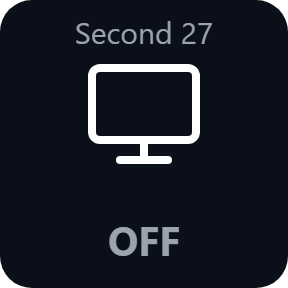
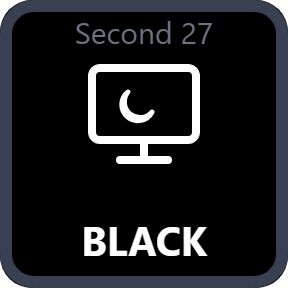
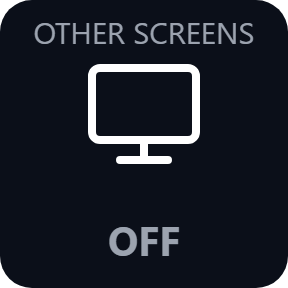
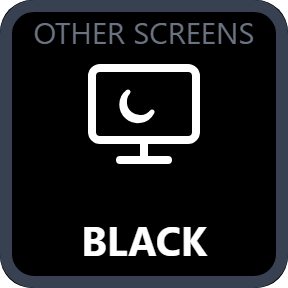
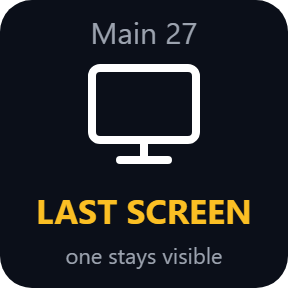
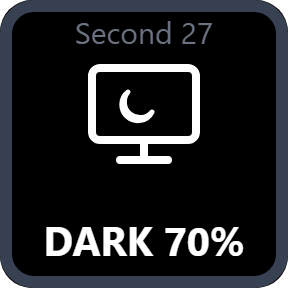
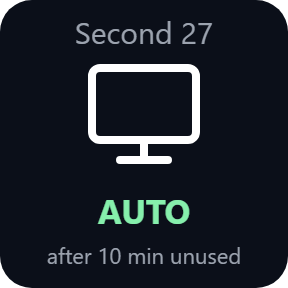
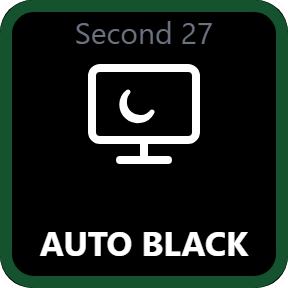


What the keys do
Blackout Monitor
Covers the monitor you pick by name, or every screen except the main one, with a black window. Press again, hold any Blackout key or double-click the black area to bring it back.
Darkness level
Choose 100% black, or a lighter 90% down to 30% that dims a screen while you can still see it.
Auto blackout
A monitor left unused for 1 minute to 1 hour goes fully black and returns when the mouse moves onto it. By default it waits while a full-screen game or video plays.
Hide Taskbar (Windows)
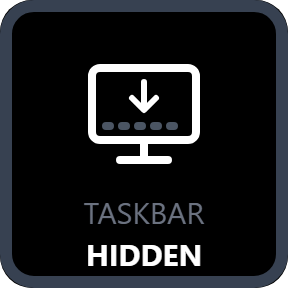
Turns the Windows taskbar auto-hide on or off, so it stays out of sight until you point at the screen edge. Desktop icons can hide too. The key shows SHOWN or HIDDEN.
Screens Off
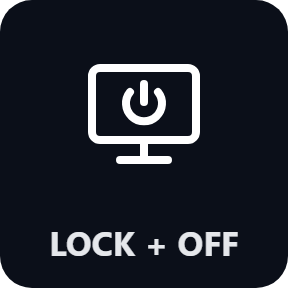
Turns every monitor off with one press, and on Windows can lock the PC first. Moving the mouse or pressing a key brings the screens back.
Sleep Timer
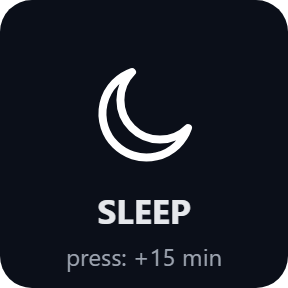
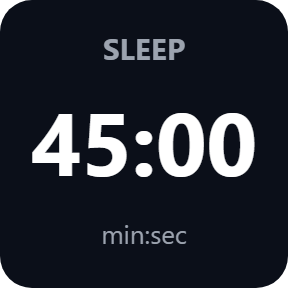
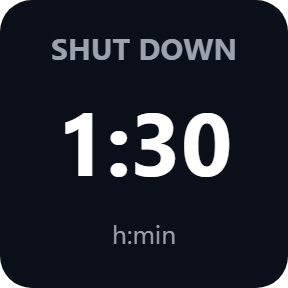
Each press adds time, or one press starts a fixed time. The key counts down and blinks in the last minute, and a hold cancels it. At zero it sleeps, shuts down or turns screens off, and on Windows can also hibernate or lock.
Install in OpenDeck
In OpenDeck, open the Plugins tab, install the .streamDeckPlugin file you downloaded, then enter your license key once in a key's settings.
Requirements
- Windows 10 or later, or macOS 13 or later
- OpenDeck 2.14 or later
- On Windows: Windows PowerShell 5.1 (built into Windows)
Questions
How do I black out one monitor with an Ajazz deck and OpenDeck?
Place the Blackout Monitor key in OpenDeck, pick the monitor in its settings and press it. The monitor is covered in black and stays powered. Press again, hold the key or double-click the black area to bring it back.
Can a deck key shut down my PC after an hour?
Yes. In the Sleep Timer settings, set At zero to Shut down and choose a fixed time of 1 hour. One press starts the countdown on the key, and holding the key cancels it.
Does it work on a Mac as well as Windows?
Yes, on macOS 13 or later. Blackout Monitor, auto blackout, Screens Off and Sleep Timer work as on Windows. Hide Taskbar, and Lock and Hibernate, are Windows only, and those keys say so on a Mac.
Purchase details, refunds and seller
- Price
- ¥780, paid once. Tax for your country is added at checkout.
- Payment
- Handled by Stripe through Link, Stripe's checkout service. Link appears as the seller on your receipt and card statement, and your card number never reaches GRAMSHIFT.
- Delivery
- Your license key and download link appear right after payment, and the receipt arrives by email.
- Countries
- The direct checkout is not offered in Ascension Island, China, Cuba, Iran, Kosovo, North Korea, Russia, Syria or Tristan da Cunha.
- Seller
- GRAMSHIFT, Tokyo, Japan. Contact: contact@gramshift.com
- Refunds
- If the plugin fails to run on your PC, email contact@gramshift.com within 14 days of purchase for a full refund. The license key stops working after a refund.
- License
- One key for your own use on up to 3 PCs.
Limits
- On a covered monitor, an exclusive full-screen game, the mouse pointer and system pop-ups can still show. Blackout Monitor always leaves one screen visible, so on a one-monitor computer use Screens Off.
- Auto blackout runs only while its key is shown, and a sleep or restart cancels a timer.
- The direct version checks its license key with our server when you activate it, at each plugin start and about once a day. If the server cannot be reached, it keeps running for up to 44 days after the last successful check.