Stream Deck plugin for Windows
See your SSD's health and temperature on a Stream Deck key
SSD Temp & Wear for Windows reads each drive's own SMART data and shows its health as Good, Caution or Bad, life left in %, the temperature with a graph, data written in TB and power-on hours.
For NVMe SSDs, SATA SSDs and hard drives.
No other monitoring software, no administrator rights, no account: drag a key and it shows your system drive (C:) right away. Press it for the next drive.
- Health and life left
- Temperature graph
- Your alert temperature
- Data written (TBW)
- Power-on hours
- Five looks
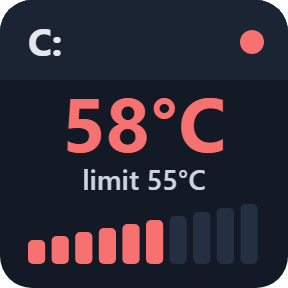
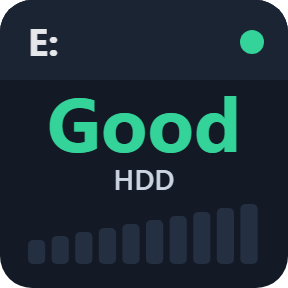
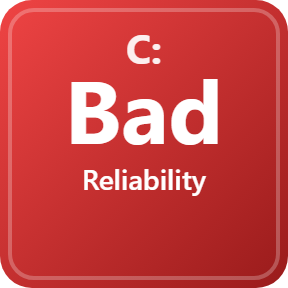
What the keys show
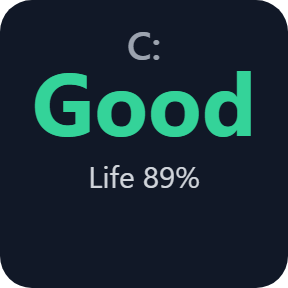
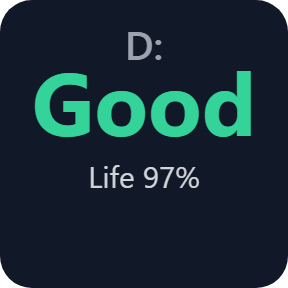
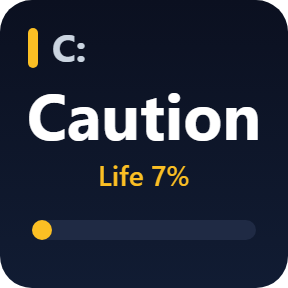
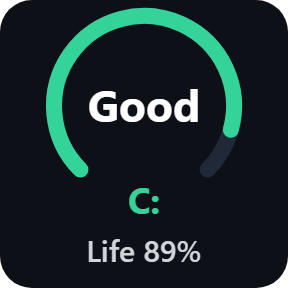
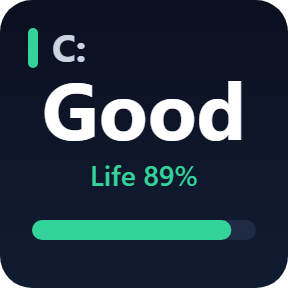
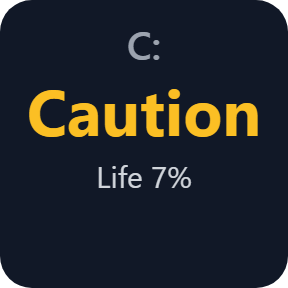
Drive Health
Good, Caution or Bad, with life left in % below. When a drive is not Good, the key says why, such as "Life 7%", "Spare low" or "Reallocated 3".
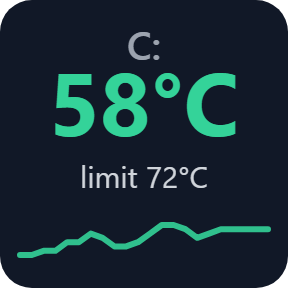
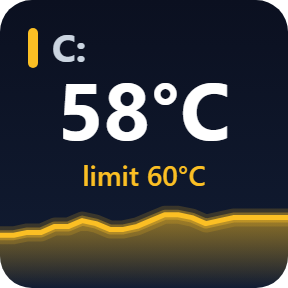
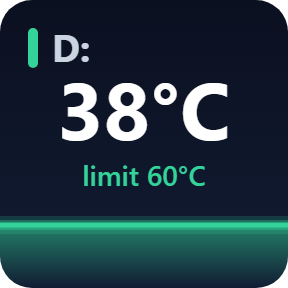
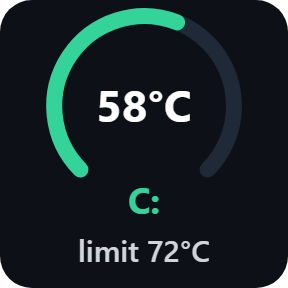
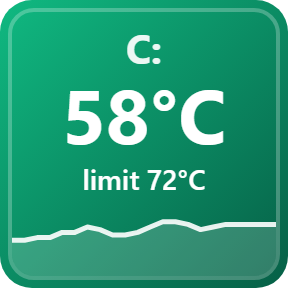
Drive Temperature
The live temperature with a short graph. Yellow 5 degrees before your alert temperature, red at it, plus one short alert on the key when it gets there.
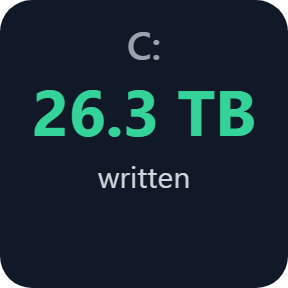
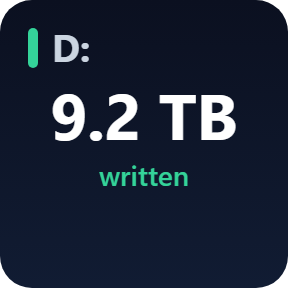
Data Written
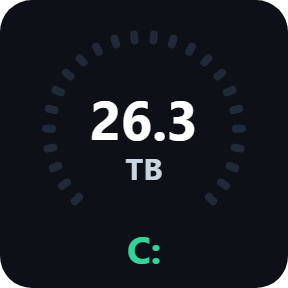
How much your PC has written to the SSD so far, in TB, to compare with the rated endurance (TBW) on the drive's data sheet.
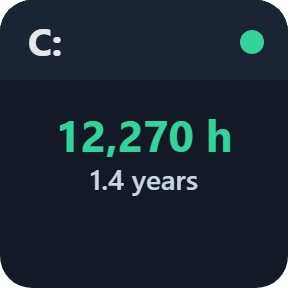
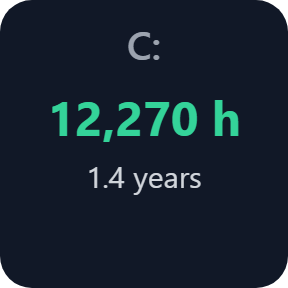
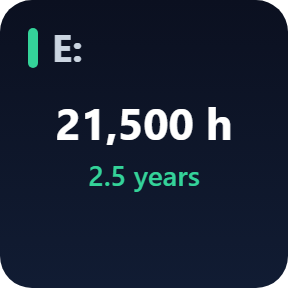
Power-On Hours
The drive's total running time, with days or years below.
Press for the next drive
A new key shows your system drive (C:). Press it for the next drive. Each key remembers its drive by its serial number.
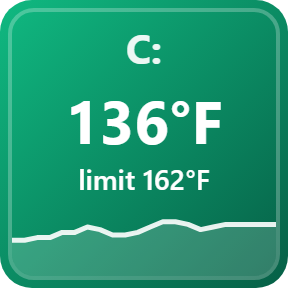
Your alert and unit
Use the drive's own temperature limit, or pick one from 50 to 80 degrees C, and show Celsius or Fahrenheit, for each key.
Choose your look
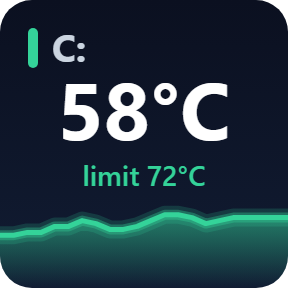
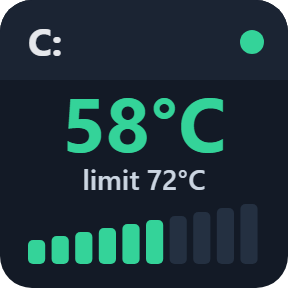
Pick a look in each key's settings: Classic, Neon, Ring, Bars or Solid. Every key shows the drive letter and its reading.
Know when to back up
Health is judged from life left, spare blocks, reallocated and pending sectors, and the warning the drive itself reports. When a drive is not Good, the key says why.
Light on your drives
Reads only the drives your keys show: NVMe SSDs every 10 seconds, SATA SSDs every 60 seconds, hard drives every 10 minutes. A hard drive that Windows has spun down is not woken up.
A drive that stops answering shows "no answer" instead of old values.
Your drive readings stay on your PC. The only thing that goes online is the license key check.
Set up in 3 steps
- Open the plugin file you download after buying. The Stream Deck app installs it.
- In the Stream Deck app, drag Drive Health, Drive Temperature, Data Written or Power-On Hours onto your Stream Deck and enter your license key once in its settings.
- The key shows your system drive (C:) right away. Press it for the next drive, and choose the alert temperature, unit and look in its settings.
Two places to buy
| Elgato Marketplace | Direct from GRAMSHIFT | |
|---|---|---|
| Amount | Same amount | Same amount, tax added at checkout |
| Checkout | Elgato Marketplace | Stripe (card) |
| New versions | Installed through the Stream Deck app | Download from your license key page |
| Use on | Your Elgato account | Up to 3 PCs per license key |
| Settings | English and Japanese | English and Japanese |
Requirements
- Windows 10 or later
- Stream Deck app 6.9 or later
- No other monitoring software, administrator rights or account
Questions
Can Stream Deck show my SSD temperature?
Yes. Add a Drive Temperature key of SSD Temp & Wear for Windows: it shows the drive temperature with a graph, turns yellow 5 degrees before your alert temperature and red at it.
How do I check SSD health on Stream Deck?
Add a Drive Health key. It shows Good, Caution or Bad and the life left in %, from the drive's own SMART data.
What should I do on Caution or Bad?
Back up your data. Caution means life left is 10% or less, the spare blocks are at the drive's limit, or a hard drive has reallocated, pending or unreadable sectors. Bad means the drive itself warns of failure, the spare blocks of an NVMe SSD fell below its limit, or the life left of a SATA SSD reached 0%.
Do I need other monitoring software or admin rights?
No. The plugin reads the drive data from Windows as a normal user, so nothing else has to run.
Which drives does it show?
NVMe SSDs (M.2), SATA SSDs and SATA hard drives inside your PC. Press a key for the next drive; each key remembers its drive by its serial number.
How many PCs can I use with one license key?
Up to 3 of your own PCs. If you replace a PC, write to us and we free up a place for the new one.
How do I get new versions if I buy direct?
Download the latest version from your thank-you page or the license key page you received. Your license key keeps working. If you cannot open your license key page, email us as the "Recover your license key" page explains.
What if I lose my license key?
Email contact@gramshift.com from the address you paid with, and include your order number, or the date and amount you paid. We check the purchase and reply with a link to your license key page.
Can I get a refund?
Yes, for a direct purchase. If the plugin does not work on your PC, email us within 14 days of purchase and we refund the full amount. The license key stops working after the refund.
Direct purchase: details, refunds and seller
- Price
- ¥780, the same amount as on the Elgato Marketplace. Tax for your country is added at checkout.
- Payment
- Handled by Stripe through Link, Stripe's checkout service. Link appears as the seller on your receipt and card statement, and your card number never reaches GRAMSHIFT.
- Delivery
- Your license key and download link appear right after payment, and the receipt arrives by email.
- Refunds
- If the plugin does not work on your PC, email us within 14 days of purchase for a full refund. You can also ask Link support. The license key stops working after a refund.
- License
- One key for your own use on up to 3 PCs.
- Countries
- The direct checkout is not offered in Ascension Island, China, Cuba, Iran, Kosovo, North Korea, Russia, Syria or Tristan da Cunha.
- Seller
- GRAMSHIFT, Tokyo, Japan. Contact: contact@gramshift.com
Limits
- Windows only.
- USB enclosures and USB sticks: Windows shares their drive data with administrator tools only, so the keys show "USB: n/a".
- Life left on SATA SSDs is read the way each maker reports it. WD and SanDisk SATA SSDs, and SATA SSDs of makers the plugin does not recognize, show "--" for life left; their temperature, hours and the drive's own warning still show.
- Data written on SATA SSDs is shown for Samsung, Crucial/Micron and Intel, which report it in a standard unit; other SATA SSDs show "--" on that key.
- Drives behind a RAID controller or a maker's own storage driver may show "--".
- A drive that reports no serial number, or the same one as another drive, is told apart by its disk number, which Windows can change after a restart. Its key may then show another drive: press it or pick the drive again.
- The direct version checks its license key with our server when you activate it, each time the plugin starts, and about once a day while it runs. If it cannot reach the server, it keeps working for up to 44 days after the last successful check.
- If something does not work, email contact@gramshift.com and we will help.