Corsair Galleon 100 SD profile for Windows
Blender on your Corsair Galleon 100 SD
Yes, Vertex Deck is a Blender profile for the Corsair Galleon 100 SD.
It puts view, object, mesh, sculpt, UV, animation, rig and node keys on the display keys, and its two dials hold Orbit, Tilt, Zoom and Undo / Redo on two layers.
The keys are laid out for the Galleon 100 SD's display keys over ten pages: View, Object, Edit Mesh, Sculpt, UV Editor, Dope Sheet, Graph Editor, Rig, Nodes and File & Window, with Previous and Next page keys. Each page has a More key that opens the rest of that page's keys. The keys send Blender's default shortcuts.
- Ten pages for the display keys
- Two dials, two layers
- Edit Mesh, Sculpt and UV Editor
- Dope Sheet, Graph Editor and nodes
- English labels
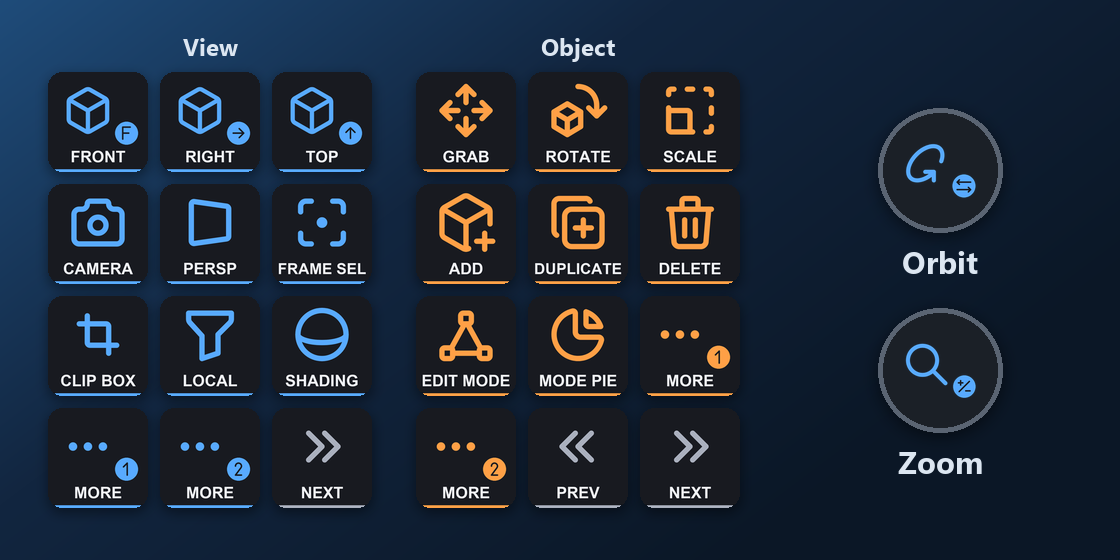
What is on each Galleon 100 SD page?
The profile has ten pages for the display keys. The bottom-right keys turn the pages: Next page on View, Previous and Next page on the pages between, and Previous page on File & Window.
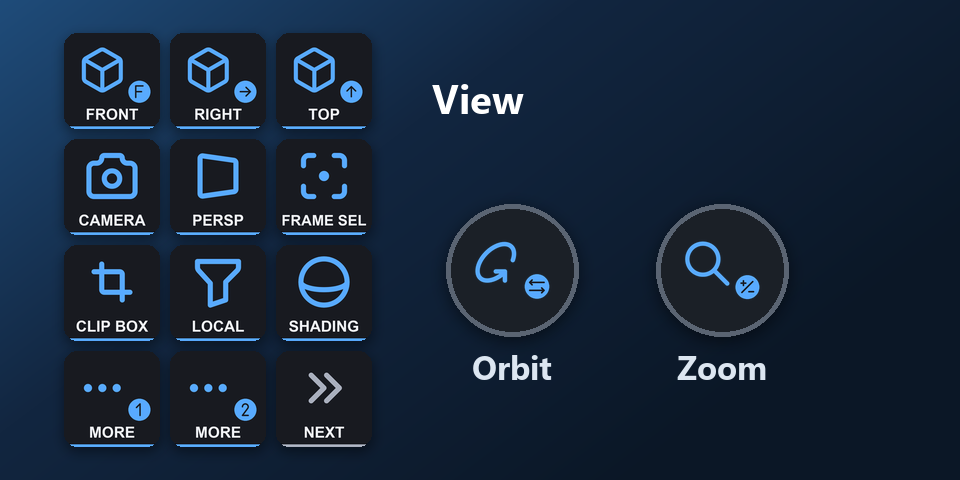
View
Numpad views, orbit, zoom, local view, shading, X-ray.
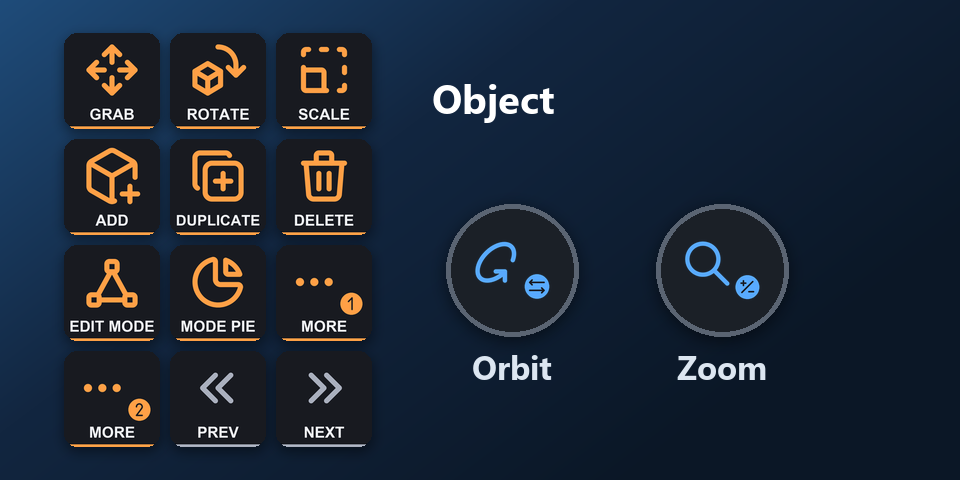
Object
Move, rotate, scale, add, duplicate, join, parent, apply.
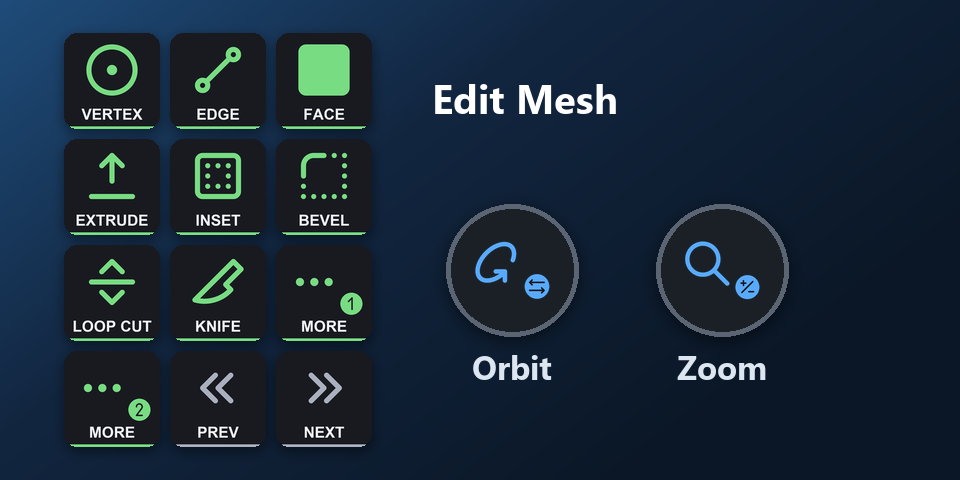
Edit Mesh
Vertex, edge, face, extrude, inset, bevel, loop cut, knife, merge.
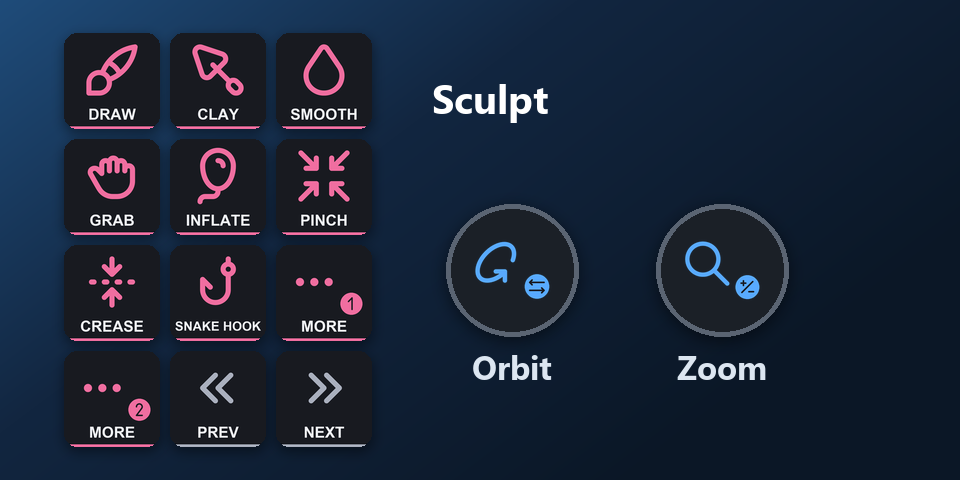
Sculpt
Size, strength, masks, face sets.
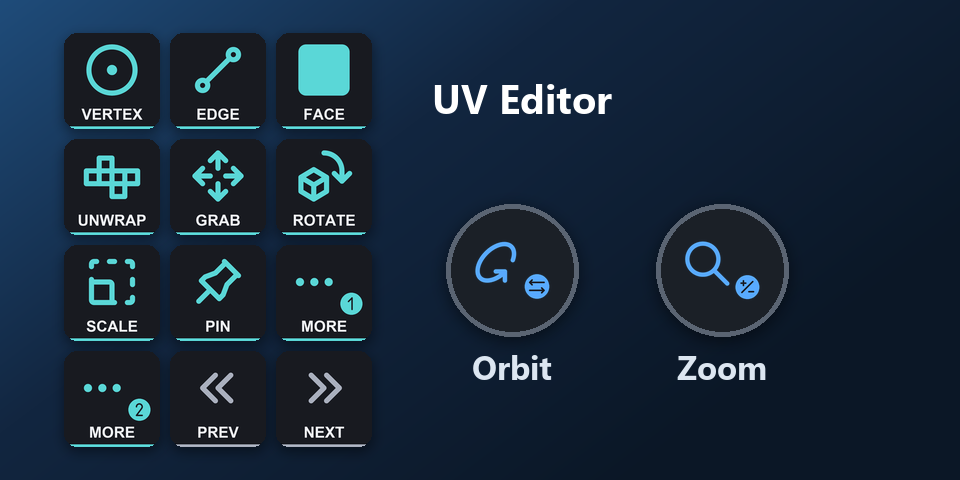
UV Editor
Unwrap, pin, stitch, seams, align.
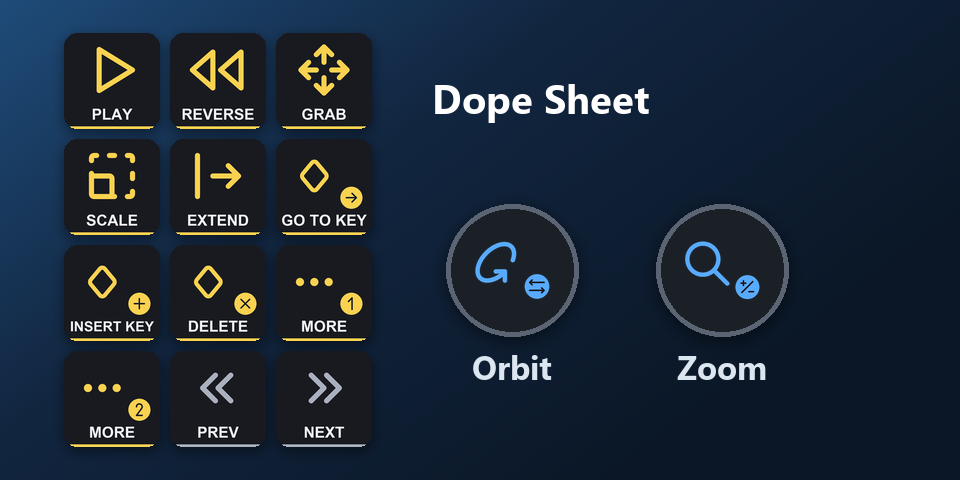
Dope Sheet
Play, keys, interpolation, easing, markers.
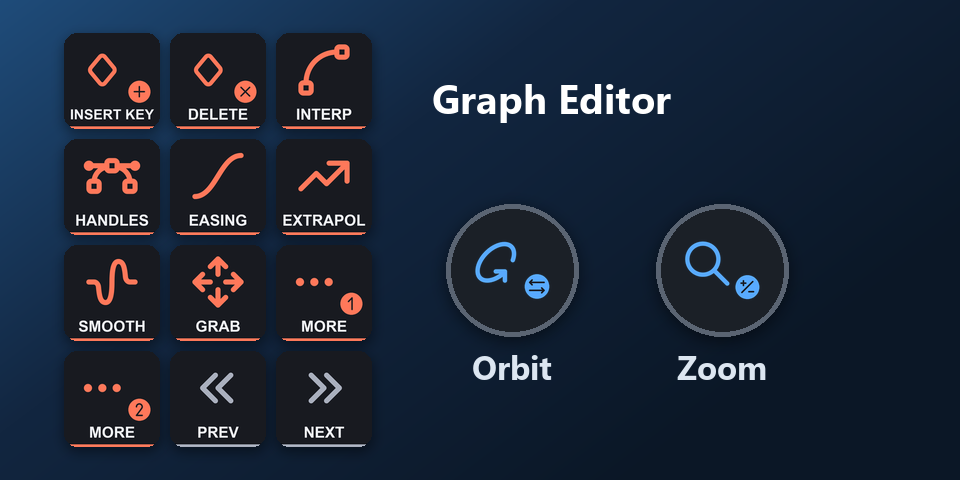
Graph Editor
Keys, interpolation, handles, easing, F-curve modifier.
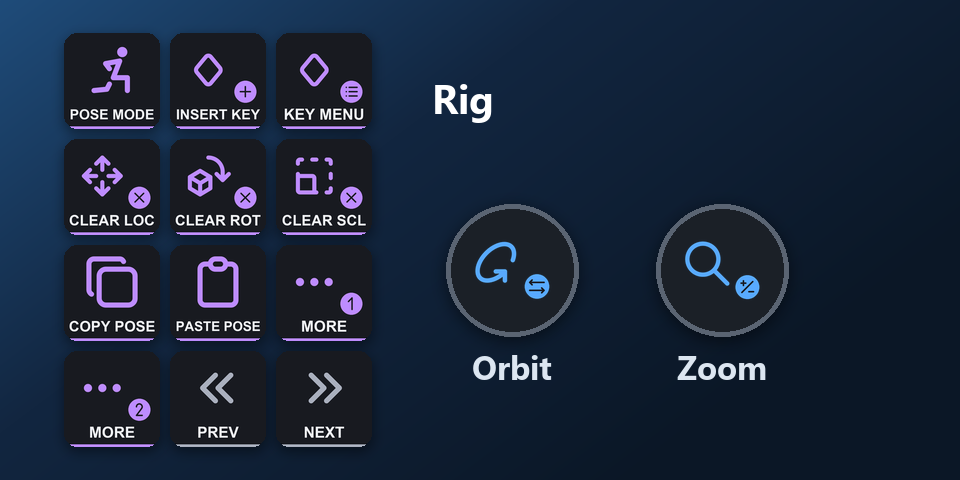
Rig
Copy and paste pose, IK, push, relax, bone roll.
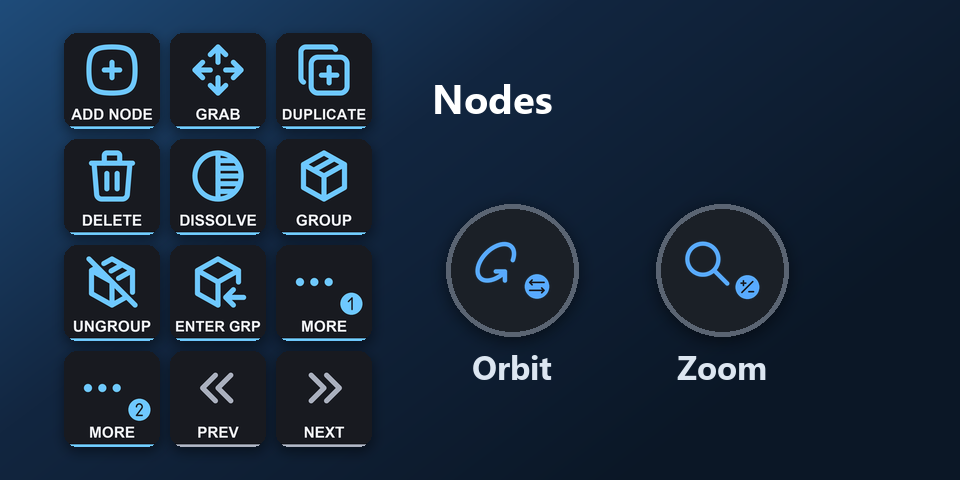
Nodes
Add, group, mute, links, frames.
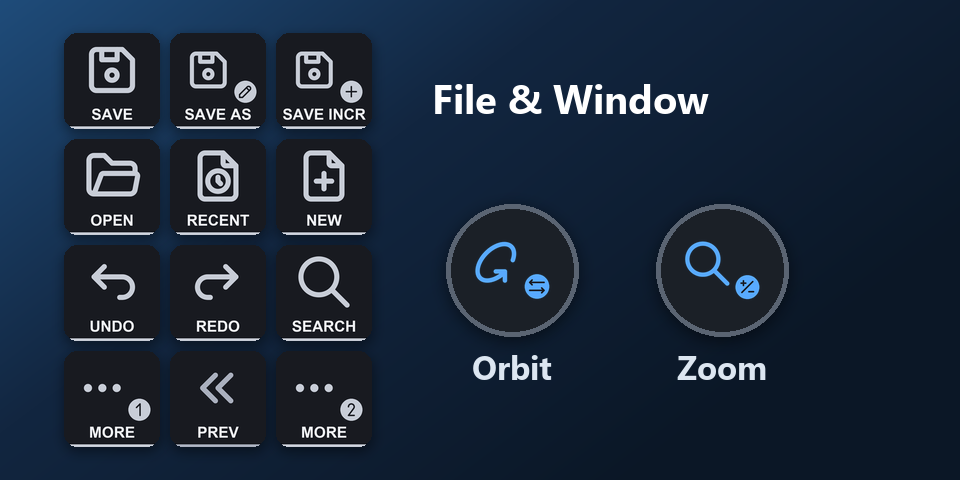
File & Window
Save, render, undo, search, editor switching.
What do the Galleon 100 SD dials do?
Left dial: Orbit and Tilt
On the first layer, turn it to orbit the view left or right. Press it to go to the front view. On the second layer, turn it to orbit the view down or up. Press it to switch between perspective and orthographic.
Right dial: Zoom and Undo / Redo
On the first layer, turn it to zoom out or in. Press it to frame the selection. On the second layer, turn it to undo or redo. Press it to save.
Both dials do the same on every page, so they work while any page is on the keys.
How do I set it up on the Galleon 100 SD?
- Buy, then download and unzip the file.
- With the Galleon 100 SD connected, double-click "Vertex Deck - Blender shortcuts, Corsair Galleon 100 SD (Windows).streamDeckProfile". The Stream Deck app imports it.
- Select the profile for the Galleon 100 SD in the Stream Deck app, open Blender and press a key.
Requirements
- Windows 10 or later
- Corsair Galleon 100 SD
- The free Stream Deck app, where the Galleon 100 SD's display keys and dials are set up
- Blender with its default keymap and Emulate Numpad off
Questions about the Galleon 100 SD
Is there a Blender profile for the Corsair Galleon 100 SD?
Yes. Vertex Deck includes a profile laid out for the Galleon 100 SD: ten pages on the display keys (View, Object, Edit Mesh, Sculpt, UV Editor, Dope Sheet, Graph Editor, Rig, Nodes and File & Window) and two dials with two layers (Orbit, Tilt, Zoom and Undo / Redo). Import it in the Stream Deck app.
How do I set up Blender shortcuts on the Galleon 100 SD?
Double-click the Galleon 100 SD profile file in the download and the Stream Deck app imports it. Select it for the Galleon 100 SD, open Blender and press a key. The keys already match Blender's default shortcuts.
What do the Galleon 100 SD dials do in Blender?
Left dial: Orbit and Tilt. On the first layer, turn it to orbit the view left or right. Press it to go to the front view. On the second layer, turn it to orbit the view down or up. Press it to switch between perspective and orthographic. Right dial: Zoom and Undo / Redo. On the first layer, turn it to zoom out or in. Press it to frame the selection. On the second layer, turn it to undo or redo. Press it to save.
How do I change pages on the Galleon 100 SD?
Press the Next page or Previous page key at the bottom right of the keys. View leads to Object, Edit Mesh, Sculpt, UV Editor, Dope Sheet, Graph Editor, Rig, Nodes and File & Window.
Do I need to buy it again for another Stream Deck?
No. The same download holds profiles for the Corsair Galleon 100 SD and Stream Deck + XL on Windows, and Stream Deck MK.2, XL, Neo and + on Windows and Mac.
Direct purchase details
- Price
- ¥2,400. Tax for your country is added at checkout.
- Payment
- Handled by Stripe through Link, Stripe's checkout service. Link appears as the seller on your receipt and card statement, and your card number never reaches GRAMSHIFT.
- Delivery
- A download link appears right after payment, and the receipt arrives by email. You get the profile files and a README.
- Refunds
- If the profile does not work with your Stream Deck and Blender, email us within 14 days of purchase for a full refund. You can also ask Link support. The download closes after a refund.
- Use
- For your own use. Please do not share, resell or upload the file.
- Countries
- The direct checkout is not offered in Ascension Island, China, Cuba, Iran, Kosovo, North Korea, Russia, Syria or Tristan da Cunha.
- Seller
- GRAMSHIFT, Tokyo, Japan. Contact: contact@gramshift.com
More about Vertex Deck
- All models and details of Vertex Deck
- See this profile for Stream Deck + XL
- More Corsair Galleon 100 SD game and app profiles
Limitations
- The Corsair Galleon 100 SD profile is for Blender on Windows.
- Made for Blender's default keymap ("Blender" keymap, Left click select, Spacebar Action: Play). With another keymap such as Industry Compatible, or after you change a shortcut, a key may not match: edit that key's Hotkey in the Stream Deck app.
- Keep Emulate Numpad off in Blender's preferences. With it on, the digit keys (vertex, edge and face select, for example) act as numpad views.
- Shortcuts on symbol keys (such as period, comma and brackets), and on Home, End, Page Up, Page Down, the arrow keys and the Delete key are not included, for example frame stepping with the arrow keys. The DELETE keys on the deck send X.
- A key acts on the editor under the mouse pointer, and the same shortcut does different things in different editors and modes. Keys of the Object, Edit Mesh, Sculpt and Rig pages are made for that mode. In another mode the same shortcut can run a different command (Inset's I inserts a keyframe in Object Mode), so check the mode first. Ctrl+Z undoes it. A popup such as the splash screen takes the keys until it closes.
- Made for US and Japanese keyboard layouts. German and French layouts may move letter keys. If a key does not act as labeled, email contact@gramshift.com and we will help.
- Key labels are in English.