OpenDeck plugin for Windows
VRChat Camera Controls on Ajazz and Mirabox with OpenDeck
On an Ajazz or Mirabox deck with OpenDeck, keys control the VRChat camera: take a photo, shoot with the 5-second timer, switch the camera mode, and step zoom, exposure, focus and aperture while you shoot.
VRChat saves each photo like one taken from its own menu. Turn on OSC in VRChat once, open the camera, and the keys do the rest; each key shows the current value with a bar.
- Photo and timer shot
- Camera modes
- Zoom and exposure
- Focus and aperture
- Close camera




What the keys do
Take Photo
Take a photo with the VRChat camera at one press. VRChat saves it like a photo taken from its own menu.
Timer Photo
Take a photo with VRChat's 5-second timer. The key counts down the seconds, so you can get into the shot.
Camera Mode
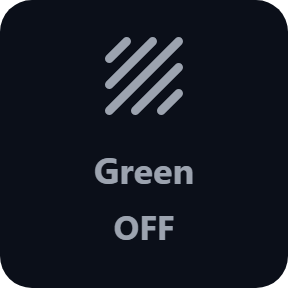
Switch the camera to Photo, Stream, Multilayer, Drone, Emoji or Print. The key lights up while its mode is on, so you see which one is active.
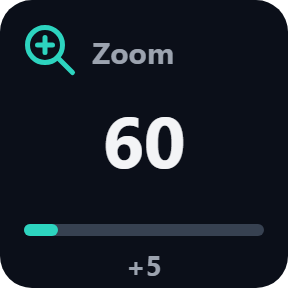
Zoom
Each press steps the zoom up or down, or resets it. The key shows the value with a bar.
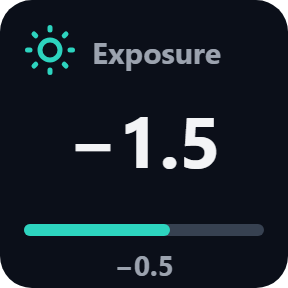
Exposure
Make the picture brighter or darker in steps you choose, or reset it to 0.
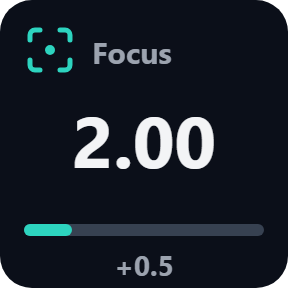
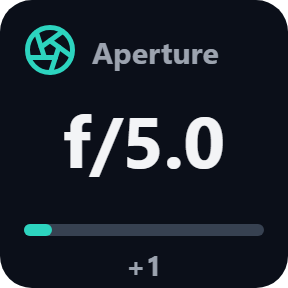
Focus and Aperture
Step the focal distance and the aperture for a soft background. Fly speed, turn speed and smoothing work the same way.
Install in OpenDeck
In OpenDeck, open the Plugins tab, install the .streamDeckPlugin file you downloaded, then enter your license key once in a key's settings.
Requirements
- Windows 10 or later
- VRChat on PC with OSC turned on (Action Menu, Options, OSC, Enabled)
- OpenDeck 2.14 or later
Questions
How do I control the VRChat camera from an Ajazz or Mirabox deck with OpenDeck?
Turn on OSC in VRChat, open the camera from VRChat's own menu, and place the camera keys in OpenDeck. Take Photo, Timer Photo, Zoom, Exposure and Focus keys then work on the VRChat camera.
Can a key open the VRChat camera for me?
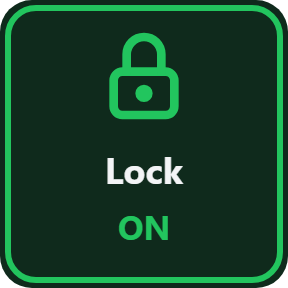
No. Open the camera from VRChat's own menu first. While the camera is closed, the keys show Open camera and send nothing.
Which VRChat camera modes can I switch?
Photo, Stream, Multilayer, Drone, Emoji and Print. Emoji and Print modes need VRChat+.
Purchase details, refunds and seller
- Price
- ¥980, paid once. Tax for your country is added at checkout.
- Payment
- Handled by Stripe through Link, Stripe's checkout service. Link appears as the seller on your receipt and card statement, and your card number never reaches GRAMSHIFT.
- Delivery
- Your license key and download link appear right after payment, and the receipt arrives by email.
- Countries
- Checkout is not offered in Ascension Island, China, Cuba, Iran, Kosovo, North Korea, Russia, Syria or Tristan da Cunha.
- Seller
- GRAMSHIFT, Tokyo, Japan. Contact: contact@gramshift.com
- Refunds
- If the plugin fails to run on your PC, email contact@gramshift.com within 14 days of purchase for a full refund. The license key stops working after a refund.
- License
- One key for your own use on up to 3 PCs.
Limits
- Windows only. Needs VRChat on PC with OSC turned on in VRChat (Action Menu, Options, OSC, Enabled).
- Open the camera from VRChat's own menu first: no key can open it. Emoji and Print modes need VRChat+.
- Values stay inside the range the VRChat camera accepts: for example, zoom stops at 20 and 300, and exposure at -10 and 4. If a key cannot reach VRChat, the Status line in its settings says why.
- The direct version checks its license key with our server when you activate it, at each plugin start and about once a day. If the server cannot be reached, it keeps running for up to 44 days after the last successful check.