Stream Deck plugin for VRChat on Windows
Control the VRChat camera from your Stream Deck keys
Take photos, zoom, set exposure and switch camera modes from your Stream Deck keys, without opening menus in VRChat.
Camera Deck for VRChat is a Stream Deck plugin for people who shoot with the VRChat photo or stream camera: each key does one camera action and shows its current state.
Switch between Photo, Stream, Multilayer and Drone, take a photo or a 5-second timer photo, close the camera, turn green screen, lock or show focus on and off, and step zoom, exposure, focal distance and aperture up or down. On Stream Deck +, turn a dial to change a value and push it to go back to the default.
- Photo and Stream modes
- Take photo
- 5-second timer
- Zoom and exposure
- Green screen
- Stream Deck + dials


What the keys do
Camera Mode
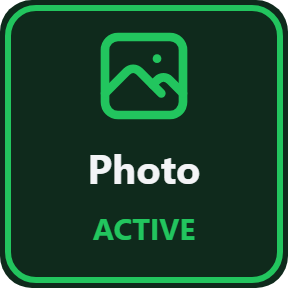
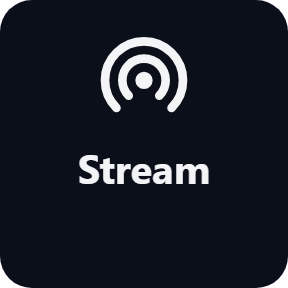
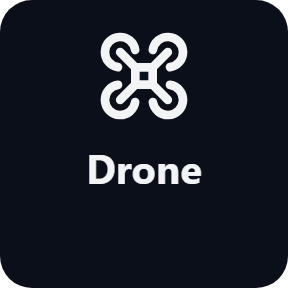
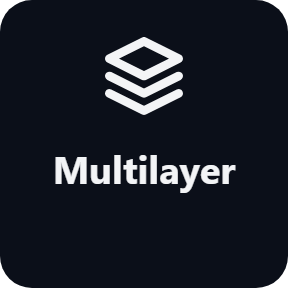
Switch the camera to Photo, Stream, Multilayer, Drone, Emoji or Print. The key lights up while its mode is on, so you see which one is active.
Take Photo
Take a photo with the VRChat camera at one press. VRChat saves it like a photo taken from its own menu.
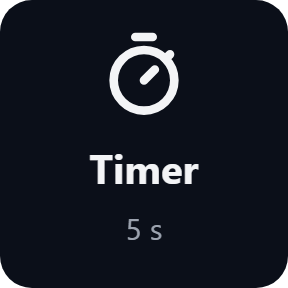
Timer Photo
Take a photo with VRChat's 5-second timer. The key counts down the seconds, so you can get into the shot.
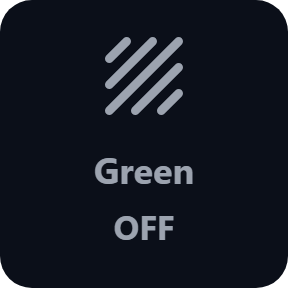
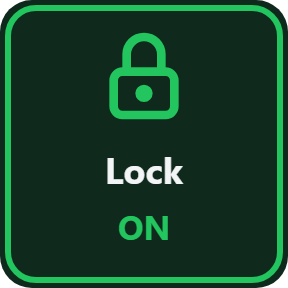
Camera Setting On/Off
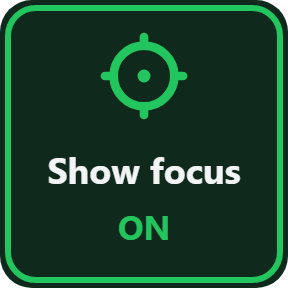
Turn one camera setting on or off: green screen, lock, landscape, show focus, flying, look at me, show me or other players, and more. The key shows ON or OFF.
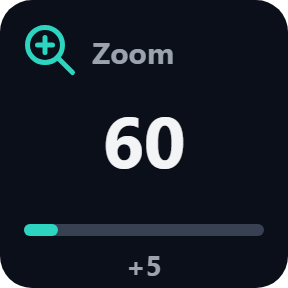
Zoom
Each press steps the zoom up or down, or resets it. The key shows the value with a bar.
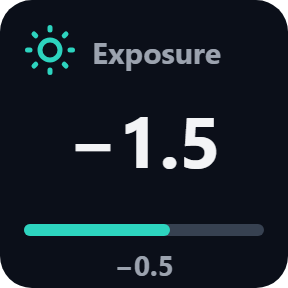
Exposure
Make the picture brighter or darker in steps you choose, or reset it to 0.
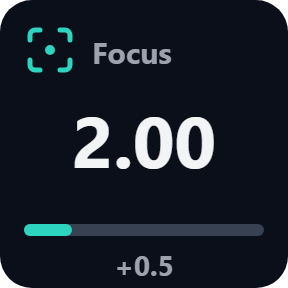
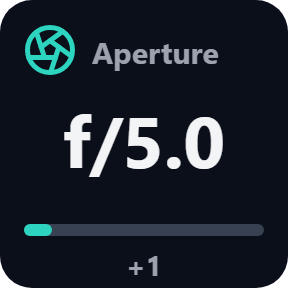
Focus and Aperture
Step the focal distance and the aperture for a soft background. Fly speed, turn speed and smoothing work the same way.
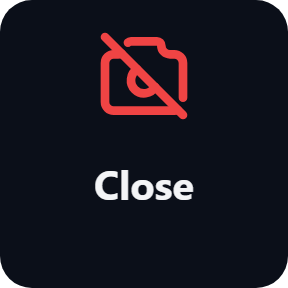
Close Camera
Close the camera when you are done, without reaching for the menu.
Choose what each key changes
In each Camera Value key's settings, pick the value, whether a press steps it up, steps it down or resets it, and your own step size.
Keys that show the camera's state
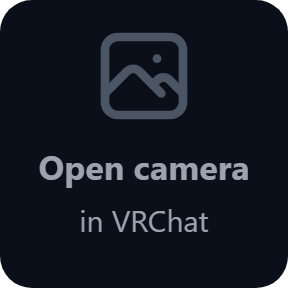
The keys show what VRChat reports right now: the active mode, settings ON or OFF, the current values, and the seconds left on the timer. While the camera is closed, the keys wait and show Open camera.
Keys instead of menus, and VRChat found by itself
Shoot with your hands on the keys: each press does one camera action, so there is no menu to open while you frame the shot.
The plugin finds VRChat on your PC by itself. While the camera is closed, the keys show Open camera and a press sends nothing, so the camera settings stay as you left them.
Your photos and camera settings stay in VRChat on your PC. The only thing that goes online is the license key check.
Set up in 3 steps
- Open the plugin file you download after buying. The Stream Deck app installs it.
- In the Stream Deck app, drag the keys you want onto your Stream Deck and enter your license key once in a key's settings.
- Start VRChat, turn on OSC in VRChat (Action Menu → Options → OSC → Enabled) and open the camera. The keys find VRChat by themselves.
Requirements
- Windows 10 or later
- Stream Deck app 6.9 or later
- VRChat on PC with OSC turned on
Questions
How do I control the VRChat camera from a Stream Deck?
Install Camera Deck for VRChat, drag the keys you want onto your Stream Deck and enter your license key once. Start VRChat, turn on OSC in VRChat (Action Menu → Options → OSC → Enabled) and open the camera. The keys find VRChat by themselves.
Can I change zoom and exposure without opening the camera menu?
Yes. A Camera Value key steps zoom, exposure, focal distance, aperture, fly speed, turn speed or smoothing up or down, or resets it. On Stream Deck +, turn a dial to change the value and push or touch it to reset; the touch strip shows a bar.
Why do the keys say Open camera?
The camera is closed in VRChat. Open the camera from VRChat's own menu; the keys work while it is open. No key can open the camera, and while it is closed the keys send nothing.
Why do the keys say VRChat not found?
VRChat is not running, or OSC is off. Start VRChat and turn on OSC in VRChat (Action Menu → Options → OSC → Enabled). The Status line in a key's settings says what is missing.
How many PCs can I use with one license key?
Up to 3 of your own PCs. If you replace a PC, write to us and we free up a place for the new one.
How do I get new versions?
Download the latest version from your thank-you page or the license key page you received. Your license key keeps working. If you cannot open your license key page, email us as the "Recover your license key" page explains.
What if I lose my license key?
Email contact@gramshift.com from the address you paid with, and include your order number, or the date and amount you paid. We check the purchase and reply with a link to your license key page.
Can I get a refund?
Yes. If the plugin does not work on your PC or with your VRChat, email us within 14 days of purchase and we refund the full amount. The license key stops working after the refund.
Direct purchase: details, refunds and seller
- Price
- ¥980, paid once. Any tax for your country is shown at checkout.
- Payment
- Handled by Stripe through Link, Stripe's checkout service. Link appears as the seller on your receipt and card statement, and your card number never reaches GRAMSHIFT.
- Delivery
- Your license key and download link appear right after payment, and the receipt arrives by email.
- Refunds
- If the plugin does not work on your PC or with your VRChat, email us within 14 days of purchase for a full refund. You can also ask Link support. The license key stops working after a refund.
- License
- One key for your own use on up to 3 PCs.
- Countries
- Checkout is not offered in Ascension Island, China, Cuba, Iran, Kosovo, North Korea, Russia, Syria or Tristan da Cunha.
- Seller
- GRAMSHIFT, Tokyo, Japan. Contact: contact@gramshift.com
Limits
- Windows only. Needs VRChat on PC with OSC turned on in VRChat (Action Menu → Options → OSC → Enabled).
- Open the camera from VRChat's own menu first: no key can open it. While the camera is closed, the keys show Open camera and send nothing.
- Emoji and Print modes need VRChat+.
- Values stay inside the range the VRChat camera accepts: for example, zoom stops at 20 and 300, and exposure at -10 and 4.
- If a key cannot reach VRChat, the Status line in its settings says why. If your firewall asks, let Stream Deck use the local network.
- This version checks its license key with our server when you activate it, each time the plugin starts, and about once a day while it runs. If it cannot reach the server, it keeps working for up to 44 days after the last successful check.
- If something does not work, email contact@gramshift.com and we will help.