Stream Deck plugin for Windows
Put your window in its place with one key
Window Position Keys snaps the window in front to a half, a third, a quarter, the center or full size with one Stream Deck key on Windows. Press it again and the window goes back to where it was, at its old size.
A key can also move one program you choose, even when it is behind other windows or minimized, and the window you work in stays in front. Other keys set an exact position and size, or send the window to your next screen.
- Halves, thirds, quarters
- Press again to put it back
- A program you choose
- Exact position and size
- Next screen
- 4 looks
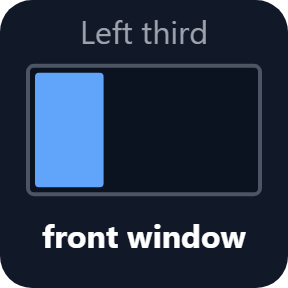
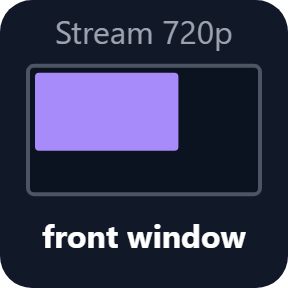
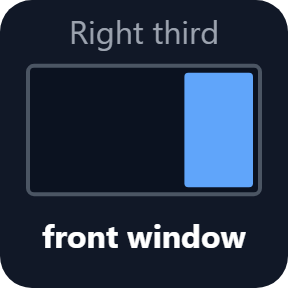
What the keys do
15 places on your screen
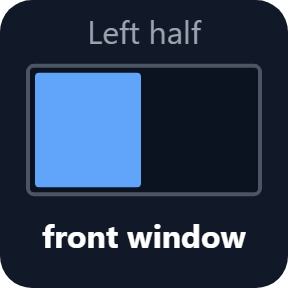
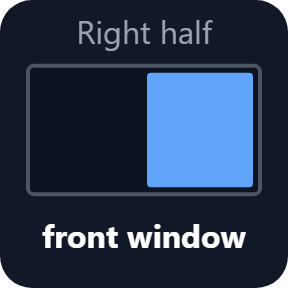
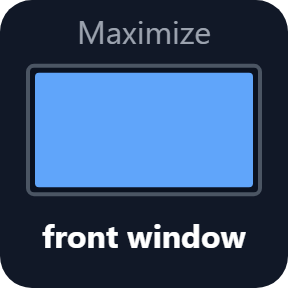
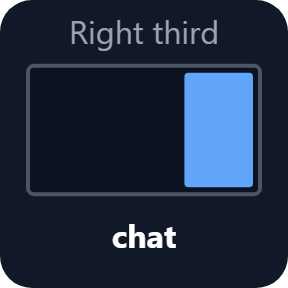
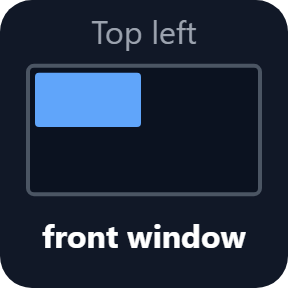
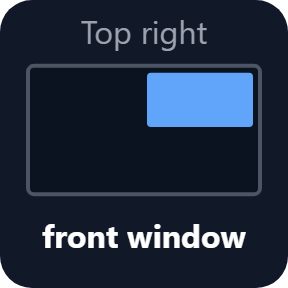
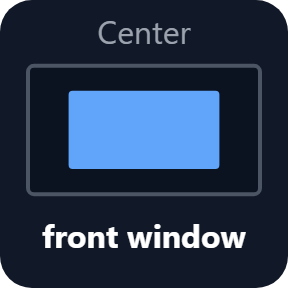
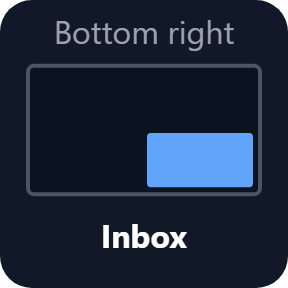
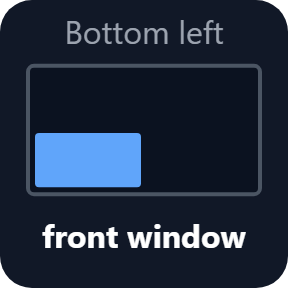
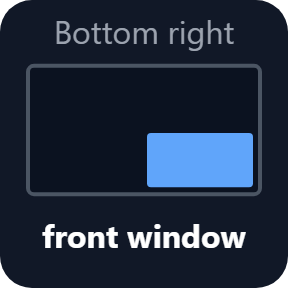
Pick one per key: four halves, three thirds, two two-thirds, four quarters, the center and maximize. The center can keep the window's own size or use 50 to 90% of the screen. The part of the window you see fills the place, on the screen without the taskbar, so windows line up edge to edge. You can add a small or large gap.
Press again to put it back
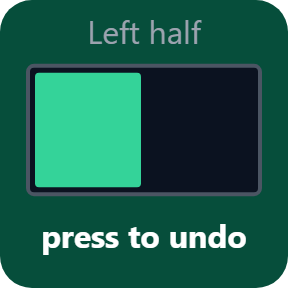
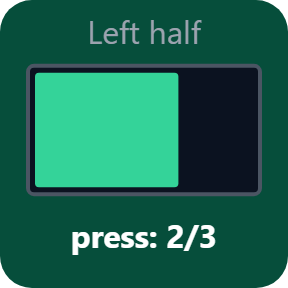
While the window is still where the key put it, the next press returns it to its old position and size, maximized or minimized too. The map on the key turns green to show it. On a half, the next press can instead step through 2/3 and 1/3.
Move a program that is not in front
Set a key to a program, and to words from its title if you like. The key moves that window even when it is behind other windows or minimized, without bringing it to the front.
An exact position and size
Custom Position places the window in percent of the screen or in pixels, like 1280 x 720 for a capture window. If the size does not fit the screen, the window is fitted inside it. You can put your own name on the key.
Send it to the next screen
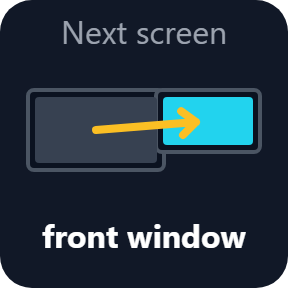
Next Screen sends the window to the next or previous screen at the same share of it: a left half stays a left half, and a maximized window is maximized there.
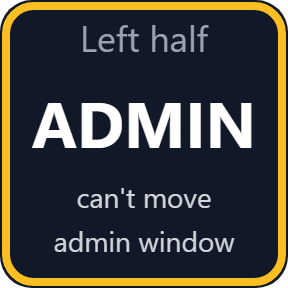
Tells you what happened
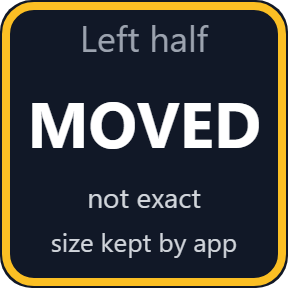
After each press the plugin reads the window again and the key says so when it could not go exactly there: ADMIN for a window of a program running as administrator, MOVED for a program with its own minimum size, FULLSCREEN when it was left as it is.
Choose the look of each key
Each key can show a small map of the place, or use another look. The key images on this page are the plugin's own output, with sample programs and names.
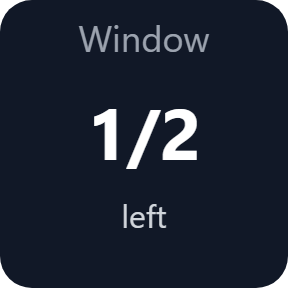
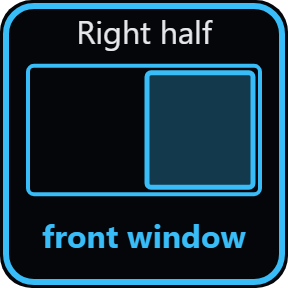
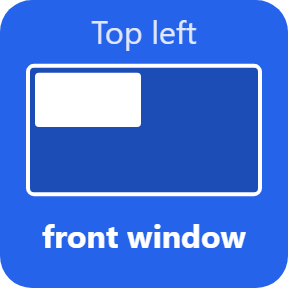
What the key says after a press
Press a half set to next size and the key shows the size it goes to next. If a program keeps a minimum size of its own, the key says the window moved but not exactly.
Only the window you meant moves
A key moves one window: the one in front, or the one of the program you chose. The other windows stay where they are, and the window in front stays in front.
The plugin leaves alone a window that fills the whole screen without a title bar (a full-screen game or video), the desktop, the taskbar, the Stream Deck app, small dialogs and tool palettes that belong to another window, and windows on other virtual desktops.
No account is needed, and the plugin asks for no administrator rights.
Set up in 3 steps
- Open the plugin file you download after buying. The Stream Deck app installs it.
- In the Stream Deck app, drag Snap Window, Custom Position or Next Screen onto a key.
- Enter your license key once in the key's settings to turn the keys on. In the same settings, choose the place. Then click a window and press the key.
Two places to buy
| Elgato Marketplace | Direct from GRAMSHIFT | |
|---|---|---|
| Amount | Same amount | Same amount, tax added at checkout |
| Checkout | Elgato Marketplace | Stripe (card) |
| New versions | Installed through the Stream Deck app | Download from your license key page |
| Use on | Your Elgato account | Up to 3 PCs per license key |
| Plugin display | English and Japanese | English and Japanese |
Requirements
- Windows 10 or later (see "How we checked it" below)
- Stream Deck app 6.9 or later
- A Stream Deck with keys
Questions
How do I snap a window to half the screen with a Stream Deck key?
Drag Snap Window onto a key and choose Left half or Right half. Click the window you want to move and press the key. The part of the window you see fills that half of the screen.
Can I undo a snap?
Yes. Press the same key again while the window is still there, and it goes back to its old position and size, maximized or minimized too. This works until you move the window yourself or the plugin or the Stream Deck app restarts.
Can a key move a window that is not in front?
Yes. Set the key to a program, and to words from its title if you like. The key moves that window even when it is behind other windows or minimized, and the window you work in stays in front.
Can I give a window a set size, like 1280 x 720?
Yes. Custom Position places the part of the window you see at a place and size you give, in percent of the screen or in pixels, counted from the top-left corner of the screen without the taskbar.
Can it move a window to my other monitor?
Yes. Next Screen sends the window to the next or previous screen at the same share of it, and Snap Window can use the screen the window is on or a screen you choose. We checked this with a stand-in for Windows with two screens, not on a real second monitor. See "Not checked by us" below.
Why does the key say ADMIN?
Windows does not let a normal program move the window of a program running as administrator. Run the Stream Deck app as administrator too, or move that window by hand.
Does it move full-screen games?
No. A window that fills the whole screen without a title bar is left as it is, and the key says FULLSCREEN.
Can one press arrange all my windows?
No. Each key moves one window. The plugin does not save a whole layout and does not open programs.
How many PCs can use one license key?
Up to 3 of your own PCs. If you replace a PC, contact us and we will free a place for the new one.
How do I install a new version after buying direct?
Download the latest version from your thank-you page or your license key page. Your license key keeps working. If you cannot open that page, email us as the "Recover your license key" page explains.
What if I lose my license key?
Email contact@gramshift.com from the address you paid with, with your order number or the date and amount you paid. We check the purchase and reply with a link to your license key page.
Can I get a refund?
Yes, when you buy direct. If it does not work on your PC, email us within 14 days of buying for a full refund. Your license key stops working after the refund.
Direct purchase: details, refunds and seller
- Price
- ¥780, the same amount as on the Elgato Marketplace. Tax for your country is added at checkout.
- Payment
- Handled by Stripe through Link, Stripe's checkout service. Link appears as the seller on your receipt and card statement, and your card number never reaches GRAMSHIFT.
- Delivery
- Your license key and download link appear right after payment, and the receipt arrives by email.
- Refunds
- If the plugin does not work on your PC, email us within 14 days of purchase for a full refund. You can also ask Link support. The license key stops working after a refund.
- License
- One key for your own use on up to 3 PCs.
- Countries
- The direct checkout is not offered in Ascension Island, China, Cuba, Iran, Kosovo, North Korea, Russia, Syria or Tristan da Cunha.
- Seller
- GRAMSHIFT, Tokyo, Japan. Contact: contact@gramshift.com
Limits
- Windows only, with your Stream Deck on the same PC. Not for Mac. Snap Window, Custom Position and Next Screen go on keys, not on dials. Each key moves one window; the plugin does not save a whole layout, open programs or move windows between virtual desktops.
- A window of a program running as administrator may stay put unless the Stream Deck app runs as administrator too; the key shows ADMIN. A window that fills the whole screen without a title bar is left as it is, and a program that does not respond is not moved.
- A program with a minimum size of its own may stay larger than the place, and the key says so. A window of a fixed size keeps its size and goes to the middle of the place.
- Pressing again to put a window back works only while the window is still where the key put it, and only until the plugin or the Stream Deck app restarts. After a restart, or after you moved the window yourself, the next press places it again and you move it back by hand. Removing the plugin leaves your windows where they are.
- A key set to a chosen screen remembers the name Windows gives that screen. If Windows changes the numbers of your screens, choose the screen again in the key's settings.
- The keys do nothing until your license key is active, and no window moves. When the license ends (after a refund, for example), the keys stop and your windows stay where they are.
- How we checked it: this direct version ran on one Windows 11 PC (Japanese) under a test tool that stands in for the Stream Deck app, with a test activation server. Presses ran against a stand-in for Windows; on the real Windows this direct version only read the list of screens and moved nothing. The Elgato Marketplace version was also run on that PC, with one screen at 100% scale and a test window: halves, maximize and back, moving a window not in front, minimized windows and putting back all landed exactly, and other windows did not change.
- Not checked by us: a real Stream Deck device or the real Stream Deck app with this direct version, Multi Actions, two or more real screens (Next Screen and a chosen screen), scale other than 100%, a real administrator window, browsers and programs that draw their own frame, Windows 10, ARM PCs and waking from sleep.
- The direct version checks your license key with our server when you activate it, each time the plugin starts, and about once a day while it runs. If your PC cannot reach the server, the keys keep working for up to 44 days after the last successful check.
- If something does not work, email contact@gramshift.com and we will help.