Stream Deck plugin for Windows
CPU, GPU and RAM graphs on your Stream Deck keys
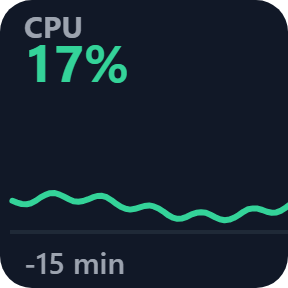
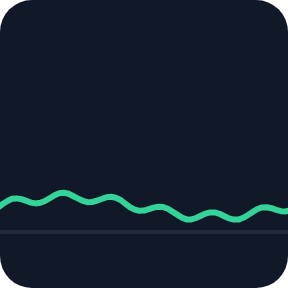
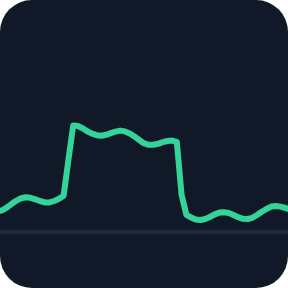
Windows Performance Graph Keys draws CPU, GPU, memory, disk and network as graphs of the last 1, 5, 15 or 60 minutes, right on your keys. Put keys with the same settings side by side and they join into one long graph.
See what your PC was doing during a stutter, a slow export or a busy download, even if you moved to another Stream Deck page, as long as you come back within 60 minutes. There is nothing else to install: no sensor app, no account, no admin rights.
- CPU
- GPU
- Memory
- Disk
- Network
- 1 to 60 minutes
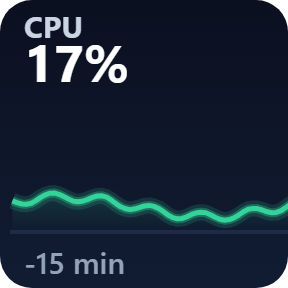
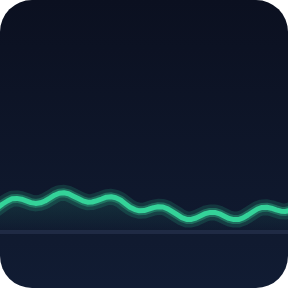
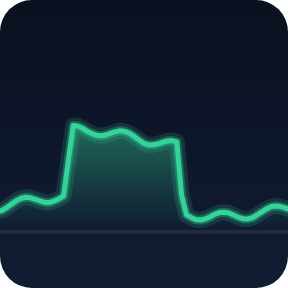
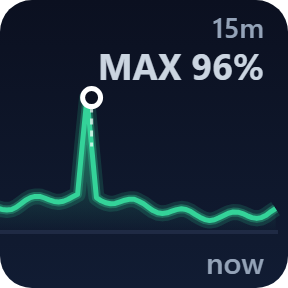
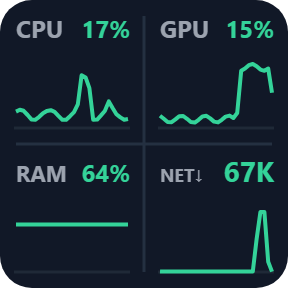
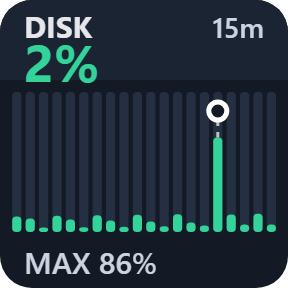
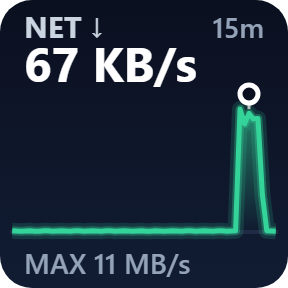
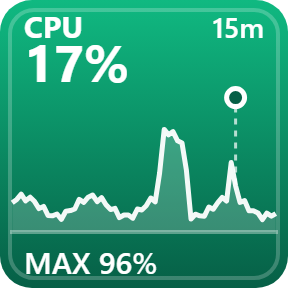
What the keys show
CPU
Total CPU usage, by the same measure as Task Manager on Windows 11.
GPU
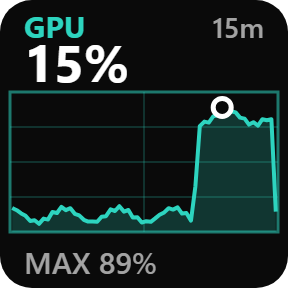
How busy your GPU is: its busiest engine (3D, video, copy...), as Windows reports it. With two GPUs, it follows the busier one.
Memory
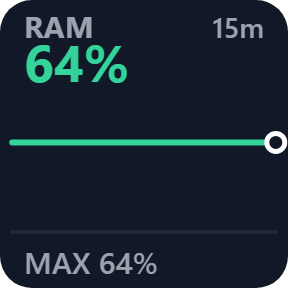
How much of your RAM is in use, as a percentage.
Disk
Active time of your busiest disk.
Network
Download or upload speed: the total of your PC's physical adapters, in bytes per second (MB/s, not Mbps). The graph scales to the fastest moment of the period.
Performance Overview
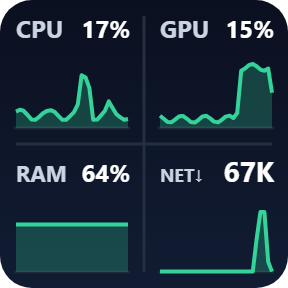
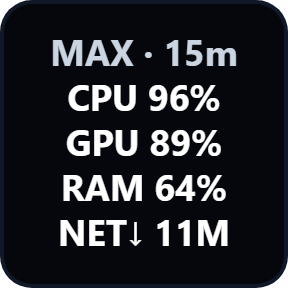
CPU, GPU and memory, plus download, upload or disk as a fourth, as four small graphs on one key.
Five looks
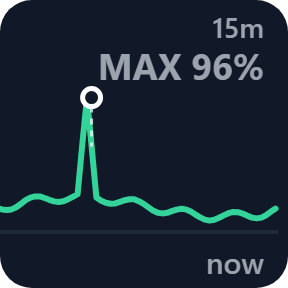
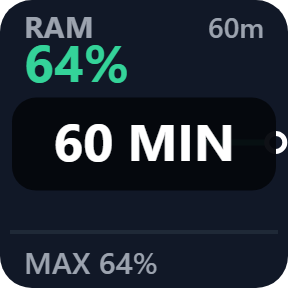
Choose a look for each key in its settings. On a single reading, a ring and a MAX label mark the peak of the period. Except in Grid, CPU, GPU, memory and disk turn yellow from 70% and red from 90%.
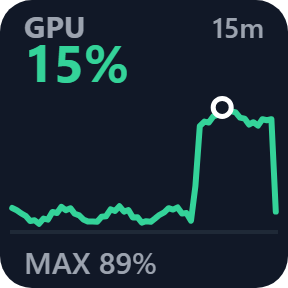
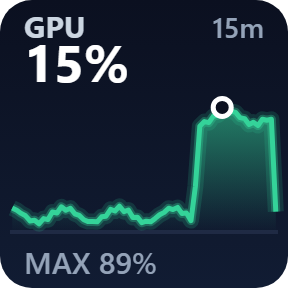
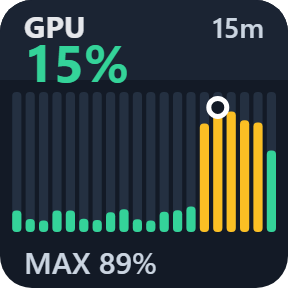
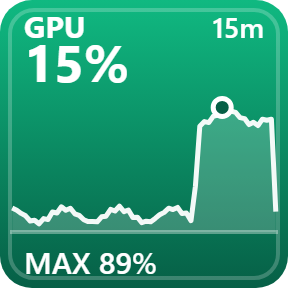
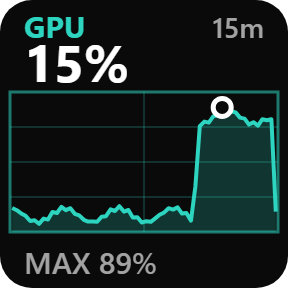
Press for the peak, hold for the next period
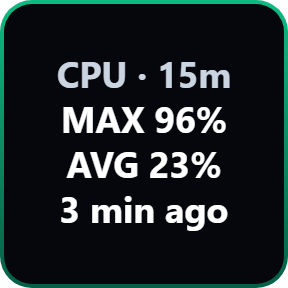
A press shows the max, the average and how long ago the peak was, for 4 seconds. Hold a key for half a second, then let go, to switch between 1, 5, 15 and 60 minutes.
Reads Windows directly and keeps recording
The keys read your PC's figures straight from Windows. Nothing else to install, no account and no admin rights.
Every second while a key is on screen and for 60 minutes after the last key leaves the screen, so the graph is there if you come back within that time.
The readings stay in memory on your PC. The only thing that goes online is the license key check.
Set up in 3 steps
- Open the plugin file you download after buying. The Stream Deck app installs it.
- In the Stream Deck app, drag a Performance Graph or Performance Overview key onto your Stream Deck.
- Enter your license key once in a key's settings. The key starts drawing, and you choose the reading, period and look there.
Two places to buy
| Elgato Marketplace | Direct from GRAMSHIFT | |
|---|---|---|
| Amount | Same amount | Same amount, tax added at checkout |
| Checkout | Elgato Marketplace | Stripe (card) |
| New versions | Installed through the Stream Deck app | Download from your license key page |
| Use on | Your Elgato account | Up to 3 PCs per license key |
| Plugin display | English and Japanese | English and Japanese |
Requirements
- Windows 10 or later (checked on Windows 11)
- Stream Deck app 6.9 or later
- A Stream Deck with keys
Questions
How do I see CPU, GPU and RAM graphs on Stream Deck?
Drag a Performance Graph key onto your Stream Deck and choose CPU, GPU, memory, disk, download or upload in its settings. Performance Overview shows four small graphs on one key.
Do I need another monitoring app or admin rights?
No. The plugin reads its figures straight from Windows. There is no sensor app to install, no account and no admin rights.
Does it show temperatures, fan speeds or FPS?
No. It graphs CPU, GPU and memory usage, disk activity and network speed. Temperatures, fans, clock speeds and FPS are outside its scope.
Does the graph keep going when I switch pages?
Yes, if you come back within 60 minutes. Recording goes on for 60 minutes after the last key leaves the screen; after that it stops and the history is cleared. Restarting the plugin or the Stream Deck app clears the history too, and it is not saved to a file.
Can I make one long graph across several keys?
Yes. Put Performance Graph keys next to each other in the same row, on the same Stream Deck, with the same reading, period and look, and they join into one graph. The left key shows the value now, and the right key ends at now.
How many PCs can I use with one license key?
Up to 3 of your own PCs. If you replace a PC, write to us and we free up a place for the new one.
How do I get new versions if I buy direct?
Download the latest version from your thank-you page or the license key page you received. Your license key keeps working. If you cannot open your license key page, email us as the "Recover your license key" page explains.
What if I lose my license key?
Email contact@gramshift.com from the address you paid with, and include your order number, or the date and amount you paid. We check the purchase and reply with a link to your license key page.
Can I get a refund?
Yes, for a direct purchase. If the plugin does not work on your PC, email us within 14 days of purchase and we refund the full amount. The license key stops working after the refund.
Direct purchase: details, refunds and seller
- Price
- ¥980, the same amount as on the Elgato Marketplace. Tax for your country is added at checkout.
- Payment
- Handled by Stripe through Link, Stripe's checkout service. Link appears as the seller on your receipt and card statement, and your card number never reaches GRAMSHIFT.
- Delivery
- Your license key and download link appear right after payment, and the receipt arrives by email.
- Refunds
- If the plugin does not work on your PC, email us within 14 days of purchase for a full refund. You can also ask Link support. The license key stops working after a refund.
- License
- One key for your own use on up to 3 PCs.
- Countries
- The direct checkout is not offered in Ascension Island, China, Cuba, Iran, Kosovo, North Korea, Russia, Syria or Tristan da Cunha.
- Seller
- GRAMSHIFT, Tokyo, Japan. Contact: contact@gramshift.com
Limits
- Windows only, with your Stream Deck on the same PC. Stream Deck keys only: the actions do not go on dials.
- Temperatures, fan speeds, clock speeds and FPS are not shown.
- You cannot pick one GPU or one disk: the keys show the busiest engine of the GPU and the busiest disk.
- Network speed is the total of your PC's physical adapters, in bytes per second (MB/s, not Mbps). You cannot pick one adapter. On a PC where Windows gives no GPU figures, the GPU key says "no reading".
- History is kept in memory only. Restarting clears it, there is no log file, and the time a PC sleeps shows as a gap.
- Recording starts when a key first appears. If no key is on screen for more than 60 minutes, recording stops and the history is cleared.
- Not available inside Multi Actions.
- How we checked it: we ran this direct download with real Windows readings under a simulated Stream Deck app, unlocked with a test token instead of a real activation, on one PC with Windows 11 in Japanese, an AMD integrated GPU and a wired network. We have not run it on Stream Deck hardware, on Wi-Fi, on Windows 10, on Windows on ARM or on other PCs. If something looks wrong on your setup, write to us.
- The direct version checks its license key with our server when you activate it, each time the plugin starts, and about once a day while it runs. If it cannot reach the server, it keeps working for up to 44 days after the last successful check.
- If something does not work, email contact@gramshift.com and we will help.