OpenDeck & Ajazz / Mirabox
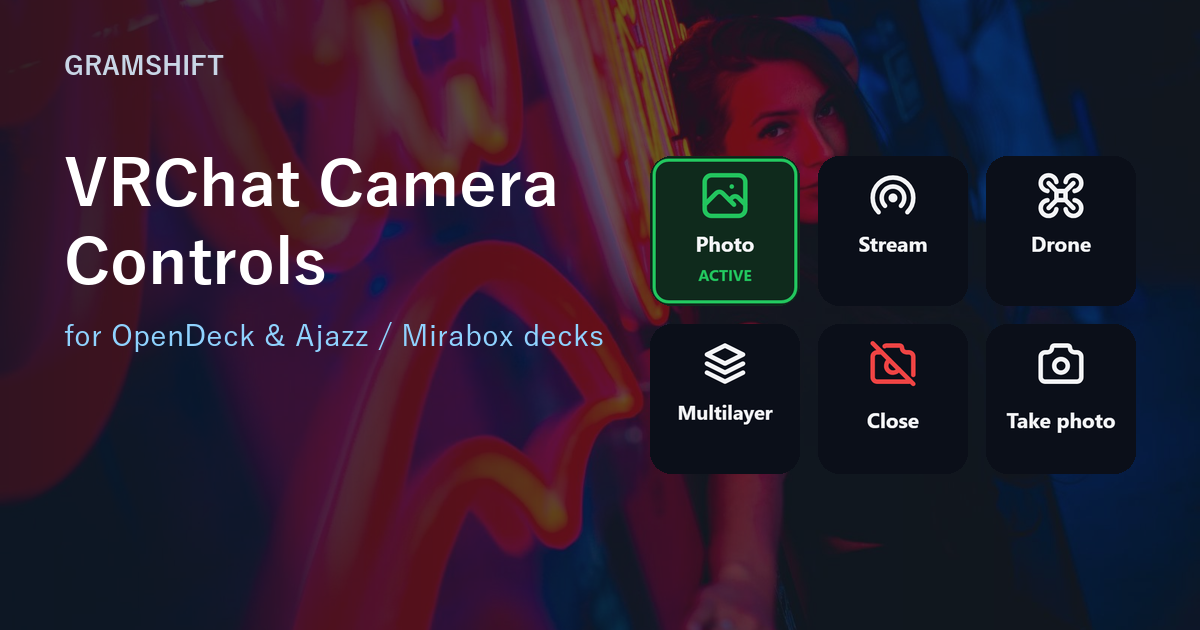
VRChat Camera Controls for OpenDeck & Ajazz / Mirabox
Control the VRChat camera from an Ajazz or Mirabox deck with OpenDeck: take photos, timer shots, zoom, exposure, focus and aperture on keys, over OSC.
¥980
Released Nov 26, 2026
Checkout happens on the GRAMSHIFT direct shop. Your license key and refunds are handled there too.
Estimate: the ECB rate of 2026-11-25 plus the Stripe conversion fee (about 4%). Checkout shows the exact amount, or you can choose to pay in Japanese yen.
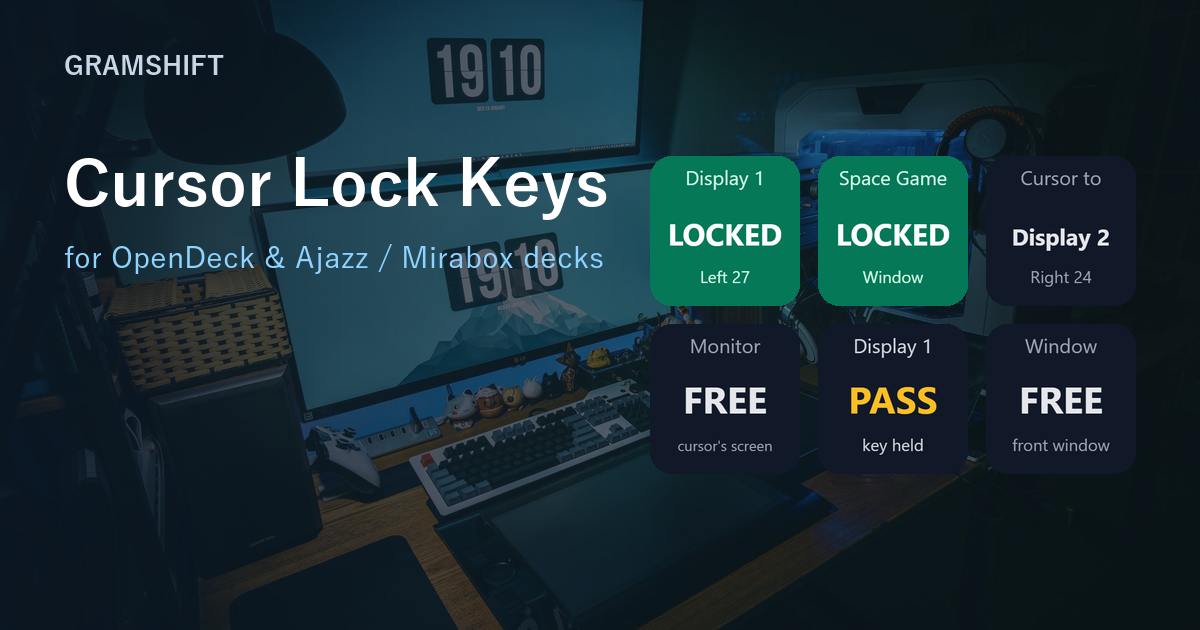
Lock the mouse cursor to one monitor, or to the window in front, with one key on an Ajazz or Mirabox deck with OpenDeck. Press again to free it.
OpenDeck plugin for Windows
On an Ajazz or Mirabox deck running OpenDeck, Cursor Lock Keys lock the mouse cursor to one monitor with one key.
On a PC with two or more screens, one press keeps the pointer on the screen it is on, or on a screen you choose, so it does not slip onto the other display while you play or work. Press again to free it.
Lock to Window keeps the pointer inside the window in front, such as a game in a window. Cursor to Monitor moves the pointer to the middle of the next screen. Hold Ctrl, Alt or Shift to let the pointer out for a moment.
In OpenDeck, open the Plugins tab, install the .streamDeckPlugin file you downloaded, then enter your license key once in a key's settings.
How AI was used: Made by GRAMSHIFT with the help of AI tools.
No published questions yet.
Checkout happens on the GRAMSHIFT direct shop. Your license key and refunds are handled there too. Buy on the GRAMSHIFT direct shop
For how to use this item, ask GRAMSHIFT in "Questions and answers" above.
For help with payment or downloads, just email contact
OpenDeck & Ajazz / Mirabox
Control the VRChat camera from an Ajazz or Mirabox deck with OpenDeck: take photos, timer shots, zoom, exposure, focus and aperture on keys, over OSC.
OpenDeck & Ajazz / Mirabox
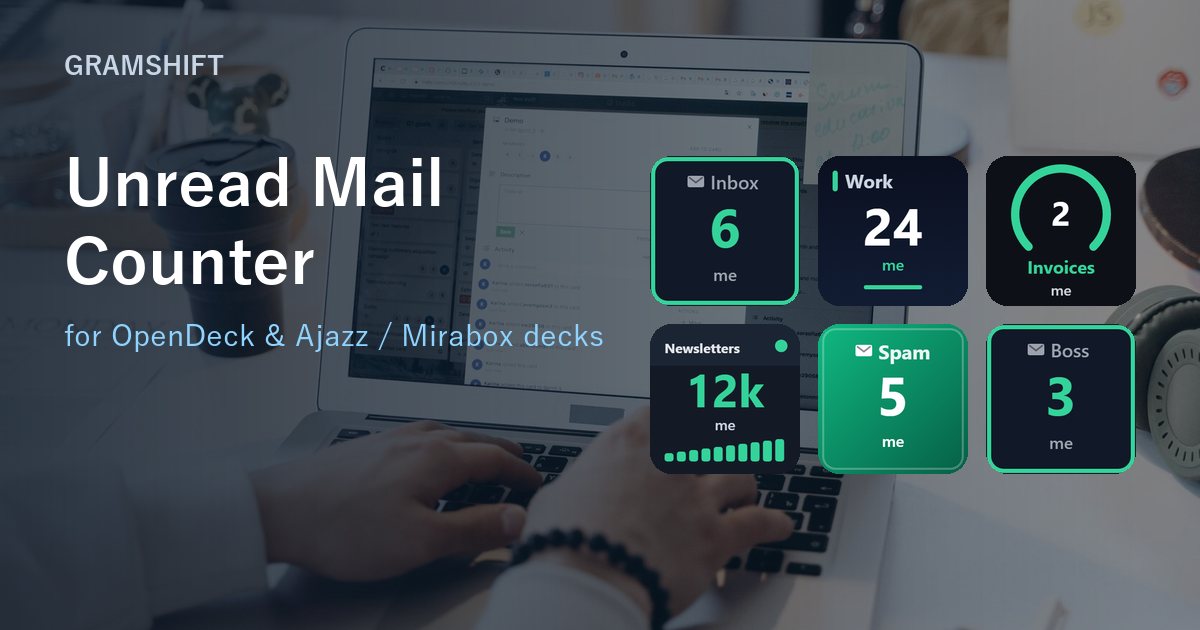
Unread email counter for OpenDeck on Ajazz and Mirabox decks: one key shows unread mail from Gmail, iCloud, Yahoo or any IMAP account, and press to open it.
OpenDeck & Ajazz / Mirabox
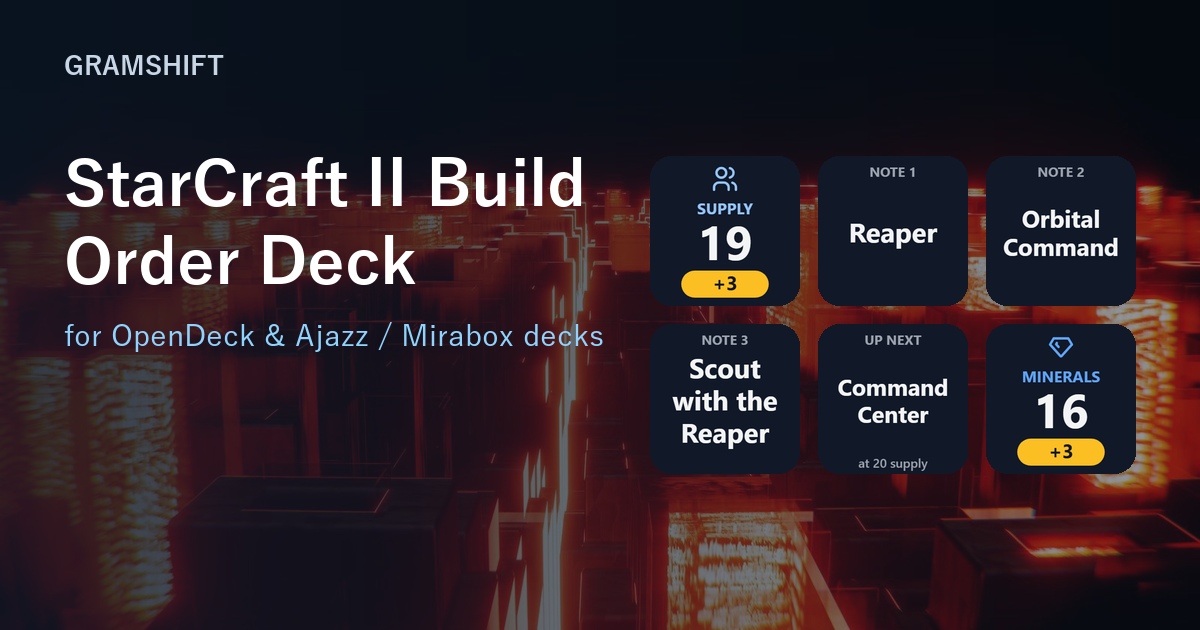
StarCraft II build order keys for Ajazz and Mirabox decks with OpenDeck: the supply to build at, what to make, notes and a timer. Paste your own builds.
OpenDeck & Ajazz / Mirabox
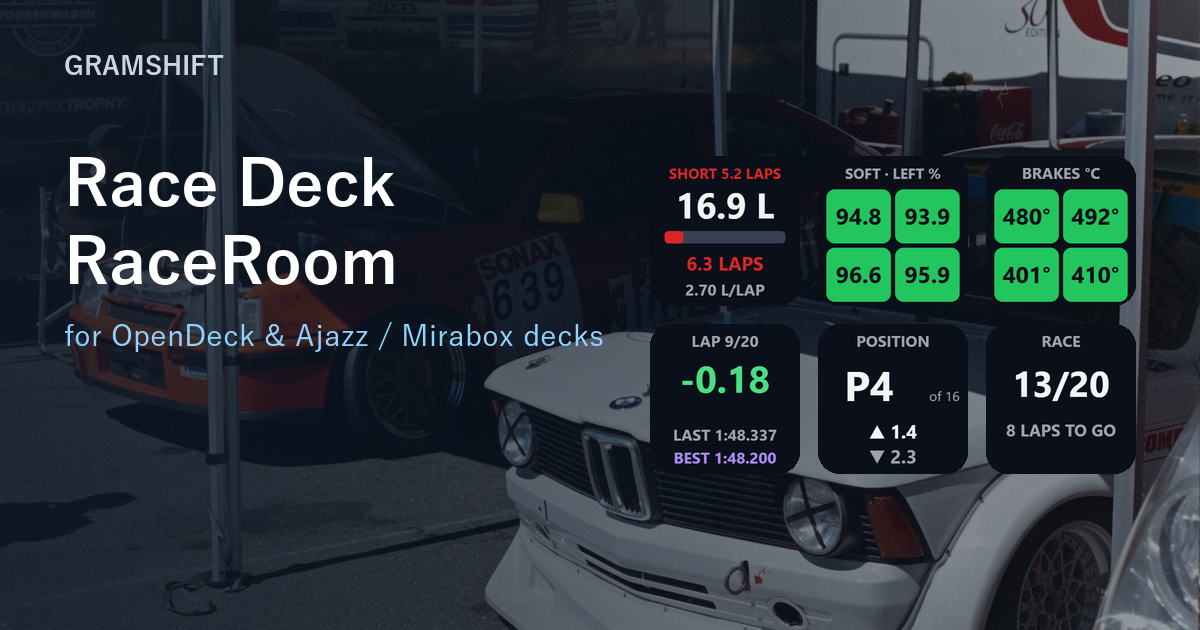
RaceRoom keys for Ajazz and Mirabox decks on OpenDeck: fuel and laps it lasts, tyres, brake temperatures, lap delta, position and gaps, flags, pit and stint.
OpenDeck & Ajazz / Mirabox
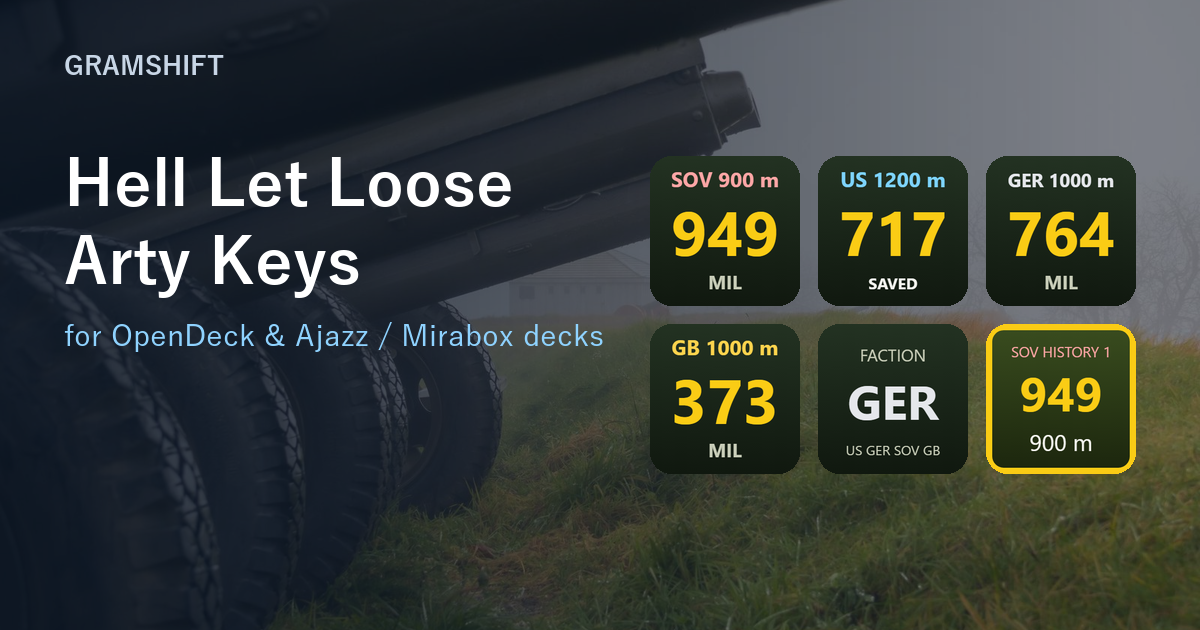
Hell Let Loose artillery calculator for Ajazz and Mirabox decks on OpenDeck: type the map distance on keys and read the mil for US, GER, SOV or GB guns.
OpenDeck & Ajazz / Mirabox
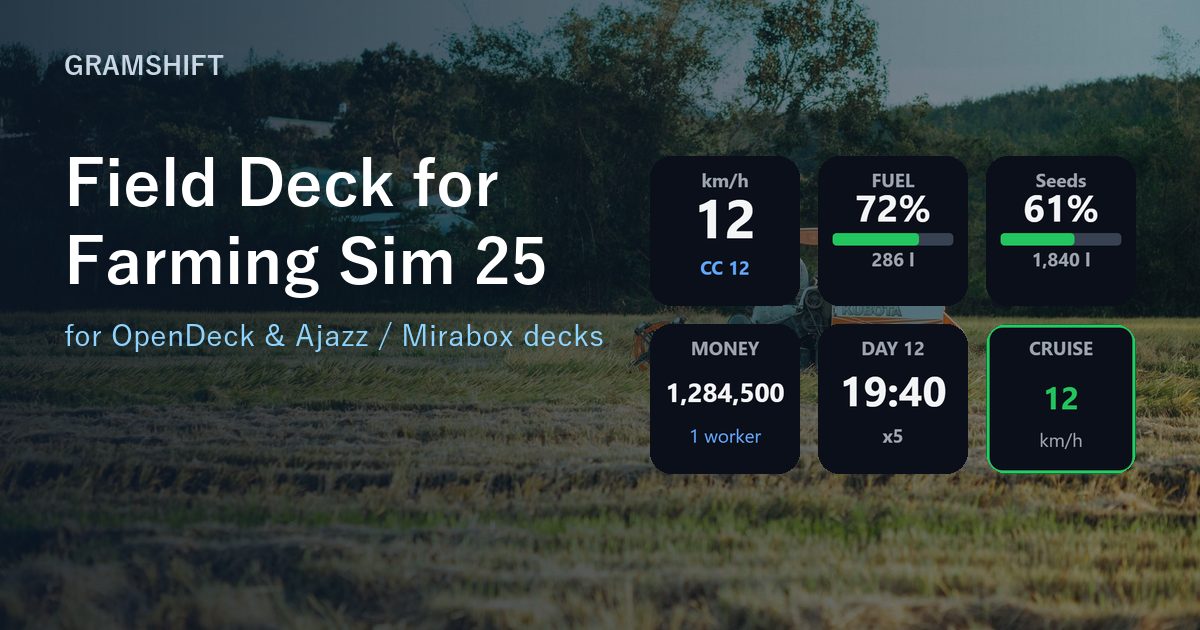
Farming Simulator 25 speed, fuel, fill level, money, time and workers live on Ajazz or Mirabox deck keys with OpenDeck, plus keys for engine and lights.
OpenDeck & Ajazz / Mirabox
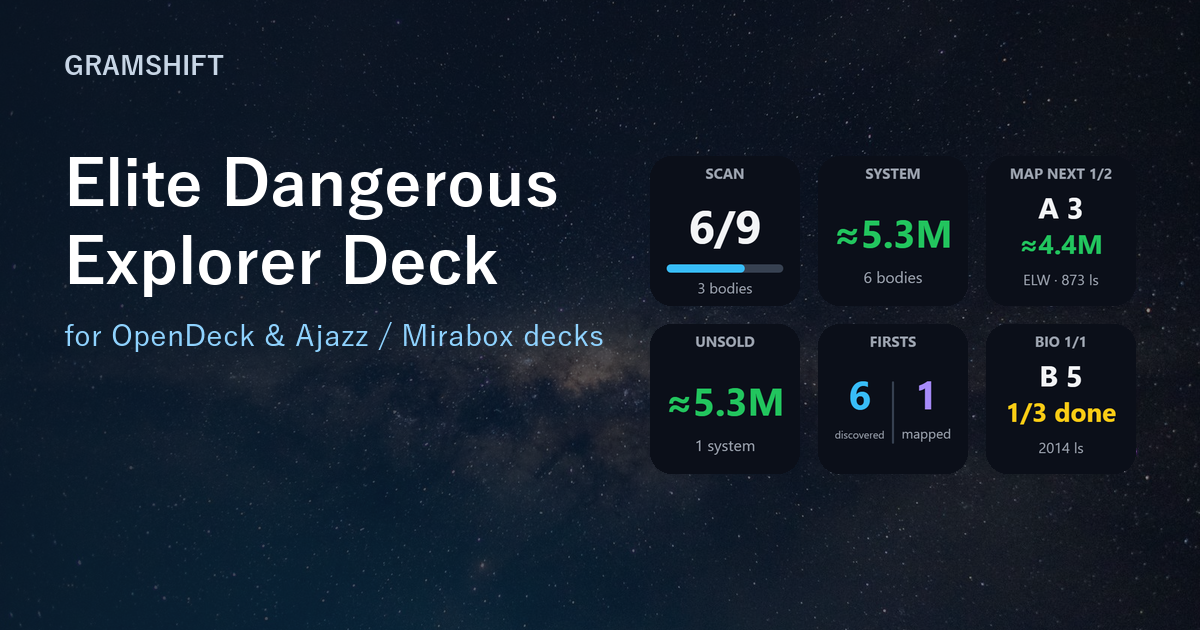
Elite Dangerous exploration on Ajazz or Mirabox deck keys with OpenDeck: bodies scanned, the world to map next, data value and sample distance.
OpenDeck & Ajazz / Mirabox
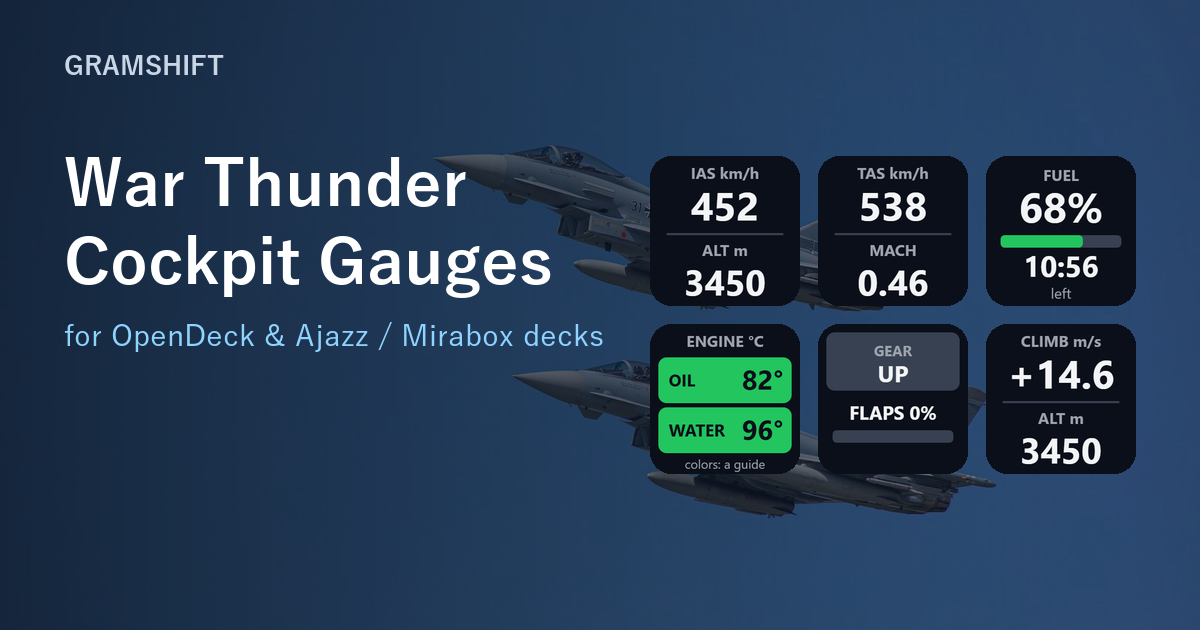
See War Thunder airspeed, altitude, fuel minutes and engine temperatures live on Ajazz or Mirabox deck keys with OpenDeck, in aircraft and tanks.