Corsair Galleon 100 SD profile for Windows
TradingView on your Corsair Galleon 100 SD
Yes, Chart Keys is a TradingView profile for the Corsair Galleon 100 SD.
It puts chart, interval, zoom, drawing, watchlist and trading keys on the display keys, and its two dials hold Zoom, Scroll, Fast Scroll and Watchlist on two layers.
The keys are laid out for the Galleon 100 SD's display keys over six pages: Chart, Intervals, Zoom & Scale, Drawing, Watchlist & Share and Trading, with Previous and Next page keys. On most pages, a More key opens the rest of that page's keys. The keys send TradingView's default shortcuts.
- Six pages for the display keys
- Two dials, two layers
- Intervals from 1 minute to 1 month
- Drawing tools and Bar Replay
- English labels
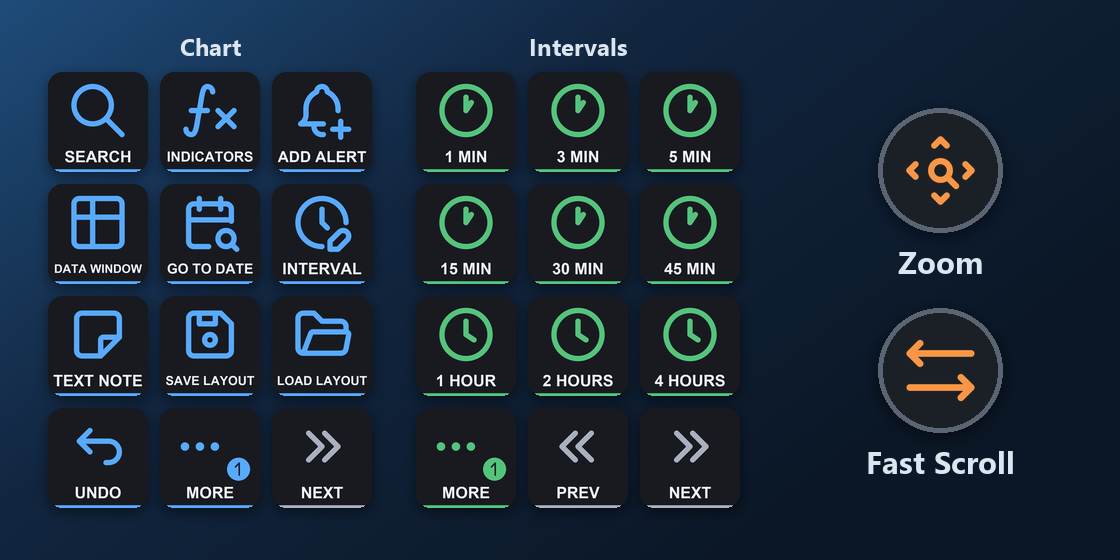
What is on each Galleon 100 SD page?
The profile has six pages for the display keys. The bottom-right keys turn the pages: Next page on Chart, Previous and Next page on the pages between, and Previous page on Trading.
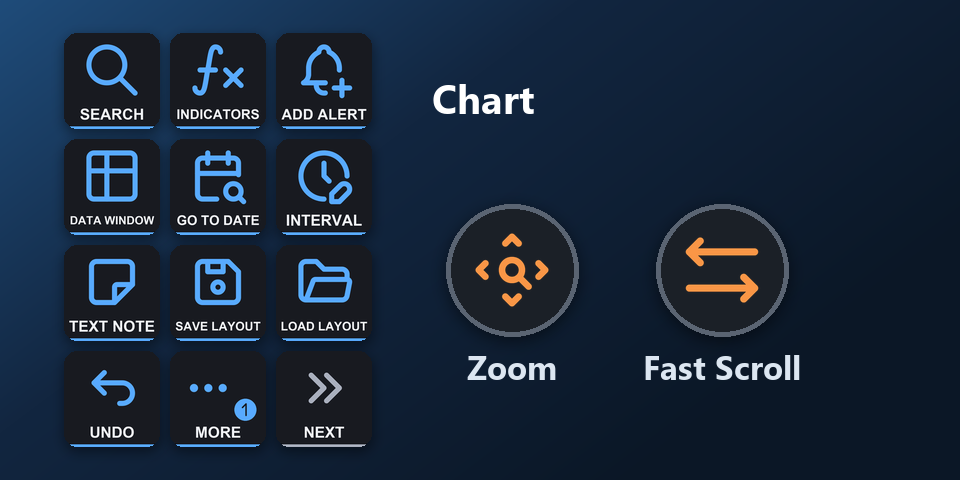
Chart
Quick search, indicators, add alert, data window, go to date, interval box, text note, save and load layout, undo, redo, fullscreen, sessions.
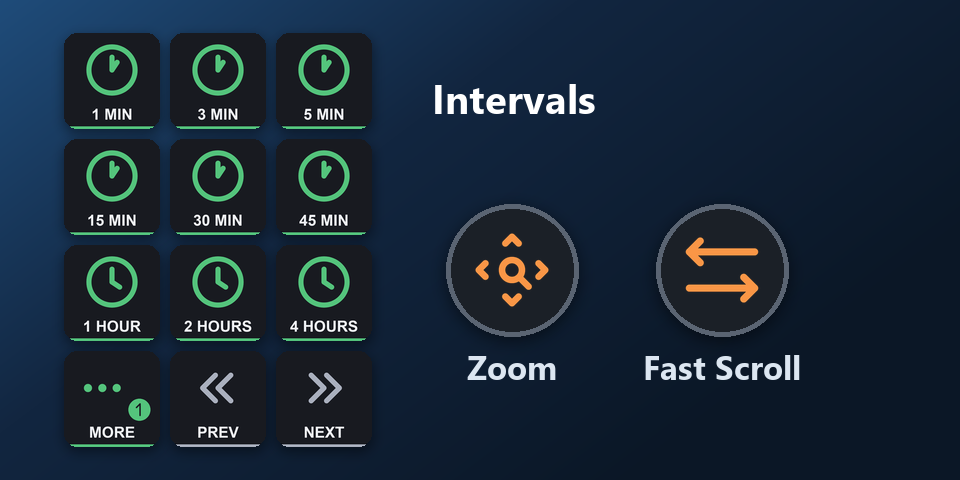
Intervals
1, 3, 5, 15, 30 and 45 minutes; 1, 2 and 4 hours; 1 day, 1 week, 1 month.
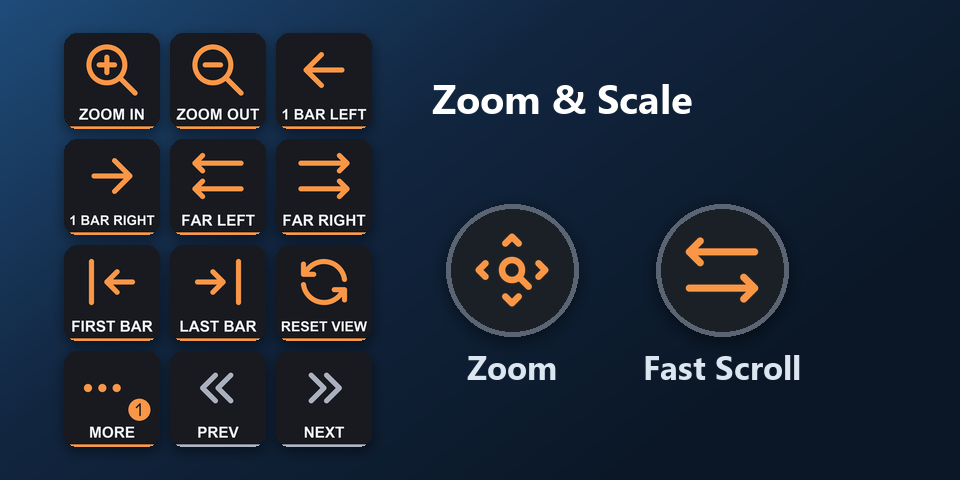
Zoom & Scale
Zoom in and out, one bar or far left and right, first and last bar, reset view, log, percent and inverted scale.
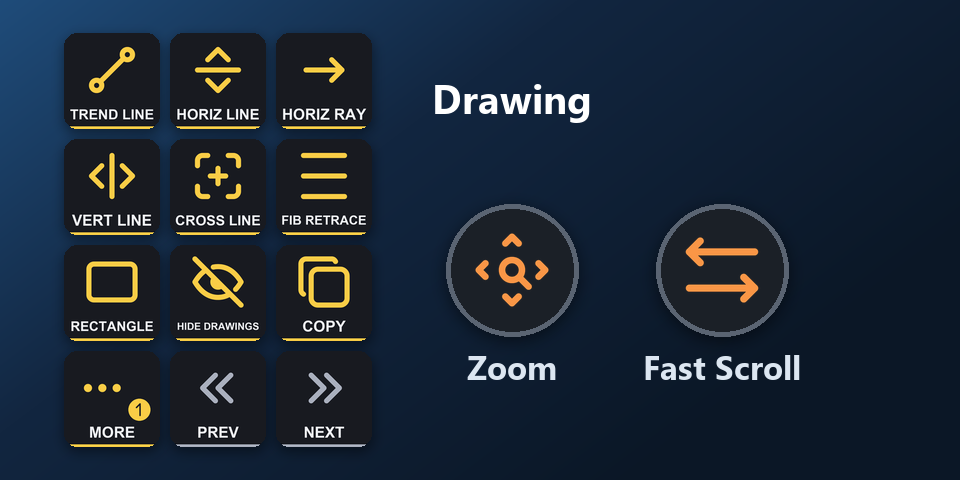
Drawing
Trend line, horizontal line and ray, vertical line, cross line, Fib retracement, rectangle, hide drawings, copy, paste, delete.
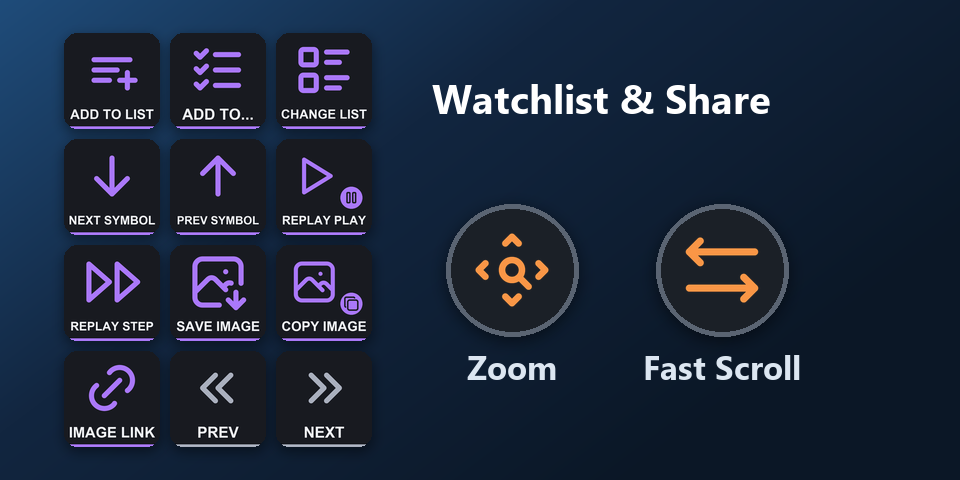
Watchlist & Share
Add to a watchlist, next and previous symbol, change watchlist, Bar Replay play and step, save or copy the chart image, copy the image link.
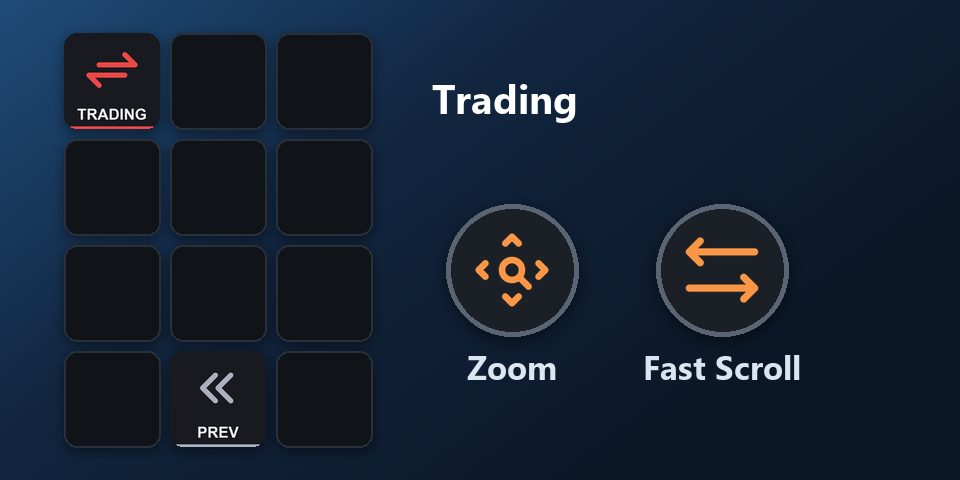
Trading
Order ticket, buy, sell, limit buy, limit sell and DOM, inside a folder that you open before any order key can be pressed.
What do the Galleon 100 SD dials do?
Left dial: Zoom and Scroll
On the first layer, turn it to zoom out or in. Press it to reset the view. On the second layer, turn it to scroll one bar left or right. Press it to jump to the last bar.
Right dial: Fast Scroll and Watchlist
On the first layer, turn it to scroll far left or right. Press it to jump to the first bar. On the second layer, turn it to go to the previous or next symbol. Press it to change the watchlist.
Both dials do the same on every page, so they work while any page is on the keys.
How do I set it up on the Galleon 100 SD?
- Buy, then download and unzip the file.
- With the Galleon 100 SD connected, double-click "Chart Keys for TradingView - shortcuts, Corsair Galleon 100 SD (Windows).streamDeckProfile". The Stream Deck app imports it.
- Select the profile for the Galleon 100 SD in the Stream Deck app, open TradingView and press a key.
Requirements
- Windows 10 or later
- Corsair Galleon 100 SD
- The free Stream Deck app, where the Galleon 100 SD's display keys and dials are set up
- TradingView in a web browser or the TradingView desktop app, with its default shortcuts
- Alert, layout, note, drawing and watchlist keys: signed in to TradingView. Order keys: a connected broker or Paper Trading
Questions about the Galleon 100 SD
Is there a TradingView profile for the Corsair Galleon 100 SD?
Yes. Chart Keys for TradingView includes a profile laid out for the Galleon 100 SD: six pages on the display keys (Chart, Intervals, Zoom & Scale, Drawing, Watchlist & Share and Trading) and two dials with two layers (Zoom, Scroll, Fast Scroll and Watchlist). Import it in the Stream Deck app.
How do I set up TradingView shortcuts on the Galleon 100 SD?
Double-click the Galleon 100 SD profile file in the download and the Stream Deck app imports it. Select it for the Galleon 100 SD, open TradingView and press a key. The keys already match TradingView's default shortcuts.
What do the Galleon 100 SD dials do in TradingView?
Left dial: Zoom and Scroll. On the first layer, turn it to zoom out or in. Press it to reset the view. On the second layer, turn it to scroll one bar left or right. Press it to jump to the last bar. Right dial: Fast Scroll and Watchlist. On the first layer, turn it to scroll far left or right. Press it to jump to the first bar. On the second layer, turn it to go to the previous or next symbol. Press it to change the watchlist.
How do I change pages on the Galleon 100 SD?
Press the Next page or Previous page key at the bottom right of the keys. Chart leads to Intervals, Zoom & Scale, Drawing, Watchlist & Share and Trading.
Do I need to buy it again for another Stream Deck?
No. The same download holds profiles for the Corsair Galleon 100 SD and Stream Deck + XL on Windows, and Stream Deck MK.2, XL, Neo and + on Windows and Mac.
Direct purchase details
- Price
- ¥1,300. Tax for your country is added at checkout.
- Payment
- Handled by Stripe through Link, Stripe's checkout service. Link appears as the seller on your receipt and card statement, and your card number never reaches GRAMSHIFT.
- Delivery
- A download link appears right after payment, and the receipt arrives by email. You get the profile files and a README: there is nothing to activate.
- Refunds
- If the profile does not work with your Stream Deck and TradingView, email us within 14 days of purchase for a full refund. You can also ask Link support. The download closes after a refund.
- Use
- For your own use. Please do not share, resell or upload the file.
- Countries
- The direct checkout is not offered in Ascension Island, China, Cuba, Iran, Kosovo, North Korea, Russia, Syria or Tristan da Cunha.
- Seller
- GRAMSHIFT, Tokyo, Japan. Contact: contact@gramshift.com
More about Chart Keys for TradingView
- All models and details of Chart Keys for TradingView
- See this profile for Stream Deck + XL
- More Corsair Galleon 100 SD game and app profiles
Limitations
- The Corsair Galleon 100 SD profile is for TradingView on Windows.
- Made for TradingView's default shortcuts. Changed a shortcut in TradingView? Edit that key's Hotkey in the Stream Deck app.
- Keys work while the chart has the keyboard focus, not while you type in a text box.
- INDICATORS sends the / key, as on US and Japanese keyboard layouts. On other layouts, open Indicators with the mouse or change that key in the Stream Deck app.
- The replay keys work while Bar Replay is on.
- Typing a symbol name is not on a key: SEARCH opens the search box for you to type in.
- Multi-chart layouts, the Screener, the Pine Script editor, the DOM cells, the Alerts panel and deleting alerts are not on keys, and neither are mouse actions or the mouse wheel.
- Key labels are in English.