01
See every session
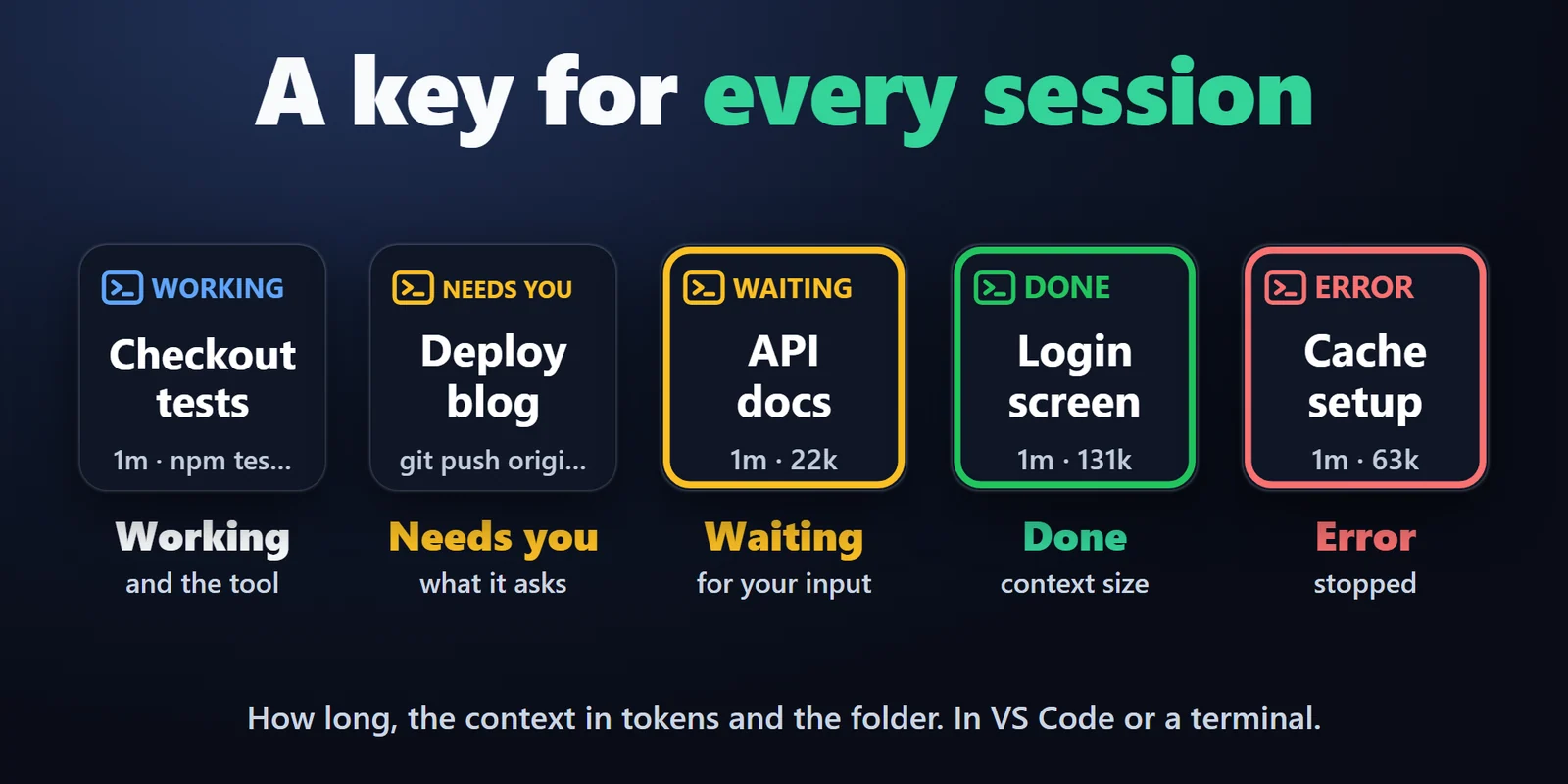
Each Claude Code session gets a key with its state, how long, the size of its context in tokens and its folder. The frame blinks while a request waits.
See which Claude Code session needs you, jump to its window, and reply to its prompts with one press.
One-time purchase on the Elgato Marketplace, shown there in your own currency.
Overview
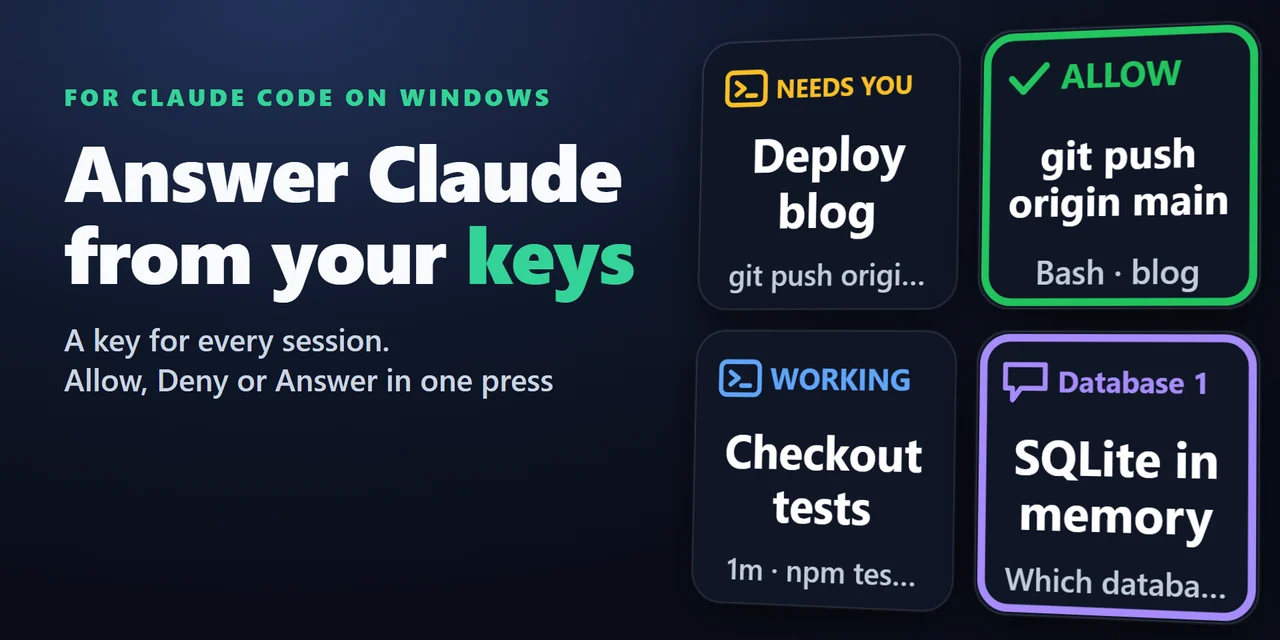
To approve Claude Code permission prompts from a Stream Deck, add Session Keys for Claude Code and press its Allow, Always or Deny key, or an Answer key to pick an option of the question Claude asks.
Each Claude Code session also gets its own key that shows whether it is working, needs you, waits for your input or is done, and one press brings its VS Code or terminal window to the front.
Features
Each Claude Code session gets a key with its state, how long, the size of its context in tokens and its folder. The frame blinks while a request waits.
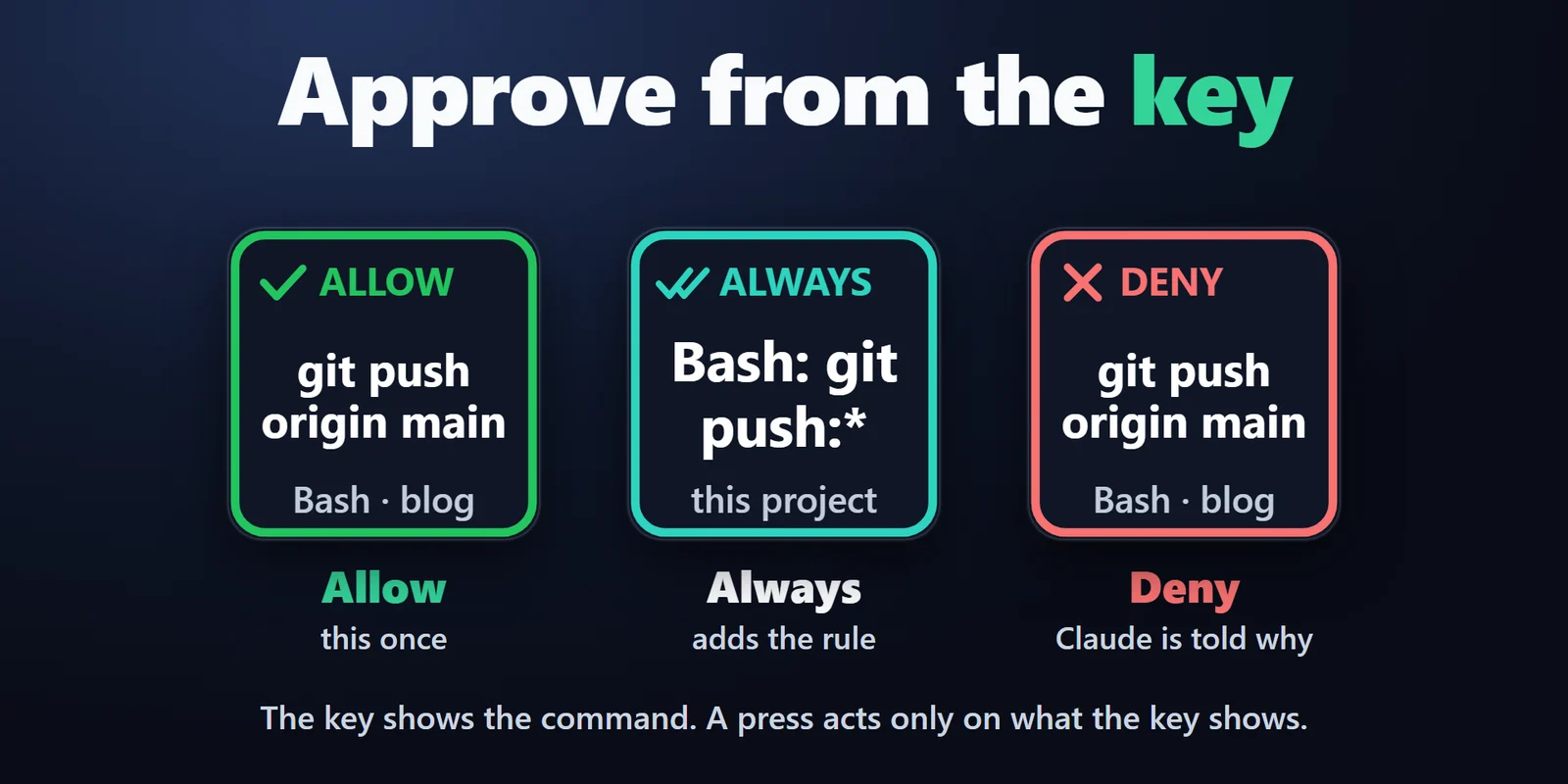
Allow shows the command or file it will allow and how many more wait. Always also adds the rule Claude Code offers for it, such as Bash: npm test for this project.
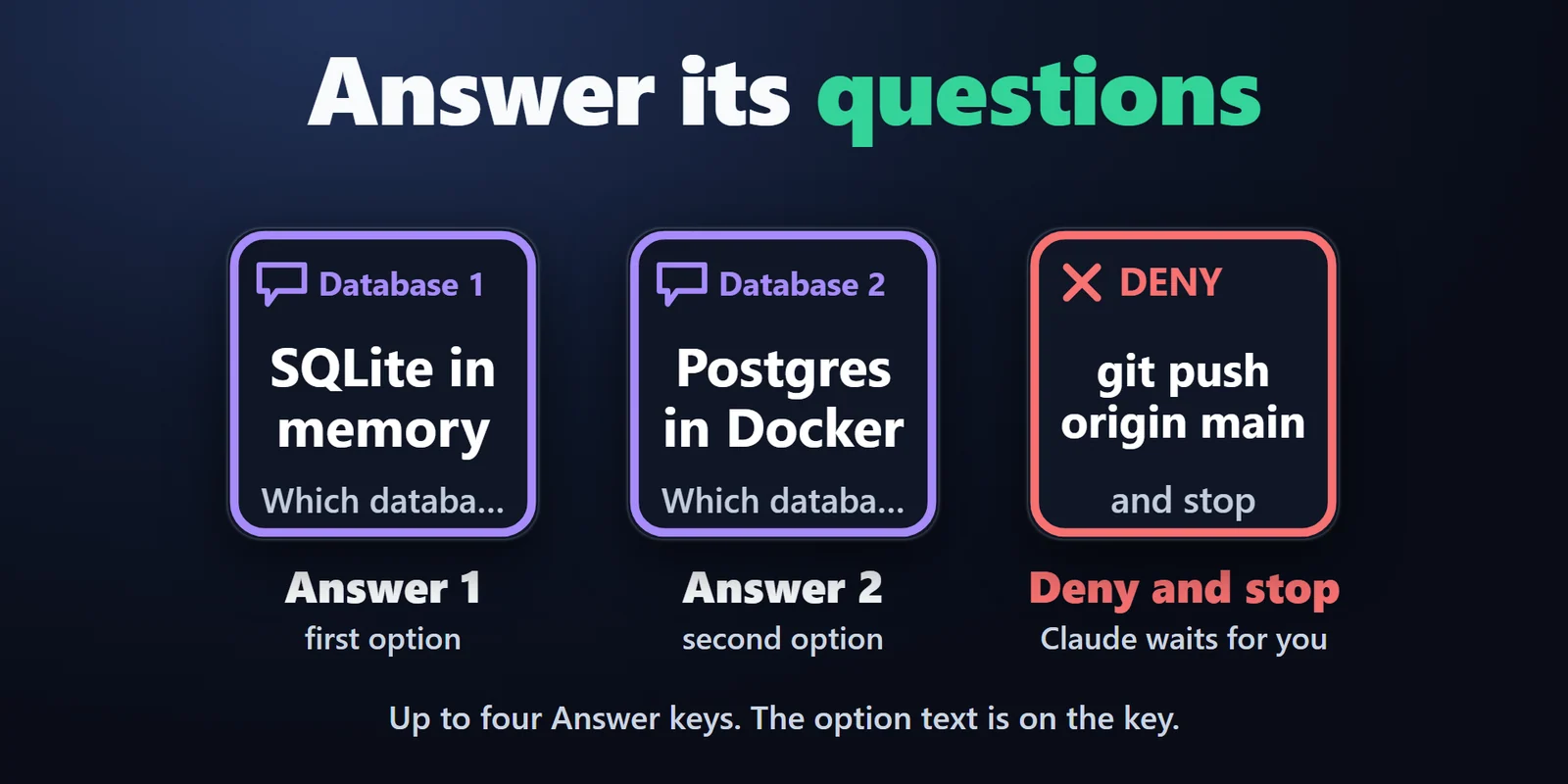
Up to four Answer keys pick option 1, 2, 3 or 4 of the question Claude asks, and each key shows its option.
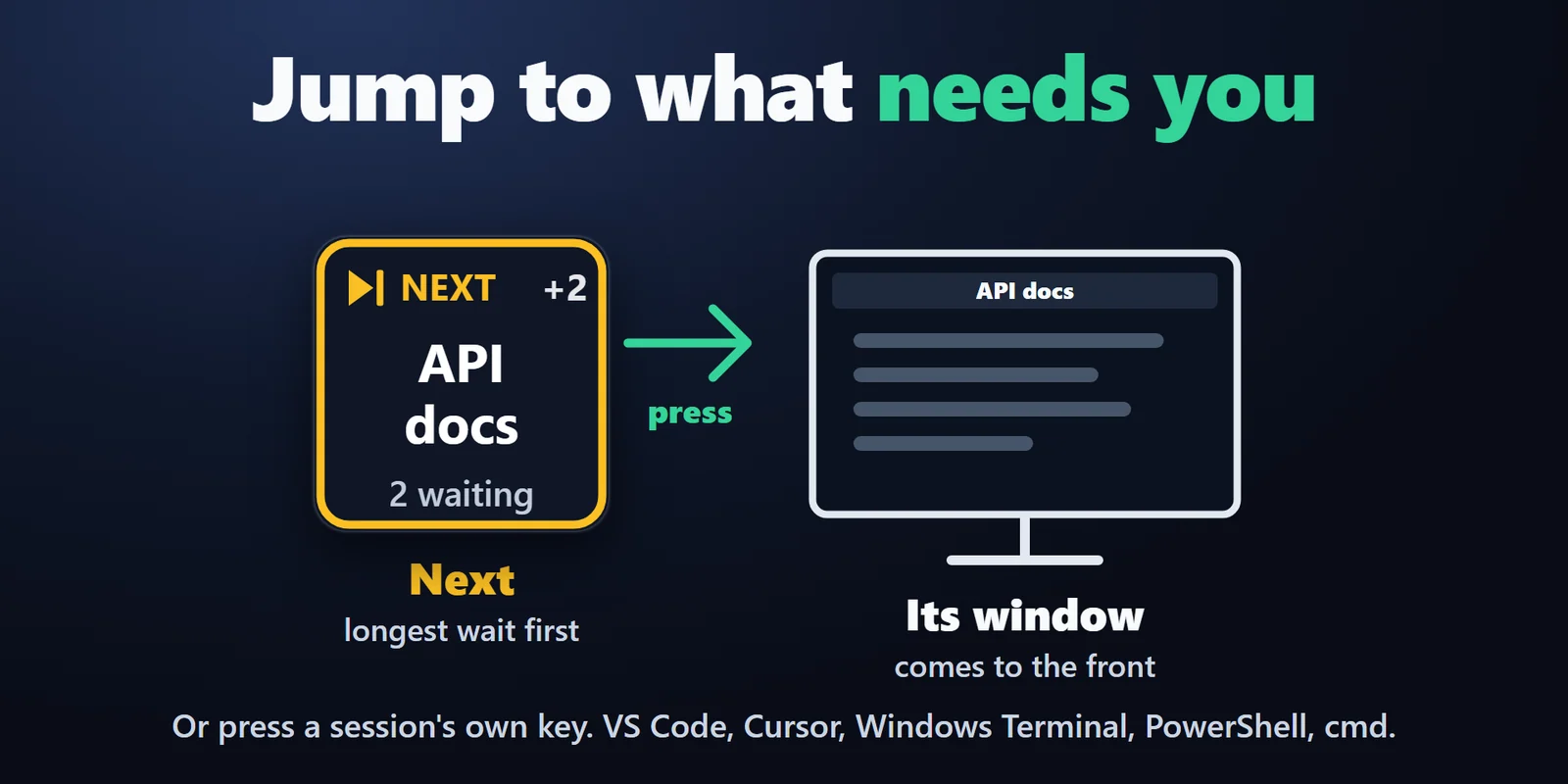
Next goes to the session that has waited longest, and a press on a Session key brings its VS Code or terminal window to the front.
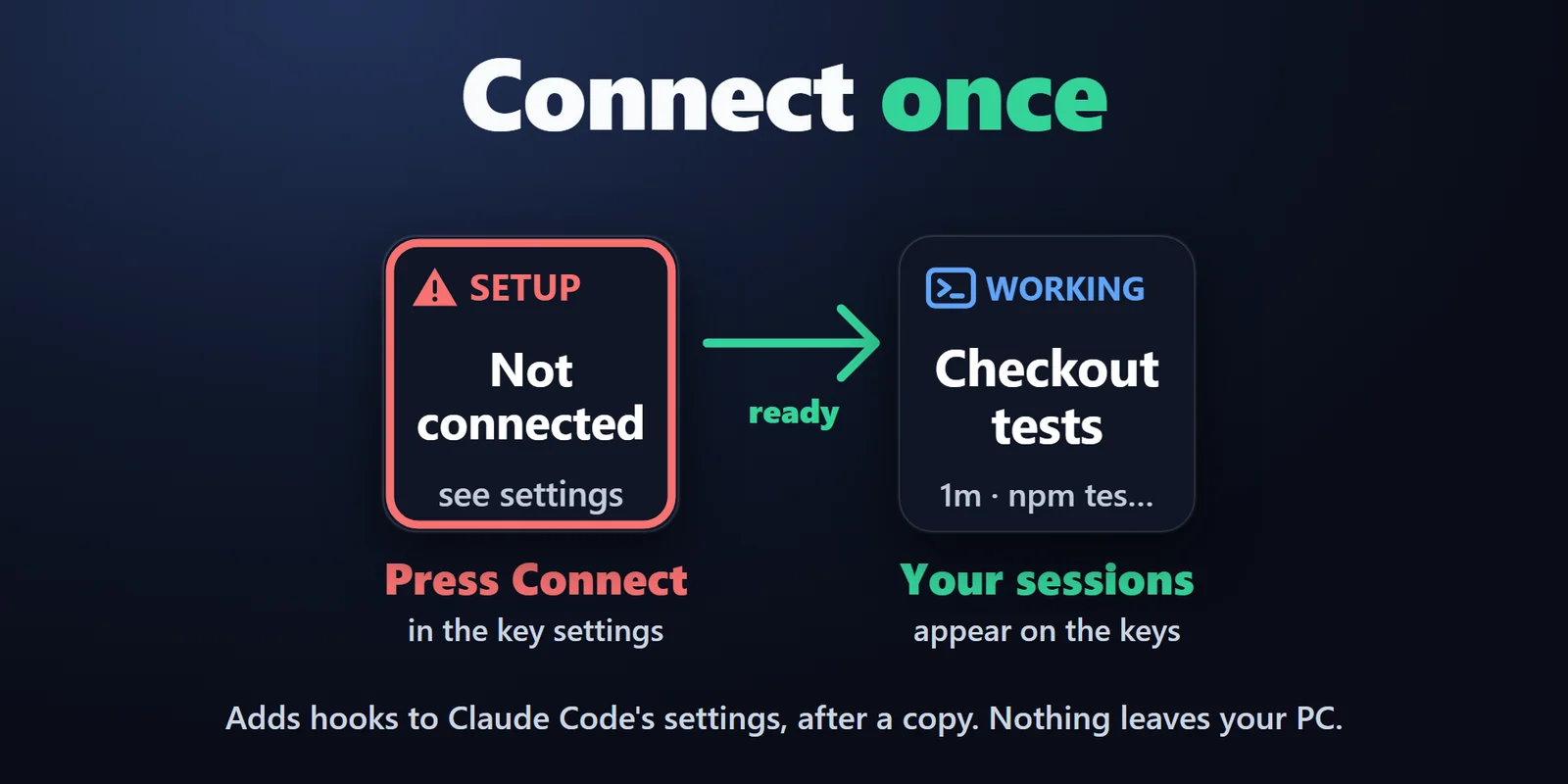
Connect in any key's settings adds the hooks to Claude Code and keeps a copy of your settings first; Disconnect takes them out again.
Deny refuses the request and tells Claude the message you set on the key, so it can try another way. Deny and stop also halts it, and Claude waits for you.
A press acts only on what the key shows. If the request changed just before, nothing is sent and the key shows a warning.
Nothing leaves your PC, and with Stream Deck closed Claude Code asks as usual.
Add any number of Session keys and pick a Dark or Color look for each key. English and Japanese.
Set up
Good to knowSessions that were already open before Connect appear on the keys after you restart them.
FAQ
Short answers to what people ask before they add it.
Email contact
Add Session Keys for Claude Code, put Allow, Always and Deny keys on your Stream Deck and press Connect in a key's settings. When Claude Code asks, the Allow key shows the command or file: press it to allow once, Always to also add the rule Claude Code offers ("Yes, and don't ask again"), or Deny to refuse.
Yes. Each session gets its own Session key showing if it is working, needs you, waits for your input or is done, with how long, its context size in tokens and its folder. Add as many Session keys as you like; sessions take them in the order they started.
Yes, side by side. You can always answer in Claude Code as usual, and with Stream Deck closed Claude Code asks as usual.
Yes: a press on a Session key, or on Next, brings that session's window to the front in VS Code, VS Code Insiders, Cursor, Windsurf, Windows Terminal, PowerShell, cmd and other terminals. VS Code needs the folder name in its window title, which is the default.
No. Nothing leaves your PC: the plugin has no account, no analytics and makes no internet connections of its own. Requests, commands and file names are kept in memory only while they are shown on the keys.
It is the size of the session's context in tokens, as Claude Code counts it, for example 84k. It shows tokens, not plan limits.
Requirements
Works on Windows 10 or later with the Stream Deck app 6.9 or later and Claude Code, in VS Code, VS Code Insiders, Cursor, Windsurf, Windows Terminal, PowerShell, cmd and other terminals.
A Stream Deck plugin sold on the Elgato Marketplace.
More for your Stream Deck
Works on Windows 10 or later with the Stream Deck app 6.9 or later and Claude Code, in VS Code, VS Code Insiders, Cursor, Windsurf, Windows Terminal, PowerShell, cmd and other terminals.
Get it on the Elgato MarketplaceOne-time purchase on the Elgato Marketplace, shown there in your own currency.