01
Press your hotbars
Hotbar 1 and Hotbar 2, slots 1 to 10, sit on labeled keys.
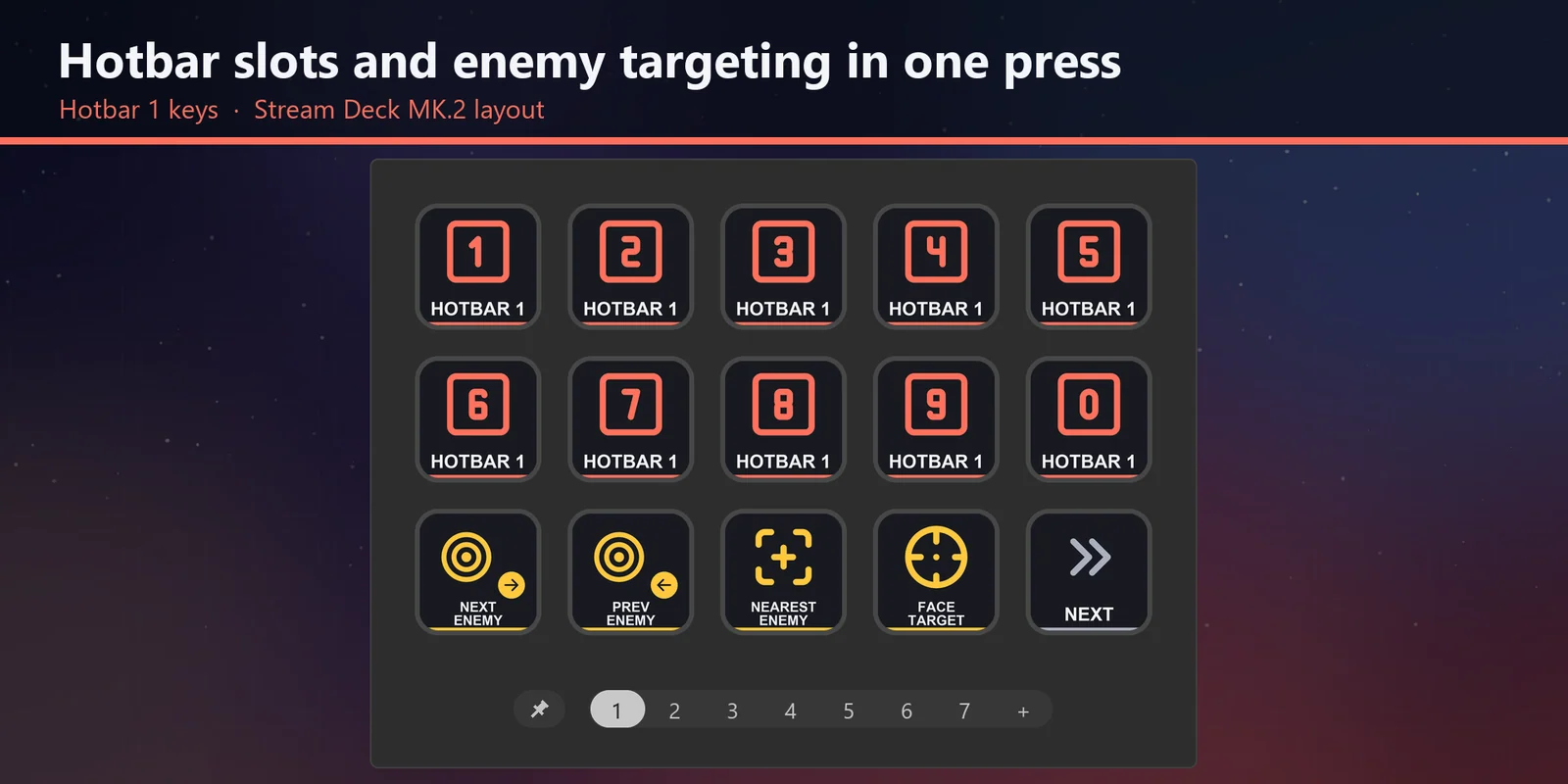
Hotbars, targets, party, menus, logs, camera and chat for FINAL FANTASY XIV on labeled Stream Deck keys.
One-time purchase direct from GRAMSHIFT, plus any tax at checkout. A download link appears right after payment, and the receipt arrives by email.
Overview
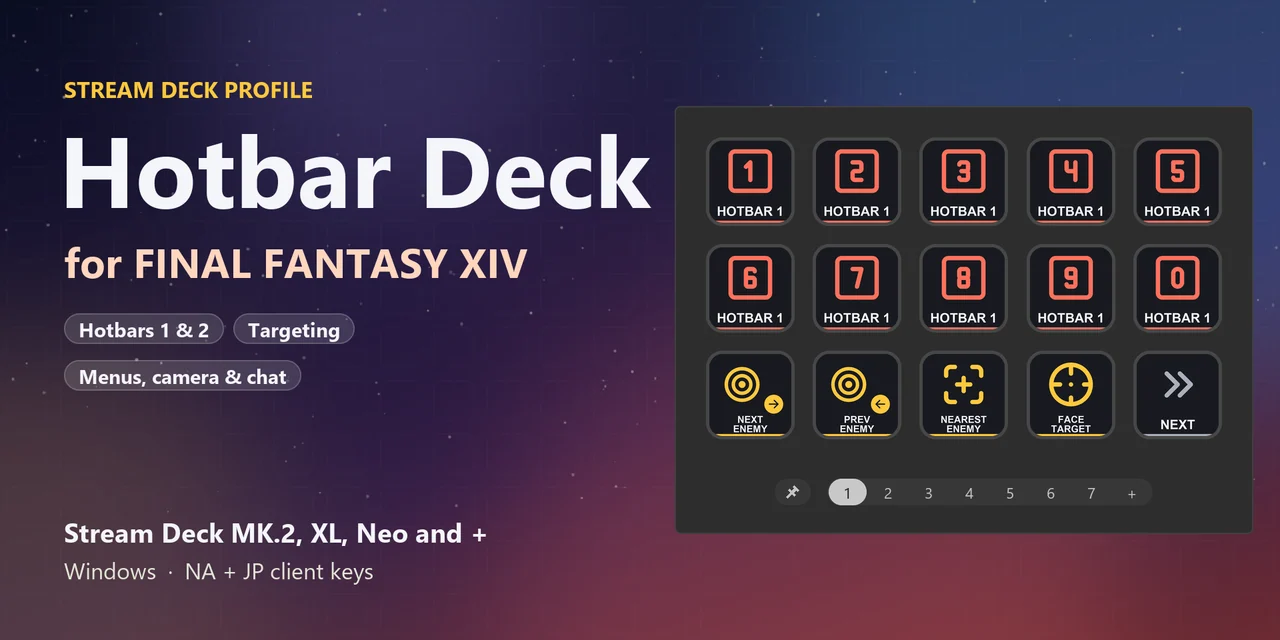
To use a Stream Deck with FINAL FANTASY XIV on Windows, download Hotbar Deck for FFXIV, open the file for your device and your game language, and keep the game window in front.
Each key of Hotbar Deck for FFXIV sends one of the game's own default keybinds, so you press hotbar slots, pick targets, open menus and post to chat with one press of a labeled key, and nothing is added to the game.
Features
Hotbar 1 and Hotbar 2, slots 1 to 10, sit on labeled keys.
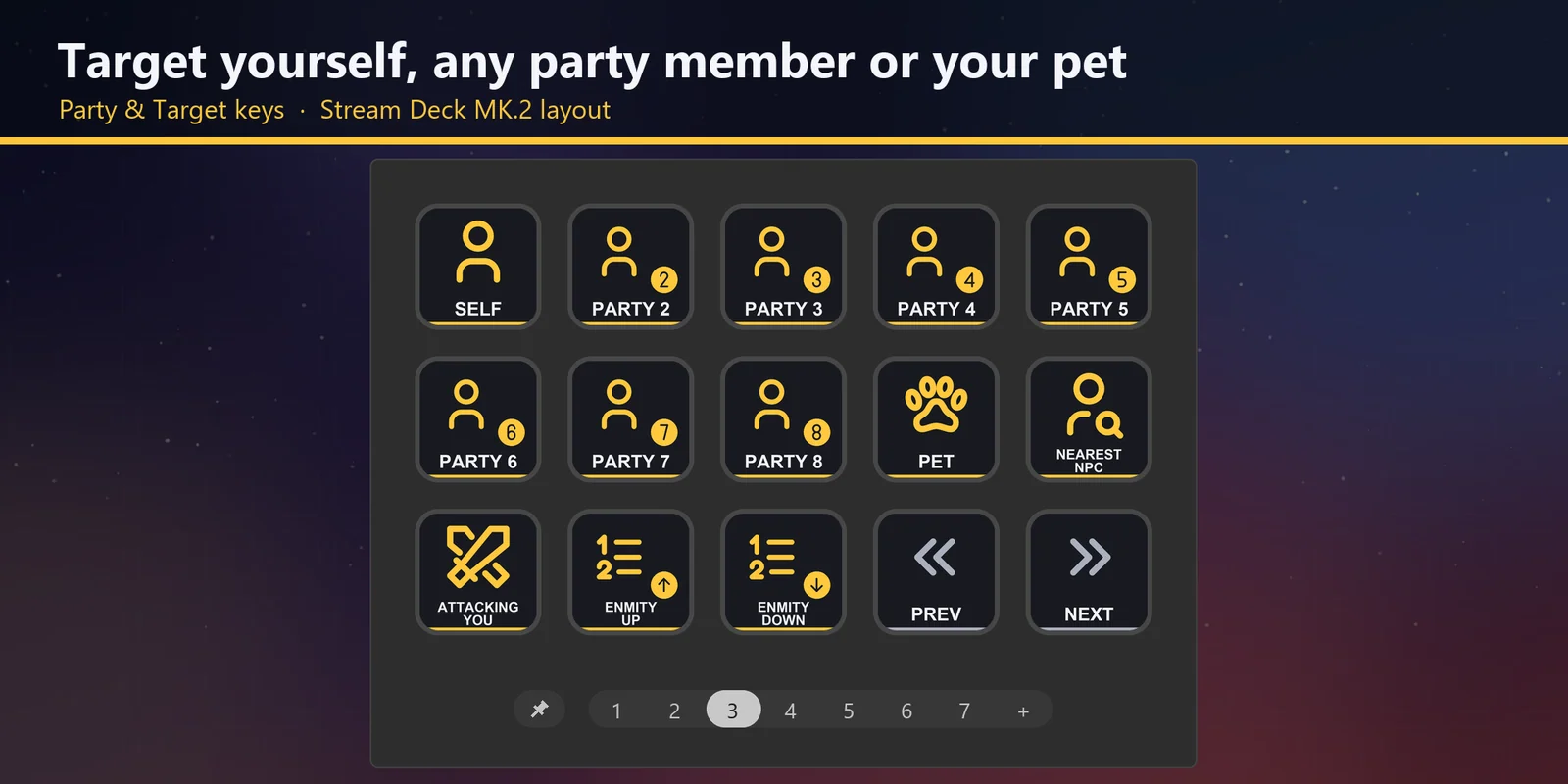
Next, previous and nearest enemy, the target's target, yourself, party members 2 to 8, your pet, the focus target and the enmity list.
Character, Inventory, Armoury Chest, Saddlebag, Map, Duty Finder, Journal, Actions, Social, Configs, Currency and Timers.
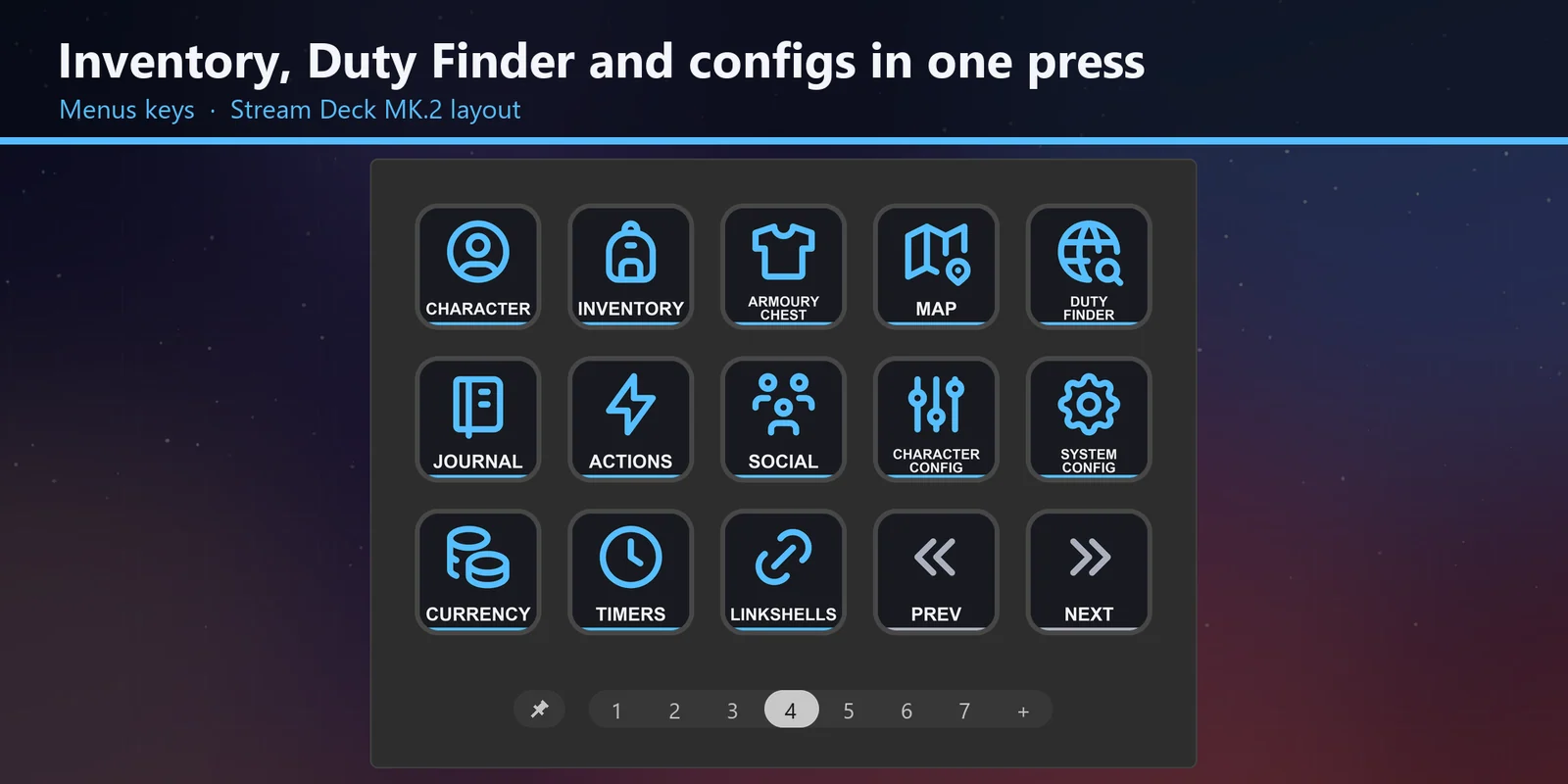
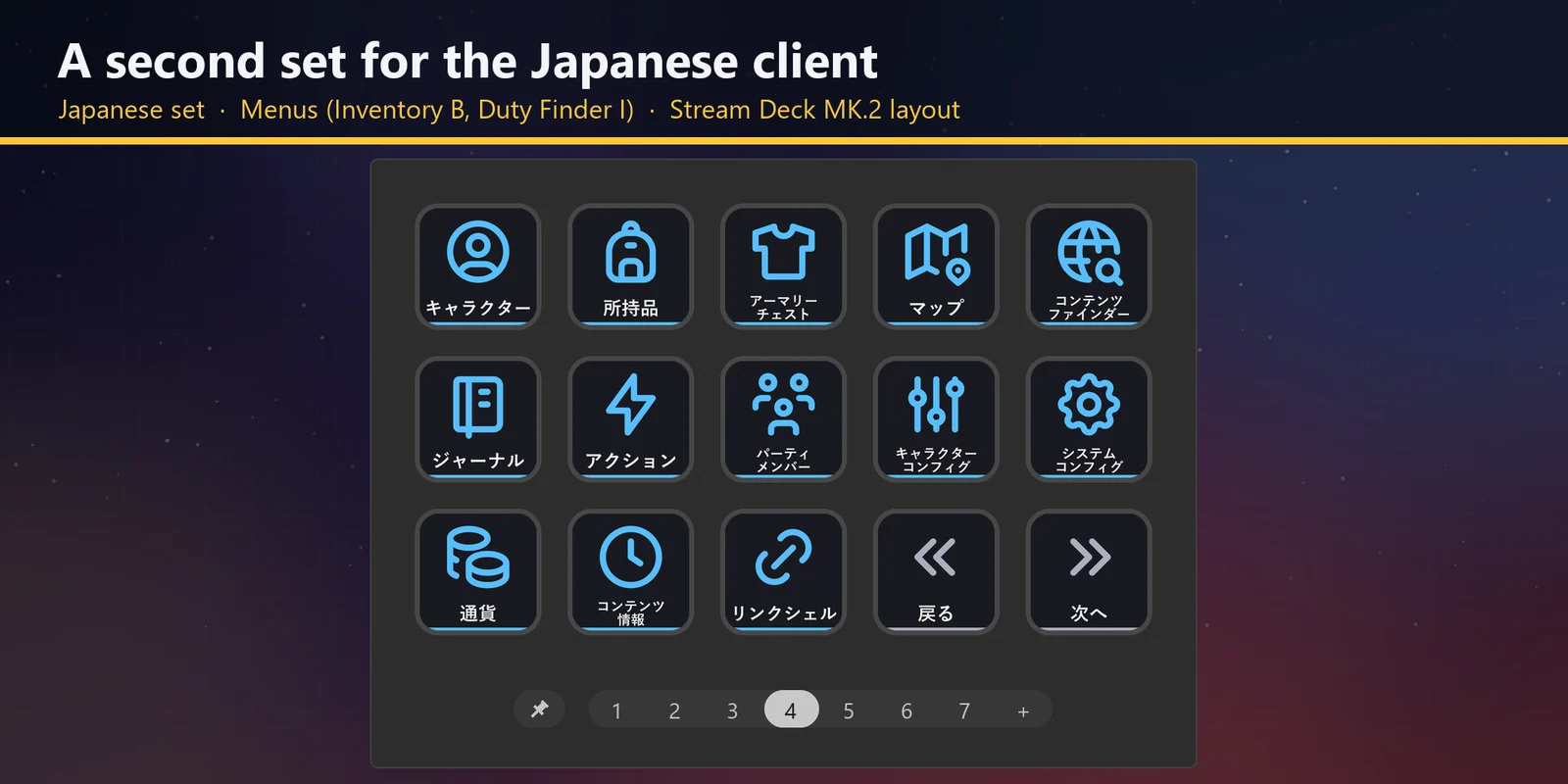
The download holds the same keys twice, once for each client, because a few menu keys differ.
The Crafting, Gathering, Hunting and Fishing logs, signs, waymarks, hide UI and screenshot are on keys.
Zoom, view, save and return, flip, camera lock, auto-run, draw or sheathe and jump are on their own page.
Say, Party, Company, reply, Linkshell, Alliance and Cross-world Linkshell have a key each.
On Stream Deck +, + XL and Corsair Galleon 100 SD the dials zoom the camera and cycle your target.
It works with the current game, and it is updated for the 8.0 job changes when Evercold arrives in early 2027.
Set up
Good to knowEach key sends the game's default keyboard shortcut to the window in front.
FAQ
Short answers to what people ask before they add it.
Email contact
Download Hotbar Deck for FFXIV, open the file for your Stream Deck, start the game and keep its window in front. Each key then sends the game's default keyboard shortcut for its label, such as Hotbar 1, target or chat.
Yes. It works with the current game and is updated for the 8.0 job changes when Evercold arrives in early 2027. The keys send the game's keybinds, so your hotbars, targets, menus and chat carry on as before.
The Stream Deck MK.2, XL, Neo, + and + XL, and the Corsair Galleon 100 SD, with English or Japanese key labels. On the +, + XL and Galleon the dials zoom the camera and cycle your target.
No. The keys use the shortcuts the game already has, so nothing is added to the game and your game files stay as they are.
Open that key in the Stream Deck app and set its Hotkey to the key you use in the game. The profile is made for the game's default shortcuts.
Requirements
For the Stream Deck MK.2, XL, Neo, + and + XL and the Corsair Galleon 100 SD with the Stream Deck app, and FINAL FANTASY XIV on Windows (English or Japanese client) with its default keyboard shortcuts.
A Stream Deck profile sold directly by GRAMSHIFT.
More for your Stream Deck
For the Stream Deck MK.2, XL, Neo, + and + XL and the Corsair Galleon 100 SD with the Stream Deck app, and FINAL FANTASY XIV on Windows (English or Japanese client) with its default keyboard shortcuts.
Buy from GRAMSHIFTOne-time purchase direct from GRAMSHIFT, plus any tax at checkout. A download link appears right after payment, and the receipt arrives by email.