GRAMSHIFTGet it
Live Keys for Lightroom Classic icon
Live Keys for Lightroom ClassicStream Deck plugin for Windows and macOS

Flags, stars and live Develop values on your Stream Deck

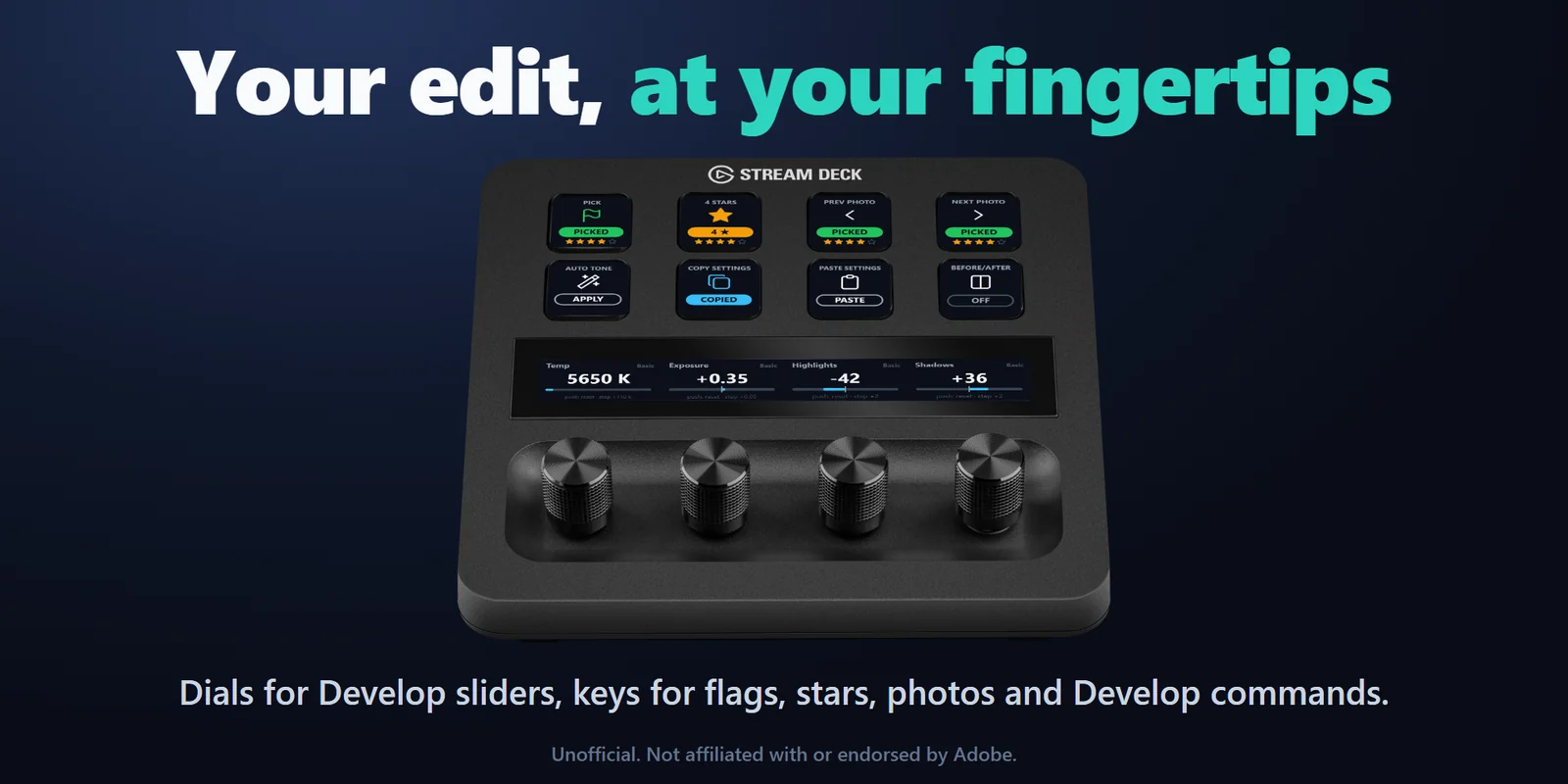
Cull with keys lit by each photo's flag, nudge sliders with their value shown, and turn HSL on Stream Deck + dials.

One-time purchase direct from GRAMSHIFT, plus any tax at checkout. One license key for up to 3 computers; the plugin goes online to check its license key.

Live Keys for Lightroom Classic: Flags, stars and live Develop values on your Stream Deck

Overview

What Live Keys for Lightroom Classic does

To cull and edit in Lightroom Classic from a Stream Deck, add Live Keys for Lightroom Classic, press its Setup key and restart Lightroom Classic once: pick, reject and star keys then light with the flag and stars of the photo you are on, and slider keys move Exposure, Highlights, Temp or any other Develop setting one step at a time, with the live value on the key.

On a Stream Deck +, the dials turn Develop and HSL sliders with the value and a bar on the touch strip, and command keys run Auto Tone, Before/After, Undo and Redo, or sync settings to all the selected photos in one press.

Features

What you can do

01

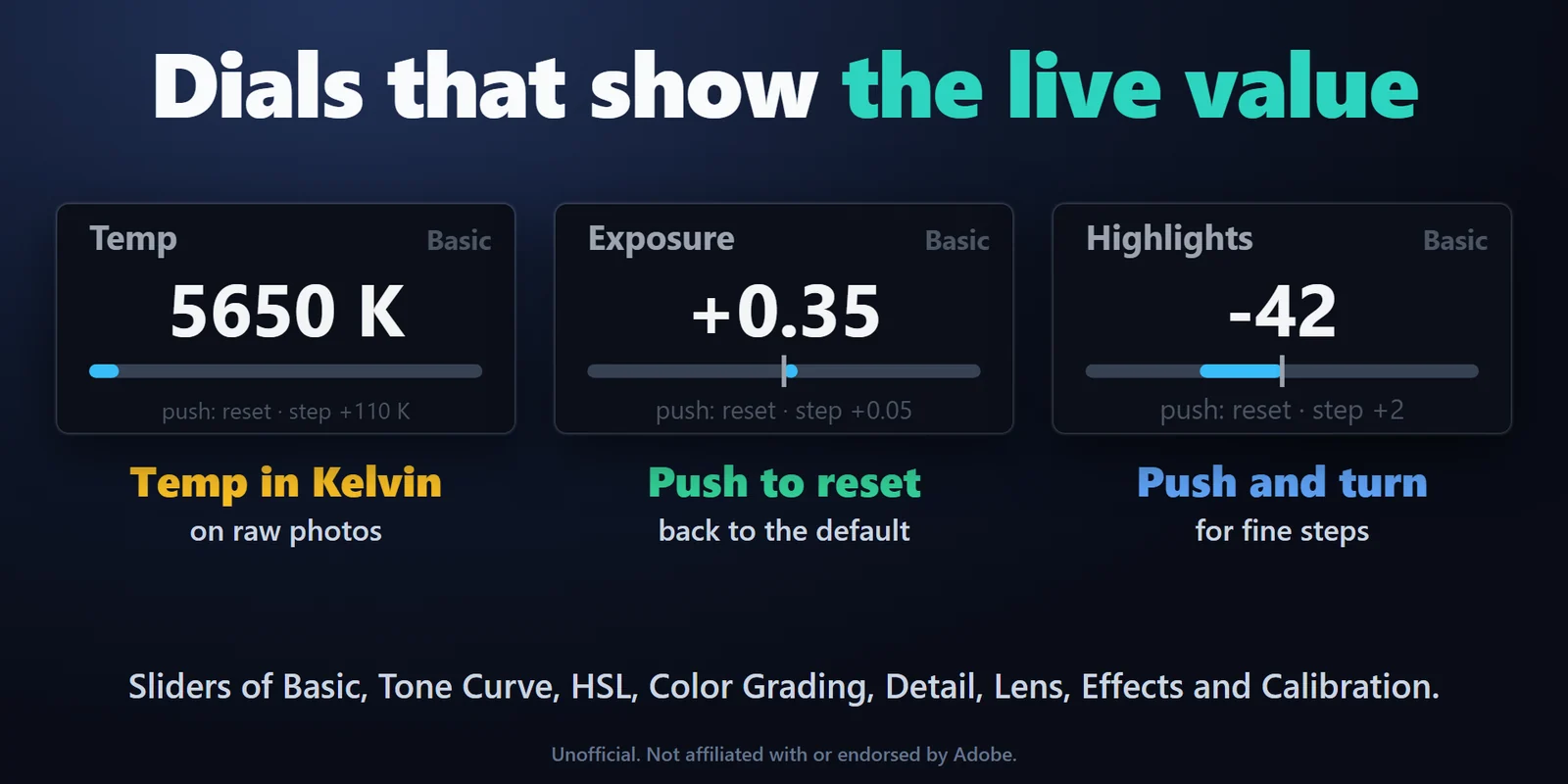
Develop sliders with the live value

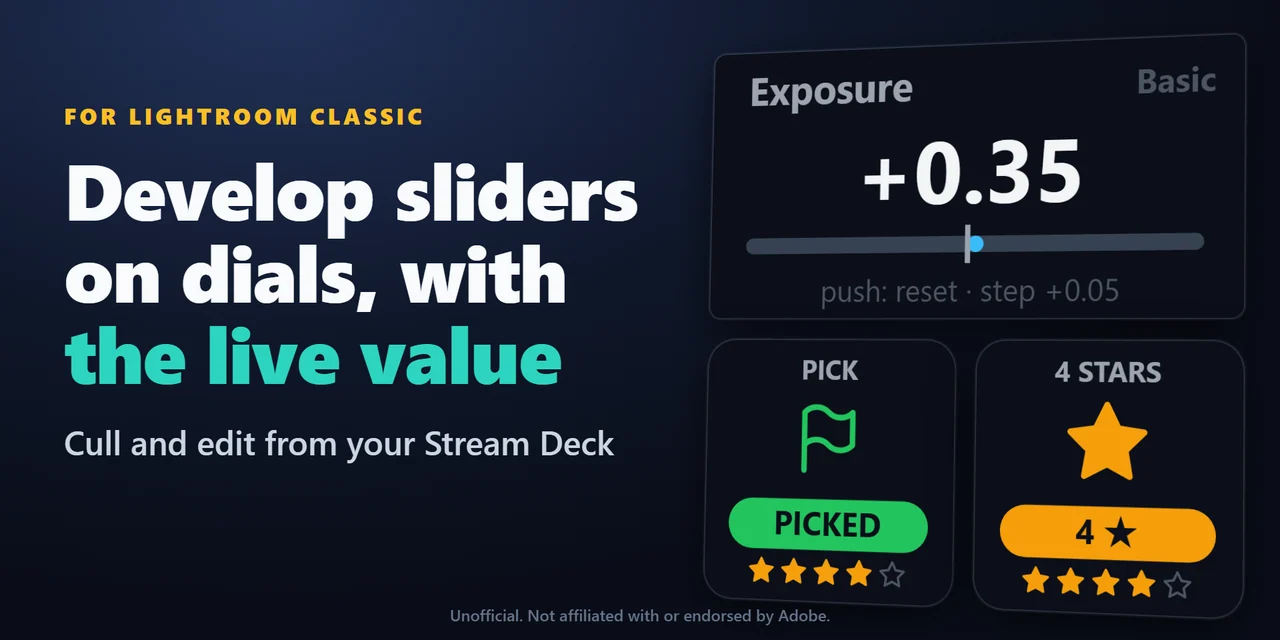
A Develop Slider key moves a slider one step up or down, or back to the default, and shows the value Lightroom Classic has right now. Pick from Basic, Tone Curve, HSL, Color Grading, Detail, Lens Corrections, Effects and Calibration, or type any other Develop setting by its name.

Develop sliders with the live value: A Develop Slider key moves a slider one step up or down, or back to the default, and shows the value Lightroom Classic has right now. Pick from Basic, Tone Curve, HSL, Color Grading, Detail, Lens Corrections, Effects and Calibration, or type any other Develop setting by its name.
02

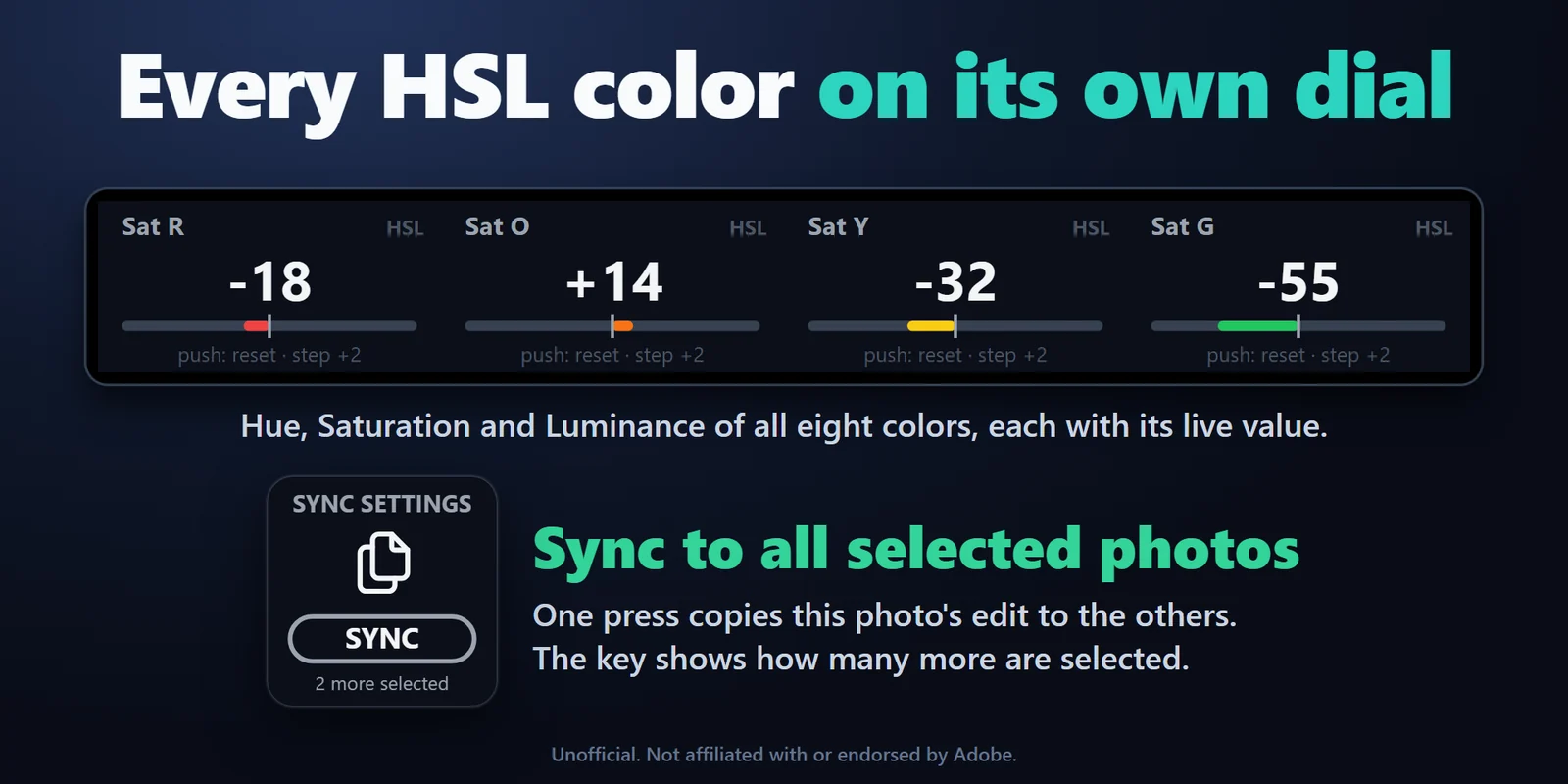
Every HSL color on a dial

A dial can follow the Hue, Saturation or Luminance of any of the eight colors, from Red to Magenta, with the live value and a bar in that color.

Every HSL color on a dial: A dial can follow the Hue, Saturation or Luminance of any of the eight colors, from Red to Magenta, with the live value and a bar in that color.
03

Turn Stream Deck + dials

A Develop Dial turns a Develop slider with its name, live value and a bar on the touch strip. Temp shows in Kelvin on raw photos, pushing in while turning makes fine steps, and a push or a tap on the strip goes back to the default. Each dial has its own step size.

Turn Stream Deck + dials: A Develop Dial turns a Develop slider with its name, live value and a bar on the touch strip. Temp shows in Kelvin on raw photos, pushing in while turning makes fine steps, and a push or a tap on the strip goes back to the default. Each dial has its own step size.
04

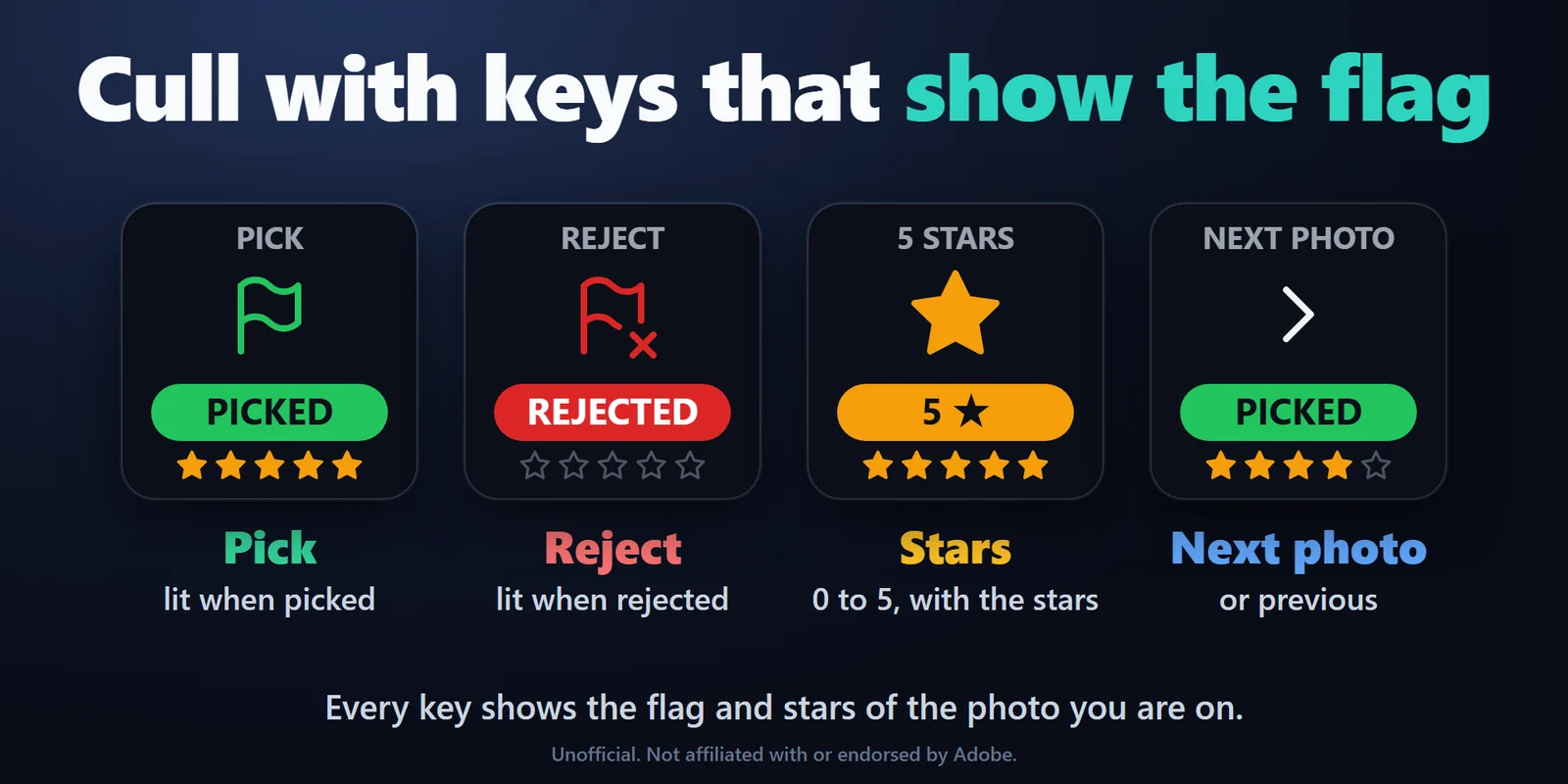
Cull on the keys

Flag keys pick, reject or unflag the selected photos and light green or red with the flag of the photo you are on, with its stars below. Rating keys set 0 to 5 stars, and Next and Previous Photo keys move through the filmstrip.

Cull on the keys: Flag keys pick, reject or unflag the selected photos and light green or red with the flag of the photo you are on, with its stars below. Rating keys set 0 to 5 stars, and Next and Previous Photo keys move through the filmstrip.
05

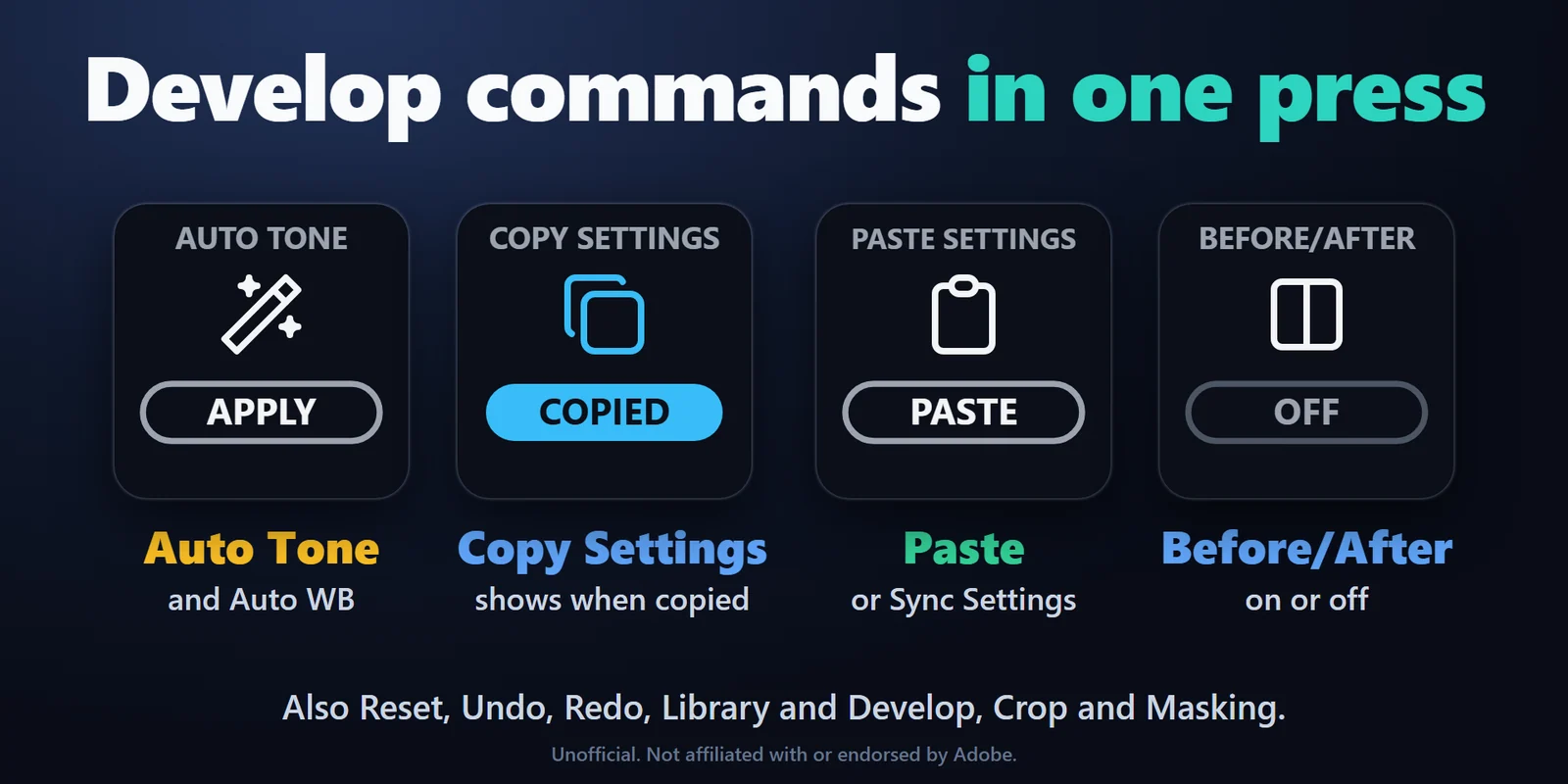
Develop commands in one press

Auto Tone, Auto White Balance, Reset, Before/After, Undo and Redo, and keys that go to Library, Develop, Crop or Masking.

Develop commands in one press: Auto Tone, Auto White Balance, Reset, Before/After, Undo and Redo, and keys that go to Library, Develop, Crop or Masking.

Also built in

  • Sync in one press

    Sync Settings sends the settings of the photo you are on to all the selected photos, and the key shows how many more photos are selected. Copy Settings and Paste Settings keys show when settings are ready to paste.

  • Your own labels

    Give any key your own label in its settings, so a full Stream Deck still reads at a glance.

  • In English and Japanese

    The keys and the settings are in Japanese when the Stream Deck app is, and in English otherwise.

  • Clear when Lightroom is closed

    The keys say NO LIGHTROOM instead of showing old values, and connect again by themselves when Lightroom Classic opens.

  • Private by design

    The keys talk only to Lightroom Classic on this computer, through a small Lightroom plug-in that comes with them. What they read stays on your computer; the only thing the plugin sends online is its license key check.

Set up

How it works

  1. Buy Live Keys for Lightroom Classic from GRAMSHIFT and open the downloaded plugin file: the Stream Deck app installs it. Drag the Setup key onto your Stream Deck, paste your license key in its settings and choose Activate.
  2. Press the Setup key, or Install the Lightroom plug-in in any key's settings, and restart Lightroom Classic once. From then on the keys connect by themselves whenever Lightroom Classic is open.
  3. In the Stream Deck app, drag Flag, Rating, Next / Previous Photo, Develop Slider or Command onto keys, and Develop Dial onto Stream Deck + dials. In each key's settings, pick the slider, color or command.
  4. Edit as usual: the keys show the flag, stars and slider values of the photo you are on, and change with it when you move to another photo.

Good to knowThe keys talk to Lightroom Classic through the Lightroom plug-in that comes with them, on this computer only.

Get Live Keys for Lightroom Classic

FAQ

Questions

Short answers to what people ask before they add it.

Something not working?

Email contact@gramshift.com and we will help you get it going. You can also use the support page.

How do I control Lightroom Classic with a Stream Deck?

Add Live Keys for Lightroom Classic, press its Setup key and restart Lightroom Classic once. Then drag Flag, Rating, Develop Slider and Command keys onto your Stream Deck, and Develop Dials onto Stream Deck + dials.

Can I turn Develop and HSL sliders with Stream Deck + dials?

Yes. Put a Develop Dial on a dial and pick a slider, or the Hue, Saturation or Luminance of one color: the touch strip shows its live value and a bar. Push in and turn for fine steps, and push the dial or tap the strip to go back to the default.

Can I sync Develop settings to many photos with one key?

Yes. Select the photos in Lightroom Classic and press Sync Settings: the settings of the photo you are on go to all the selected photos. The key shows how many more photos are selected.

Why do the keys say NO LIGHTROOM or NOT INSTALLED?

NO LIGHTROOM means Lightroom Classic is closed; open it and the keys connect by themselves. NOT INSTALLED means the Lightroom plug-in is not in yet: press the Setup key and restart Lightroom Classic once. NOT LOADED means Lightroom Classic has not picked up the plug-in yet; restart Lightroom Classic once.

Does it work on Mac?

Yes. Live Keys for Lightroom Classic works on macOS 12 or later and on Windows 10 or 11, with Lightroom Classic 11 or later on the same computer.

Where do I get it, and on how many computers can I use it?

Live Keys for Lightroom Classic is sold on gramshift.com. One license key works on up to 3 of your own computers, Windows or Mac, and new versions download from your license key page.

Requirements

Before you buy

Works with

Works on Windows 10 or 11 or macOS 12 or later with the Stream Deck app 6.9 or later and any Stream Deck with keys (the dials need a Stream Deck +), with Lightroom Classic 11 or later on the same computer.

A Stream Deck plugin sold directly by GRAMSHIFT.

Limits

  • For Lightroom Classic 11 or later, not the cloud-based Lightroom. Lightroom Classic runs on the same computer as the Stream Deck app.
  • Dials and slider keys show values in the Develop module; turning one in the Library switches to Develop.
  • Copy, Paste and Sync Settings carry the Develop settings except crop, spot removal, red eye and masks.
  • The Before/After key shows the view it set: after changing the view with the mouse, press it again to bring them in step.
  • The plugin checks its license key with our server when you activate it, each time the plugin starts, and about once a day while it runs. If it cannot reach the server, it keeps working for up to 44 days after the last successful check.
  • If something does not work, email contact@gramshift.com in English or Japanese, or see the support page, and we will help. Tell us what you would like next: we add the most-requested features in the next version.

Get Live Keys for Lightroom Classic

Works on Windows 10 or 11 or macOS 12 or later with the Stream Deck app 6.9 or later and any Stream Deck with keys (the dials need a Stream Deck +), with Lightroom Classic 11 or later on the same computer.

Buy from GRAMSHIFT

One-time purchase direct from GRAMSHIFT, plus any tax at checkout. One license key for up to 3 computers; the plugin goes online to check its license key.