01
Play and move
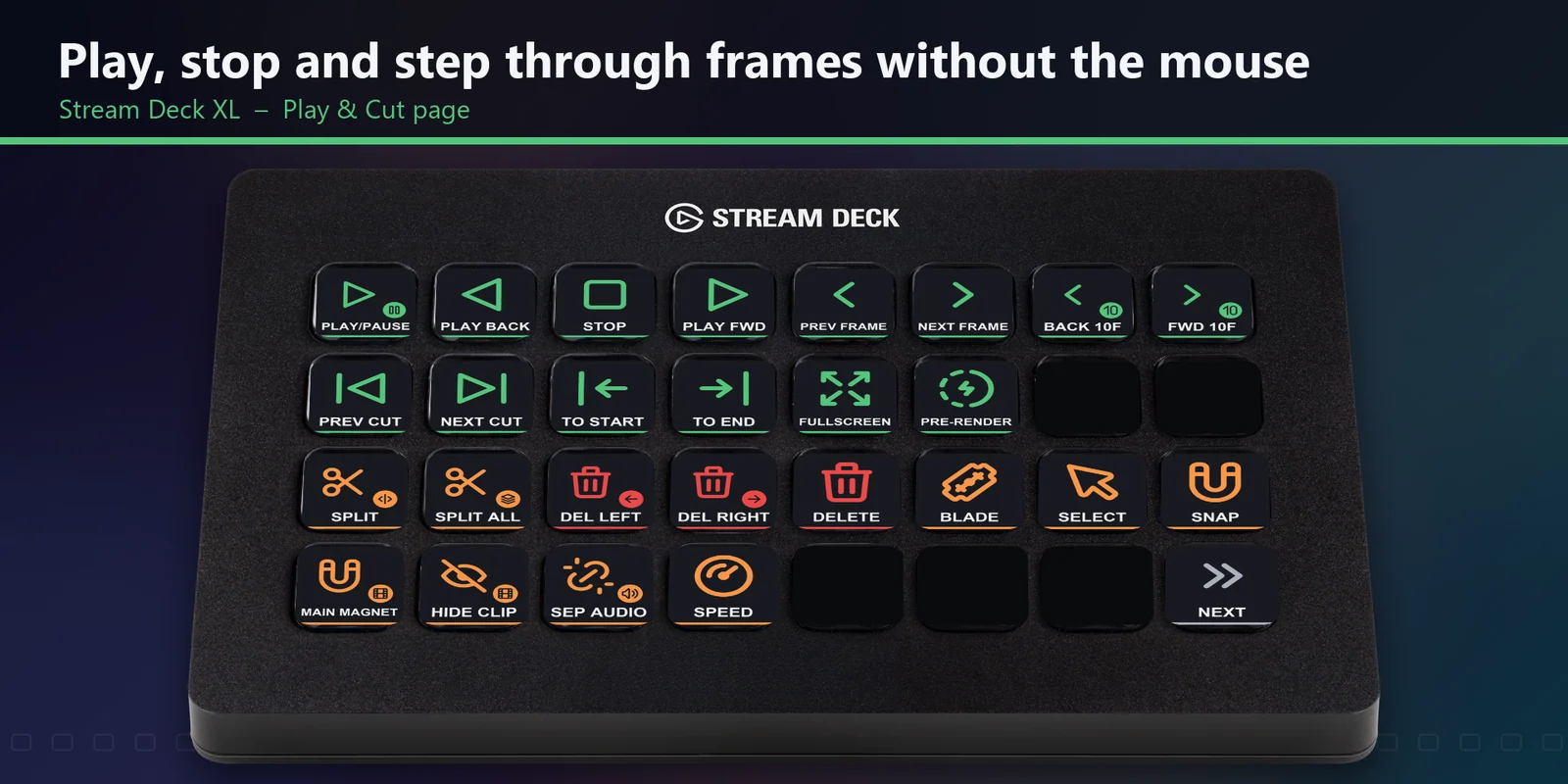
Play / pause, J K L play backward / stop / forward, previous / next frame, 10 frames back / forward, previous / next cut point, to start, to end and full-screen preview.
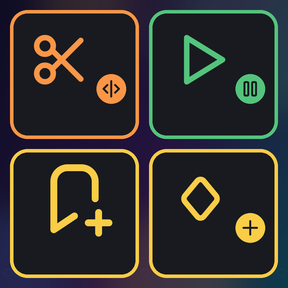
Split, trim, add markers and step through frames in CapCut for Windows from labeled Stream Deck keys.
Overview
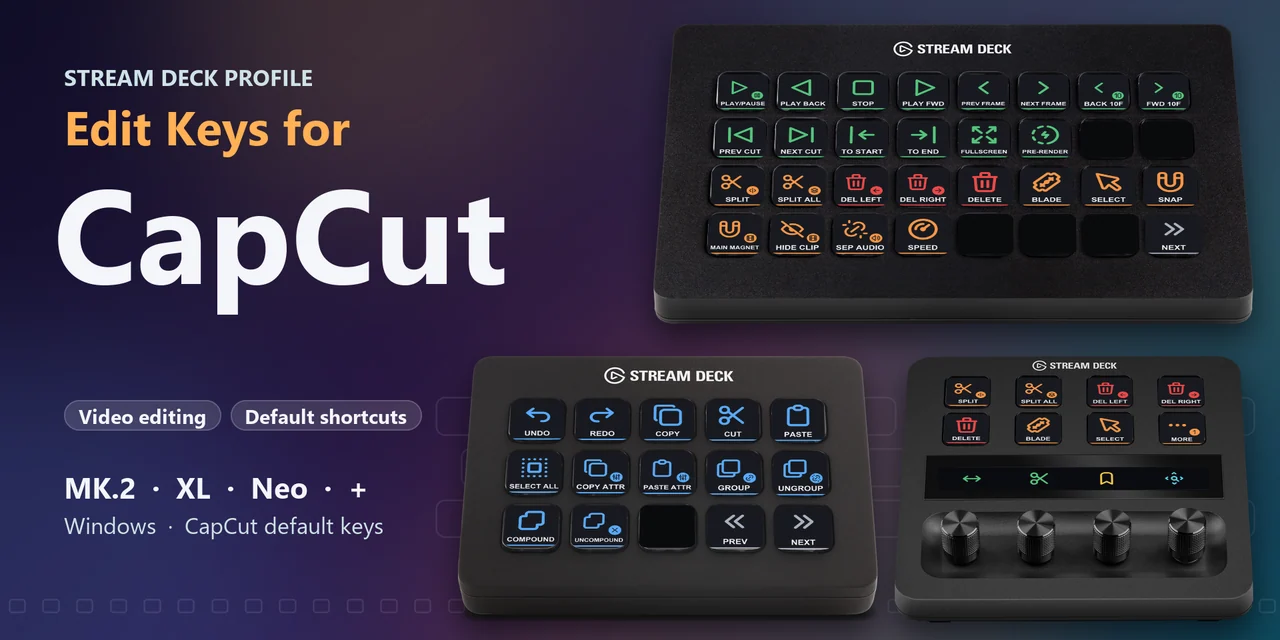
To edit in CapCut from a Stream Deck MK.2, XL, Neo or + on Windows, open the Edit Keys for CapCut profile for your device, open a project in CapCut and press a labeled key.
Each key of Edit Keys for CapCut sends CapCut's own default keyboard shortcut, so you split, trim, delete, add markers and step through frames with one press instead of a hunt for the right shortcut, and nothing is imported into CapCut.
Features
Play / pause, J K L play backward / stop / forward, previous / next frame, 10 frames back / forward, previous / next cut point, to start, to end and full-screen preview.
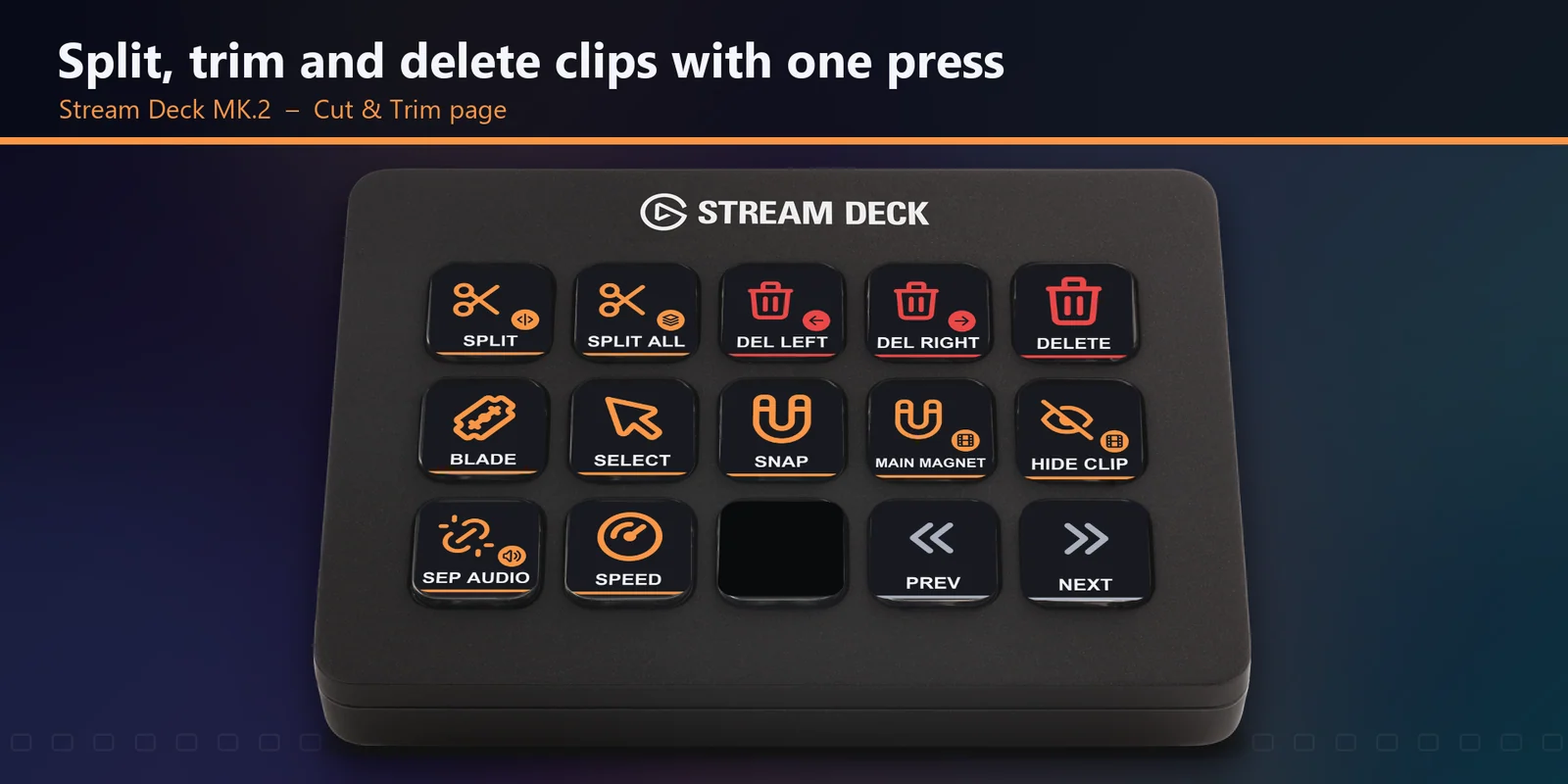
Split, split all tracks, delete left / right of the playhead, delete, blade and select tools, snapping, main-track magnet, hide clip, separate audio and the speed panel.
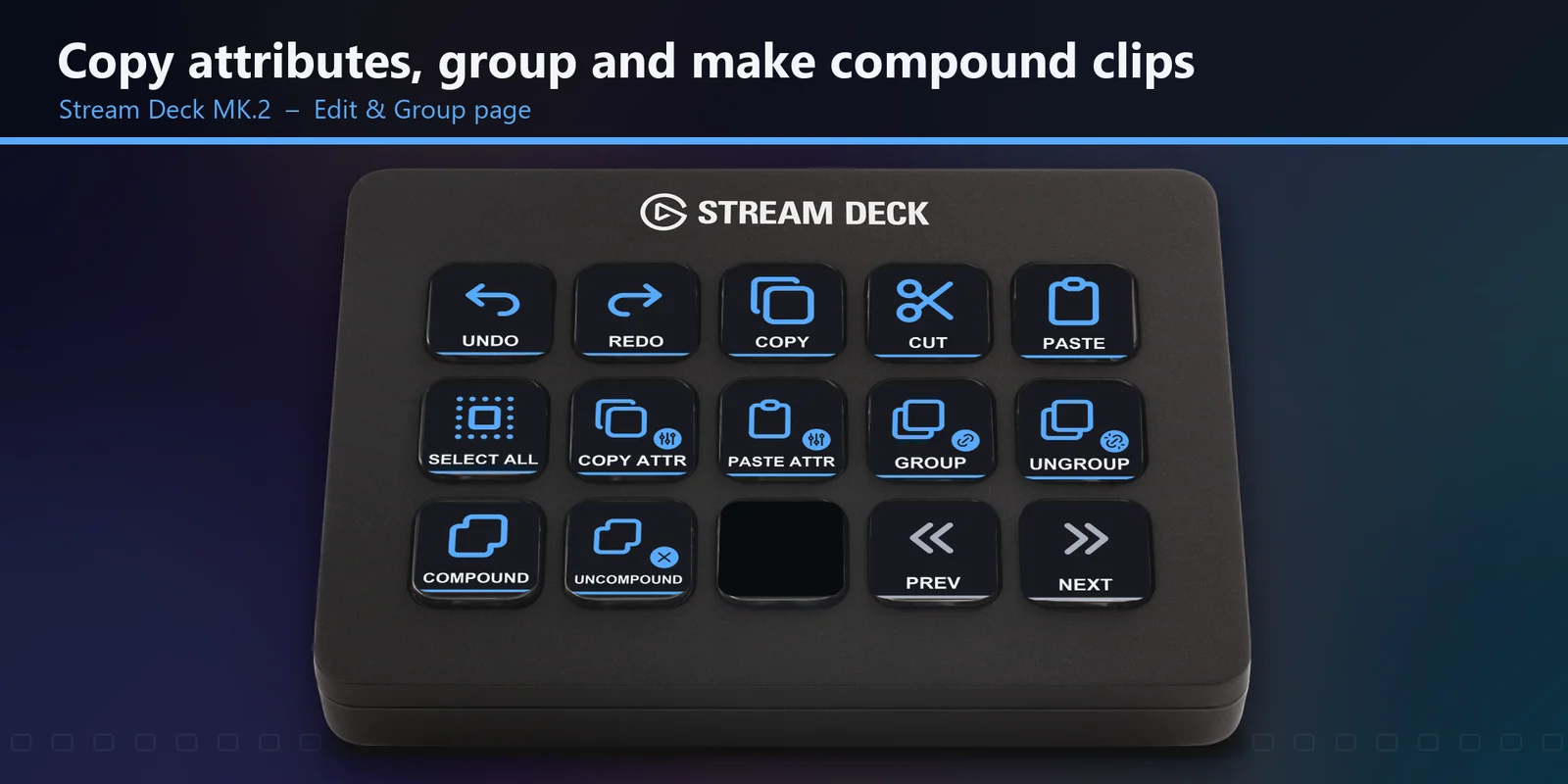
Undo, redo, copy, cut, paste, select all, copy / paste attributes, group, ungroup, compound clip and undo compound clip.
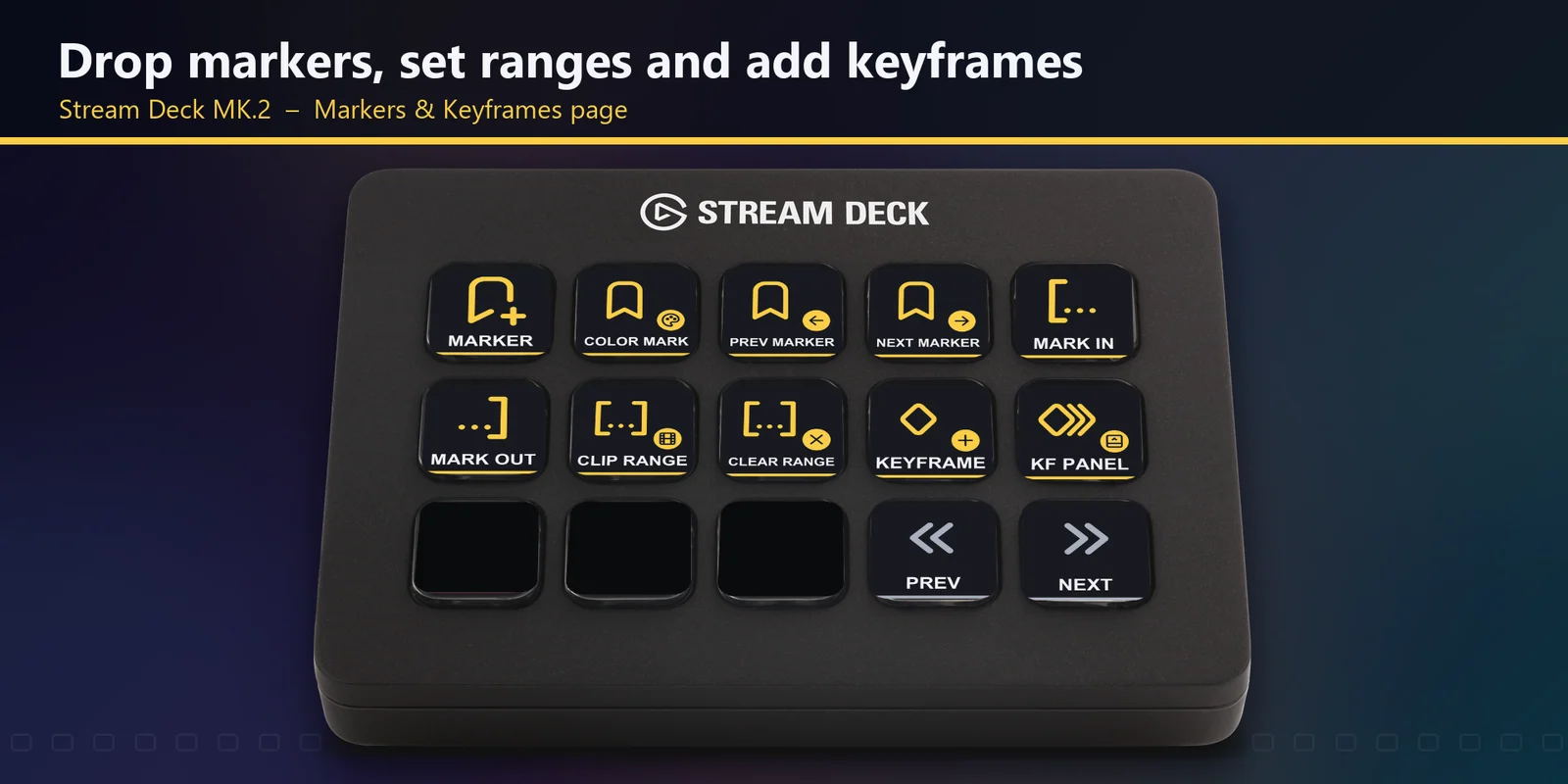
Add a marker, a marker in another color, previous / next marker, mark in, mark out, range from the selected clip, clear range, add a keyframe and the keyframe panel.
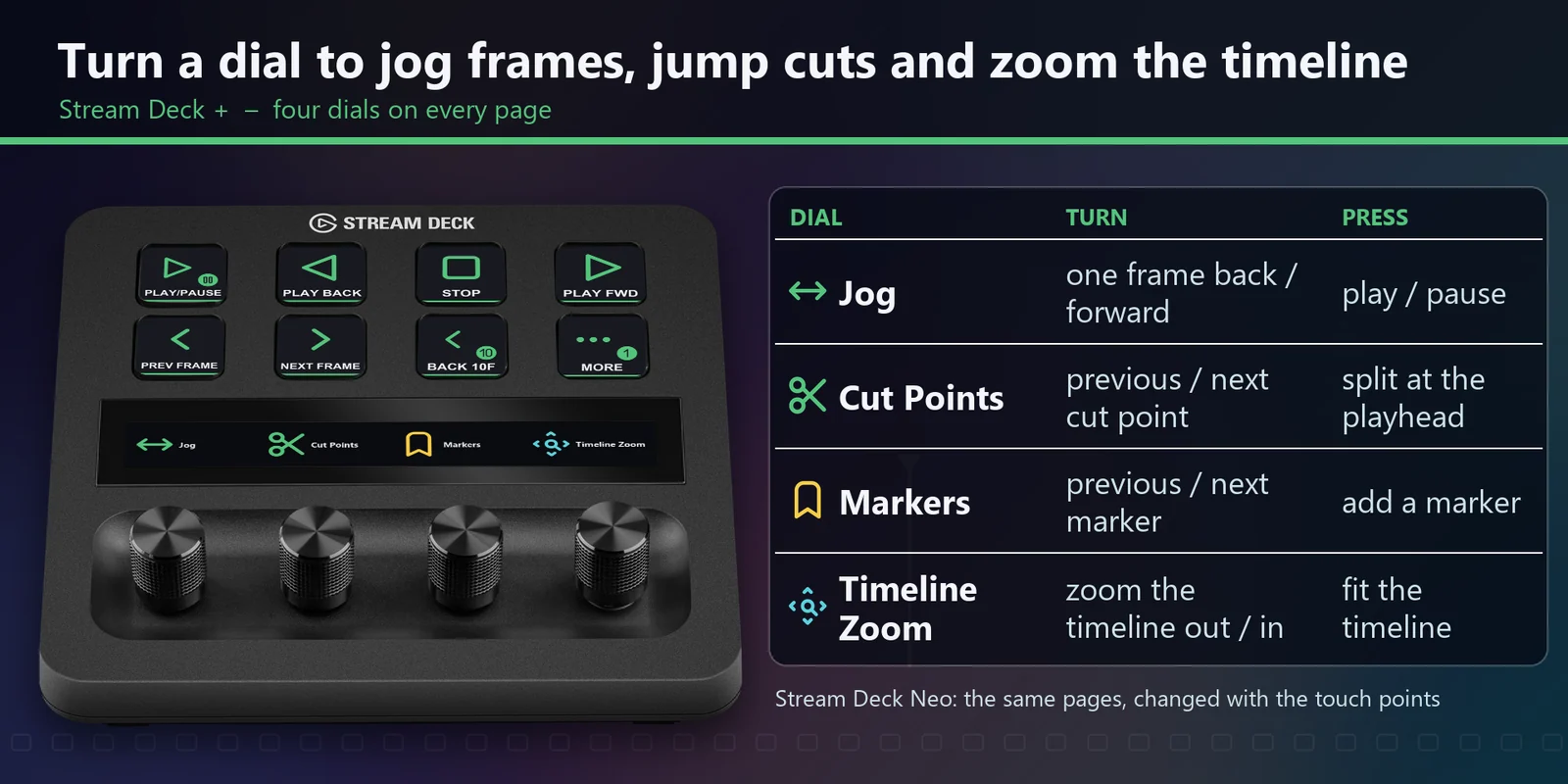
Jog steps one frame, Cut Points jumps between cuts and splits, Markers jumps between markers and adds one, and Timeline Zoom zooms and fits the timeline, the same on every page.
The keys send CapCut's own default keyboard shortcuts, so nothing is imported and no CapCut setting changes.
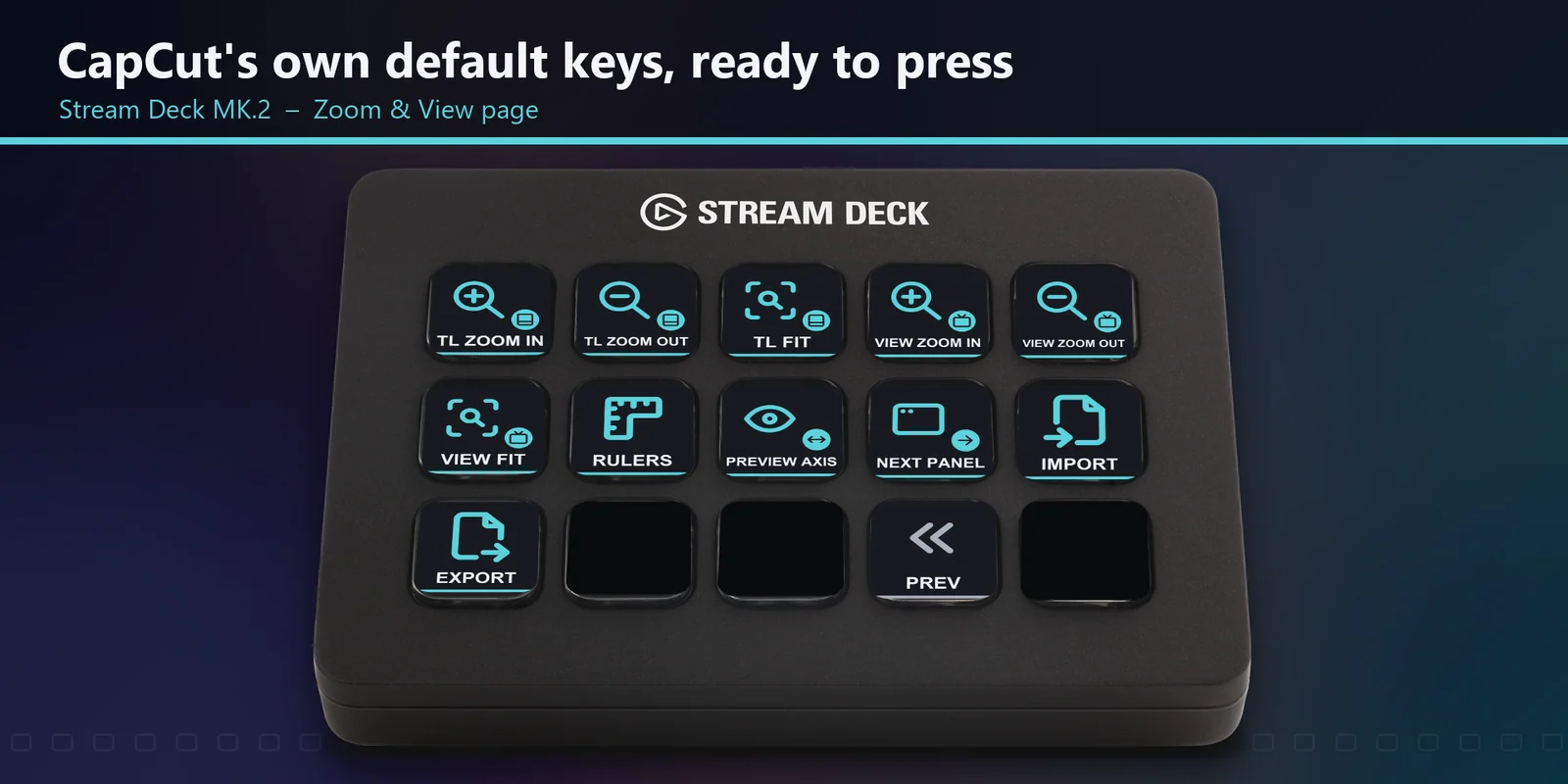
Timeline zoom in / out / fit, player zoom in / out / fit, player rulers, preview axis, next panel, import media and export.
Keys that close CapCut or leave your project are left out, so a wrong press cannot end your edit.
Set up
Good to knowEach key sends the default CapCut for Windows keyboard shortcut for its label to the window in front.
Coming soon: Elgato Marketplace
FAQ
Short answers to what people ask before they add it.
Email contact
Open the Edit Keys for CapCut profile for your Stream Deck MK.2, XL, Neo or +, open a project in CapCut for Windows, keep CapCut in front and press a key. Each key sends CapCut's default keyboard shortcut for its label, such as Split, Delete Left, Marker or Keyframe.
No. The keys use the shortcuts CapCut already has, so nothing is added to CapCut and your CapCut settings stay as they are. If you changed a shortcut in CapCut, change the matching key's Hotkey in the Stream Deck app.
The Stream Deck MK.2, XL, Neo and + on Windows. On the MK.2 each kind of work has a page, the XL puts the keys on three pages, and on the Neo and + the touch points or the touch strip change pages.
Keep CapCut in front with a project open, and click the timeline or the player first if you were typing in a text box. The keys are for CapCut's default shortcut set; if you picked the Premiere Pro set in Settings, switch back or change the matching keys in the Stream Deck app.
Yes. The zoom keys send the number-pad + and - instead of symbol keys that move between keyboard layouts, and the Stream Deck sends the key, so your keyboard does not need a number pad.
No. The profiles are for CapCut for Windows (the desktop app) on Windows.
Requirements
For the Stream Deck MK.2, XL, Neo and + on Windows with the Stream Deck app, and CapCut for Windows (the desktop app) with its default shortcuts.
A Stream Deck profile sold on the Elgato Marketplace.
More for your Stream Deck
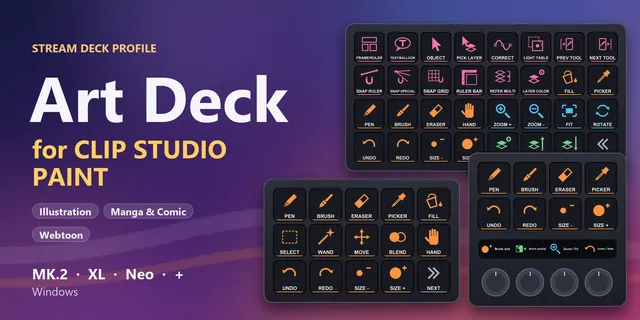
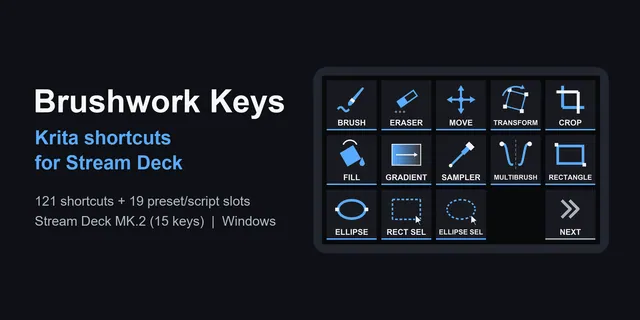
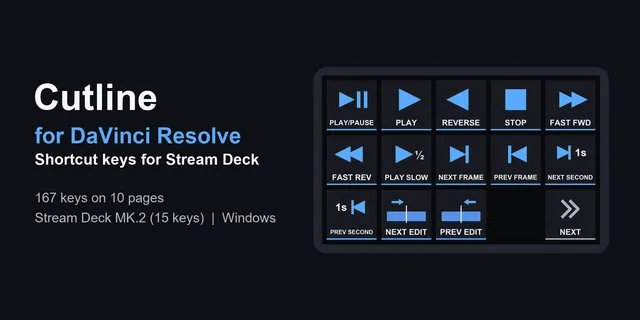
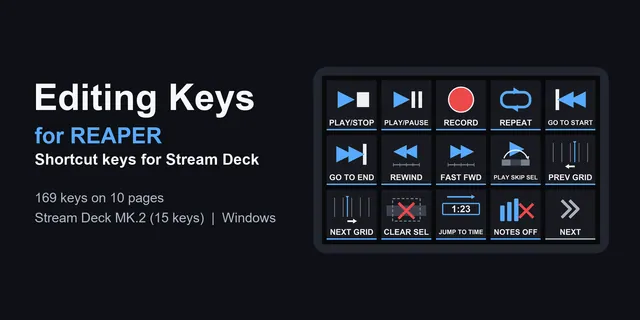
For the Stream Deck MK.2, XL, Neo and + on Windows with the Stream Deck app, and CapCut for Windows (the desktop app) with its default shortcuts.
Coming soon: Elgato Marketplace