The VRChat camera on your Stream Deck keys
Take photos, zoom, set exposure and switch camera modes in VRChat from your Stream Deck keys, without opening menus.
One-time purchase direct from GRAMSHIFT, plus any tax at checkout. One license key for up to 3 computers; the plugin goes online to check its license key.
Overview
What Camera Deck for VRChat does
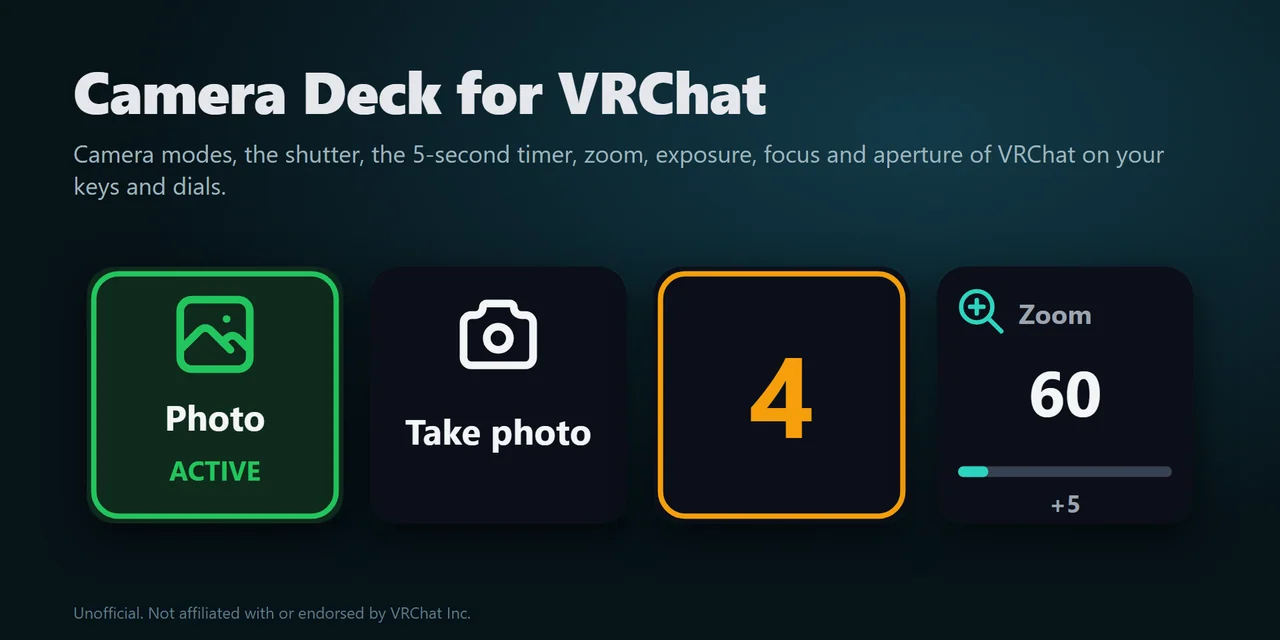
To control the VRChat camera from a Stream Deck, add Camera Deck for VRChat and drag its keys onto your Stream Deck: one press takes a photo, starts the 5-second timer, switches between Photo, Stream, Multilayer and Drone, or turns green screen and lock on and off, right from your keys in VRChat on PC.
Camera Value keys step zoom, exposure, focal distance and aperture up or down and show the value with a bar, and on Stream Deck + a dial changes the value as you turn it. Every key shows the camera's current state, so you see the active mode and settings at a glance.
Features
What you can do
- Switch camera modes
Photo, Stream, Multilayer, Drone, Emoji and Print, with the key lit while its mode is on.
- Take photos from the deck
One press takes a photo, and the Timer key uses VRChat's 5-second timer and counts down the seconds on the key, so you can get into the shot.
- Set the picture
Step zoom, exposure, focal distance and aperture up or down, or reset them, in steps you choose. Fly speed, turn speed and smoothing work the same way.
- Turn camera settings on and off
Green screen, lock, landscape, show focus, flying, look at me, show me or other players, UI in photo and more, with ON or OFF on the key.
- Use dials on Stream Deck +
Turn a dial to change a camera value, push or touch it to reset, and see a bar on the touch strip.
- Close the camera
Close it from a key when you are done, and see on every key whether the camera is open right now.
Set up
How it works
- Buy Camera Deck for VRChat from GRAMSHIFT and open the plugin file you download. The Stream Deck app installs it.
- Drag the keys you want onto your Stream Deck and enter your license key once in a key's settings.
- Start VRChat, turn on OSC in VRChat (Action Menu → Options → OSC → Enabled) and open the camera. The keys find VRChat by themselves.
Good to knowThe keys talk to VRChat on your PC through its OSC feature. Your photos and camera settings stay in VRChat on your PC.
FAQ
Questions
Short answers to what people ask before they add it.
Email contact
How do I control the VRChat camera from a Stream Deck?
Install Camera Deck for VRChat, drag the keys you want onto your Stream Deck and enter your license key once. Start VRChat, turn on OSC in VRChat (Action Menu → Options → OSC → Enabled) and open the camera. The keys find VRChat by themselves.
Can I change zoom and exposure without opening the camera menu?
Yes. A Camera Value key steps zoom, exposure, focal distance, aperture, fly speed, turn speed or smoothing up or down, or resets it. On Stream Deck +, turn a dial to change the value and push it to reset.
Can I take a timer photo from a Stream Deck key?
Yes. The Timer key uses VRChat's 5-second timer and counts down on the key, so you can press it and get into the shot.
Why do the keys say Open camera?
The camera is closed in VRChat. Open the camera from VRChat's own menu; the keys work while it is open, and while it is closed a press sends nothing.
Why do the keys say VRChat not found?
VRChat is not running, or OSC is off. Start VRChat and turn on OSC in VRChat (Action Menu → Options → OSC → Enabled). The Status line in a key's settings says what is missing.
How many PCs can I use with one license key?
Up to 3 of your own PCs. If you replace a PC, email us and we free up a place for the new one.
Requirements
Before you buy
Works with
Works on Windows 10 or later with the Stream Deck app 6.9 or later and VRChat on PC with OSC turned on.
A Stream Deck plugin sold directly by GRAMSHIFT.
Limits
- Windows only. Needs VRChat on PC with OSC turned on in VRChat (Action Menu → Options → OSC → Enabled).
- The plugin's keys and settings are in English and Japanese.
- Open the camera from VRChat's own menu first: no key can open it. While the camera is closed, the keys show Open camera and send nothing.
- Emoji and Print modes need VRChat+.
- Values stay inside the range the VRChat camera accepts: for example, zoom stops at 20 and 300, and exposure at -10 and 4.
- If a key cannot reach VRChat, the Status line in its settings says why. If your firewall asks, let Stream Deck use the local network.
- The plugin checks its license key online when you activate it, when it starts and about once a day. Without a connection it keeps working for up to 44 days after the last successful check.
- If something does not work on your setup, write to us at contact@gramshift.com, or ask for a refund within 14 days.
More for your Stream Deck
Related Stream Deck plugins
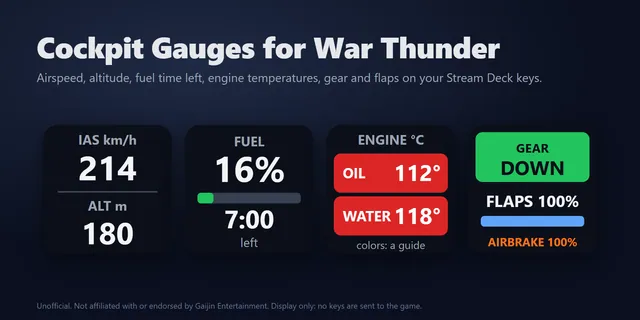 Cockpit Gauges for War ThunderShow War Thunder airspeed, altitude, fuel, engine temperatures and tank crew live on Stream Deck keys.
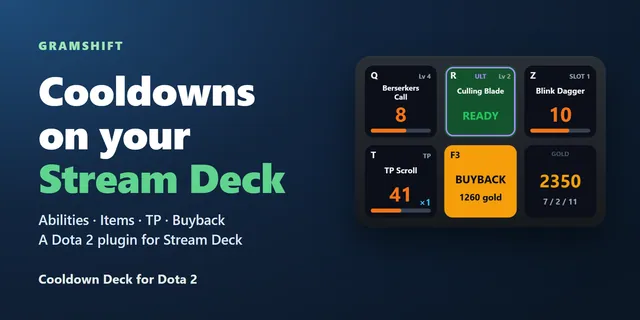 Cooldown Deck for Dota 2Each key shows one ability or item counting down, and a press casts it in the game.
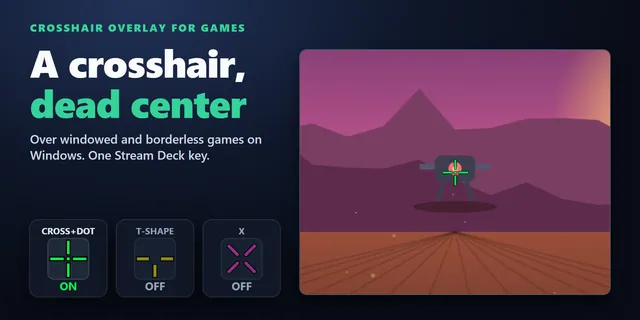 Crosshair Overlay for GamesShow a crosshair in the center of your screen over windowed and borderless games from a Stream Deck key.
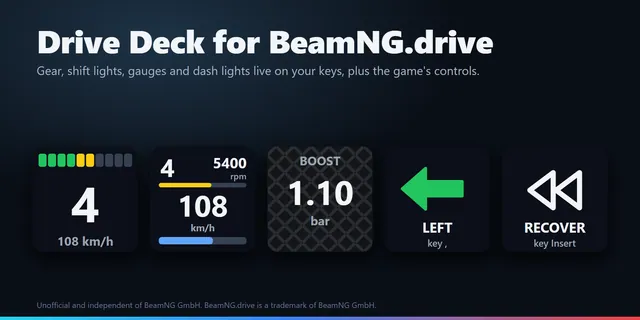 Drive Deck for BeamNG.driveBeamNG.drive gear, shift lights, rpm, fuel, temperatures and dash lights on Stream Deck keys, plus recover and reset.
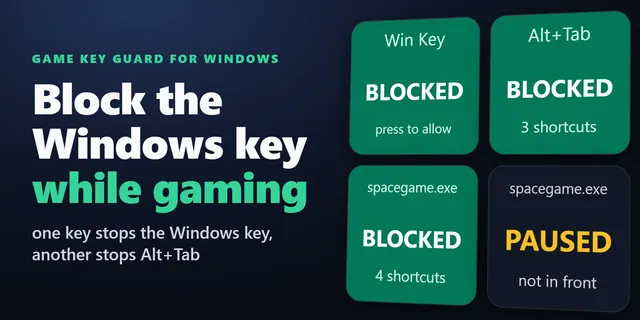 Game Key Guard for WindowsTurn off the Windows key and Alt+Tab while you play with one Stream Deck key; press again to turn them back on.
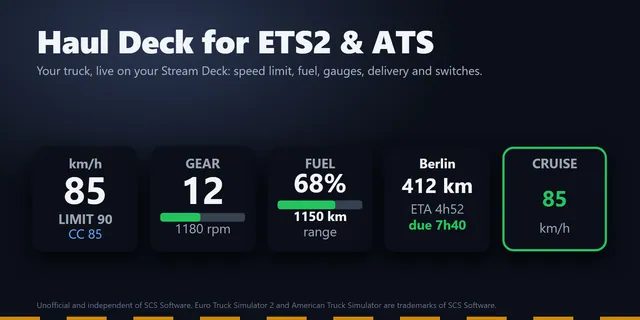 Haul Deck for ETS2 & ATSShow ETS2 and ATS speed against the limit, fuel, gauges and delivery ETA on Stream Deck keys, and switch your truck.
Get Camera Deck for VRChat
Works on Windows 10 or later with the Stream Deck app 6.9 or later and VRChat on PC with OSC turned on.
Buy from GRAMSHIFTOne-time purchase direct from GRAMSHIFT, plus any tax at checkout. One license key for up to 3 computers; the plugin goes online to check its license key.