From your phone
Open the face on Google Play. Tap the arrow next to the button and tick your watch, or scroll to “Available on more devices” and tap Install next to your watch.
GRAMSHIFT ART · Help
After you buy, one more step: choose the face on your watch. Once it has installed, that takes about a minute.
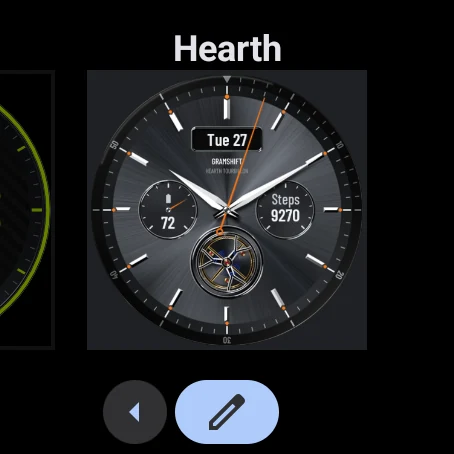
01
Use the same Google account on your phone and your watch. The faces work on Wear OS 4 or later (Pixel Watch, or Galaxy Watch4 and newer with the latest update). Any one of these three ways works.
Open the face on Google Play. Tap the arrow next to the button and tick your watch, or scroll to “Available on more devices” and tap Install next to your watch.
Open Play Store on the watch, search for the face’s name and GRAMSHIFT, and tap Install. Bought it on your phone already? With the same account Play shows Install instead of the price, so you pay only once.
Open the face on play.google.com and sign in with the same account. Choose your watch in the device menu and tap Install.
It usually arrives in a few minutes. Keep the watch on and connected to your phone or Wi‑Fi.
02
These are real screens from a Wear OS watch. The circle shows where to tap. On Galaxy Watch the screens look a little different, but the steps are the same.
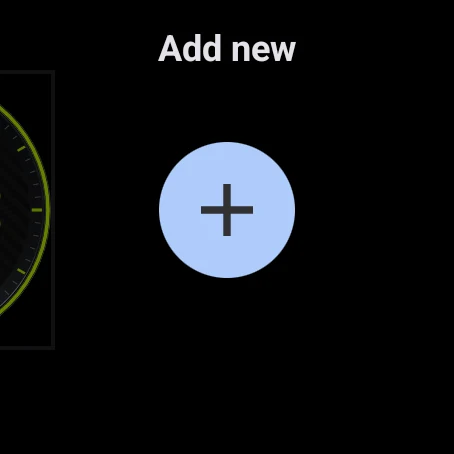
Touch and hold your watch face. Swipe left to the end and tap + (Add new).
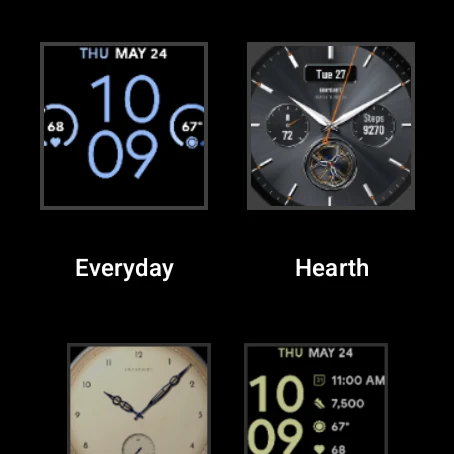
Find the face in the list and tap it.
It is now your watch face. To change its colors, tap the pencil.
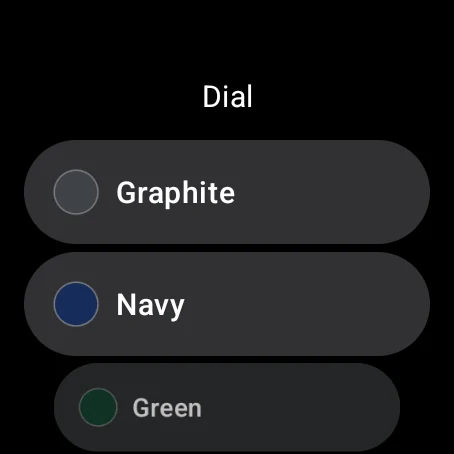
Pick a color or style. It changes right away.
The steps are the same. The buttons are named “Add watch face” and “Customize”.
You can also choose it in the Galaxy Wearable app or the Pixel Watch app on your phone: open Watch faces and pick it there.
03
This message is about your phone, not your watch. The face is made for watches, so this is expected. Tick your watch in the install menu, or install it from Play Store on the watch.
After buying, you choose it on the watch: touch and hold your watch face, swipe left to the end, tap + and pick it in the list.
Wait 2 to 5 minutes. Then open Play Store on the watch and search for the face’s name and GRAMSHIFT: if it shows Install, tap it. Restarting the watch also helps.
Check that Play Store on the watch uses the Google account you bought with. Then it shows Install instead of the price.
Keep the watch charging and connected to your phone or Wi‑Fi, and wait a few minutes. Still stuck? Restart the watch and install it from Play Store on the watch.
The faces need Wear OS 4 or later, for example Pixel Watch or Galaxy Watch4 and newer with the latest update. Apple Watch and watches on Wear OS 3 or older cannot install them.
Those spots show info such as steps or weather. If your watch has none for a spot, tap the pencil and pick another.
Write to us with your watch model. We will help you set it up. contact